

Administrator or above
Set up single sign-on with any OpenID Connect provider
Use the Open ID Connect login provider when your identity provider supports OpenID Connect but has no entry of its own in Select a Login provider. This guide covers what to register in the provider and which values to bring back. The Astrato steps after that are the same for every provider and live on Set up single sign-on.
If your provider is Okta, Microsoft Entra ID, Amazon Cognito, Keycloak, Ping Identity or Google Workspace, use its own guide instead.
Before you start
Section titled “Before you start”- You meet the requirements in Set up single sign-on, and have read Do not lock yourself out.
- You can register a web application (a confidential client) in your identity provider and read its client ID and client secret.
- The people who will sign in have an email address in the provider. Astrato identifies people by email, and the provider must return it in the ID token.
What the provider must support
Section titled “What the provider must support”| Requirement | Value |
|---|---|
| Grant type | Authorization code |
| Client authentication | A client ID and a client secret |
| Scopes | openid profile email |
| Redirect URIs | Both callback URLs from Astrato’s Configuration tab |
| Sign-out redirect | The sign-out redirect URL from the same tab, if the provider asks for one |
| Discovery | A discovery document at <issuer>/.well-known/openid-configuration |
Copy the callback URLs from Astrato
Section titled “Copy the callback URLs from Astrato”-
In Astrato, open Administration → Enterprise Connection and stay on Login connections.
-
Select Add connection and choose Open ID Connect in Select a Login provider.
-
Leave the Configuration tab open. It lists the grant type, the sign-on method, two callback URLs, the sign-out redirect URL and the scopes
openid profile email.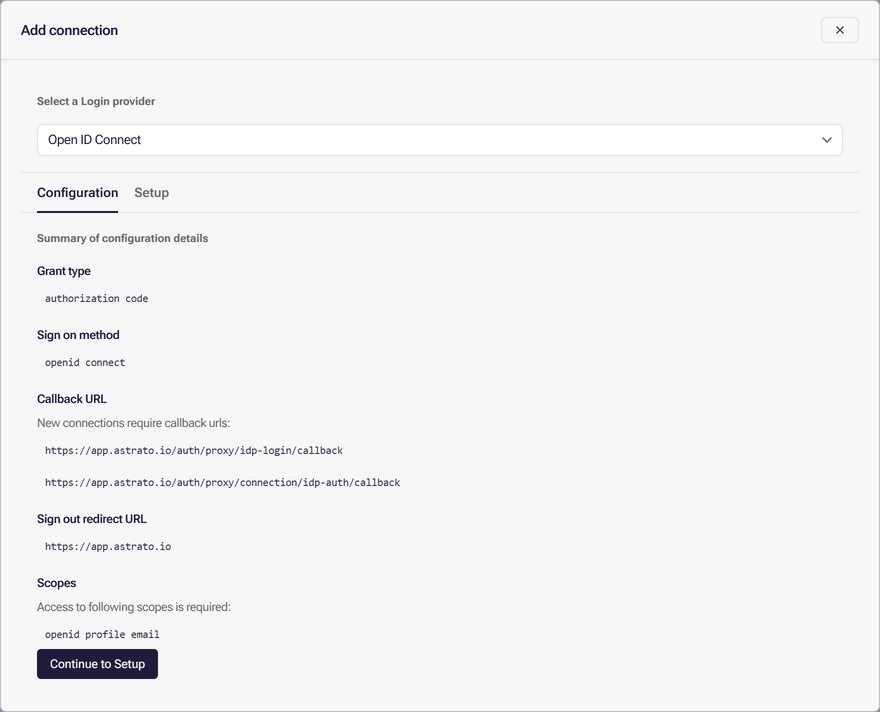
Register Astrato in your provider
Section titled “Register Astrato in your provider”The names differ between providers; your provider’s documentation covers its own screens.
- Create a web application, or OpenID Connect client, for Astrato that uses the authorization code grant and a client secret.
- Add both callback URLs from Astrato’s Configuration tab as allowed redirect URIs, exactly as shown.
- Add the sign-out redirect URL if the provider has a field for one.
- Allow the scopes
openid,profileandemail. - Give the people or groups who should use Astrato access to the application, if your provider requires assignment.
- Copy the client ID, the client secret and the issuer URL.
To check the issuer URL, open it in a browser with /.well-known/openid-configuration added to the
end. A correct issuer returns a JSON document whose issuer value matches it.
Values you will bring back to Astrato
Section titled “Values you will bring back to Astrato”| Astrato Setup field | Where it comes from |
|---|---|
| Connection name | A name of your choice |
| Issuer URL | The issuer your provider publishes |
| Identity provider domains | The email domains your people sign in with, as a comma-separated list |
| Client ID | The application’s client ID |
| Client secret | The application’s client secret |
For Issuer URL you can enter the issuer itself or its discovery address ending in
/.well-known/openid-configuration; Astrato adds that ending when it is missing. The Open ID
Connect entry has no Scope field.
Finish in Astrato
Section titled “Finish in Astrato”Go back to the Add connection dialog and select Continue to Setup. Fill in the values from the table above, then follow the rest of Set up the connection, Verify the connection and Test a normal sign-in.
If you want Astrato to take people’s role or groups from the sign-in token, decide before you select Create: the synchronization settings are chosen when the connection is created. See Sync groups and roles.
If sign-in fails
Section titled “If sign-in fails”| What you see | Likely cause | What to do |
|---|---|---|
| The provider reports a redirect URI mismatch | A callback URL is missing from the application, or differs from Astrato’s | Add both callback URLs from Astrato’s Configuration tab, exactly as shown |
| Verification cannot reach the provider | The issuer URL is wrong | Use the issuer value from the provider’s discovery document |
| The provider signs the user in, but Astrato does not | The ID token carries no email address | Give the account an email address and allow the email scope |
For errors on the Astrato side, see Common errors.