

Restrict rows with a security rule
One semantic layer usually serves people who should not all see the same rows. A security rule restricts a table’s rows per person, so a regional manager and a national director can open the same workbook and each get their own numbers, without a second copy of the model.
A rule is a condition on a table’s Pre-filter that compares one of the table’s fields with an attribute of whoever is asking: their email address, or the groups they belong to. The attribute is resolved when the query runs, which is what separates a security rule from an ordinary pre-filter. A condition compared against a value you type in is not a security rule — it restricts everyone identically.
Security rules have no tab of their own; you set them on the table. In Map View, the Add menu lists Security Rule under Governance, and it points you at the table rather than opening an editor of its own.
Before you start: open a semantic layer, and know which field carries the value you will match — a column of email addresses, or a column whose values are named the way your groups are.
Write a rule on a table
Section titled “Write a rule on a table”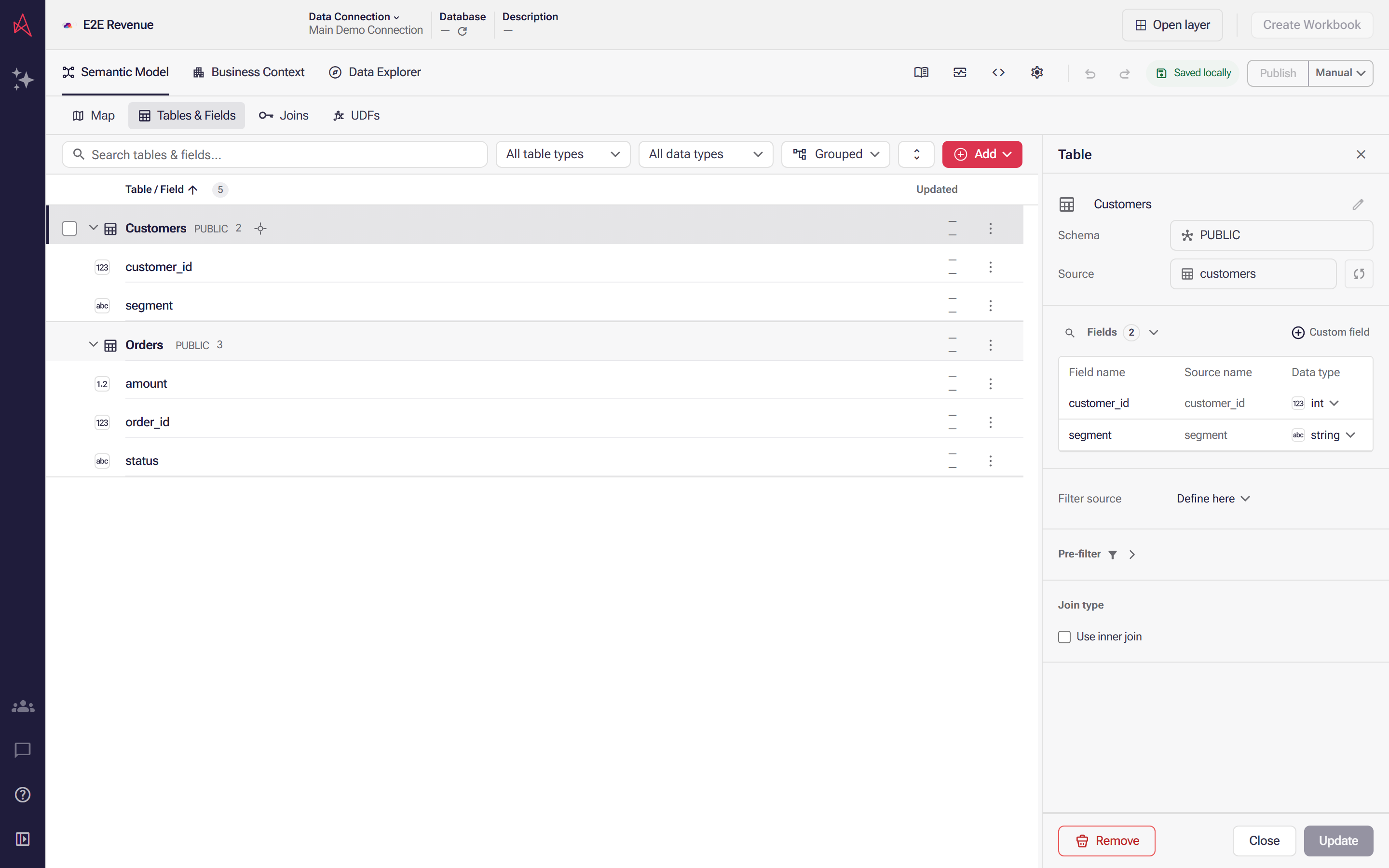
A security rule belongs to the table it restricts, so you start by selecting that table: its panel carries a Pre-filter section, collapsed, with no count beside it while the table has no conditions.
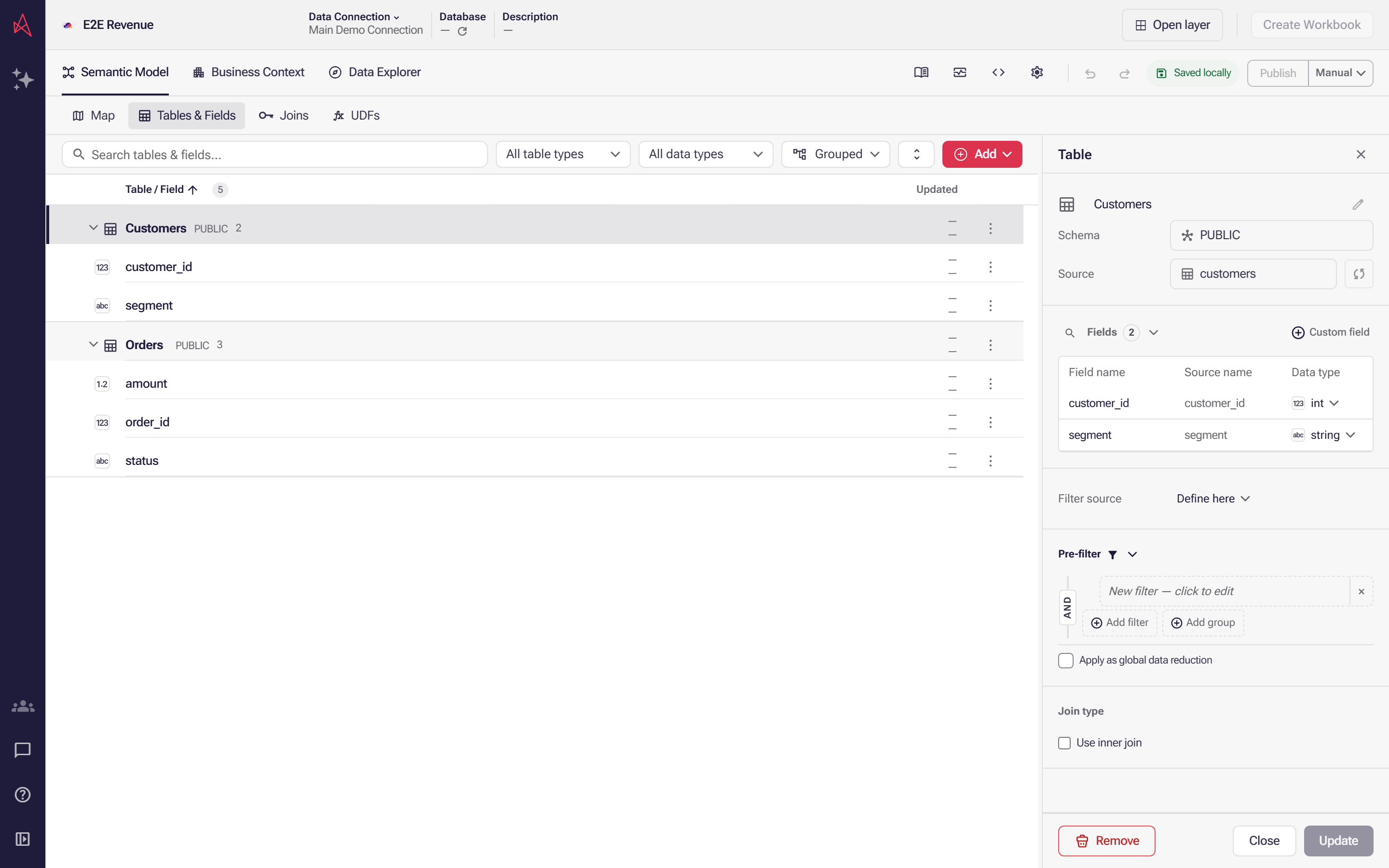
Expanded, the section already holds one blank condition and the switch that decides whether a restriction follows the joins; select the blank condition to write the rule into it.
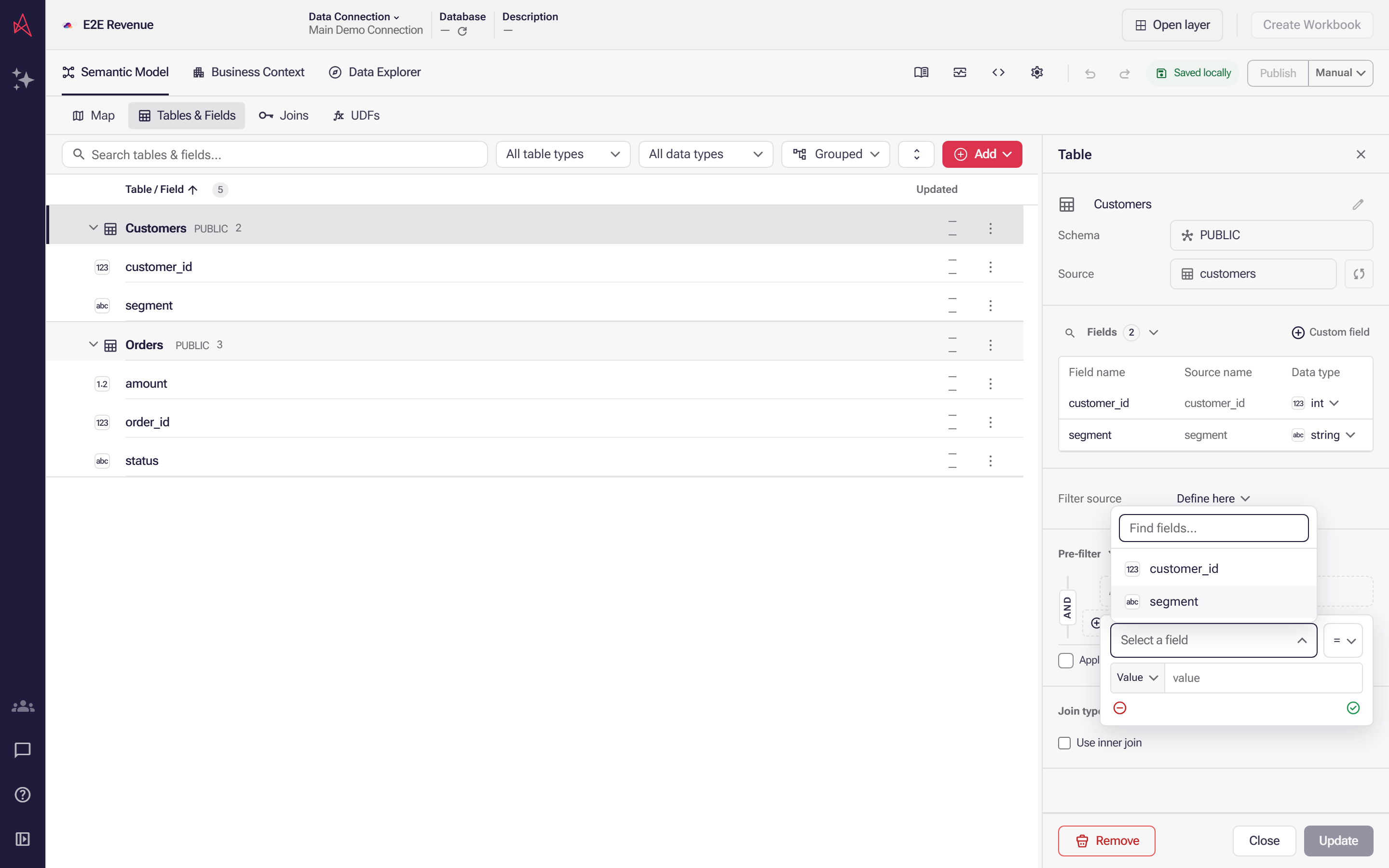
The picker offers this table’s own columns and nothing else, because a rule restricts the rows of the table it sits on; choose the column whose values are named the way your groups are.
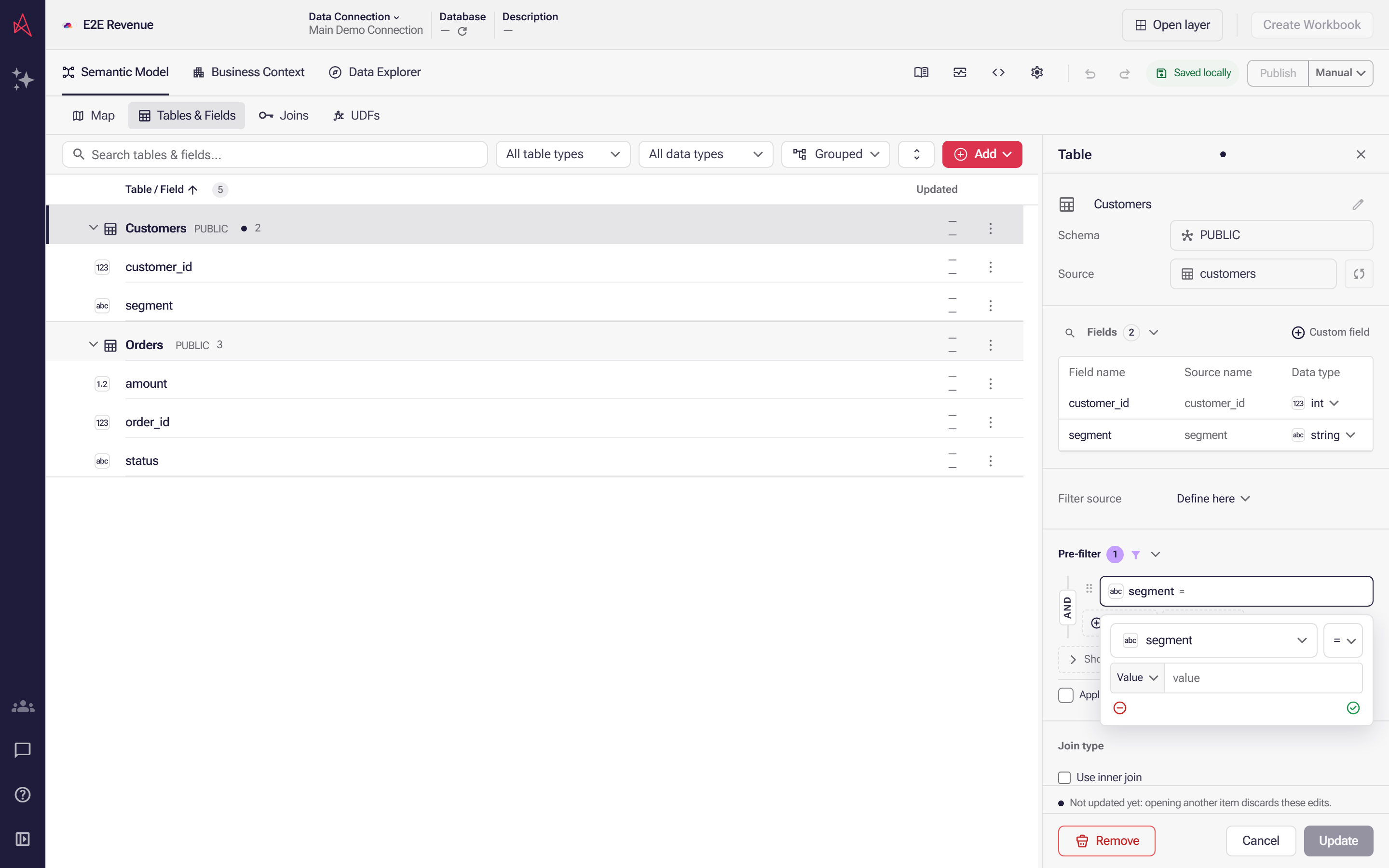
A condition compares its field against a typed-in Value by default, which restricts everyone identically and blocks Update while the box is empty — so change Value to User Attribute.
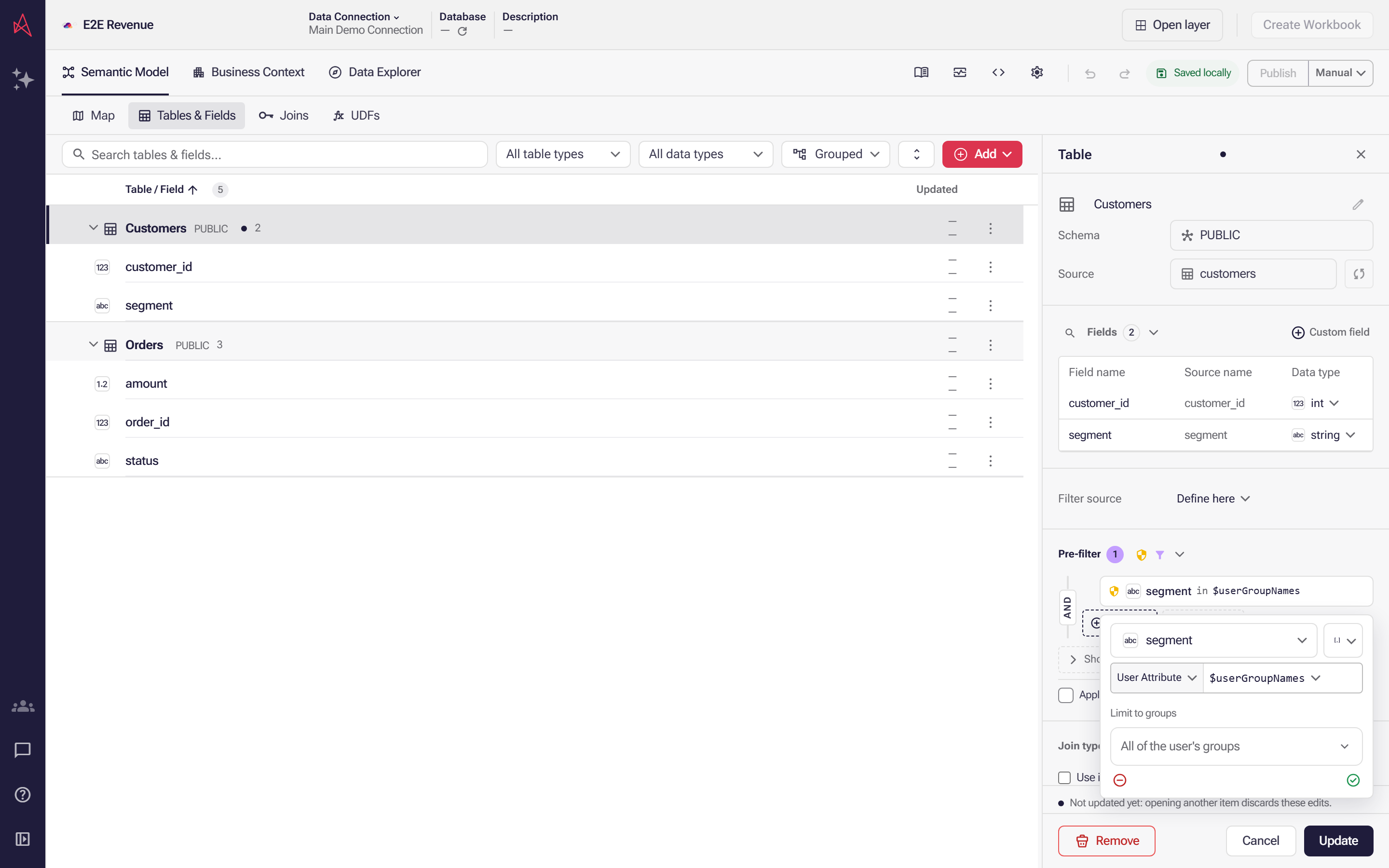
Choosing User Attribute compares the column against whoever is asking: $userGroupNames arrives with In list, and Limit to groups stays empty to test every group the person belongs to; Update commits the rule.
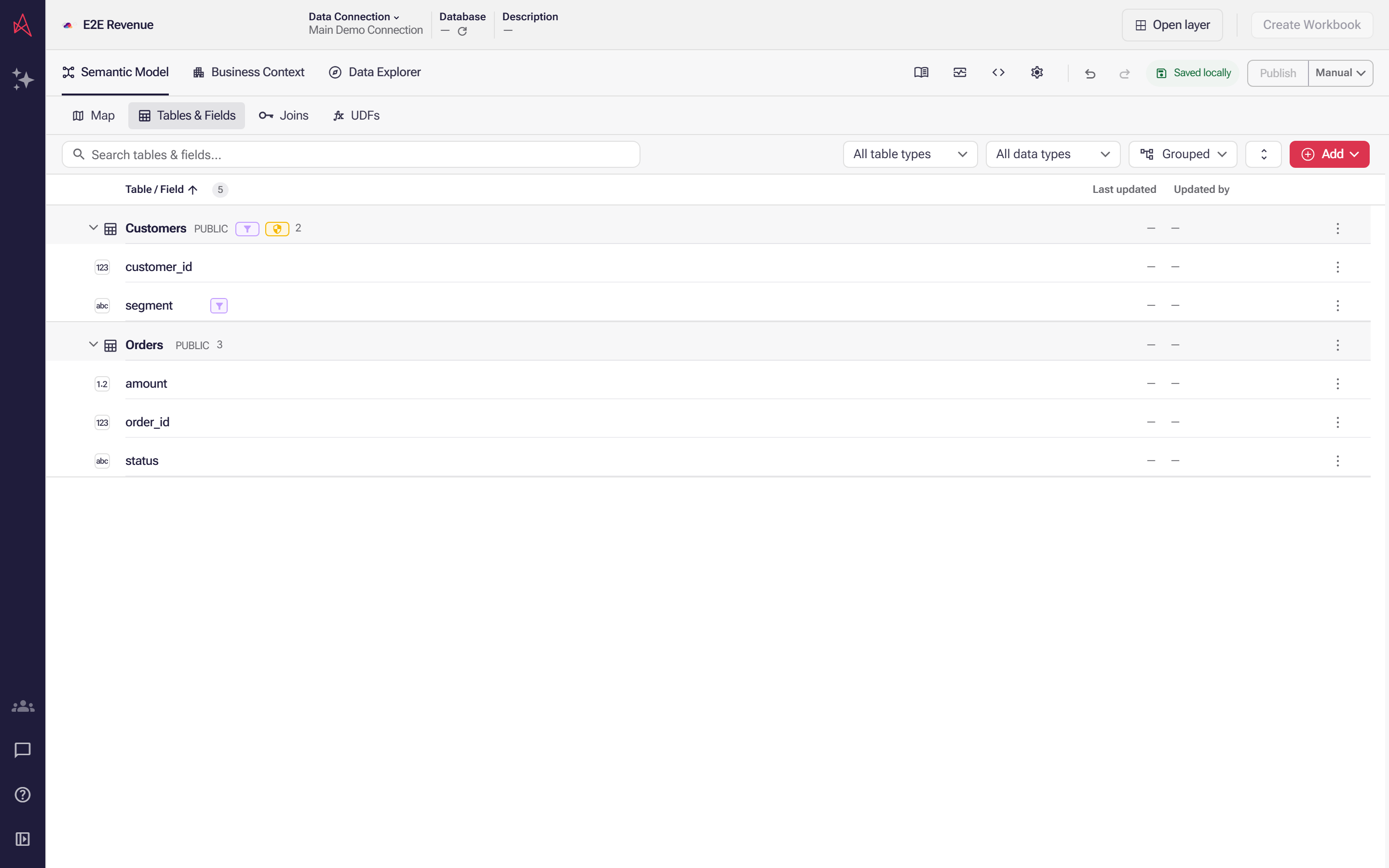
Customers now carries a shield beside its funnel: the funnel marks a pre-filter of any kind, the shield marks one compared against a user attribute. The edit is saved locally until you publish.
Step 1: Go to Semantic Model → Map View and select the table, or Semantic Model → Tables & Fields and select its row. Either opens the table’s panel.
Step 2: Expand Pre-filter. It starts collapsed, and the number beside the heading counts the conditions already on the table.
Step 3: Select the blank condition already waiting there — it reads New filter — click to edit. A table that has never carried a pre-filter opens with one; Add filter beside it is for a second.
Step 4: Pick the field the rule reads — the first box reads Select a field until you do — and the operator beside it.
Step 5: In the value row below, change Value to User Attribute.
Step 6: Choose the attribute. $userGroupNames, the groups the person belongs to, is chosen
for you with In list; Exclude from list is the other operator it takes. $userEmail is a
single value and takes a wider set: Equals and Excludes, the text matches Contains,
Not contains, Like and Not like, and the four ordering comparisons from Less than to
Greater than or equal.
Step 7: Select Update in the panel footer. Until you do, the change is held in the panel and Cancel discards it.
A condition with no value blocks the save. Update stays disabled while a pre-filter condition is missing its value, and says so when you hover it. Fill the value in, or remove the condition.
Selecting Add filter again adds a second condition. The badge down the left of the group reads AND, and selecting it switches the group to OR — which on a security rule widens what comes back rather than narrowing it.
Limit a group rule to certain groups
Section titled “Limit a group rule to certain groups”While the attribute is $userGroupNames, Limit to groups appears under the condition. Left
empty — it reads All of the user’s groups — the rule tests every group the person belongs to.
Open it to search the list, select a listed group to take it off, or type a name and select Add.
A group name cannot contain a comma. The list is stored as a single comma-separated value, so a name with a comma in it would come back as two groups and widen the rule; the editor refuses it instead.
Reach the tables the rule does not name
Section titled “Reach the tables the rule does not name”Apply as global data reduction, at the foot of Pre-filter, turns the restriction into one that follows the joins: the tables connected to this one through the join graph return only rows that survive it. Strict appears while the reduction is on.
The reduction reaches tables that carry no rule of their own. On the map those tables show the pre-filter glyph as well, and only its tooltip names the table the reduction came from. Check what is in the join group before you turn it on.
Reading the markers
Section titled “Reading the markers”A shield appears beside Pre-filter while any condition there compares against a user attribute, on the table’s header in Map View, and beside the table in Tables & Fields. Selecting the shield on the map selects that table, so you can open its Pre-filter and read the rule.
The funnel glyph says less: it marks a pre-filter of any kind, whether or not a user attribute is in it, so a table carrying a security rule shows both. Its tooltip says Pre-filter active.
Where a rule cannot go
Section titled “Where a rule cannot go”An inline table and a custom SQL table have no Pre-filter section — a custom SQL statement already carries its own filtering. Where Business Questions are enabled for your workspace, Filter source lets a table use a stored filter in place of conditions written here; those conditions are then edited in Business Context → Filters.
A security rule decides which rows a permitted query returns. It does not decide who can open the semantic layer at all — see Manage resource access. For how the rule is stored in the model, see filters, table limits and row-level security.
Like every other edit, a rule stays in the draft until you publish. Nobody else’s rows change before that.
Next: Publish your changes.