

Drill-through
Drill-through takes the reader from an overview to a detail page for one item, or to a compare page for several, and back. The item is applied as a selection; the overview’s other selections stay applied. The visualization packages have no drill-through of their own; see Limitations.
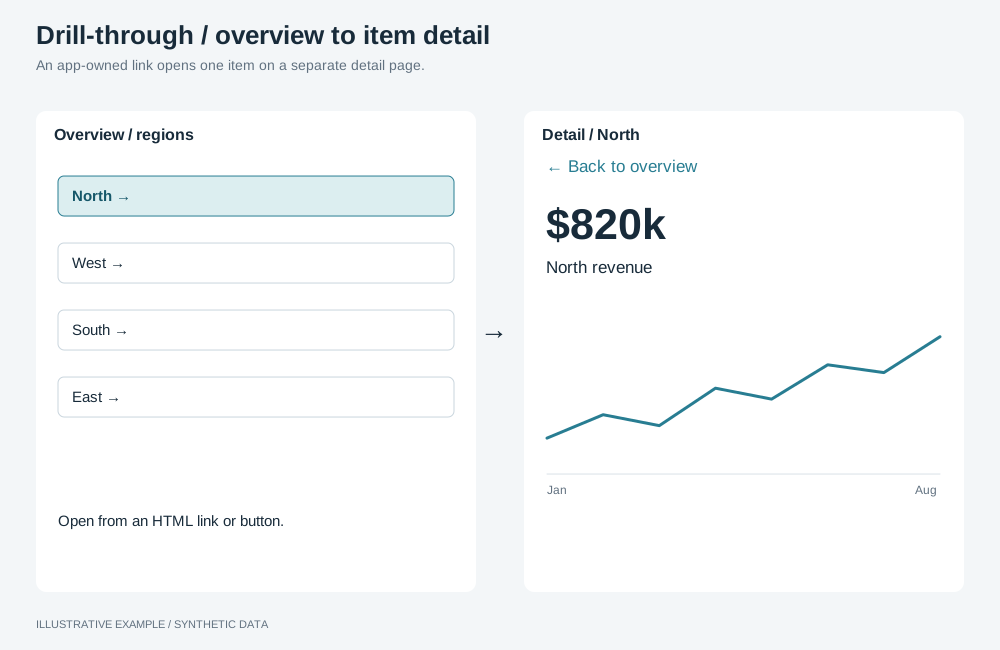
Illustrative example with synthetic data. An app-owned link opens one item on a separate detail page.
Choose a target and a trigger
Section titled “Choose a target and a trigger”Use drill-through when readers need more about one item than the overview has room for. To keep the list and the item on screen together, use the master–detail layout.
- Do readers pick two to four items to set side by side? Open a compare page.
- Otherwise, open a detail page.
The trigger is a link in your own HTML: a row, card or button per item. A chart mark or table cell reports a click only as a selection, with no click event; see App limitations.
| Use case | Target | Trigger |
|---|---|---|
| A store network, each store opening its page | Detail | Your own list of stores |
| Products with a compare checkbox on each card, then Compare | Compare | Your own cards |
Markup
Section titled “Markup”<!-- An item link: a click routes this document; readers can also open it in a new tab. --><li><a href="#/detail/store-12">Store 12</a></li>
<!-- The breadcrumb, in the item header. --><nav class="breadcrumb" aria-label="Breadcrumb"> <ol> <li><a href="#/">Stores</a></li> <li><a href="#/detail/store-12" aria-current="page">Store 12</a></li> </ol></nav>A new tab is a new document and starts with no selections.
The breadcrumb reads --muted from the style and stays on one line.
.breadcrumb ol { display: flex; gap: 8px; min-width: 0; margin: 0; padding: 0; list-style: none; white-space: nowrap;}/* Levels below the overview shrink in proportion to their length; the overview keeps its width. */.breadcrumb li { flex: 0 1 auto; min-width: 0; overflow: hidden; text-overflow: ellipsis;}.breadcrumb li:first-child { flex-shrink: 0;}.breadcrumb li + li::before { /* Empty alternative text, so screen readers skip the separator. */ content: '/' / ''; margin-inline-end: 8px; color: var(--muted);}Open an item
Section titled “Open an item”Route by hash inside one document: selections live in memory and a page load loses them; see Limitations to design around. Hide the view that is not on screen and unmount its objects; see Hidden means unmounted.
Apply the item as a selection on its field in the page’s group, so every detail object follows it.
{ state: 'applied' } applies it at once in manual mode without applying other pending selections.
const GROUP = 'dashboard';const selections = app.client.services.selections;declare const ITEM_FIELD: string; // looked up by name// The address holds text; convert back to the field's type. A number field needs a number.declare const toItemValue: (text: string) => string | number;// Each view shows or hides its element and mounts or unmounts its objects.// hide() resolves when its objects are unmounted.declare const overview: { show(): void; hide(): Promise<unknown> };declare const detail: { show(): void; hide(): Promise<unknown>; render(item: string): void };
type Route = { view: 'overview' } | { view: 'detail'; item: string };
const parseRoute = (hash: string): Route => {  const encoded = /^#\/detail\/(.+)$/.exec(hash)?.[1];  if (!encoded) return { view: 'overview' };  try {    return { view: 'detail', item: decodeURIComponent(encoded) };  } catch {    return { view: 'overview' };  }};
let route: Route | undefined;let openedFromOverview = false;
const showRoute = async (next: Route) => {  const from = route;  route = next;  if (next.view === 'detail') {    openedFromOverview = from?.view === 'overview' || (from?.view === 'detail' && openedFromOverview);    // Unmount the overview first, so its objects do not re-query for the item.    if (from?.view !== 'detail') await overview.hide();    selections.selectValues(      GROUP,      { field: { fieldKey: ITEM_FIELD }, operator: 'equals', values: [toItemValue(next.item)] },      { state: 'applied' },    );    detail.render(next.item);    if (from?.view !== 'detail') detail.show();  } else {    if (from?.view === 'detail') await detail.hide();    selections.removeSelection(GROUP, { fieldKey: ITEM_FIELD });    overview.show();  }};
// One chain for every route change, so a fast Back and Forward cannot interleave two transitions.let routing: Promise<void> = Promise.resolve();const followHash = () => { routing = routing.catch(() => undefined).then(() => showRoute(parseRoute(location.hash)));};window.addEventListener('hashchange', followHash);followHash();- For a view’s
hide()to resolve after unmounting, have eachPanel.hide()return its lifecycle promise and combine them withPromise.all. - On a reload the address still names the item, so the detail shows it with no other filters.
- Opening an item costs one query per detail object, plus your own queries.
Go back
Section titled “Go back”The Back control in the item header is a link to the overview. When the reader came from the overview in this document, go back in history instead, so the page’s Back and the browser’s agree:
declare const backLink: HTMLAnchorElement; // <a href="#/">Back to stores</a>
backLink.addEventListener('click', (event) => {  if (!openedFromOverview) return; // the link opens the overview  event.preventDefault();  history.back();});
Either way, only the item selection is removed, so the overview mounts with its other selections.
Previous and next
Section titled “Previous and next”Take the order from your own query of the items, sorted as the overview sorts them; the rows behind a visualization object are not readable. Leave the item’s field out of that query’s filters. Replace the address rather than adding one, so Back returns to the overview:
let items: string[] = []; // the overview's items in order, from your own query
const step = (delta: -1 | 1) => {  if (route?.view !== 'detail') return;  const index = items.indexOf(route.item);  const next = index < 0 ? undefined : items[index + delta];  if (next !== undefined) location.replace(`#/detail/${encodeURIComponent(next)}`);};
The detail objects stay mounted and re-query when the item selection changes. For a path of more than one level, such as region then store, give each level its own field and selection, and on the way up remove the selections of the levels below.
Open a compare page
Section titled “Open a compare page”Let readers mark two to four items in your own list, then open #/compare/<a>,<b>. The compare page
gives each item’s objects their own selection group; see the
compare page.