

Drill-Down and Drill Through Dimension Actions
Most dashboards stop at the top-level chart. People see a number, want to know why, and end up exporting to Excel or filing a ticket. Drill actions close that gap: one click takes a user from “Q3 revenue is down” to the customers, regions, or transactions driving it — live, against governed warehouse data.
Drill-down vs drill-through — the quick distinction:
-
Drill-down = same chart, deeper level of the same dimension. Year → Quarter → Month.
-
Drill-through = jump to a different view or page, filtered by what you clicked. Region chart → detailed customer table for that region.
See real use cases for drill-down and drill-through in data analytics.
Introduction
Section titled “Introduction”When used together, drill-down and drill-through functionalities provide a comprehensive framework for data analysis:
-
Multidimensional Insights: Users can gain insights from multiple dimensions and perspectives, starting from broad overviews to in-depth details and related contextual information.
-
Increased Flexibility: These functionalities provide the flexibility to navigate data in a way that aligns with specific analytical needs, improving the efficiency and effectiveness of the data analysis process.
-
Scalable Analysis: They support scalable analysis, accommodating high-level executives needing summary views and analysts requiring detailed data exploration.
In summary, drill-down and drill-through functionalities significantly enhance the capability to explore, understand, and utilize data effectively, leading to better insights, informed decision-making, and improved overall data literacy.
-
Examples of Drill-Through Actions
-
Dashboard drill-through
-
Chart drill-through
-
Chart drill-down
-
Drill-Through Actions
Section titled “Drill-Through Actions”The new actions for drill-through include five actions and triggers.
-
 - This trigger can run a set of actions when the active field in a drill-through dimension is changed.
For example, update a custom label with the active field name, navigate to another sheet, show and hide charts, etc. -
 - This action gets the active field in a drill-through dimension; the field is represented in this format: Table Name.Field Name
-
 - This action sets a new active field in the drill-through dimension. When used with the a get variable action, the input can be static by selecting a value from the dropdown menu or dynamic by using a variable.
-
 - This action changes the active field of a drill-through dimension to the next field in the list.
This action won’t have any effect when the active field is the last field in the dimension.
It’s useful when building drill-down charts -
 - This action changes the active field of a drill-through dimension to the previous field in the list.
This action won’t have any effect when the active field is the first field in the dimension.
It’s useful when building drill-down charts.
Examples of Drill-Through Actions
Section titled “Examples of Drill-Through Actions”-
Dashboard Drill-Through
Section titled “Dashboard Drill-Through”This example shows how to set a drill-through dimension to change the dimension of multiple charts in the dashboard and to update the labels and titles of all the charts in the dashboard according to the active field in the drill-through dimension.
-
How to Build a Drill-Through Dashboard
Section titled “How to Build a Drill-Through Dashboard”-
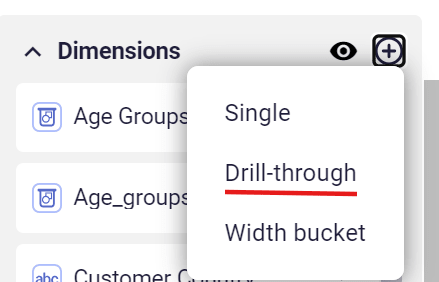
Create a drill-through dimension in the semantic layer.
-
Create a variable that will be updated with the active field of the drill-through dimension.
-
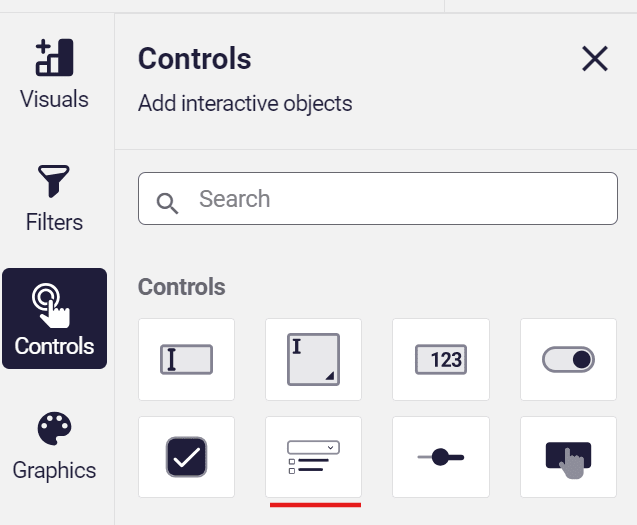
Add a dropdown atomic input form from the controls section in the workbook left menu to the dashboard.
-
Define the dropdown input to update the variable created in step 2.
And define the list of options from which the user can select.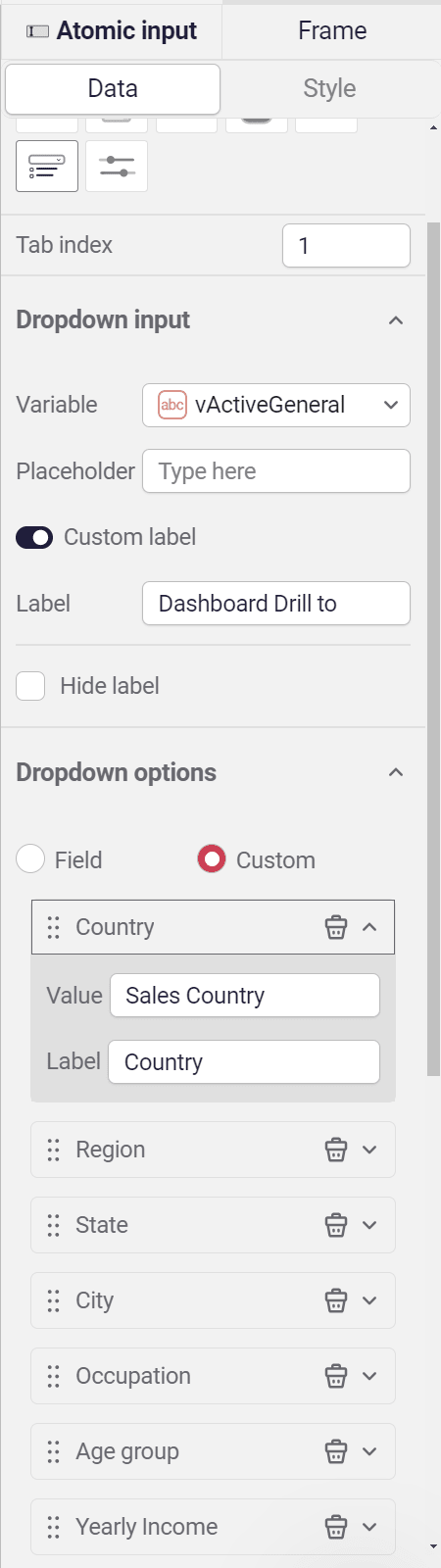
-
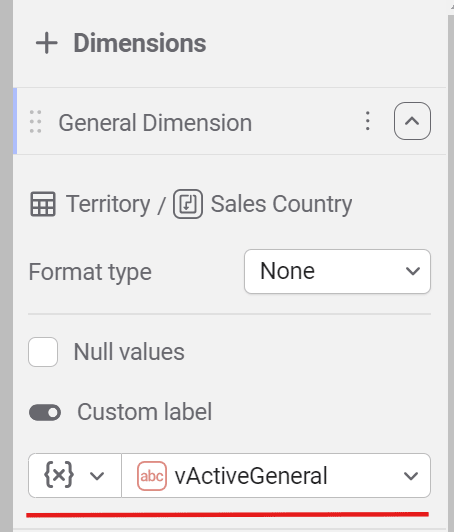
Add the drill-through dimension to all the charts in the dashboard.
For all the dimensions, select the option to use custom label and use the variable from step 2.
-
Open the actions section in the workbook.
-
The first action to be added is to set the variable’s default value to the drill-through dimension’s default value when entering the dashboard.
The fields are returned in the format of tableName.fieldName, and we only want the field name. Hence, we use a split action.
-
Next, we add the action of updating the active field in the drill-through dimension and the chart title after each change in the dropdown input.

-
Preview the workbook and test that all the actions work.
Remember, actions only work in preview mode.
-
-
-
-
Chart Drill-through
Section titled “Chart Drill-through”This example shows how to build a single chart drill-through interaction for end-users.
It also enables the user to return to the chart’s previous dimension.
Example: A retail analytics team gave store managers a single sales dashboard. Clicking a region drills down to stores; clicking a store drills through to a transaction-level view filtered to that store. No new dashboards built, no exports — managers self-serve the answer in two clicks.
-
How to build a chart drill-through
Section titled “How to build a chart drill-through”-
Create a drill-through dimension in the semantic layer.
-
Create this variable:
-
The variable will store the active field’s value in the dimension.
-
Variable that will store the previous active field in the dimension will enable going back steps.
-
The variable that will store the full path of the drill through
-
-
Build a chart using the drill-through dimension created in step one.
-
Add a dropdown input form and two buttons to the workbook
You’ll use them to build the drill-through functionality using actions. -
Build these action blocks:
-
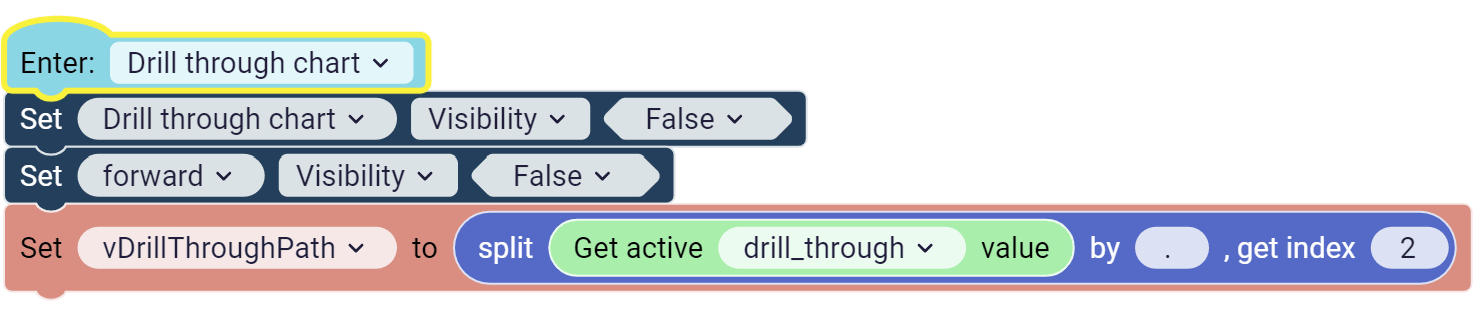
The action block above is activated when entering the sheet.
-
Hiding the dropdown input and the drill-through button.
-
Setting the default value for the variable that stores the drill-through path
-
-
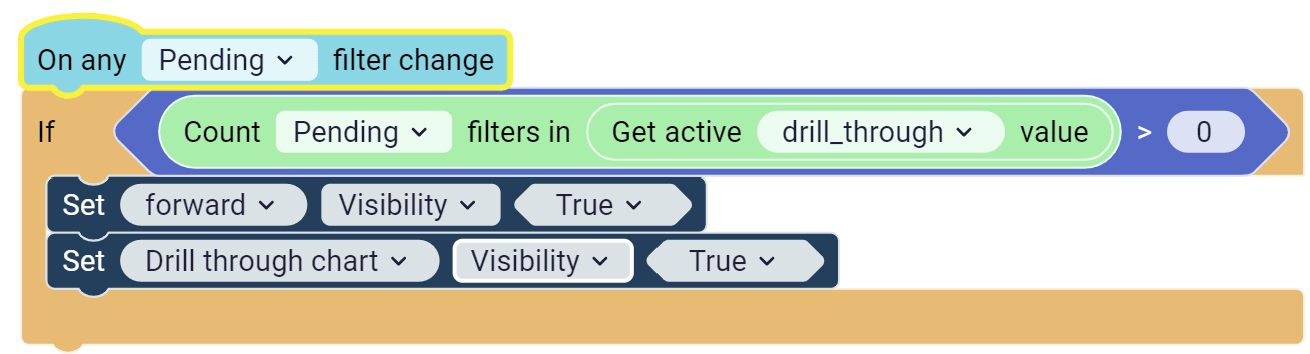
This action block is checked whenever there is a change in the pending selections.
-
The condition checks if we have a pending selection on the active field in our drill-through dimension if the condition is met
- The dropdown input and drill-through button are shown in the sheet.
-
-
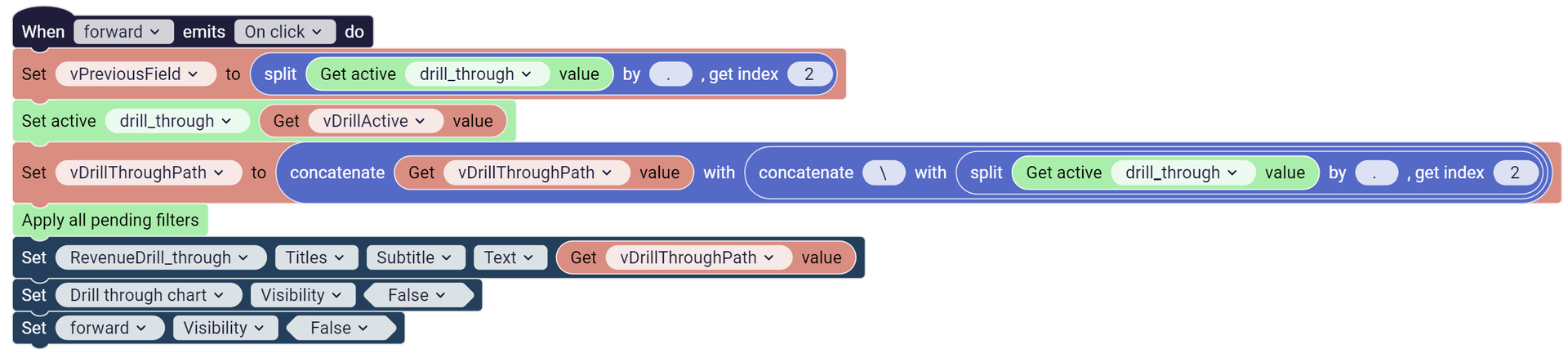
This action block is activated when the drill-through button is clicked.
-
Stores the current active field, we’ll use it in the drill back action.
-
Change the active field to the one selected in the input form
-
Updates the drill-through path and stores it in the variable
-
apply the pending filters
-
Update the subtitle of the chart to show the drill-through path
-
Hide the input form and the drill-through button.
-
-
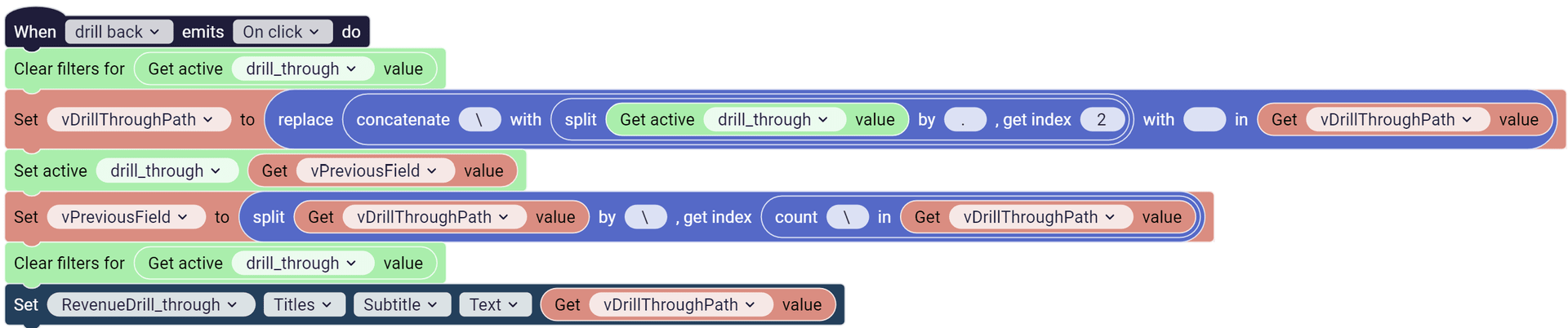
A click on the drill-back button activates this action block.
-
Clears the filters on the current active field in the dimension.
-
Remove the current active field from the drill-through path
-
Set the active field to the previous step in the drill-through path.
-
Updates the previous step to the prior step of the new active step.
-
Clear the filters in the new active field in the dimension.
-
Updates the title to the new drill through path
-
-
-
-
-
Chart Drill-Down
Section titled “Chart Drill-Down”This Example shows how to set an automatic drill-down action in a dimension when a certain threshold of values is met.
This type of chart is valuable when working with hierarchical dimensions.
-
How to build a chart drill-down
Section titled “How to build a chart drill-down”-
Create a drill-through dimension in the semantic layer.
-
Create a variable that will be updated with the changes in the drill-through dimension.
-
Create a numeric variable to set the threshold of drilling down.
-
Build a chart using the drill-through dimension created in step one.
-
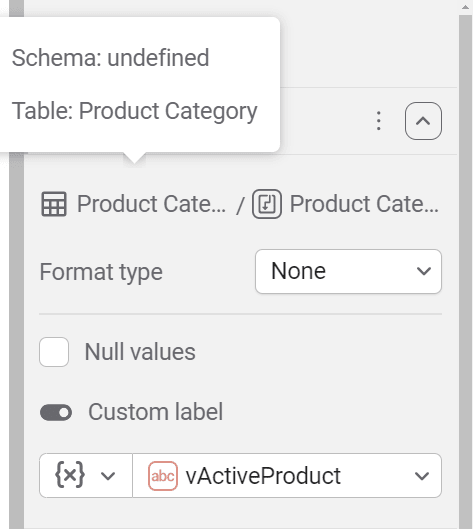
Set the dimension label to the variable that holds the changes in the dimension.
-
Add a numeric input form to the sheet. Users will use this input to set the threshold for drilling down.
-
Add a button to the sheet. This button will be used for drill-up action.
-
Group the chart, input, and button together
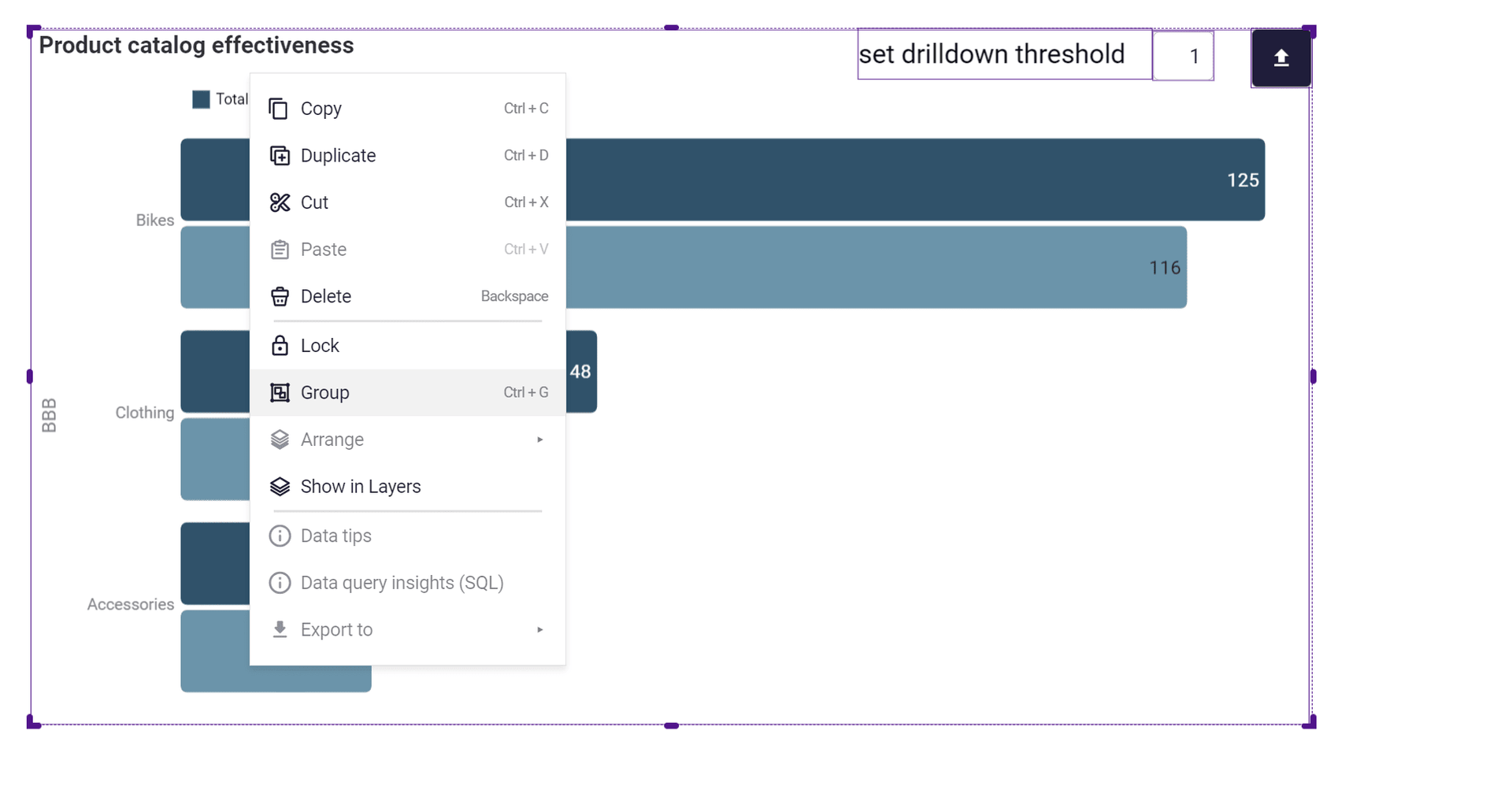
This will ensure responsiveness when the screen size is changed.
-
Go to the actions area to define the following actions.
-
On entering the sheet set the default value for the dimension label

-
The next action blocks works when ever there is a change in the selections in the app
upon a selection change,
A condition is evaluates to check how many active selection are in the active field in the dimension
If the condition is met, the dimension active field is changed to the next one and we update the dimension label.
-
The action block for the drill-up button includes this actions.

-
Clearing the selection in the current active field
-
Updating the dimension label removing the last active field
-
Changing the active field in the dimension to the previous field.
-
Clear the selections in the previous field.
-
-
-
-
What’s the difference between drill-down and drill-through?
Drill-down stays in the same chart and moves to a finer level of the same dimension (year → quarter → month). Drill-through navigates to a different view or sheet, carrying the click as a filter. Use drill-down for hierarchical exploration, drill-through for context switching.
Can I customize what a drill action does?
Yes — drill actions in Astrato are configurable per dimension. You define the target (next dimension level, another sheet, an external URL) and any filters or parameters to pass through.
Does drill-through work across data sources?
Yes, as long as the target view is built on data your user has access to. Permissions are governed at the warehouse layer.