

Manage users
Open Administration → Users. The screen is the workspace directory and the place every account is changed after the invitation: role, status, groups, two-factor authentication, removal, and the per-user filter parameters an account’s row-level filters read.
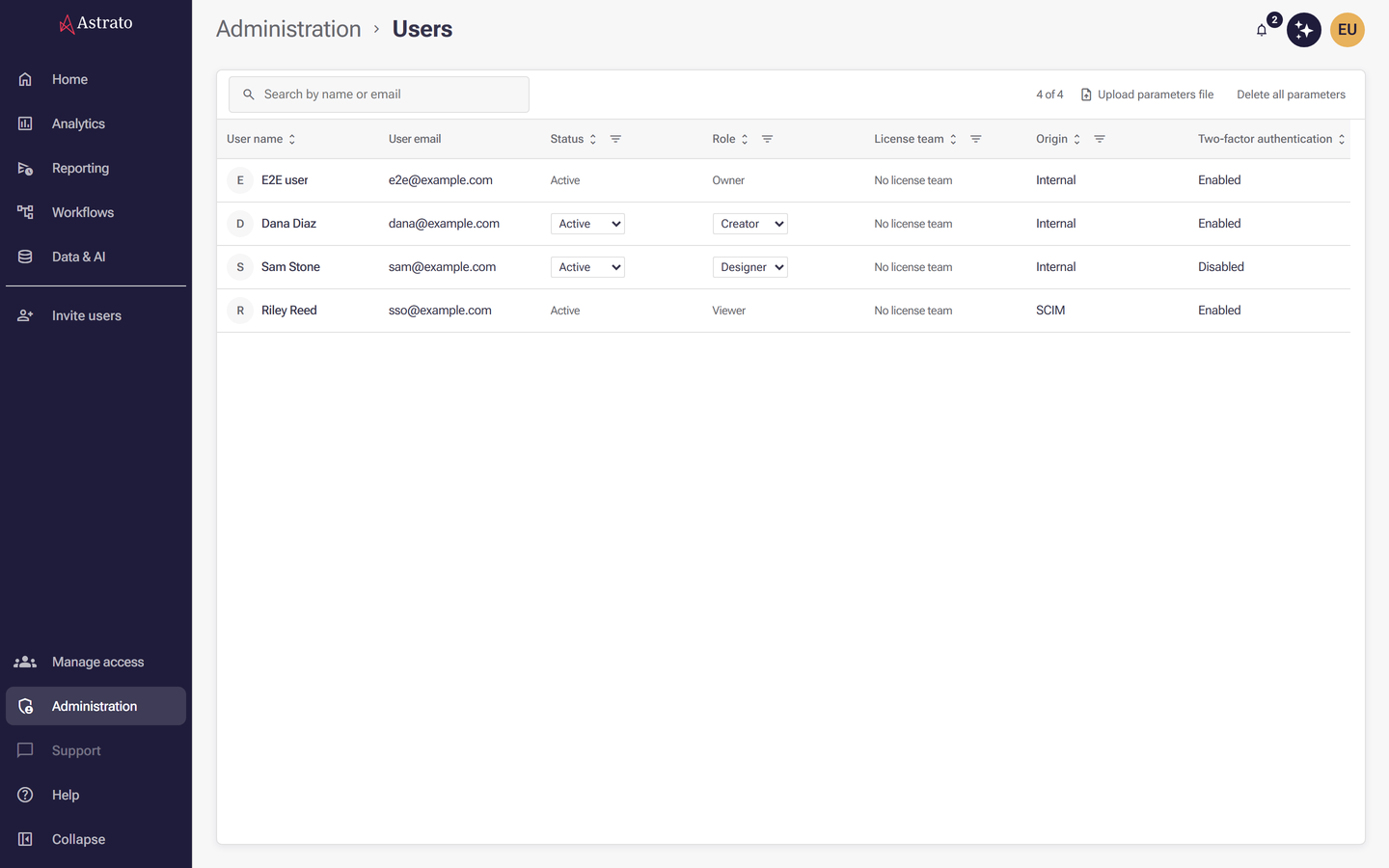
Workspace owners and administrators can change what is here. Creators can open the same screen to browse users, their roles and license teams, but nothing on it writes for them: the pickers are drawn as plain text, and the buttons, the group controls and the whole Filter parameters section are not there at all. Nobody else reaches it — the section answers that administration is for the workspace owner and administrators, with restricted access for creators.
To add people rather than change them, see Invite users.
Read the directory
Section titled “Read the directory”The table carries seven columns: User name, User email, Status, Role, License team, Origin and Two-factor authentication. Every heading except User email sorts. Four of them also filter: Status offers Pending, Active and Disabled, Role offers Owner, Admin, Creator, Designer and Viewer, Origin offers Internal and SCIM, and License team lists your teams. A filter opens as a checklist of those values with Clear filter and Done, and the heading carries the number selected.
Search by name or email matches both. While any search, sort or filter is on, Clear sorting and filters appears beside it and resets all three at once.
The first number in the count is what is loaded, not what matched. It reads 25 of 480 — the
rows in front of you against the matching total — and the screen loads 100 at a time, so
Load more at the foot of the table is how you reach the rest. Until the total is known it reads
25 loaded instead. Sorting and filtering are applied across every account rather than only the
rows already loaded, so a sort re-reads from the beginning.
An empty table says which kind of empty it is: No results found when a search or a filter is on, Bring your team in with an Invite users button when the workspace has nobody yet, and No users for a creator. Users unavailable means the read failed rather than returned nothing.
Change an account from the row or the panel
Section titled “Change an account from the row or the panel”Status, Role and License team can be set in the row itself and again in the panel; both write immediately, with no save step. Status is Active or Disabled. Role offers Admin, Creator, Designer and Viewer — Owner is absent because a workspace has exactly one owner and the role is never assignable.
License team sets which team the person’s seat is counted against, and assigning one is not only bookkeeping: it restores whatever enabled-or-disabled state and license type a previous membership of that team carried, which is why the row re-reads itself afterwards. When a user belongs to no team the list carries an explicit No license team entry, and when their team is one you cannot see it reads Team unavailable; both exist so that picking the first real team registers as a change.
Status is held against a license team. Enabling or disabling someone is a change to their membership of a team, so an account with no team cannot be enabled or disabled: give them a License team first. For the teams themselves, see License teams.
Changing the License team of a pending invitation goes a different way again, and needs the
invitation to carry a role. One that does not is refused with
This invitation has no role, so it cannot be changed here. Its Role needs a team for the
same reason, and without one is refused with
This invitation has no license team, so it cannot be changed here.
Three kinds of account cannot be edited here. An account whose Origin is SCIM belongs to your identity provider, the workspace owner’s role is fixed, and nobody edits their own access. For all three, Status, Role and License team are drawn as plain text rather than pickers, and the server refuses the change as well: it answers that the owner’s account cannot be changed, or that an account is managed by your identity provider, or that you cannot change your own account. Change a SCIM account in your identity provider instead.
Nash and MCP apply those same three writes without the screen, and refuse the same three accounts; see Updating tenant users. Deleting an account, resetting two-factor authentication and editing filter parameters have no MCP route.
Selecting a row opens that person’s properties panel, titled with their name — or their email address when they have no name — above four sections: Identity, Groups, Security and Filter parameters. Identity also shows Email and Origin, both read-only. A pending invitation shows Pending as text in place of the Status picker.
Groups counts the memberships in its own heading. Manage opens a checklist of every group in the workspace, and ticking one adds the person while unticking removes them; each listed membership also carries a remove button. A group provisioned by SCIM has no remove button, and an account whose Origin is SCIM has neither Manage nor a remove button on any of its memberships — change those in your identity provider. For the rules that assign membership automatically, see Manage groups and assignment rules.
Security
Section titled “Security”Security reports two-factor authentication and holds the two destructive buttons.
The line above them reads Two-factor authentication is enabled or Two-factor authentication is disabled. Where the account has a setup deadline and has not yet enrolled, the same line adds
— setup due and the date. For a pending invitation there is nothing to report, and the section
says that two-factor authentication applies once the invitation has been accepted. The
Two-factor authentication column carries the same facts — Enabled, Disabled with the
deadline in brackets, or a dash for an invitation.
Reset two-factor authentication clears the person’s enrolment so they can set up a new authenticator — the one to use when someone has lost their phone. It does not turn the requirement off; it only lets them configure it again.
Reset two-factor authentication does not ask. There is no confirmation dialog. The button acts on the click, and the person’s existing authenticator stops working from that moment. It is hidden for a pending invitation, which has no sign-in to reset.
The button beneath it removes the account, and it is the same control under two names. Revoke invite appears for a pending invitation and withdraws it, so the invited address can no longer be accepted. Delete account appears once the invitation has been accepted and removes the person’s access to the workspace. Both confirm first — the confirmation is headed with the same words as the button and its action reads Revoke or Delete — and deleting an account cannot be undone. The button is absent altogether for the workspace owner, a SCIM account and your own account.
Filter parameters
Section titled “Filter parameters”Filter parameters are per-user values held against an account — the panel calls them the values this user’s row-level filters read when they open a workbook. Each one is a name, a type and a value, and the set belongs to the account rather than to any one workbook.
A semantic layer’s own security rules are a separate mechanism and need nothing here: such a rule compares one of a table’s fields with the person’s email address or the groups they belong to, and Astrato resolves both of those attributes itself. See Restrict rows with a security rule for that side.
The section is missing for a pending invitation. Parameters attach to an account, and an invitation has none until it is accepted, so Edit user filter and the panel’s Delete all parameters appear only on accepted accounts. Invite the person, wait for them to accept, then set their values.
Edit one person’s parameters
Section titled “Edit one person’s parameters”Edit user filter opens Edit user filter parameters, a dialog listing that person’s
parameters as rows of Name, Type and Value, each with a remove button.
Add parameter adds a row; a new row starts as type string with an empty value. The types are
string, int, float, boolean, date, undefined and null. A type Astrato returned that
is no longer offered stays selectable on the row that carries it, so opening an older parameter
does not silently retype it. An empty value is legitimate and saves.
Save changes replaces the whole set. The dialog is not a list of edits — it is the complete set
of that person’s parameters, and saving writes exactly what is on screen. Removing a row and saving
is how a parameter is deleted. Every row needs a name: a nameless one is refused with
Every parameter needs a name. rather than dropped.
A failed read cannot be saved over. If the person’s parameters cannot be read, the dialog says
so and offers neither Save changes nor Add parameter — an empty editor saved over a real
set would delete it. Close the dialog and try again. While a save is in flight the rows lock and
the button reads Saving…, so an edit typed too late cannot be lost.
There is no Cancel. Close, the Escape key, or clicking outside the dialog discards whatever has not been saved.
The panel’s Delete all parameters clears every parameter belonging to the selected person, after a confirmation that names them. It cannot be undone.
The section appears on accounts it cannot write to. Unlike the removal button, which is simply absent for them, Edit user filter and the panel’s Delete all parameters are shown for the workspace owner, an account provisioned by your identity provider, and your own. The refusal comes from the server when you save or delete, not from the button. That is deliberate: those three accounts are protected everywhere administration writes.
Upload a parameters file
Section titled “Upload a parameters file”Upload parameters file, in the toolbar above the table, sets parameters for many accounts at
once. It takes a delimited text file — .csv, .tsv or .txt — whose header row names all four
columns, each of them once:
| Column | What to enter |
|---|---|
name |
The parameter’s name, as whatever reads it refers to it. Cannot be empty. |
type |
One of string, int, float, boolean, date, undefined or null. |
value |
The value for this person. This is the one cell that may be left empty. |
email |
The email address of the account the parameter belongs to. Cannot be empty. |
One row is one parameter for one account, so a person with three parameters has three rows. The columns may be in any order and the header may be in any case, so an export from elsewhere does not have to be rearranged by hand. A byte order mark on the first header — what a spreadsheet adds when it saves as CSV — is ignored. Blank lines between rows are ignored.
Tabs win over commas. The delimiter is taken from the header: a tab anywhere in it makes the
whole file tab-separated, otherwise it is read as comma-separated. Double quotes around a value let
it contain the delimiter, and a doubled "" inside a quoted value is one quote character. A value
cannot run across lines.
One unusable row rejects the whole file. Nothing is written, and the first problem is reported
by its line number: a row whose cell count does not match the header, a row missing name or
email, a row naming a type that is not one of the seven. A row dropped in silence would look
exactly like a row that saved, which is why none is. Fix the first reported line and upload the
file again — a second problem further down is only reported once the first is gone. A file with no
data rows, an empty file, a header missing one of the four columns or naming one twice is refused
in the same way, with its own message rather than a line number, before anything is sent.
A file carries at most 500 rows. The whole file goes up in one request, and a longer one is
refused with parameters must hold at most 500 entries before anything is written. Split a larger
file and upload each part — and because each named account’s whole set is replaced, keep all of one
person’s parameters in the same part.
A row for a protected account rejects the whole file. The workspace owner, an account
provisioned by your identity provider and your own account are refused here as everywhere else
administration writes, and no row in the file is written. The refusal names the address rather than
a line number: <address> is the workspace owner and cannot be changed here,
<address> is managed by your identity provider, or
You cannot change the filter parameters of your own account. Remove those rows and upload again;
unlike the workspace-wide delete, the upload does not skip them.
When the file is accepted the screen reports what it did — 12 parameters applied from regions.csv. Each named account’s whole set is replaced, as in the dialog, so a file must
carry every parameter a person should end up with, not only the ones that changed.
Email address is the only key the upload accepts; there is no column for a user id. An address is matched against the workspace’s own record of it, so a spreadsheet’s casing cannot decide which account a row lands on. An address no account matches is passed on exactly as it was typed, for Astrato to refuse.
Delete parameters across the workspace
Section titled “Delete parameters across the workspace”Two buttons are called Delete all parameters, and one of them clears the workspace. The one inside the panel clears the selected person; the one in the toolbar, beside Upload parameters file, clears everybody. Their confirmations are what tells them apart: the panel’s is headed Delete all parameters and names the person, and the toolbar’s is headed Delete all filter parameters and says it covers every user. Read the heading before confirming.
The workspace-wide delete is not quite everyone. It skips the accounts administration cannot change — the workspace owner, users provisioned by your identity provider, and your own — and the confirmation says so. Clear those by other means. A parameter left behind by an account that has since been deleted has no address to name it and survives the purge; it is inert, because no one signs in as that account.
Neither delete can be undone, and clearing parameters changes what people see in their workbooks. Find out what reads a parameter before clearing it across the workspace.