

Excel reporting (Printing)
Astrato transforms Excel reporting with its live query capabilities, enabling seamless collaboration on financial data. Our BI tool streamlines workflows, allowing users to make real-time adjustments, add commentary, and manage approvals with ease. Once finalized, reports can be exported to Excel or PDF, complete with the latest data and professionally formatted, all powered by Astrato’s continuous live data connections.

Upload predefined and formatted Excel templates to the Astrato Media Gallery and populate them with data from Astrato, without any complicated templating language or syntax. Just pure Excel formulas.
Import the new Excel demo workbook to your tenant by clicking on this button below.

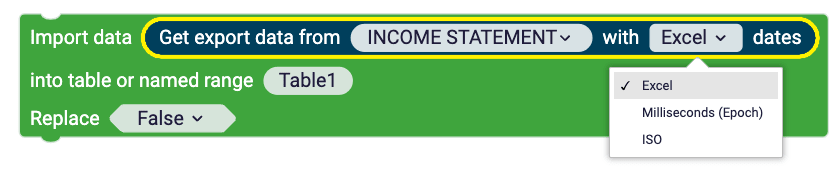
Note for BETA users - Import data and Get Export data from object blocks have been updated for better performance, date handling and now respecting column order of tables. If you been part of the beta version of Excel template reporting the beta blocks have been deprecated and needs to be updated to get the benefits of the new improvements.
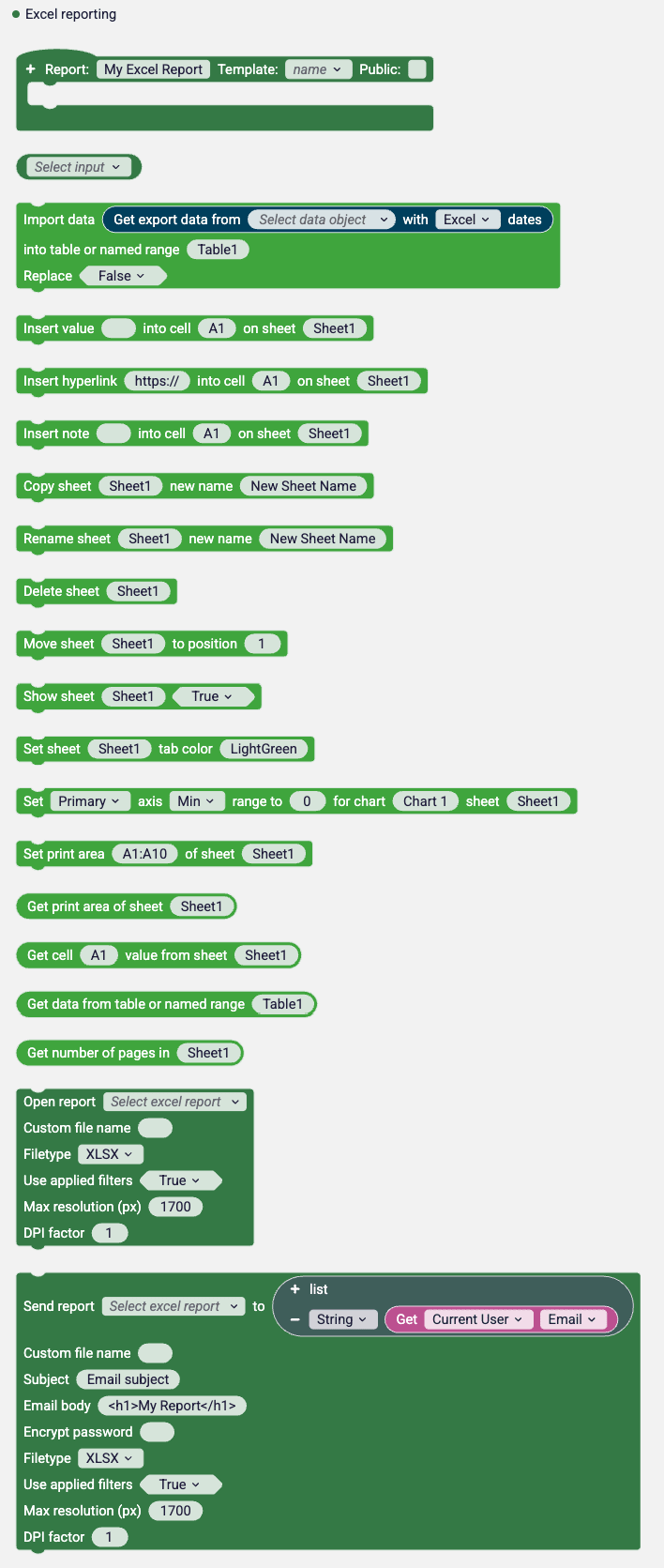
Report [Report name] template [Template name]
Section titled “Report [Report name] template [Template name]”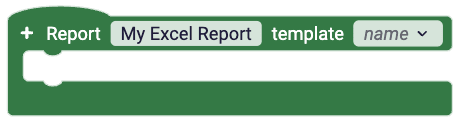
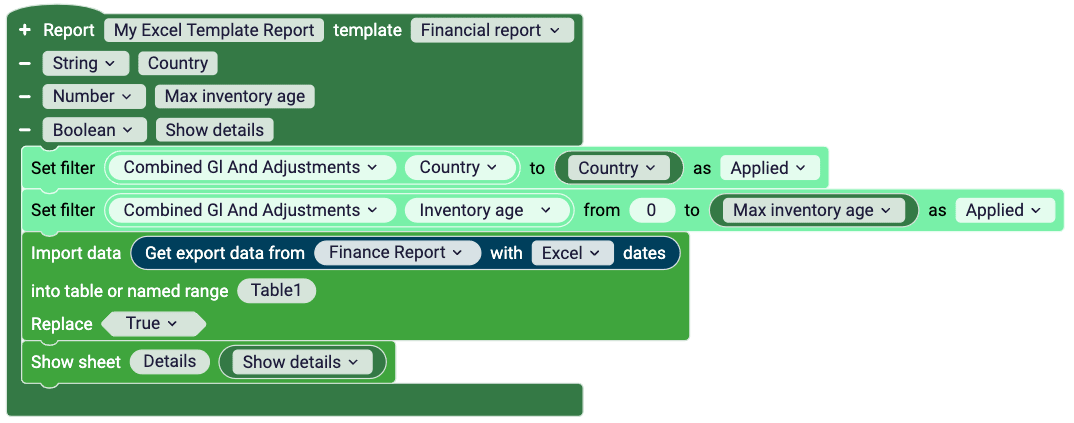
The Report [Report name] template [Template name] block defines the Excel report and triggers the execution of the connected block stack during report generation.
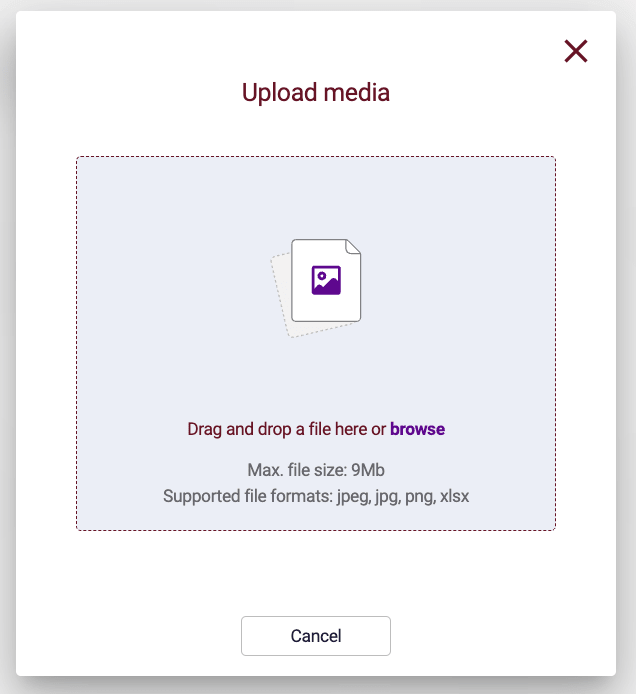
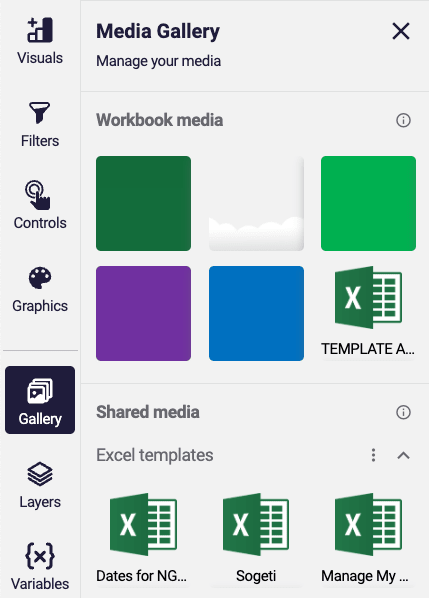
Excel template files (xlsx) are uploaded to the media gallery. Only .xslx file formats are supported.
Example of a report definition block with report parameters.
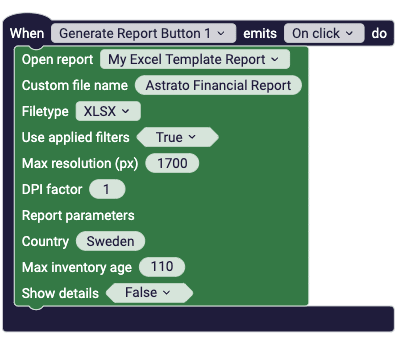
Example usage of a the Open report block with report parameters.
Configuration
Section titled “Configuration”Inputs | Description |
Report name | The name of the report. |
Template name | Select an Excel template (.xlsx) that is added to the Media Gallery of Astrato. Workbook or Tenant templates are supported. |
+ Report inputs | Add additional report inputs to pass inputs to the report that can be access during report generation. Inputs can be of String, Number, or Boolean type. Perfect if you want to reuse the same report for multiple schedules, by filtering on different dimensions and values. |

Report input block contains report inputs passed to the report from the scheduler or the Open report and the Send report blocks. The input blocks to be placed inside the Report definition block.
Excel reports can be scheduled in the report section of Astrato lobby, the same way as PDF reports. See PDF reporting for more information
Supports
Section titled “Supports”Feature | Description |
Embeds | Yes, workbook embeds only. |
Reporting | Yes |
Import data
Section titled “Import data”
The Import data block appends or replace data in the Excel template in a table or named range.
Configuration
Section titled “Configuration”Inputs | Description |
Data | The data to import. Must be a List, where each item represents a row, and each row contains a list of cell values. For example, data retrieved using the Get Export Data from Data Object block. |
Table or named range | Specifies the table or named range where to insert or replace the data into. |
Replace | True or False. If true the data in the table of the table will be replaced. If false the date will be appended to the table or named range. |
Supports
Section titled “Supports”Feature | Description |
Embeds | Yes, workbook embeds only. |
Reporting | Yes, only inside Excel or PowerPoint Report block |
Insert value
Section titled “Insert value”
The Insert value block allows you to insert a specific value into a particular cell on a given sheet.
Configuration
Section titled “Configuration”Inputs | Description |
Value | The value to be inserted into the cell. |
Cell reference | Specifies the cell (e.g., A1) where the value will be inserted. A named range that references a single cell is also accepted. |
Sheet | Specifies the sheet where the cell is located. |
Supports
Section titled “Supports”Feature | Description |
Embeds | Yes, workbook embeds only. |
Reporting | Yes, only inside Excel or PowerPoint Report block |
Insert hyperlink
Section titled “Insert hyperlink”
The Insert hyperlink block allows you to insert a specific hyperlink into a particular cell on a given sheet.
Configuration
Section titled “Configuration”Inputs | Description |
Hyperlink | The hyperlink to be inserted into the cell. |
Cell reference | Specifies the cell (e.g., A1) where the hyperlink will be inserted. A named range that references a single cell is also accepted. |
Sheet | Specifies the sheet where the cell is located. |
Supports
Section titled “Supports”Feature | Description |
Embeds | Yes, workbook embeds only. |
Reporting | Yes, only inside Excel or PowerPoint Report block |
Insert note
Section titled “Insert note”
The Insert note block allows you to insert a note into a particular cell on a given sheet.
Configuration
Section titled “Configuration”Inputs | Description |
Note | The note to be inserted into the cell. |
Cell reference | Specifies the cell (e.g., A1) where the value will be inserted. A named range that references a single cell is also accepted. |
Sheet | Specifies the sheet where the cell is located. |
Supports
Section titled “Supports”Feature | Description |
Embeds | Yes, workbook embeds only. |
Reporting | Yes, only inside Excel or PowerPoint Report block |
Copy sheet
Section titled “Copy sheet”
The Copy sheet block allows you to make a copy of a sheet.
Configuration
Section titled “Configuration”Inputs | Description |
Sheet | The sheet to copy. |
New name | The new name for the copied sheet. The name must be unique within the workbook and cannot contain any of the following characters: |
Supports
Section titled “Supports”Feature | Description |
Embeds | Yes, workbook embeds only. |
Reporting | Yes, only inside Excel or PowerPoint Report block |
Rename sheet
Section titled “Rename sheet”
The Rename sheet block allows you to rename a sheet.
Configuration
Section titled “Configuration”Inputs | Description |
Sheet | The sheet to rename. |
New name | The new name for the specified sheet. The name must be unique within the workbook and cannot contain any of the following characters: |
Supports
Section titled “Supports”Feature | Description |
Embeds | Yes, workbook embeds only. |
Reporting | Yes, only inside Excel or PowerPoint Report block |
Delete sheet
Section titled “Delete sheet”
The Delete sheet block allows you to delete a sheet.
Configuration
Section titled “Configuration”Inputs | Description |
Sheet | Specifies the sheet to delete |
Supports
Section titled “Supports”Feature | Description |
Embeds | Yes, workbook embeds only. |
Reporting | Yes, only inside Excel or PowerPoint Report block |
Move sheet
Section titled “Move sheet”
The Move sheet block allows you to move a sheet to new position within the workbook.
Configuration
Section titled “Configuration”Inputs | Description |
Sheet | Specifies the sheet to move |
Position | The new position for the sheet. |
Supports
Section titled “Supports”Feature | Description |
Embeds | Yes, workbook embeds only. |
Reporting | Yes, only inside Excel or PowerPoint Report block |
Show sheet
Section titled “Show sheet”
The Show sheet block allows you to show or hide a sheet.
Configuration
Section titled “Configuration”Inputs | Description |
Sheet | Specifies the sheet to change visibility of. |
Show | True or false. |
Supports
Section titled “Supports”Feature | Description |
Embeds | Yes, workbook embeds only. |
Reporting | Yes, only inside Excel or PowerPoint Report block |
Set sheet tab color
Section titled “Set sheet tab color”
The Set sheet tab color block allows you to set the tab color a sheet.
Configuration
Section titled “Configuration”Inputs | Description |
Sheet | Specifies the sheet to change the tab color of. |
Tab color | The new name color for the sheets tab. Supports hex, rgb and named css colors. |
Supports
Section titled “Supports”Feature | Description |
Embeds | Yes, workbook embeds only. |
Reporting | Yes, only inside Excel or PowerPoint Report block |
Get cell value
Section titled “Get cell value”
The Get cell value block allows you to get the value from a cell on a sheet.
Configuration
Section titled “Configuration”Inputs | Description |
Cell reference | Specifies the cell (e.g., A1) where the value will be inserted. A named range that references a single cell is also accepted. |
Sheet | Specifies the sheet where the cell is located. |
Outputs: String, Number or Boolean - The value from the specified cell on the specified sheet.
Supports
Section titled “Supports”Feature | Description |
Embeds | Yes, workbook embeds only. |
Reporting | Yes, only inside Excel or PowerPoint Report block |
Set [Primary/Secondary] Axis [Min/Max] Range to [Value] for Chart [Name] in Sheet [Name]
Section titled “Set [Primary/Secondary] Axis [Min/Max] Range to [Value] for Chart [Name] in Sheet [Name]”
Sets the minimum or maximum range of either the primary or secondary axis for a specific chart in an Excel worksheet.
This allows fine-tuned control of how the chart displays values, ensuring consistent scaling across reports.
Configuration
Section titled “Configuration”Inputs | Description |
Axis | Select whether to update the Primary or Secondary axis of the chart. |
Range type | Choose whether to set the Minimum or Maximum value of the axis. |
Value | The numeric value to assign as the axis minimum or maximum. |
Chart name | The name of the chart to update within the worksheet. |
Sheet | The worksheet containing the chart. |
Supports
Section titled “Supports”Feature | Description |
Embeds | Yes, workbook embeds only. |
Reporting | Yes, only inside Excel or PowerPoint Report block |
Set Print Area [Range] of [Sheet]
Section titled “Set Print Area [Range] of [Sheet]”
Defines the print area of a specific Excel worksheet.
Only the specified cell range will be included when printing or exporting the sheet.
Configuration
Section titled “Configuration”Inputs | Description |
Range | The cell range to set as the print area (e.g. A1:D20). |
Sheet | The name of the worksheet to update. |
Supports
Section titled “Supports”Feature | Description |
Embeds | Yes, workbook embeds only. |
Reporting | Yes, only inside Excel or PowerPoint Report block |
Get Print Area
Section titled “Get Print Area”
Retrieves the current print area of a specific Excel worksheet.
This shows which cell range is currently set to print or export.
Configuration
Section titled “Configuration”Inputs | Description |
Sheet | The name of the worksheet to check. |
Outputs: Text – The current print area range (e.g. `A1:D20`).
Supports
Section titled “Supports”Feature | Description |
Embeds | Yes, workbook embeds only. |
Reporting | Yes, only inside Excel or PowerPoint Report block |
Get data from table or named range
Section titled “Get data from table or named range”
The Get data from table or named range block block retrieves all data from a specified Excel table or named range.
The output is a list of rows, where each row itself is represented as a list of values.
Configuration
Section titled “Configuration”Inputs | Description |
Table or named range | Specifies the table or named range where to get the data from. |
Outputs: List - A list of rows from the table or named range. Each row is returned as a list of cell values.
Supports
Section titled “Supports”Feature | Description |
Embeds | Yes, workbook embeds only. |
Reporting | Yes, only inside Excel or PowerPoint Report block |
Get Number of Pages in Sheet
Section titled “Get Number of Pages in Sheet”
Retrieves the total number of printable pages in a specific Excel worksheet, based on the current page setup and formatting.
This is useful for reporting workflows where page count matters, such as preparing exports to PDF or PowerPoint.
Configuration
Section titled “Configuration”Inputs | Description |
Sheet | The name of the worksheet to check. |
Outputs: Number - The number of pages that the sheet will span when printing.
Supports
Section titled “Supports”Feature | Description |
Embeds | Yes, workbook embeds only. |
Reporting | Yes, only inside Excel or PowerPoint Report block |
Open report
Section titled “Open report”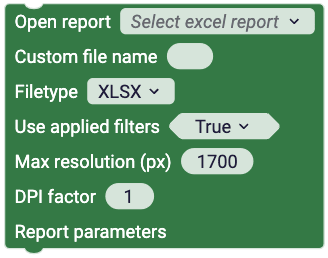
The Open report block downloads the report in the browser when the block is executed.
Configuration
Section titled “Configuration”Inputs | Description |
Report | Specifies the report to send. |
Custom file name | Specifies the file name of the report. |
Filetype | Specify which document type the export will use.
|
Use applied filters | If the users applied filter and variable state should be passed along to the report generation or if they should be ignored. |
Max resolution (px) | The maximum resolution for the height and width of the browser window used for screen captures in reports. If a locked aspect ratio is applied on the sheet, the larger dimension, either height or width, will be set to this maximum resolution in pixels. For example, with a 16:9 locked aspect ratio on a sheet and a maximum resolution of 1700, the width will be set to 1700 and the height to 956. |
DPI factor | Enhances the pixel density of captured images. A DPI factor of 2 quadruples the total pixel count, enriching image quality. Note that a higher DPI factor extends the report generation time. |
Supports
Section titled “Supports”Feature | Description |
Embeds | Yes, workbook embeds only. |
Reporting | No, not supported inside report blocks. |
Send report
Section titled “Send report”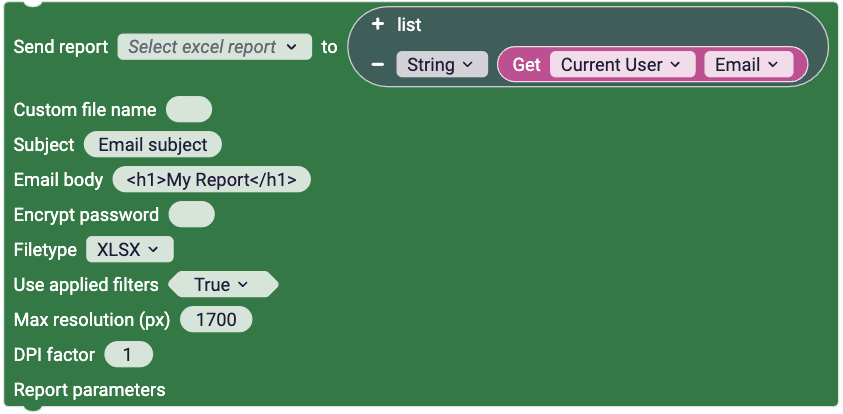
The Send report block sends the report the specified email recipients when the block is executed.
Configuration
Section titled “Configuration”Inputs | Description |
Report | Specifies the report to send. |
Recipients | List of email recipients. |
Custom file name | Specifies the file name of the report. |
Subject | Email subject |
Email body | Email body. Supports HTML. |
Encrypt password | Password for Excel file encryption. |
Filetype | Specify which document type the export will use.
|
Use applied filters | If the users applied filter and variable state should be passed along to the report generation or if they should be ignored. |
Max resolution (px) | The maximum resolution for the height and width of the browser window used for screen captures in reports. If a locked aspect ratio is applied on the sheet, the larger dimension, either height or width, will be set to this maximum resolution in pixels. For example, with a 16:9 locked aspect ratio on a sheet and a maximum resolution of 1700, the width will be set to 1700 and the height to 956. |
DPI factor | Enhances the pixel density of captured images. A DPI factor of 2 quadruples the total pixel count, enriching image quality. Note that a higher DPI factor extends the report generation time. |
Supports
Section titled “Supports”Feature | Description |
Embeds | Yes, workbook embeds only. |
Reporting | No, not supported inside report blocks. |