Controls (Triggers)
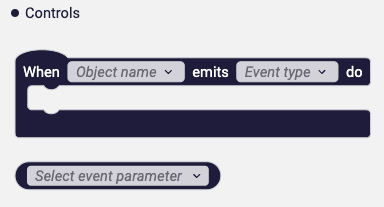
The Controls group of the Triggers section holds the When [Object name] emits [Event type] do block, which runs the block stack connected to it when the selected object emits an event. Supported objects are buttons, maps and filter bar custom buttons.
The group also holds a When [Object type] emits [Event type] do block, which runs for an event from any object of the selected type. See When [Object type] emits [Event type] do.
- When [Button] emits [Event type] do
- When [Map] emits [Event type] do
- When [Filter bar] emits [Event type] do
- When [Object type] emits [Event type] do
When [Button] emits [Event type] do
Section titled “When [Button] emits [Event type] do”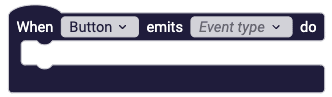
Runs the block stack when a button is clicked, or when the mouse pointer moves onto or off it.
Configuration
Section titled “Configuration”| Input | Description |
|---|---|
| Object name | The button in the workbook. |
| Event type | On click: the blocks run when the button is clicked. On hover: the blocks run when the mouse pointer moves onto the button. On hover exit: the blocks run when the mouse pointer leaves the button. |
Supports
Section titled “Supports”| Feature | Support |
|---|---|
| Embeds | Yes |
| Reporting | Not supported |
Example: Toggle visibility of an object when button is clicked
Section titled “Example: Toggle visibility of an object when button is clicked”Actions

A button that shows and hides explanations of the KPIs on a dashboard helps viewers who are new to it.
Clicking the button named Show/hide Information Button shows the object or group named Information if it is hidden, and hides it if it is visible. The not block turns True into False and False into True.
Example: Clear filter in field when button is clicked
Section titled “Example: Clear filter in field when button is clicked”Actions

A button that clears the filters in one field lets viewers reset part of a guided analysis without clearing everything.
The screenshot shows the event set to On hover. Set it to On click, and clicking the button named Clear Customer ID Filters Button clears the filters in the field Customer Id of the Orders table.
Example: Create image hover effect when button is hovered
Section titled “Example: Create image hover effect when button is hovered”This example shows a different image while a button is hovered over.
Layer structure
- Button
- Desaturated image (its visibility follows the button’s hover state)
- Image
Actions
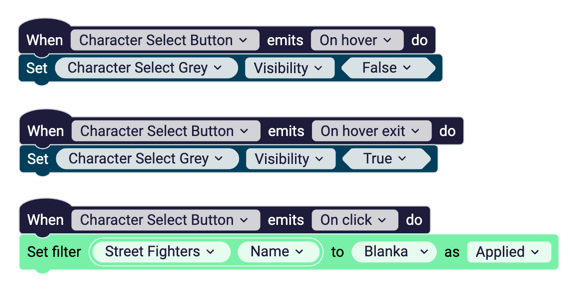
Create these objects:
- Button - Character Select: a transparent button slightly larger than the images, placed on top of them.
- Image - Character Select Grey: a greyscale copy of the character image, with its saturation set to 0%. Its visibility follows the button’s hover state.
- Image - Character Select: the character image, revealed when the greyscale copy is hidden.
Centre the images and the button on each other, horizontally and vertically.
Then add three block stacks:
- On hover: hide the greyscale image when the pointer moves onto Character Select Button.
- On hover exit: show the greyscale image when the pointer leaves Character Select Button.
- On click: select the character with the Set filter block.
When [Map] emits [Event type] do
Section titled “When [Map] emits [Event type] do”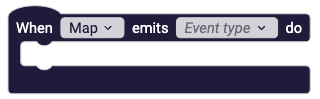
Runs the block stack when a point on a map is clicked, or when the mouse pointer moves onto or off it.

The event parameter block returns a value from the emitted event. Place it inside the When block.
Configuration
Section titled “Configuration”| Input | Description |
|---|---|
| Object name | The map visualization in the workbook. |
| Event type | On click: the blocks run when a point on the map is clicked. On hover: the blocks run when the mouse pointer moves onto a point. On hover exit: the blocks run when the mouse pointer leaves a point. |
Event parameters
Section titled “Event parameters”| Parameter | Description |
|---|---|
| Dimension id | The id of the data point’s dimension. |
| Dimension Value | The value of the data point’s dimension. |
| Measure id | The id of the data point’s measure. |
| Measure Value | The value of the data point’s measure. |
| Left Position | The data point’s position from the left of the sheet, as a relative value from 0 to 100. |
| Top Position | The data point’s position from the top of the sheet, as a relative value from 0 to 100. |
| Layer name | The name of the map layer the data point is on. |
| Latitude | The data point’s latitude. |
| Longitude | The data point’s longitude. |
Supports
Section titled “Supports”| Feature | Support |
|---|---|
| Embeds | Yes |
| Reporting | Not supported |
For a worked example that uses On hover, Dimension Value and Top Position, see Map Interactions - Visual Tooltip.
When [Filter bar] emits [Event type] do
Section titled “When [Filter bar] emits [Event type] do”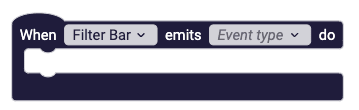
Runs the block stack when a custom button in the filter bar is clicked, or when the mouse pointer moves onto or off it.
The event parameter block returns a value from the emitted event. Place it inside the When block.
Configuration
Section titled “Configuration”| Input | Description |
|---|---|
| Object name | The filter bar in the workbook. |
| Event type | On click: the blocks run when a custom button in the filter bar is clicked. On hover: the blocks run when the mouse pointer moves onto a custom button. On hover exit: the blocks run when the mouse pointer leaves a custom button. |
Event parameters
Section titled “Event parameters”| Parameter | Description |
|---|---|
| Custom button name | The name of the custom button that is clicked or hovered over. |
Supports
Section titled “Supports”| Feature | Support |
|---|---|
| Embeds | Yes |
| Reporting | Not supported |
When [Object type] emits [Event type] do
Section titled “When [Object type] emits [Event type] do”Runs the block stack when any object of the selected type emits the selected event, so one stack can handle, for example, a click on every button or a hover on any map.
Configuration
Section titled “Configuration”| Input | Description |
|---|---|
| Object type | The type of object, such as Button, Map Chart or Table. The list holds the object types that emit events, and Container for the custom buttons on containers. The filter bar is not in the list: use When [Filter bar] emits [Event type] do for it. |
| Event type | The event to react to. The events in the list depend on the selected Object type. Changing the object type clears the event. |
Event parameters
Section titled “Event parameters”Place the event parameter block inside the When block to read a value from the emitted event. Besides the parameters of the event itself, such as those listed for the map above, it offers:
| Parameter | Description |
|---|---|
| Object ID | The id of the object that emitted the event. |
| Object name | The name of the object that emitted the event. |
Supports
Section titled “Supports”| Feature | Support |
|---|---|
| Embeds | Yes |
| Reporting | Not supported |
To add custom buttons to the filter bar, see Filter Bar - Custom Buttons. For the other action blocks, see Astrato Action Blocks.