

Nash conversations
Start Nash in the lobby, when enabled for your account, or while working in a semantic layer. When the new workspace is unavailable, its links return you to the original Astrato app. You can still open the semantic layer editor and use Nash there when AI is enabled for your tenant. If startup shows Unable to load feature settings, reload the page to try again. New conversations created in the Nash interface are saved in Astrato and private to you. Lobby and semantic-layer chat history is shared: open chat history to continue the same conversation from either location. Each Data App Builder app has its own Nash chat history. Opening another app shows that app’s conversations, whether you chose Private or This device only. A request to open Builder from a lobby chat starts a separate conversation in the target app. Earlier conversations started in the lobby remain in lobby history even if they contain Builder activity. Older This device only Builder conversations made before per-app history do not appear in an app; their legacy browser data is retained on this device. When Nash is open beside a supported workspace page, such as a semantic layer, Open full Nash moves the conversation to Home, and Back to the side panel there returns it to the page you came from, in the same place and with the same context. Data App Builder keeps its Nash conversations inside each app.

When Nash automatically resumes in a semantic layer, it selects a conversation about that layer, or starts a new chat when none exists. Visiting a layer with no conversation of its own keeps your remembered workspace conversation available for resuming elsewhere. A deleted or inaccessible conversation is no longer remembered.
Your messages wrap within the Nash panel, including long URLs and code identifiers. Explicit line breaks are preserved.
When you start a conversation in a semantic layer, Nash receives that layer as its initial context. When the page supplies a different current layer, the composer shows it before you send. You can name another resource in your request. Context helps Nash understand the question; it does not expand your permissions.
Clearer answers and query evidence
Section titled “Clearer answers and query evidence”Home offers analytical next steps after Nash returns data, rather than after a catalogue listing or clarification. Source links below an answer open the semantic layers Nash read or mentioned from its discovery results. Context choices with duplicate names show identifying details.
Expand a query step to inspect its returned data. Dates use readable labels and numbers suppress floating-point tails; select Show raw values to see the original values. A long preview shows its first and last rows, with a labelled gap for omitted rows.
Charts in an answer
Section titled “Charts in an answer”Nash draws any chart Data Explorer draws beside its answer — bar, line, pie, scatter, heat map, waterfall or combo, as well as a table or a single number — from the same governed query its numbers come from. Ask for a shape by name, such as a horizontal bar, an area, a stacked area or a donut, and Nash draws that shape. In a combo it can draw each measure as bars, a line or points. Ask it to plot one measure against another — “win rate against weighted pipeline by sales team” — and it draws a scatter: one point per member of the dimension, the second measure you named across and the first up. A third measure sizes the points, and the legend names what colours and sizes them. Asked for a chart neither has, such as a funnel or a map, Nash draws the nearest one and says which. Open in Data Explorer opens the chart in the same type and shape.
Without a shape named, Nash picks the chart that fits the answer: a line for a measure over time, a bar for comparing categories or a ranking, a pie only for the parts of one whole, a scatter for how two measures relate, a single number for one headline figure and a table when exact values matter most.
Ask Nash to zoom a chart’s value axis — “start the axes 10% below the smallest values”, “don’t start at zero”, “cap it at 100” — and it fixes the axis ends in the measure’s own units. A scatter takes a range on both axes; a bar, line, combo or waterfall on the axis its values run along. Nash works a relative bound out from the rows its query, or the previous answer’s query, returned; if some rows were left out, it queries for the smallest value instead.
Reshape the last answer
Section titled “Reshape the last answer”After an answer that queried your data, ask for the same result another way — “as a bar chart”, “sorted by country”, “only the top three”, “as a table” — and Nash reuses the query that answer ran instead of searching the layer and running it again, so the follow-up comes back quickly. Nash keeps the query and its first 20 rows with the answer in a conversation saved in Astrato; it runs the query again only when the new view needs rows that answer did not return. Browser-private conversations do not keep it. Replies that run no query, such as a clarifying question, keep the last one, so “zoom in on that chart” still works a few messages later.
Reconnect App Builder live updates
Section titled “Reconnect App Builder live updates”If App Builder loses its live connection temporarily, it shows Live updates disconnected. Reconnecting… and keeps retrying while the app is open. After reconnecting, it refreshes the saved source and preview state. Source and build errors remain visible. If editing ownership has expired, choose Resume editing before continuing. Access errors and invalid responses still require explicit recovery.
If the latest This device only request fails for a reason other than an App Builder run limit, reopening its saved chat after a page reload restores its failure notice and available diagnostic details. Try again starts a new request with the failed turn’s saved context unless you choose a different context after reopening; check what completed before using it. For an App Builder run-limit failure, send a new message to continue with a fresh allowance. Reopening never retries a failed request automatically. An active question must be answered or skipped first; a historical question from a failed or cancelled turn does not block a new message.
When browser-private recovery preview is enabled for your account, This device only chats save execution progress in this browser. An interrupted reply shows a reconnecting notice and continues automatically when the connection is ready. Keep the browser open; closing it stops continuation until you return. After five minutes without recovery, automatic attempts stop. Choose Reconnect when your connection is available; this continues the saved request. If this browser cannot save recovery progress for a new request, Nash shows a notice and answers normally. That reply cannot resume after a disconnect; existing saved work is kept. An uncertain action or unsupported editing session can require reconciliation instead of an automatic retry. Switching browser tabs keeps a healthy reply running. If saved execution state cannot be read, Clear recovery state discards that execution while keeping the chat history. Stop and deleting a chat work locally even if the connection is unavailable. Clearing browser storage loses recovery state. Another tab viewing the same private chat shows that Nash is running elsewhere and updates when the reply completes. Using Logout in the SLE user menu attempts to remove your recovery records without affecting other users’ saved work in the same browser. Sign-out continues if browser cleanup is stuck; other sign-out paths or an expired session do not guarantee this cleanup. The preview is disabled by default and does not add private scheduled chats or Pause/Resume controls.
Retry app setup
Section titled “Retry app setup”For setup failures, saved package versions and dependency changes, follow Package setup in App Builder. Restoring source restores its saved package declarations and lockfile; it does not publish the app or change live data.
App status
Section titled “App status”The Builder header shows the saved source version in a badge. If the preview still shows an older version, its version appears beside it. The status uses a spinner while working, a green dot when the preview is ready, and an amber warning when attention is needed. Status text remains visible alongside each indicator. Failed actions show an amber warning, and publishing shows a spinner from its initial checks through the upload. Background archive updates do not replace an active spinner or warning. After a reload, or browser Back and Forward, Builder shows the saved preview of the current version without building it again.
See Nash’s status from another tab
Section titled “See Nash’s status from another tab”While Nash is working on a reply, a small blue dot fades in and out on the Astrato icon in your browser tab, so you can work in another tab and see when it is done. When the reply finishes, the dot matches its Actions block: green when the last action succeeded and amber when it failed. It turns red when the reply failed, and a reply without actions leaves the plain icon. The plain icon returns once you come back to the tab. If your system asks for reduced motion, the dot stays steady.
Read Nash’s actions
Section titled “Read Nash’s actions”The Actions summary counts failed steps even when a later step succeeds. If Astrato cannot load a semantic layer, the error identifies the loading failure and gives guidance for its status code. A loading rejection happens before query validation; it does not establish that your requested chart or calculation is unsupported.
Nash’s progress text stays beside the actions it describes, including in This device only conversations. When a reply finishes, expand Worked for to review its progress and actions in order. Stopping a reply or reaching a Builder run limit keeps that progress in the same browser’s history, even when there is no final answer. If a reply fails, its earlier actions also remain available under Worked for after you send another message or reopen the conversation. Failed keeps the failure reason beside that work; Stopped marks a reply you cancelled. Interrupted marks a This device only reply that was still running when its page was reloaded or closed. Each reply says how it ended once, after its actions. When the conversation ends on a stopped, interrupted or failed reply, that notice offers Try again, including after you reopen the conversation; it sends the same message again as a new request. Interrupted Worked for sections open by default. Stopping keeps an expanded Actions list open; a list you deliberately collapsed stays collapsed. Successful replies keep their compact Worked for section.
Completed Actions blocks collapse when Nash moves on to the next part of its reply. Select the summary to reopen a block and inspect its steps.
An Actions block shows a spinner while any of its actions is running in an active reply. After Stop, failure or a run limit, calls without a recorded result show Interrupted with a static pause icon. Completed results and recorded failures keep their original states. When all calls have recorded results, the block’s icon reflects the last action: a green checkmark for success or an amber exclamation mark for failure. Earlier failed attempts keep their own amber marks; open one to read the exact diagnostic.
In App Builder, documentation steps describe what Nash is consulting, such as Search app documentation, Read chart-selection guidance or Read chart configuration reference · part 2. Part numbers indicate successive sections of a longer page. Consecutive identical reads show a repeat count. Invalid topics and searches with no matches remain visible as failed attempts.
Ask a suggested question
Section titled “Ask a suggested question”When Nash suggests what to ask next, each question appears as a button under its answer. Select one to ask it as your next message in the same conversation, without typing it again.
A question marked Saved question is a business question stored on the semantic layer. Selecting it runs that stored question as it is defined, rather than a new query built from its words. If the stored question cannot run, Nash says so and answers the words as an ordinary question.
On Home and in the Library, Nash uses the questions the layer last published. A new question, or a change to one, reaches these chats when the layer is published.
In App Builder, Nash also uses the draft questions of the app’s own semantic layer, so it can build on a question it has just saved; a suggested question stays with what is published.
Tables in an answer
Section titled “Tables in an answer”When an answer’s result has more than five rows or more than three columns, Nash usually shows it as an Astrato table rather than as text. The table runs its own query against the layer, so its numbers use the formats the layer defines for each measure, such as currency or percentages, and you can sort it by any column. Long results scroll inside the table, with the header and totals row kept in view.
Figures Nash works out from a result, such as a share of a total or the sum of two values, are written in the text beside the table rather than added to it, so the table always shows what the layer returned. Short results of two or three columns, and results the table cannot show, such as a Top N ranking, may still be written as a small text table.
Save a chart or table as a business question
Section titled “Save a chart or table as a business question”Charts Nash draws in an answer, and the result tables under Actions, carry a Save as business question icon in their top-right corner. It saves the query that produced the result, so the answer can be found and run again instead of staying in chat history. For a chart, that is the query in the same answer that selected the chart’s dimensions and measures: a Top 5 chart saves the Top 5 query, ranking included, not the list of five members the chart was drawn with.
The dialog asks for a name, prefilled from the chart’s title, and an optional description. The query is saved exactly as it ran, read the same way as a question saved through MCP: dimensions and measures the query defined for itself are added to the layer as named entities, and a Top N is stored with the ranking it ran with. A name already used by another question is refused, and the reason is shown in the dialog.
The question is saved to the layer’s draft. Publish the layer before running it from Nash, MCP or the business question list. When that layer is open in the editor, the question goes into the editor’s own draft.
The icon appears only when Business Questions is enabled and you can edit the layer. When no query in the answer selects what a chart shows, the icon is disabled and says so.
Answer Nash’s questions
Section titled “Answer Nash’s questions”When Nash needs a decision from you, it asks in the conversation, up to five questions at a time, each with a few choices and the one it suggests marked Recommended.
Nash reads a semantic layer before it asks what to measure or rank by, so the choices it offers are measures and dimensions that layer holds. When it does not yet know which layer to use, it first looks at the semantic layers you can open: if one fits, it uses it; otherwise it asks which, on its own, offering only layers it found, then reads the layer you pick before asking anything else. When one of the layer’s measures or dimensions is clearly what you meant, Nash uses it and says which, naming the others you can ask for instead, rather than asking you to pick.
- One answer: select a choice. That answers the question, with nothing else to confirm: the next question appears, or after the last one Nash continues.
- Several answers: select them, then Next, or Submit on the last question.
- Your own words: type in the box under the choices, then Next or Submit, or press Enter.
From the second question on, ← Back returns to the one before, with your answer still selected. On the first question, Skip lets Nash continue without your answers. The message box below the conversation is unavailable until the questions are answered or skipped.
Expand Worked for above the question card to review Nash’s earlier progress and actions. After you answer, later work stays after the card, including when you stop Nash or the reply fails. You can review that work after continuing or reopening the conversation.
Read what an answer covers
Section titled “Read what an answer covers”Nash opens an answer built from your data with one line saying what it covers. Where the question sets no dates, that line names the period the data spans, when the layer’s descriptions or the conversation so far give it. A rate or average by group comes with the count it is taken over, and a share says what it is a share of. Money figures carry the currency the layer’s names or descriptions state, and none where they state none.
Nash answers from the measure the layer defines across all its data, such as every channel’s sales, rather than from one part of it. When a breakdown exists for only one part, Nash uses that part’s measure and says what it leaves out.
Longer App Builder sessions
Section titled “Longer App Builder sessions”In App Builder, Nash keeps recent source, documentation and preview results while it works. When its working context grows large, it automatically compacts older work into a checkpoint and continues. Older details may need to be read again before making further changes.
Source editing, preview and semantic-layer reading are available from the start. Nash loads extra tool groups when a task needs them, such as changing a measure or importing data. You do not need to enable those groups manually, and loading a group does not change your permissions.
In Builder, Nash can use the verified open app for source, version history and preview actions. See Builder target selection for its scope and external MCP requirements.
Choose what Nash answers about
Section titled “Choose what Nash answers about”In the lobby and the other workspace pages, the button above the message box shows what Nash is answering about. Open it to choose a semantic layer, a workbook or a data connection, and search by name. A question that names no layer is then answered from that choice.
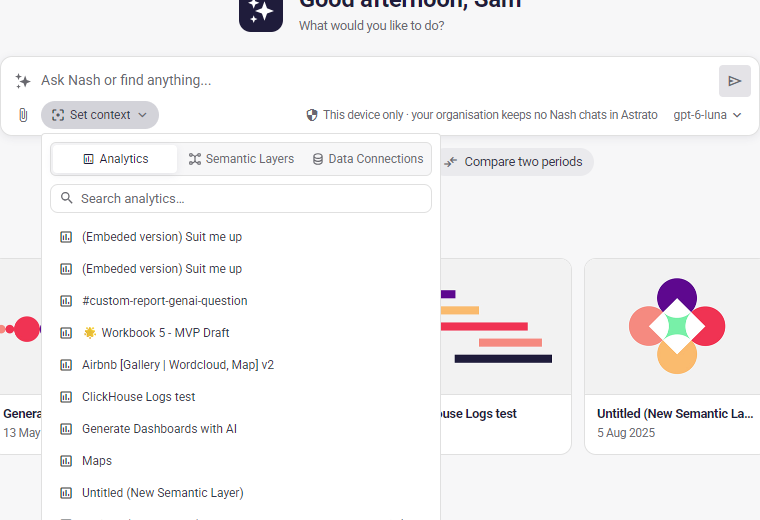
Selecting a workbook, semantic layer or data connection in its list, so its properties open, makes it the context too — unless you have already chosen one in Nash, which stays until you change or clear it.
- A workbook is answered from the semantic layers its versions are built on. A question that names no layer is about the layer its published version reads, the one its properties show.
- A data connection is answered from the semantic layers built on it. A connection with no semantic layer says so when you pick it, and cannot be chosen.
- A choice covers at most 10 semantic layers.
Nash knows the name of the semantic layer behind your choice, so asking which layer it is answers straight away, without a lookup.
Wherever Nash’s answer names the semantic layer you chose, the name is a link: select it to open that layer in the editor. Ask Nash to open the layer and it names it for you, rather than describing where to find it. This works in browser-private chats too.
Each list is sorted A–Z, and the current context leads its own list with a check mark. Before you search, the semantic layer list shows the first 40 by name. A search reads up to the 1,000 most recently updated semantic layers, and says so when your tenant has more.
When Nash’s answer finds exactly one workbook, or reads exactly one semantic layer, that becomes the context for your next question. A layer the current context already includes, such as the layer of the workbook you are asking about, leaves the context as it is.
Use × to clear the context; Nash then answers about anything again, even in a conversation that began with a semantic layer as its context. You cannot change the context while Nash is answering. The choice is not kept when you reload the page.
Get started with Nash
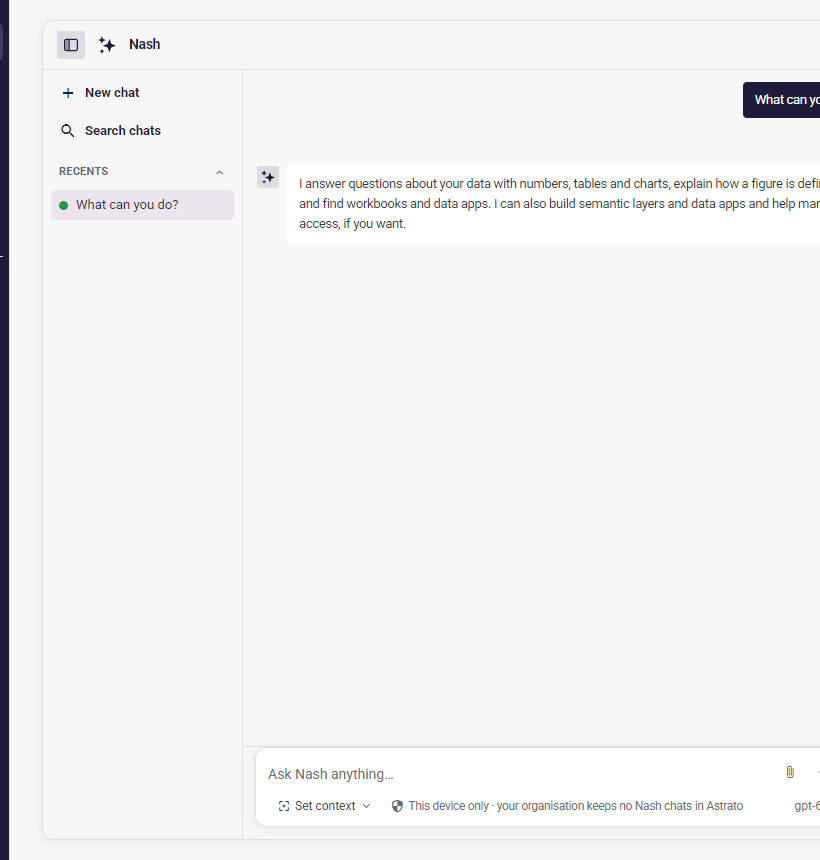
Section titled “Get started with Nash”Ask Nash What can you do? and it says, in a sentence or two, that it answers questions about your data with numbers, tables and charts, explains how a figure is defined, and finds workbooks and data apps, and that it can also build semantic layers and Data Apps and help manage access.
Ask What data do we have? with no context chosen and Nash gives the number of semantic layers you can open. It says how many of the ones it looked at are copies, tests or demos, names a few of the rest by subject, and asks which area you work in.
Ask for an overview of a semantic layer and Nash describes what it records and the period it covers. It also gives how many records it holds and a few questions it answers. It counts tables, fields and measures only when you ask. In the semantic layer editor, an overview still describes how the layer is built.
Nash names the semantic layer it answered from, as the list of layers spells it. Asked for a key or token for your own code, Nash points you to creating a personal access token from your profile menu.
Import a CSV file
Section titled “Import a CSV file”Drop a CSV file on the Nash panel, or pick one with the paperclip next to the message box, and send it with your message. With no message, Nash imports it as a new table. Name the table in your message to choose it.
- In a semantic layer, the table goes into the layer’s own data connection and onto its map, as Upload CSV does in the editor.
- In the lobby, name the data connection in your message; Nash asks when you name none.
The data connection must allow writes. The limits are those of Upload CSV: up to 10 MB, 100,000 rows and 1,000 columns. Nash reads the file name and its columns; the file itself goes to Astrato when you send the message, and Nash must import it within 15 minutes, by your account only.
Send a message while Nash is working
Section titled “Send a message while Nash is working”You can keep writing while Nash replies. A message you send then waits under Queued messages and goes out when the reply finishes, in the order you sent it. Use Cancel queued message to drop one you no longer want.
Pressing Stop sends nothing that is queued. Your messages go back to the message box, in order, so you can send, change or delete them. The same happens when a queued message can’t start, and Nash says why.
If you close Nash, reload the page or move to another page before a queued message goes out, it isn’t sent. Open that conversation again in the same browser tab and it’s back in the message box, with a note saying so.
The message box holds one file. After Stop, the first queued file comes back with its message; Nash names any other so you can attach it again. After reloading or reopening Nash, attach queued files again.
Continue after an App Builder run limit
Section titled “Continue after an App Builder run limit”When App Builder is available to your account, Nash has a larger allowance for each run so it can edit source, build and check the preview. A run stops when it reaches its token allowance or 30-minute duration limit. If you see Run limit reached, your saved app changes are kept. Send a new message such as “Continue from where you stopped” to start another run with a fresh allowance. Nash waits for you; queued messages do not automatically continue a run that reached this limit. The notice remains in your conversation history, including browser-private chats.
Choose browser-private history
Section titled “Choose browser-private history”Use New browser-private chat when you want the conversation’s history to stay in that browser. The composer shows Browser-private · Scheduling unavailable. Nash and the selected model still process the history during each request. Losing browser storage loses that history; it cannot be recovered from another browser.
All your browser-private chats share one limited space in the browser. As it fills, Nash keeps everything you wrote and every answer, and removes the details of its oldest work first, so Worked for on an older reply can show less, or not appear at all.
If a chat still can’t be saved, Nash shows Chat not saved above the message box. You can keep working, and the notice clears once a save succeeds. Until then, reloading or closing the page loses the newest messages.
A normal conversation shows Private · Stored in Astrato. Existing browser-private conversations stay local; creating a normal conversation does not upload them. The privacy choice creates a new conversation rather than converting the current one.
Keep a reply going while you move around the lobby
Section titled “Keep a reply going while you move around the lobby”A browser-private reply keeps streaming when you leave the page you asked it on. Ask on Home, open another lobby page, and the Nash side panel picks up the same conversation with the reply still arriving; a reply that finished while you were moving is shown there in full. Closing the conversation’s tab in Nash, or the Nash panel, does not end the reply either; open the conversation again to follow it. With the recovery preview enabled, Stop and deleting the conversation work in this browser even while offline: they prevent the browser from resuming the work, but cannot confirm that the server request has ended. Switching tenants or leaving or reloading the browser disconnects its active execution. Without the recovery preview, that ends the run; with the preview, saved work can continue when you return to the same browser. See browser-private recovery. Conversations stored in Astrato reconnect to the running reply wherever you open them.
If you open a browser-private conversation in a second browser tab while Nash is replying in the first, the second tab shows that Nash is working on it in another tab. Follow or stop the reply in the tab that is running it; the second tab offers no Stop and can’t queue a message until the reply ends. When the reply finishes, it appears in the second tab too; if Nash is closed in the first tab, open it there to see the reply. If the first tab closes before the reply finishes, the second tab shows that the reply didn’t finish. Sending from either tab keeps what was said in the other, and the next message you send takes it into account.
Recover from an interrupted run
Section titled “Recover from an interrupted run”A connection notice means Nash is reconnecting; the reply has not stopped, and text already shown is not repeated. A reply can still be interrupted. Nash resumes it automatically only when a recovery preview is enabled for your account. This device only chats require the browser-private recovery preview; see browser-private recovery. App Builder work additionally requires App Builder recovery to be enabled for your account.
In a conversation stored in Astrato, if sending a message fails, choose Try again without changing the message: Nash does not run the same request twice. Sending the same text as a new message starts a separate request.
If a request is interrupted, Nash shows a short notice. Open Details for the technical information, or use Copy details to share it with Astrato Support. The copied details include the request’s correlation ID when one was received.
If the AI model reaches its output limit before Nash finishes, the notice says so. Check what was completed, then try again; if it happens again, ask for one part of the work at a time. In App Builder, Nash reports what is saved and what is not finished instead. A short notice stands in if it cannot write that summary.
If the AI provider is rate-limiting requests and asks for a wait of 10 seconds or less, Nash waits and tries once more by itself, provided it has not yet started writing the text it was working on. In any other case, or if the provider is still rate-limiting requests after that, the notice says so: it tells you when to try again when the provider reports a wait, and otherwise to wait a moment and try again. If the provider account has used up its quota, trying again does not help. For a model provided by Astrato, contact Astrato Support if it persists; for your organization’s own provider account, ask an administrator to check its plan and billing or to select another AI provider.
If the AI provider stops responding before Nash has started writing, Nash tries once more by itself, unless you stopped the reply or the response is already close to its time limit. Nash never tries by itself twice in a row, whether the provider was rate-limiting requests or stopped responding. If the provider still does not respond, or Nash had already started writing, Nash shows the interruption notice; check what was completed before trying again.
Without the browser-private recovery preview, disconnecting a browser-private chat ends its active run. Saved app and semantic-layer edits remain. Try again starts a new run with the same chat and the failed turn’s saved context, unless you choose another context before retrying. It does not resume the interrupted execution, and completed changes may need checking. Ask Nash to inspect the current app and layer before continuing when you are unsure what was saved. If an Astrato update interrupts a browser-private run, the notice’s details say so. Changes Nash already saved are kept. With the preview enabled, follow browser-private recovery to continue saved work.
Schedule work
Section titled “Schedule work”In a normal server-stored conversation, ask Nash to perform recurring work when scheduling is available to your account. For example: “Send regional sales to our Slack integration every morning.” Review and edit your schedules on the Nash schedules tab under Reporting, and open a schedule to return to its source conversation. See Recurring Nash for scheduling and delivery rules.
Browser-private conversations cannot create schedules because unattended runs need server-stored instructions and history.
Ask Astrato Support
Section titled “Ask Astrato Support”When AI Support is enabled for your workspace, Nash searches Astrato’s public help and tries to resolve the problem before preparing a report. It asks up to three focused diagnostic questions, one at a time, and uses what you have already provided. Do not include credentials, tokens or raw data in an answer.
Support lookups can take longer than an ordinary reply. You can stop Nash while it is working.
Before preparing a bug report, Nash may also ask whether you have a correlation ID that you can share. This is optional: continue without it if none is available or you prefer not to share it. An ID already supplied or declared unavailable is not requested again. Feature requests do not need this check.
If a report is appropriate, Nash offers a separate private support conversation where you can review and edit the draft. Only choosing Submit ticket saves the report. See Support portal for submission, privacy and ticket visibility.
AI Support is available through Nash only. Slack messages do not trigger support, create tickets, or receive release updates. Nash screenshot uploads and AI image processing are not available. Existing CSV attachments for data import and Slack reporting integrations are unchanged.
Existing shared conversations
Section titled “Existing shared conversations”Older conversations attached to a semantic layer keep their existing sharing and access rules. New global conversations are private to their owner; global conversation sharing is not available.
Choose an AI provider
Section titled “Choose an AI provider”Use the model selector to choose an available provider. During rollout, your workspace may continue to use its existing provider list. Once tenant-managed providers are enabled, the selector shows your tenant’s eligible AI providers. Nash uses each provider’s configured model. Available choices follow your tenant’s AI-provider policy and the capabilities supported by Nash in this editor. It prefers an eligible Astrato Default provider when opening a chat; otherwise it chooses the earliest configured eligible provider. Scheduled work uses the tenant’s current default at execution time.
Nash currently supports direct OpenAI and Fireworks providers, including Astrato Default when backed by a supported endpoint. Other provider types, custom endpoints and models without known context limits or tool support are omitted from the selector. If no compatible provider is available, ask your administrator to configure one. A removed or changed selection requires you to choose an available model again; Nash does not silently switch providers during a turn.
Provider credentials are used by Astrato’s backend to call the selected model. They are never returned to the chat interface or included in the conversation sent to the model. Credential changes apply to subsequent executions.
Recovering work in App Builder
Section titled “Recovering work in App Builder”When App Builder recovery is enabled for your account, keep the app and its Nash chat open during a temporary backend restart. This is separate from the browser-private recovery preview. Nash can continue from confirmed source changes or an execution result saved by that browser. A lost connection while sending a result does not make Builder run the command again.
If the editing session has changed, browser storage is unavailable, or an action’s outcome cannot be confirmed, Nash keeps the work held for review. Reopening the browser does not transfer the old editing session. Follow the connection notice and use Resume editing only when Builder asks for it; do not repeat an uncertain command just because the connection was interrupted.
Period comparisons
Section titled “Period comparisons”For period comparisons, ask Nash to state the exact dates, metric definitions and any uncertainty about source coverage. A sparse month does not by itself prove that its source is incomplete. Nash’s comparison guidance keeps the requested calendar window and distinguishes observed activity from proven coverage. Follow-up guidance retains known metric definitions and reuses discovery when its current-session evidence remains valid; query changes still require preparation.