

Connecting to PostgreSQL
Introduction
Section titled “Introduction”In this article, we show you how to connect your Astrato workspace to PostgreSQL. It’s designed to be a quick process and easy to follow.
Checklist | Create New Connection |
Checklist
Section titled “Checklist”When you’re setting up your data connection, you’ll be asked to enter information about your data source. We’ve listed all the items you need here:
-
Data connection: Hostname, Port
-
Database Credentials: User name, Password
-
SSL Credentials: SSL mode - default set at ‘Disable’ (HTTP) - please amend as required to meet your organization’s security policy.
Cloud NAT IP addresses
Section titled “Cloud NAT IP addresses”prod-astrato-io-prod-nat-ip-0 34.142.11.11 prod-astrato-io-prod-nat-ip-1 34.142.68.232Create New Connection
Section titled “Create New Connection”-
Select Data in the sidebar
-
Create Data to open the Create New Data Source screen
-
Click on the PostgreSQL icon
-
A dialogue box displays to Connect to a PostgreSQL (Figure 1)
-
Complete the required fields in the connection dialogue box, and click Test Connection.
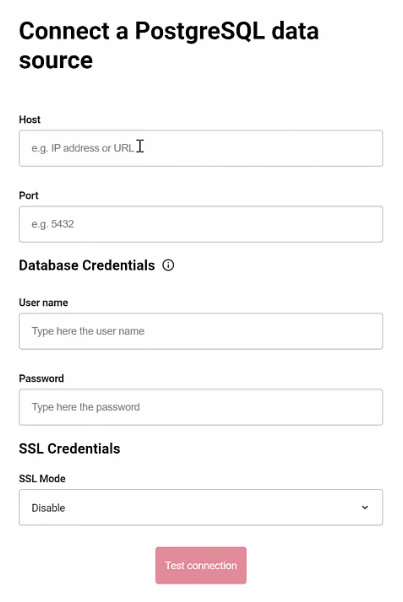
Figure 1: Create New Connection - dialogue box image
-
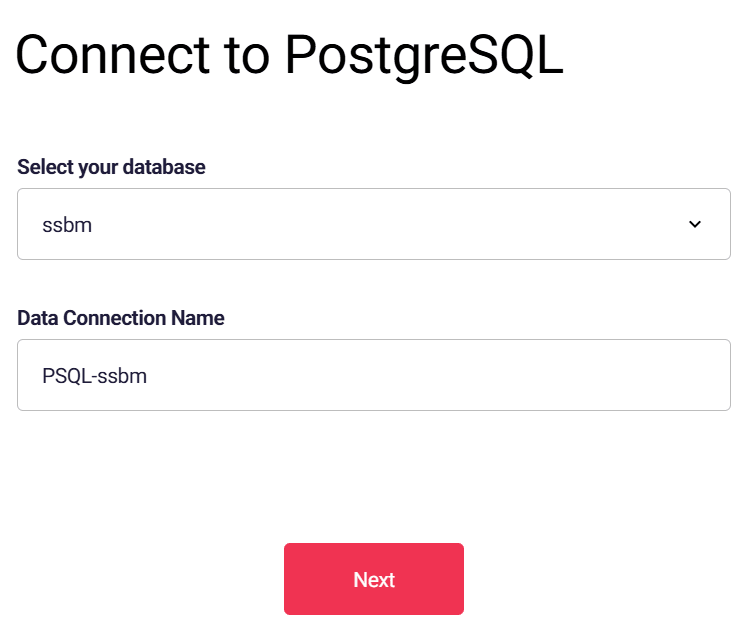
On the next screen, select the database.
-
Give the connection a name.
-
Click Next
-
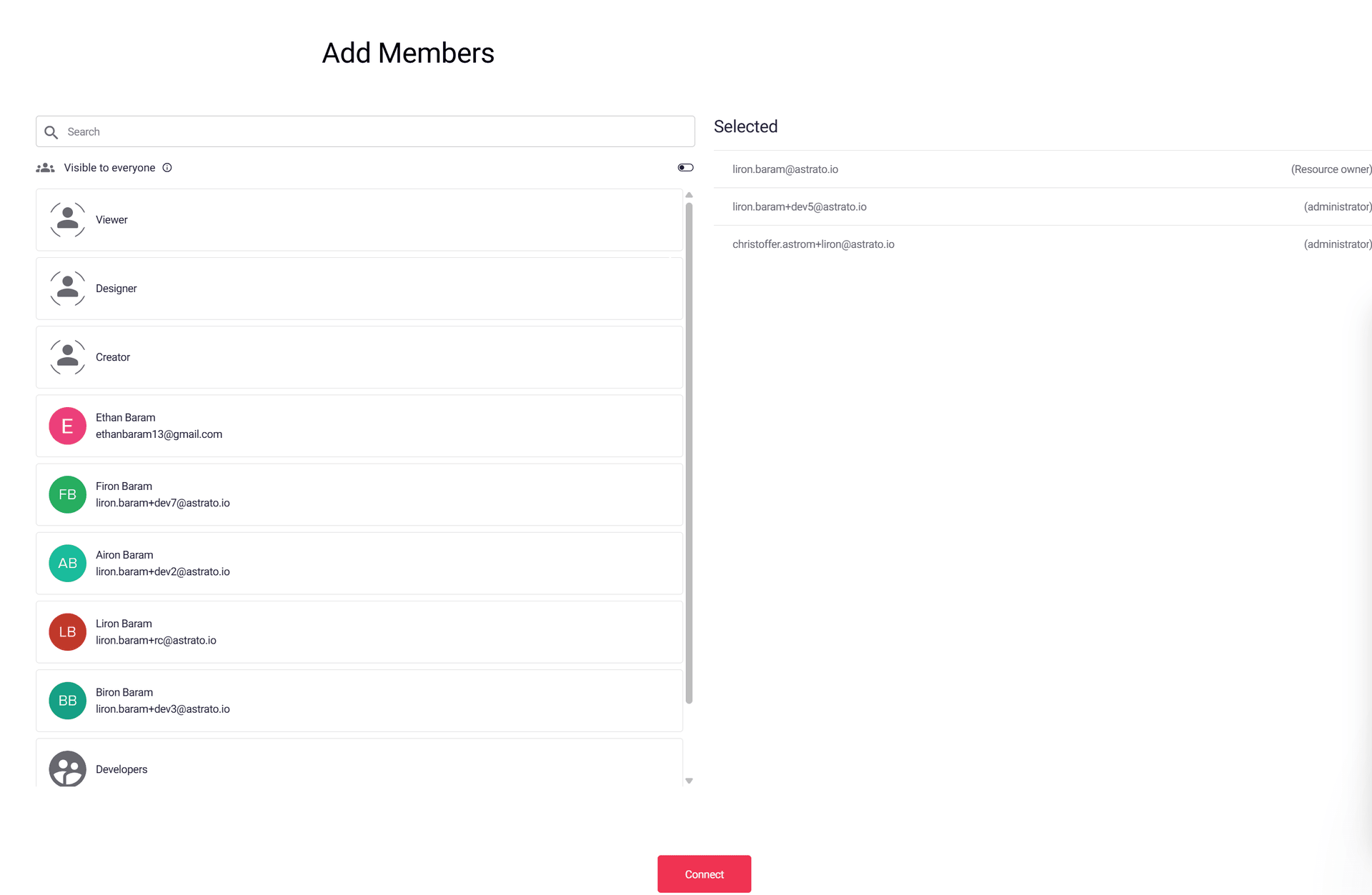
On the next screen, select the users and groups with access to the data connection.
-
Click connect.
-
The data connection is created, and you’ll be directed to a screen to create your semantic view.
Back to Top