

Install the Add-in
Before Excel can talk to Astrato, you need the Add-in. There are two ways to get it — install it yourself, or have your IT team push it to you.
Before you start
Section titled “Before you start”You’ll need:
-
An Astrato account with access to at least one semantic layer. The Add-in doesn’t do anything on its own — it needs your Astrato data behind it. New to Astrato? Say hello at hello@astrato.io.
-
Excel on Windows, Mac, or the web. (On the web, use an up-to-date Microsoft Edge, Google Chrome, or Safari.)
Option A: Install it yourself
Section titled “Option A: Install it yourself”If your organization lets people add their own Office Add-ins, it’s a few clicks:
Step 1: Open Excel.
Step 2: On the Home tab, select Add-ins.
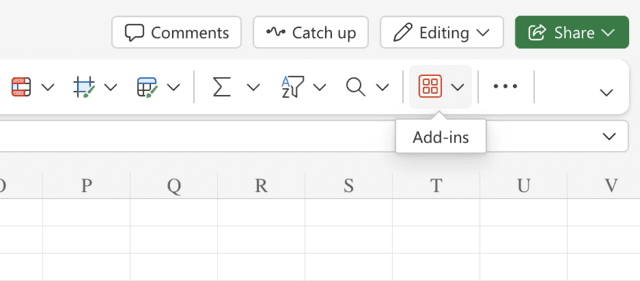
Step 3: Click More Add-ins to open Microsoft Marketplace. Search for Astrato.
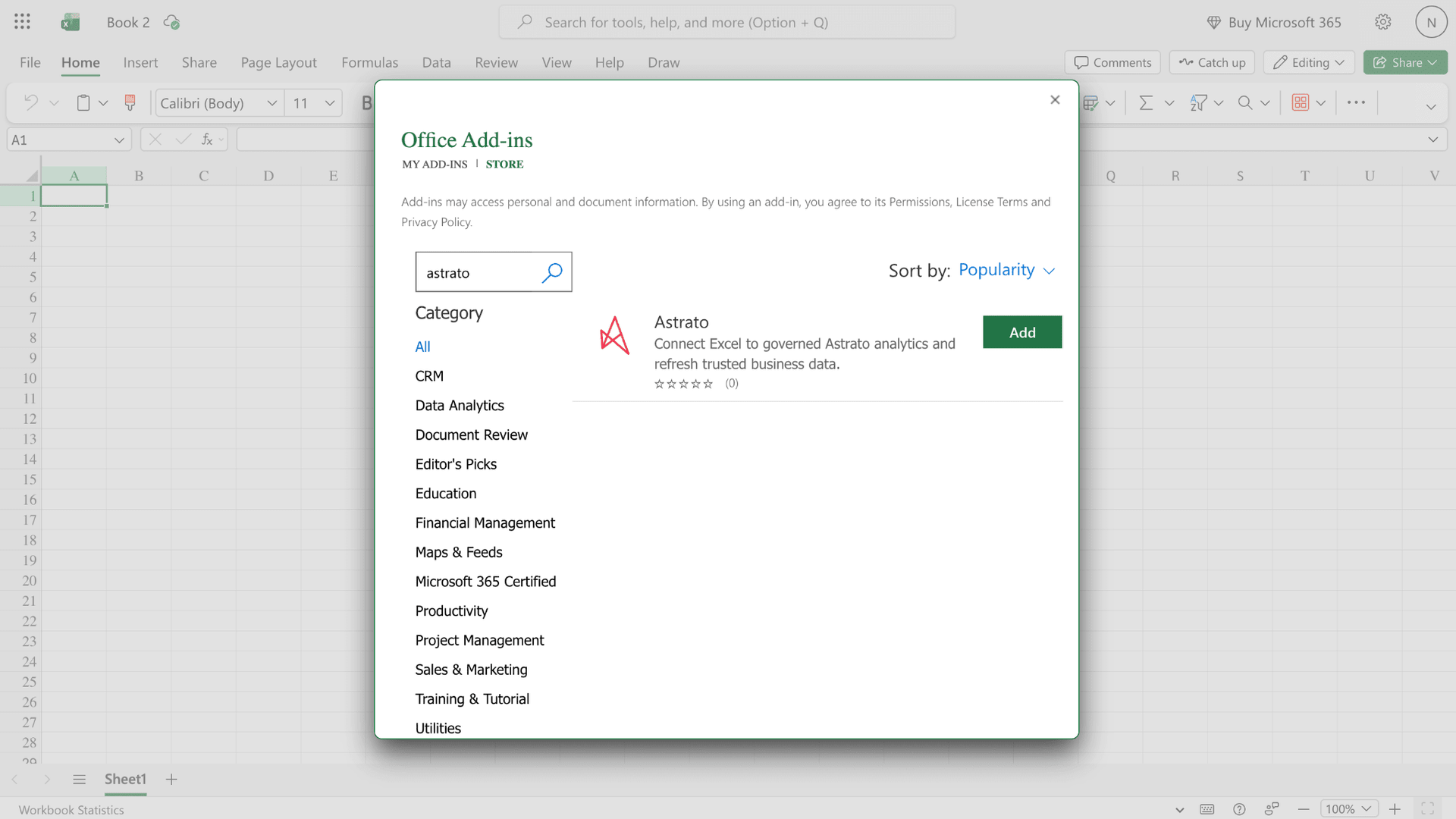
Step 4: Select Add, and accept the prompt to turn it on.
Result: The Add-in is installed for your account and is ready the next time you open Excel.
Next step: Open Connect to Astrato.
Option B: Install from Microsoft Marketplace
Section titled “Option B: Install from Microsoft Marketplace”You can also install the Add-in directly from the Microsoft Marketplace.
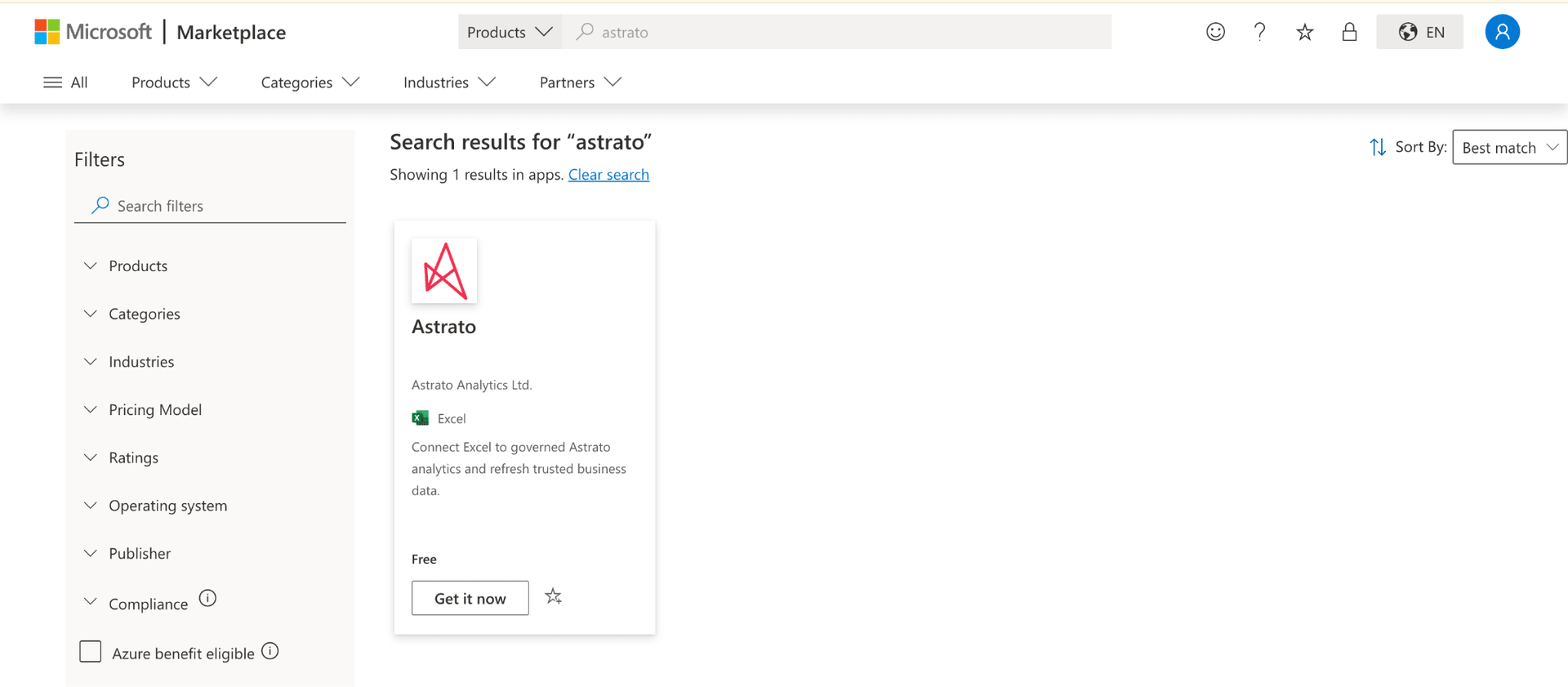
Step 1: Visit the Microsoft Marketplace Astrato page.
Step 2: Click Get it now.
Step 3: Choose Open in Excel to get started.
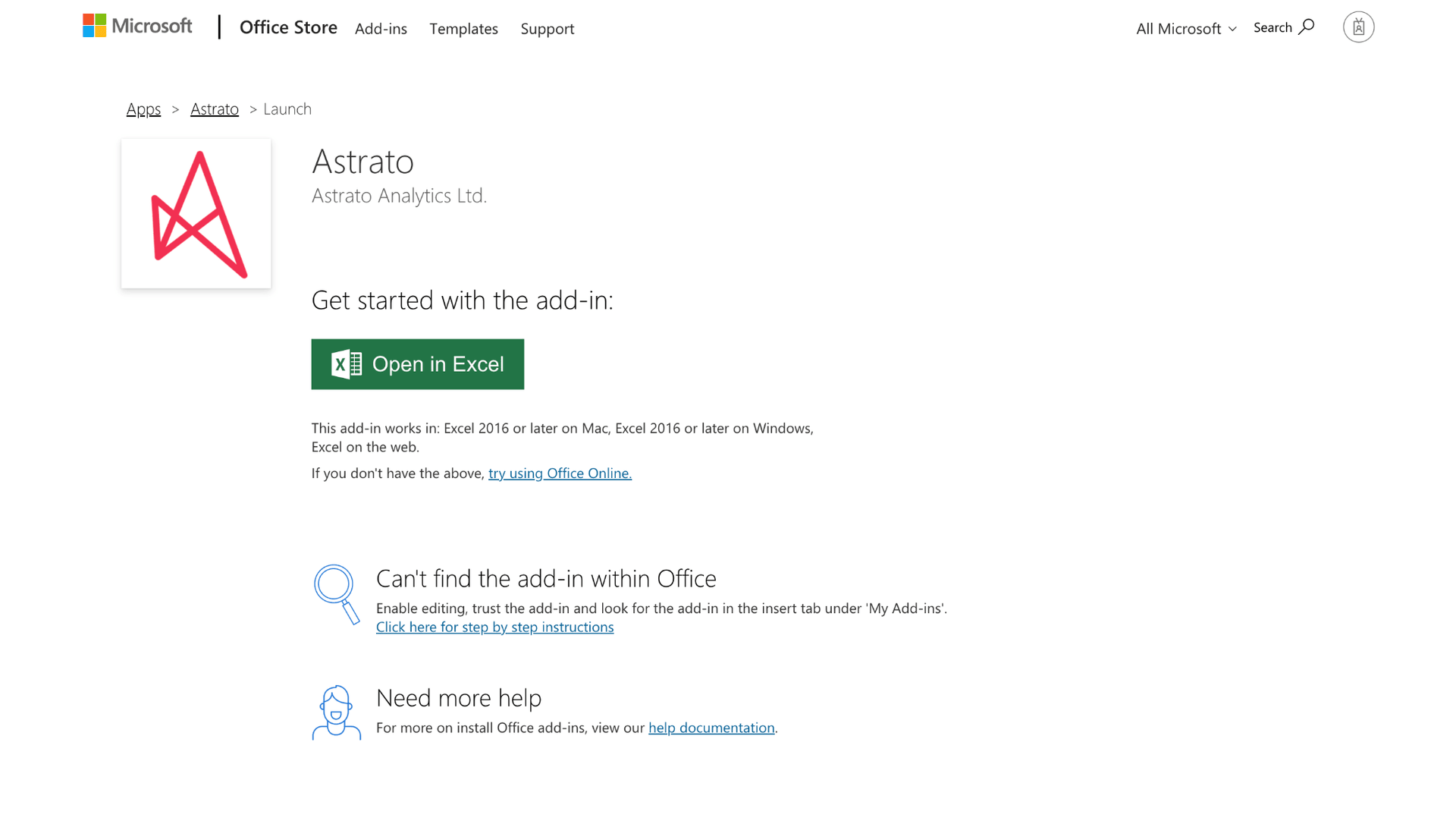
Step 4: Click Allow and Continue to launch the Add-in.
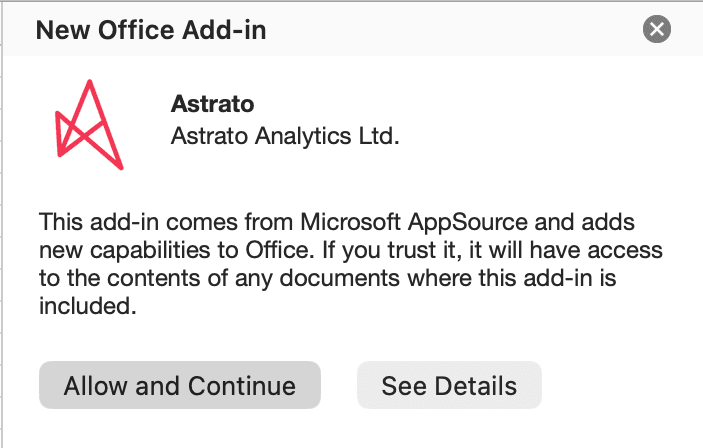
Result: the Add-in opens in Excel and you’re ready to connect.
Next step: Open Connect to Astrato.
Option C: Get it from your IT team
Section titled “Option C: Get it from your IT team”In many organizations, an admin rolls the Add-in out for everyone. If your admin has installed it centrally, the Add-in appears automatically on the Excel Home ribbon — you don’t need to do anything.
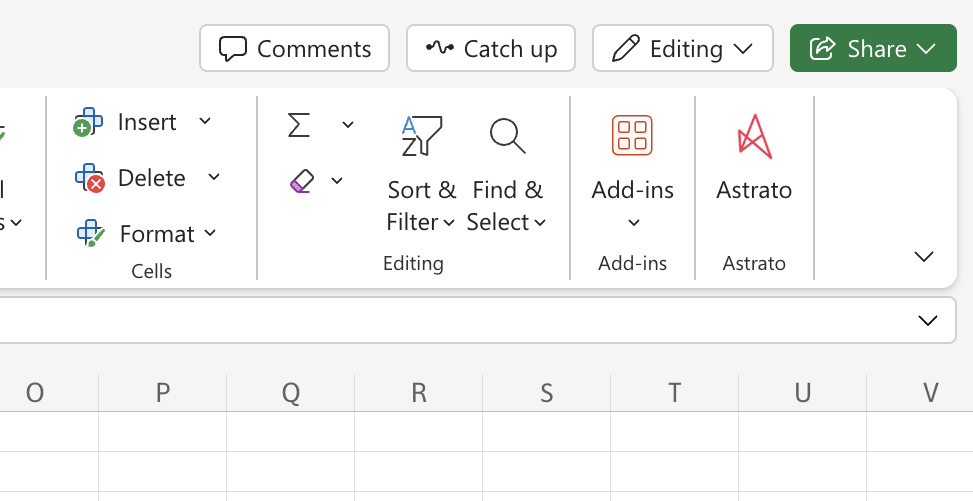
If you need to install it as an admin, you deploy it centrally:
-
Go to the Microsoft 365 admin center.
-
Open Settings.
-
Select Integrated apps.
-
Click Add-ins.
-
Choose Deploy Add-in.
-
Pick Astrato from Marketplace, and assign it to Everyone, or to selected users or groups.
Result: the assigned users see the Astrato button on their Excel Home ribbon.
Open the Add-in
Section titled “Open the Add-in”Once it’s installed, an Astrato button appears on the Excel Home ribbon. Click it to open the Astrato panel on the right — that’s where everything happens.
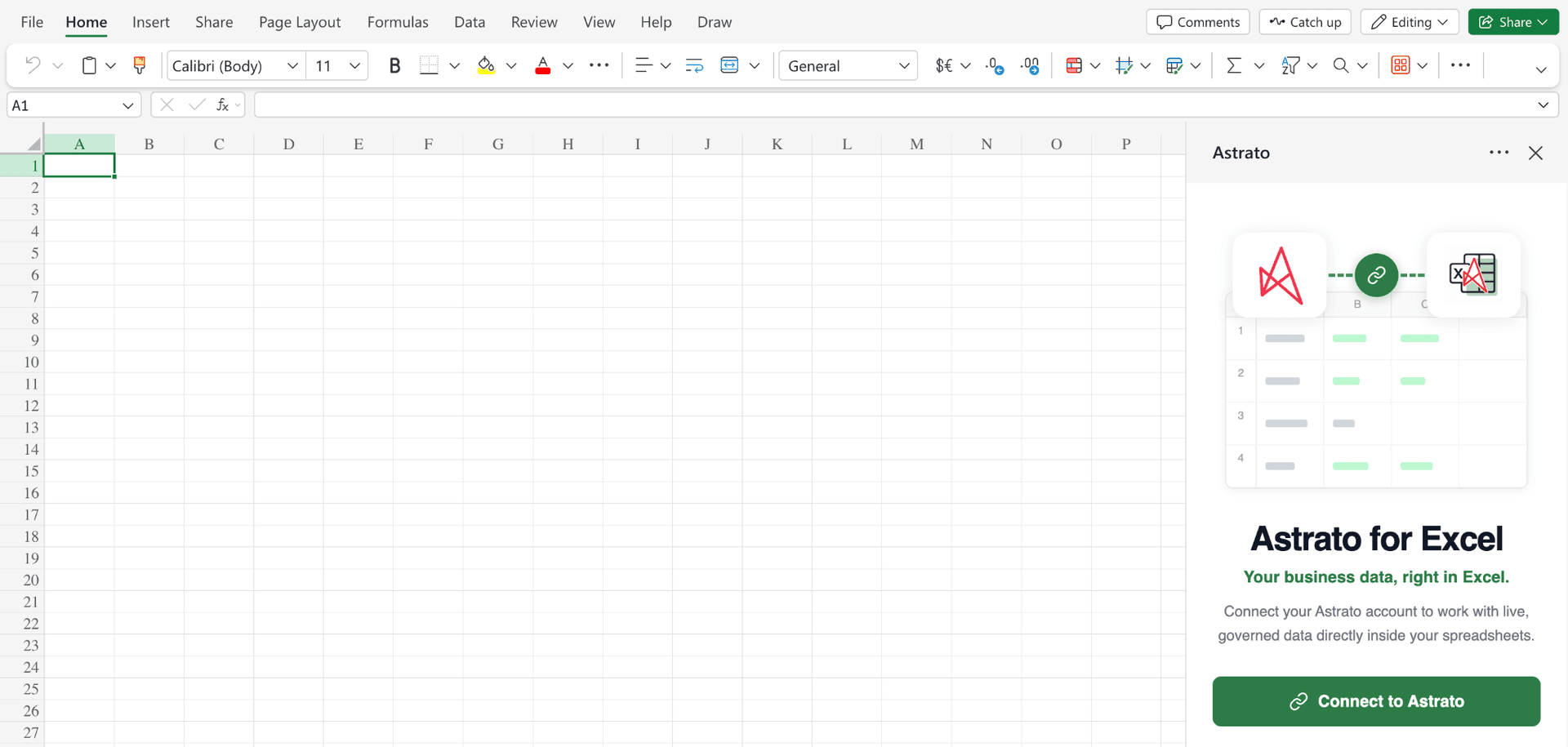
Next step: Follow Connect to Astrato to sign in and build your first dataset.