

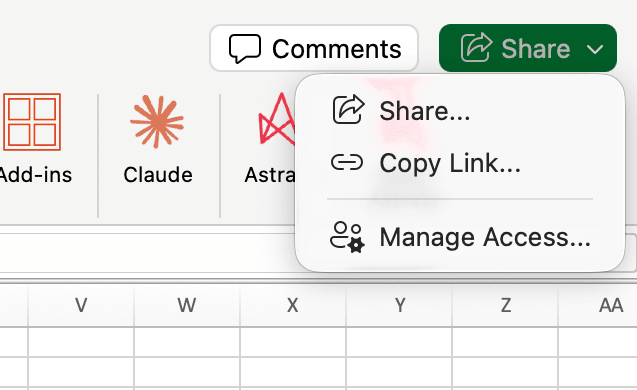
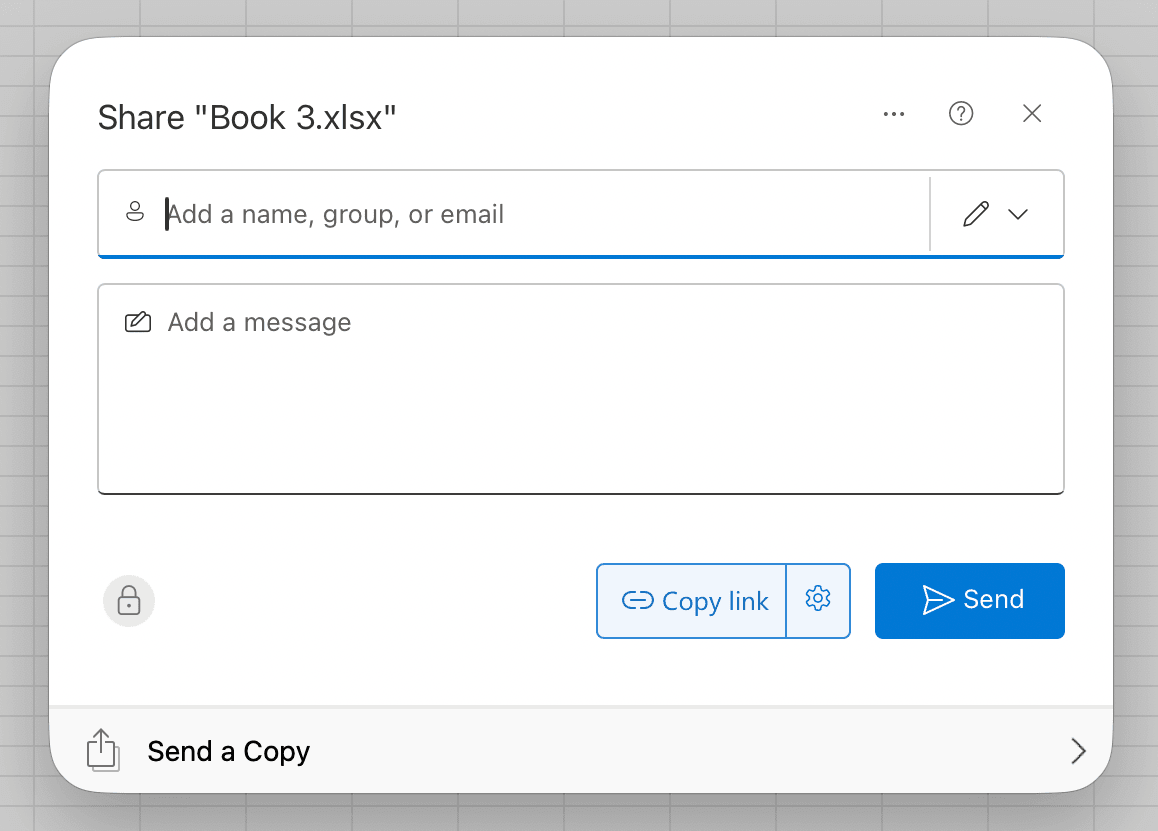
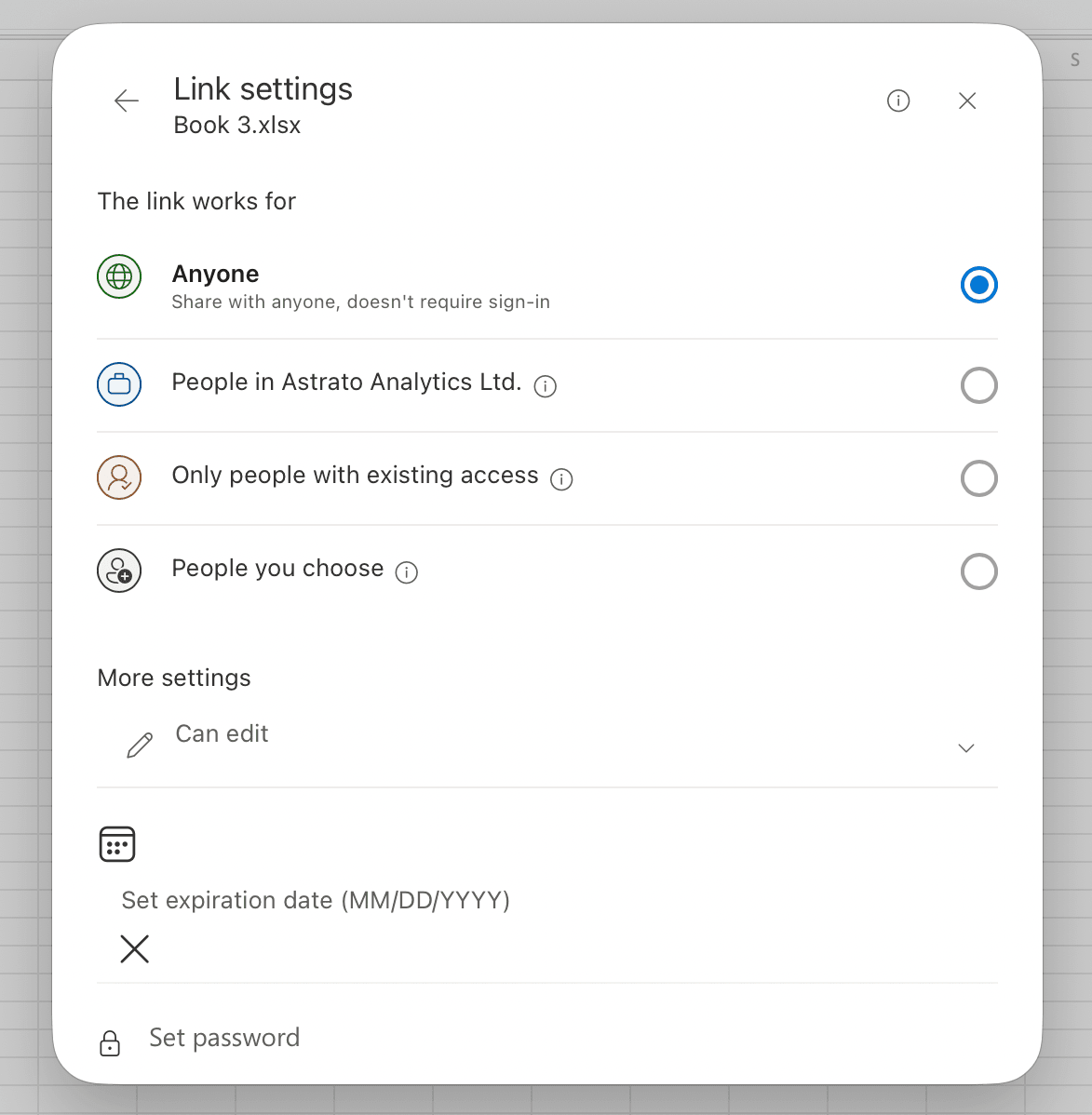
Share a workbook
You can share an Astrato workbook with anyone — including people who don’t have an Astrato login. They see the figures from your last refresh, and the file stays secure because your credentials never travel with it.
What’s in the file (and what isn’t)
Section titled “What’s in the file (and what isn’t)”Travels with the workbook:
-
Your datasets — the queries you built.
-
The cached data — the numbers from your last refresh.
Never in the workbook:
- Your credentials — your sign-in and token stay in your Office settings. Sharing a file never shares your access.
What the recipient sees
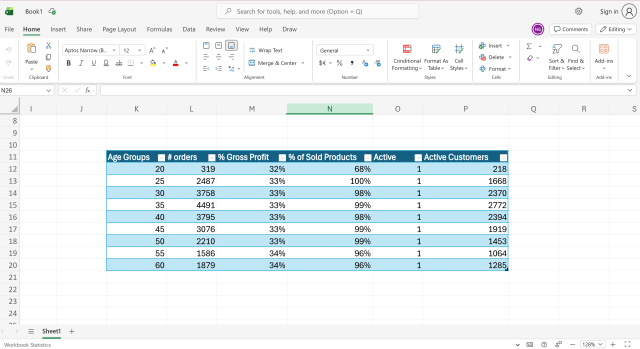
Section titled “What the recipient sees”Open a shared workbook and the ASTRATO.* formulas show your last refreshed numbers straight away — no login needed. Drop =ASTRATO.LASTUPDATED(...) somewhere and they can even see how fresh those numbers are.
If they want to refresh it themselves
Section titled “If they want to refresh it themselves”To read cached data, recipients need to install nothing. To refresh, they need their own account:
-
They sign in with their own connection (see Connect to Astrato).
-
Refresh then runs on their access — everyone sees data according to their own permissions.
Note: If a recipient doesn’t have a connection with the same name as yours, Astrato uses their first one. If that can’t reach the workbook’s data, refresh stops and the file keeps showing your cached numbers.
Prevent a shared workbook from refreshing
Section titled “Prevent a shared workbook from refreshing”Want recipients to see your figures without refreshing at all? Set the dataset’s refresh mode to Refresh manual before sharing. The workbook then shows cached data only.
Refresh modes are explained in Create and manage datasets.