

Reporting- send a report for a range of dates
Introduction
Section titled “Introduction”This article provides step-by-step instructions for sending a report that includes multiple sheets and applying a filter that selects a range of dates.
Fetching the List of Dates
Section titled “Fetching the List of Dates”-
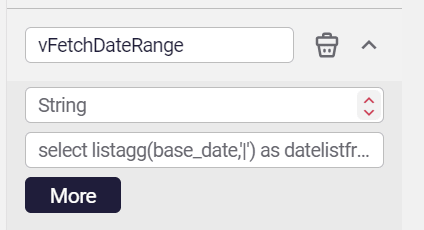
Create a string variable.
-
Click on the More button, change the type to SQL
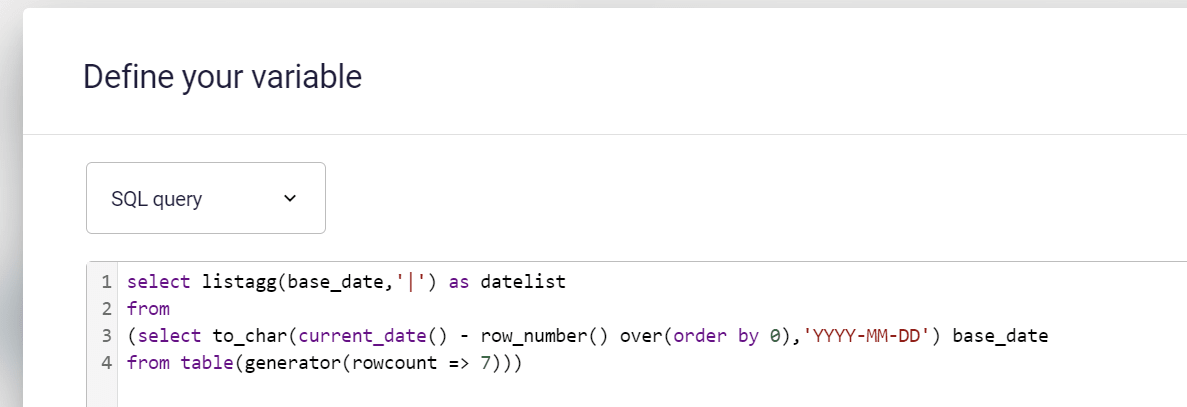
For Snowflake, Paste this code :select listagg(base_date,'|') as datelistfrom(select to_char(current_date() - row_number() over(order by 0),'YYYY-MM-DD') base_date from table(generator(rowcount => 7)))For Databricks, Paste this code:
select concat_ws('|',collect_list(date_format(base_date,'yyyy-MM-dd')))from(select explode(sequence(current_date()-7, current_date()-1, INTERVAL 1 DAY)) base_date)
-
This code generates a list of the last 7 days, starting from yesterday.
This code can be changed to generate any list of dates or any other date part.
The result of the code is a string like this:
2024-06-17|2024-06-16|2024-06-15|2024-06-14|2024-06-13|2024-06-12|2024-06-11
The variable should look something like this:
Building the Report
Section titled “Building the Report”-
Enter the Action section in the workbook editor
-
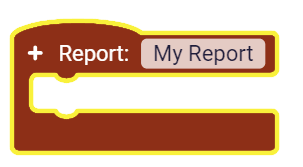
Add a report block to the canvas, and give the report a name
-
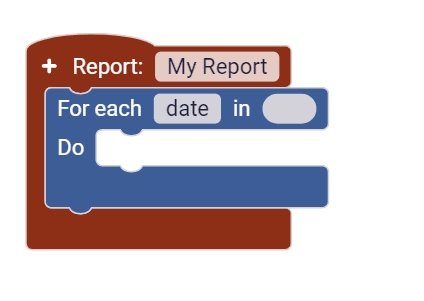
Add a loop action inside the report
-
Add a split text and an action that will call the variable defined in the previous step.
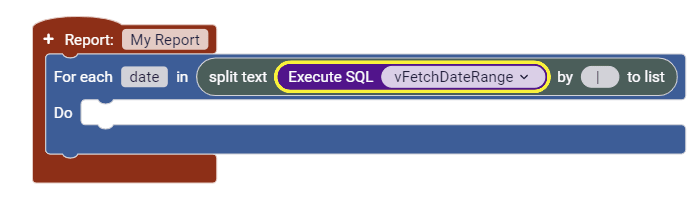
-
Add an append action on the date field to filter.
The filter is completed, and the action below adds a date from the list we fetch to the field filters on each iteration.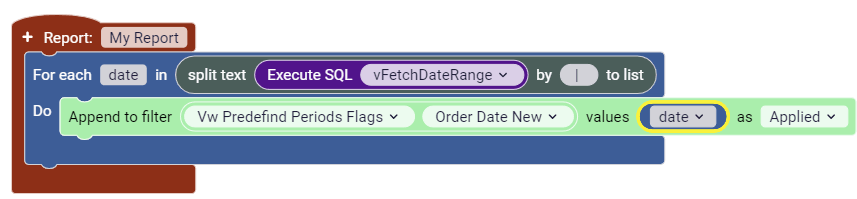
-
Add a snapshot of the sheets you want to include in the report
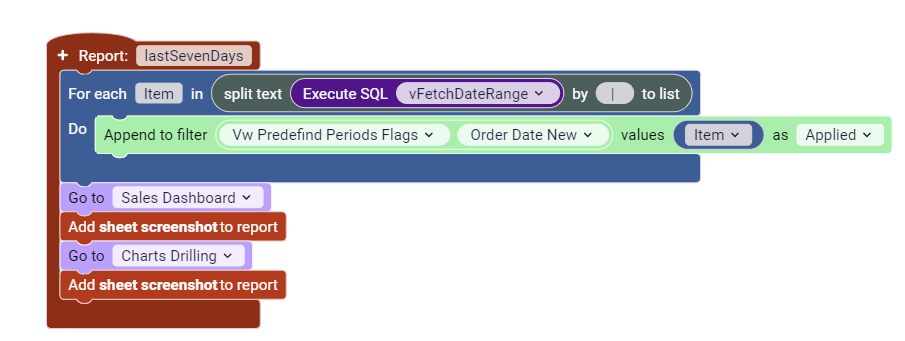
Executing the report
Section titled “Executing the report”Calling the report can be done via a button or via schedule in the Astrato lobby.
-
Calling the report via a button.
-
Add a button to the screen.
-
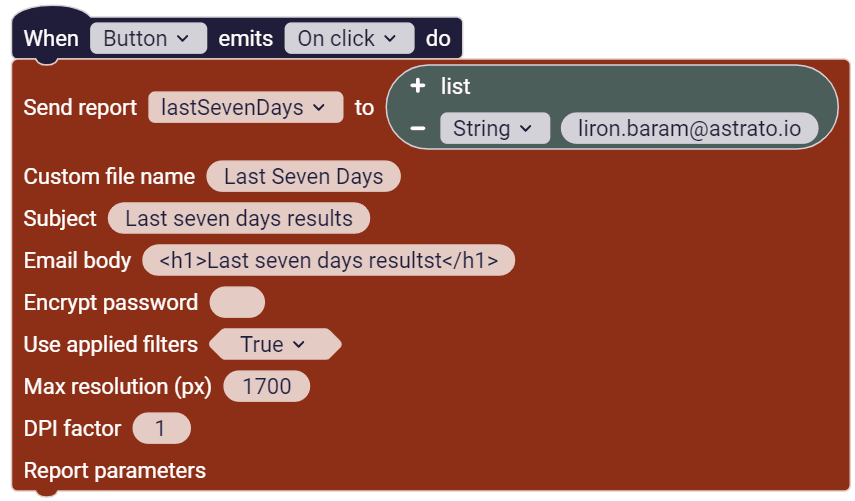
Add an action to call the report using the button.
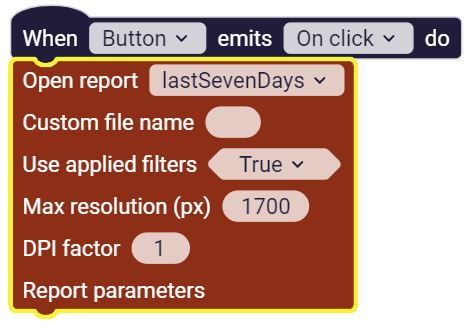
-
Or Add an action to send the report.
-
-
To test the report generation, preview the app a click on the button.