

Create a dataset in Business Context
A dataset is a named set of the dimensions and measures that belong together for one part of the business — sales, support, stock. A dataset lists what may be selected; a business question is what is selected.
A working layer can hold hundreds of measures and dimensions, and most of them are beside the point for any one question. Grouping them says which handful belongs to which part of the business, so whoever picks measures and dimensions next — a colleague, or an AI assistant reading your layer — starts from a shortlist someone who knows the business drew up, rather than from the whole model.
Datasets is available where Business Questions are enabled for your workspace. If you do not see the tab, it is not switched on for you.
Before you start: open a semantic layer and go to Business Context → Datasets. A dataset only gathers dimensions and measures that already exist, so create those first. If the layer has no tables yet, the empty tab offers Go to Map to add some.
Create a dataset
Section titled “Create a dataset”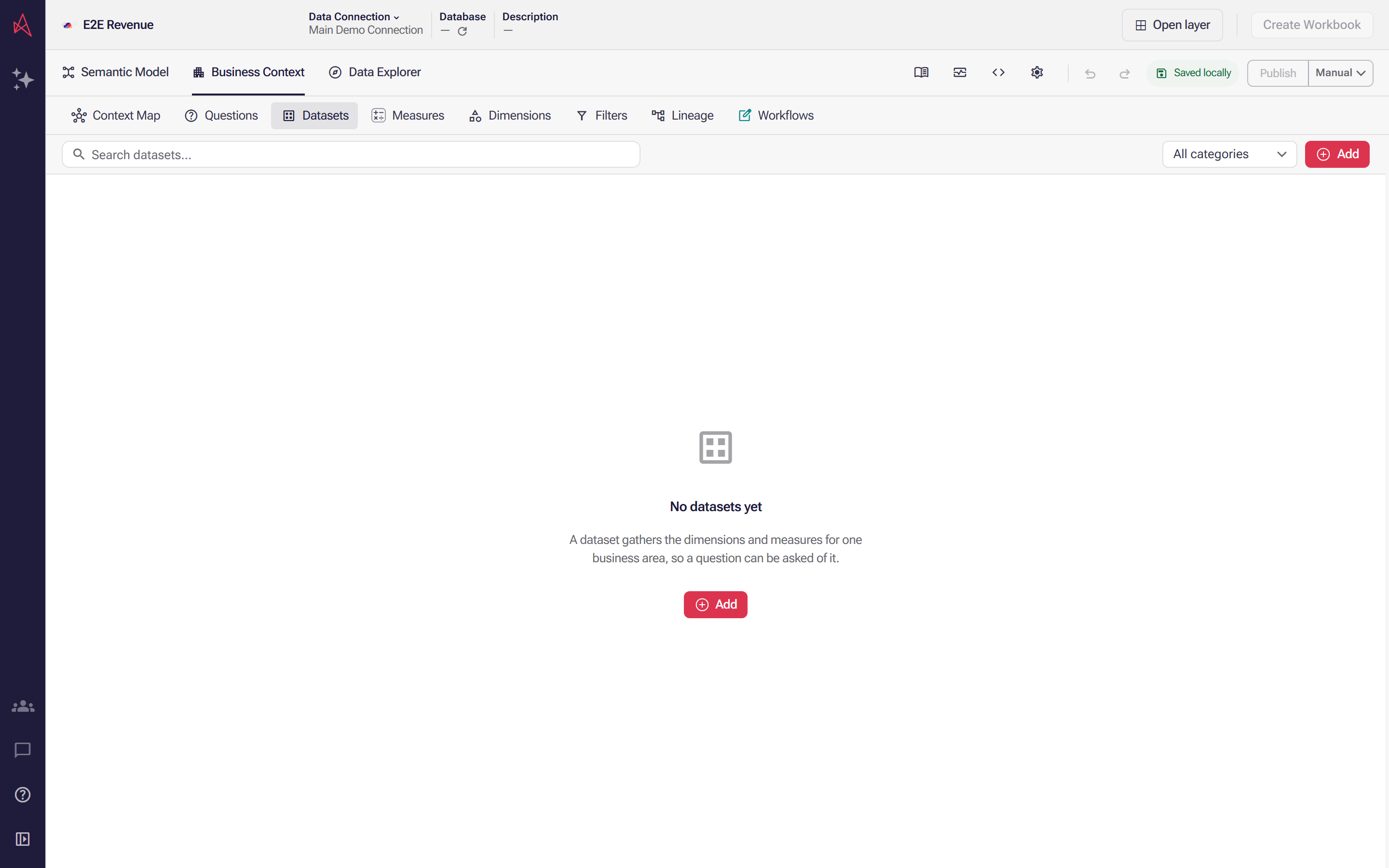
Datasets sit in the Business Context group, and a new layer has none of them. Add opens the first one in the panel beside the list.
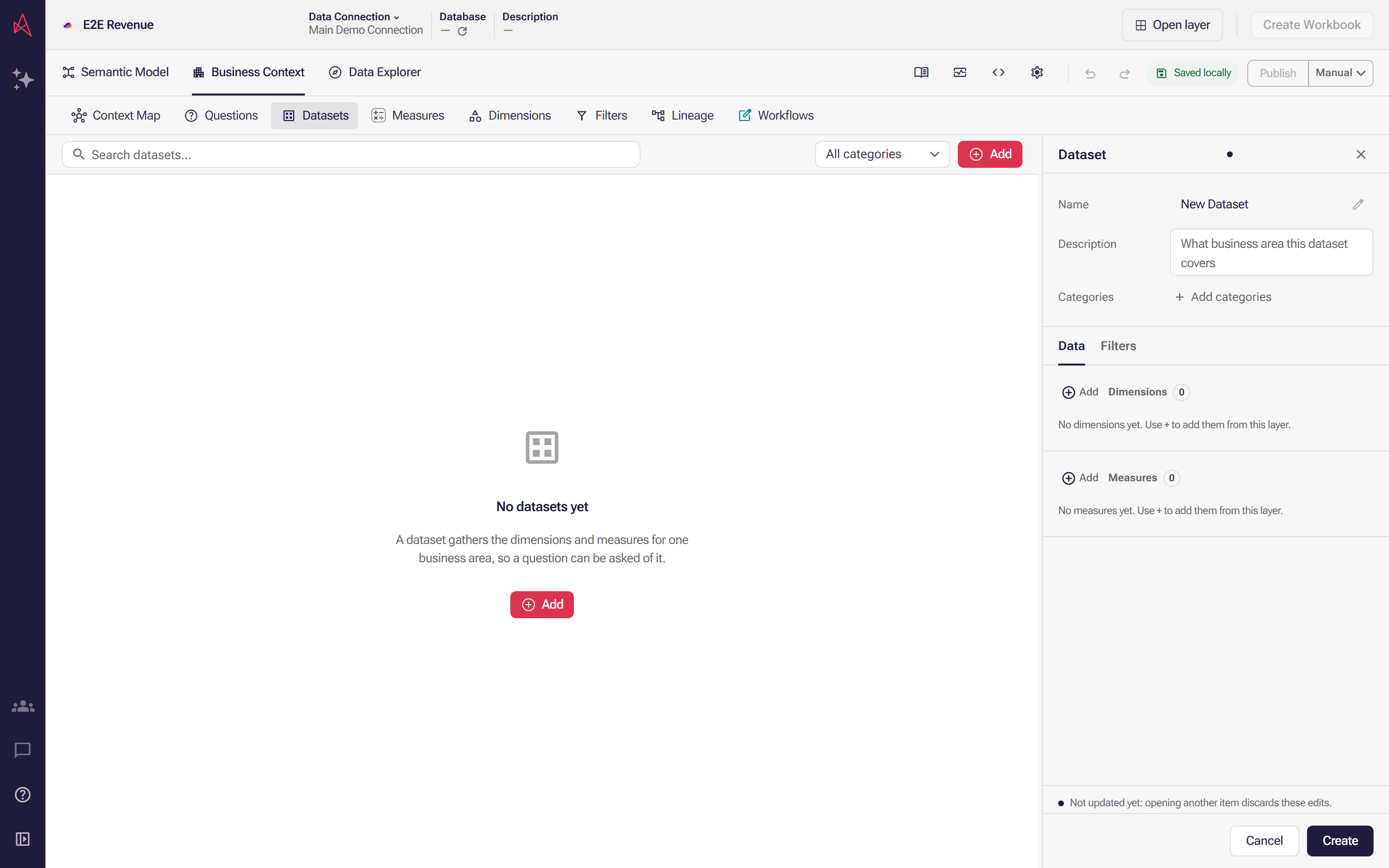
A dataset arrives as New Dataset with nothing gathered yet, beside a description box for the area it covers. The pen renames it.
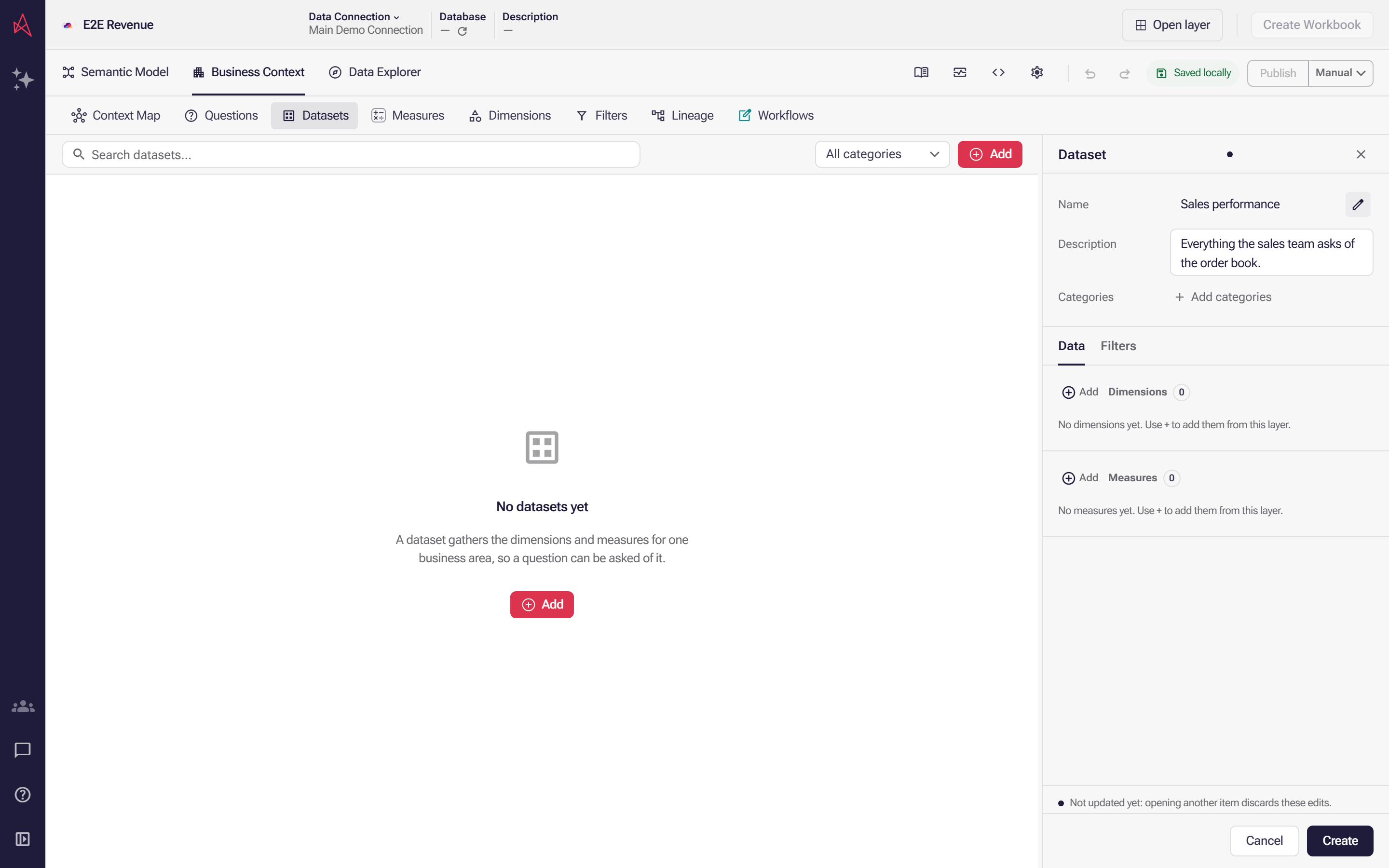
With the name and the description written, the Data tab holds the two lists a dataset is made of, both still empty. Add beside Dimensions fills the first.
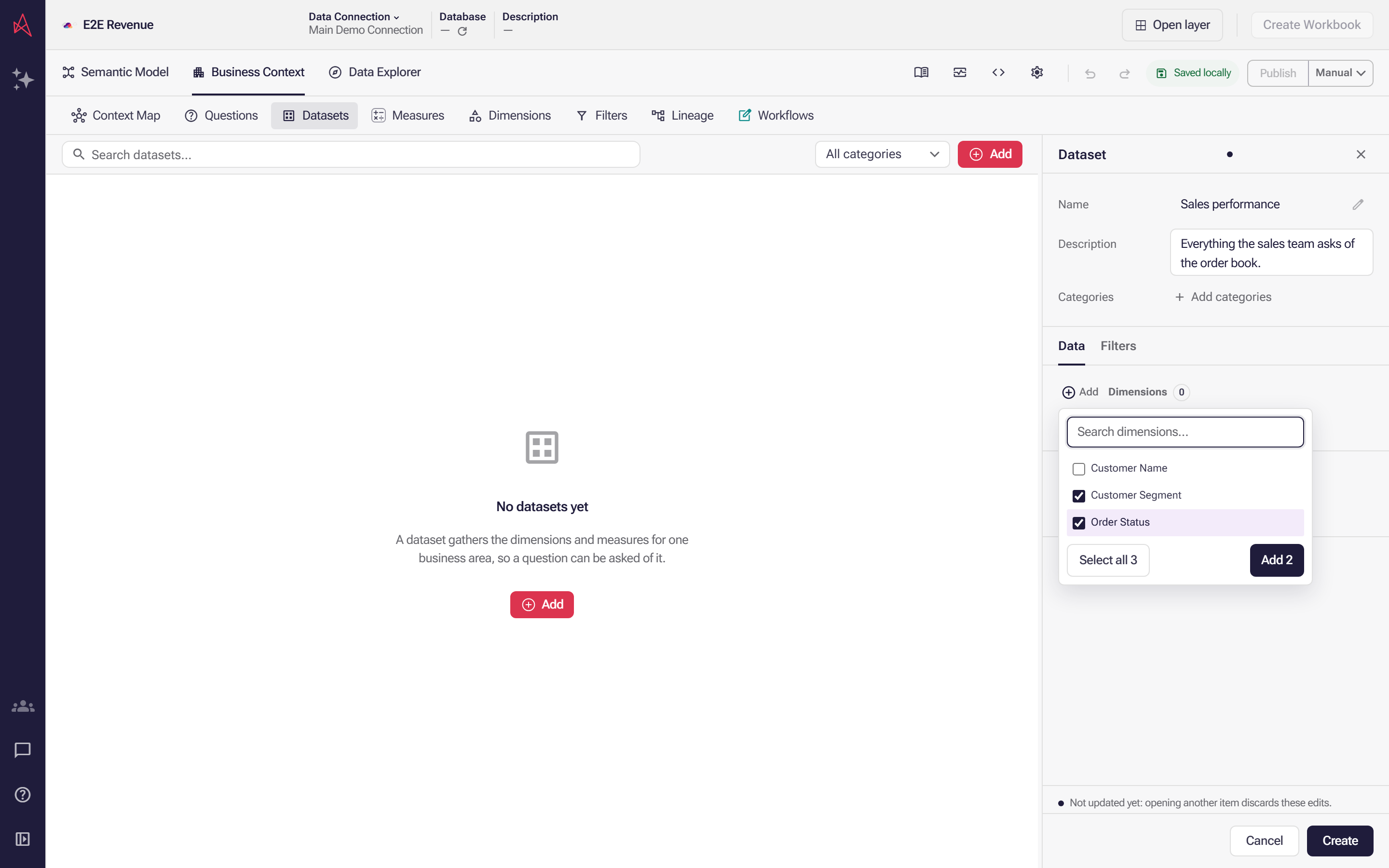
The picker offers the dimensions the layer already has, because a dataset gathers existing ones rather than defining any. Tick the handful this area needs and add them together.
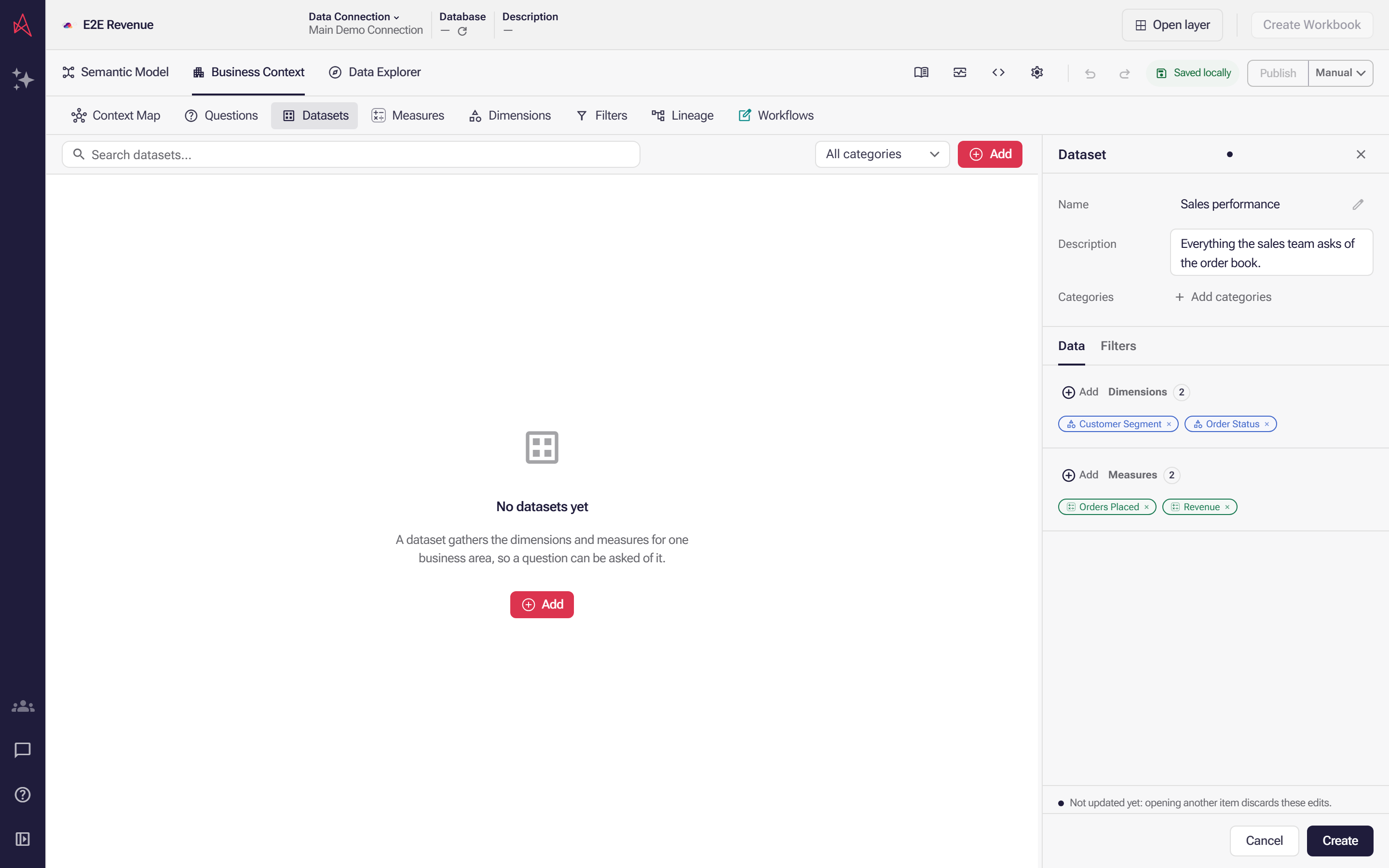
Both lists now name their members, and each one is a reference: the formula and the field binding stay on the measure or dimension itself. Create stores the dataset.
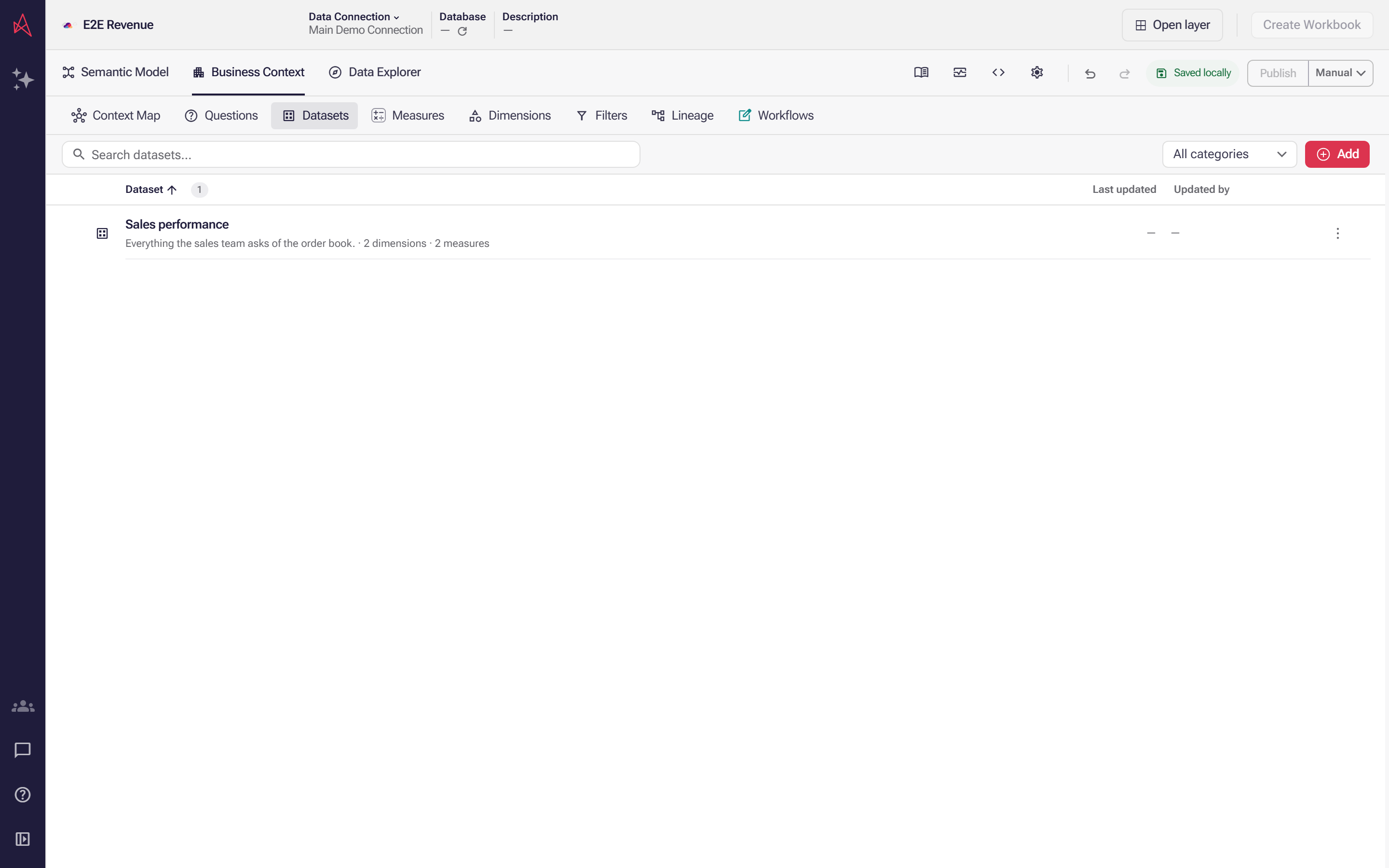
The dataset joins the list, where one row carries its description and a count of what it gathers, ready for a business question to be asked of it.
Step 1: Select Add. A dataset called New Dataset opens in the panel beside the list.
Step 2: Give it a Name — the business area, in the words people here use for it.
Step 3: Write a Description. This is what someone decides by, so say what area the dataset covers rather than listing its contents, which are visible anyway.
Step 4: Add Categories if you want them. They are free text, they file the dataset under those labels, and they show on its row and in the toolbar’s category filter.
Step 5: On the Data tab, select Add beside Dimensions and pick from what the layer has. Type to narrow the list, tick as many as you want, and add them in one go. Do the same under Measures.
Step 6: Select Create.
Nothing is saved until you select Create, and Cancel backs out. From then on the same button reads Update.
A dataset defines nothing of its own. Members are references by name: the formula, the format and the field binding stay on the dimension or measure, so a change there reaches every dataset that lists it. Select a member to open it. Renaming or removing a dimension or measure updates the datasets that listed it.
New members go on the end. The order is stored, and it is the order members are shown in, but the panel has no control for moving one — to change the order, remove a member and add it again.
Filter a dataset
Section titled “Filter a dataset”The Filters tab holds conditions that apply before aggregation, so they change what the measures add up rather than hiding rows after the fact. A condition can read a field or a dimension. The tab shows how many conditions apply, so a filtered dataset is visible without opening it.
Find one again
Section titled “Find one again”Search matches a dataset’s name, its description and its categories. Beside the search box, the category picker narrows the list to one label and All categories clears it; Issues and Diff appear only when there is something to filter by — datasets with a problem, datasets that differ from the version you are comparing with. The header sorts by Dataset, Last updated or Updated by, and each row carries its description and a count of its members.
The ⋮ menu offers Edit, Duplicate and Remove. Duplicate opens a copy as a new draft, which is the quick way to make a second dataset that differs in a few fields. Tick several rows to remove them together.
A member that has gone is an error. A dataset that lists a dimension or measure no longer in the layer, or lists one twice, reports an error and holds up publishing until you fix it. An empty dataset is fine — it reads as a draft being filled in. Removing a dimension or measure through the editor prunes it from the datasets that listed it, so a dangling member is usually one somebody kept on purpose.
What reads a dataset
Section titled “What reads a dataset”Nothing else in the model. Nothing references a dataset by name, which is why renaming one needs no warning. It exists to be read: an assistant connected to your layer lists the datasets and reads their members, Context Map draws each dataset with the dimensions, measures and filters it gathers, and Documentation writes a Datasets section into the written copy of the model. As with everything else in the editor, a new dataset reaches other people only once you publish.
Next: Business questions guide — the stored question that a dataset’s measures and dimensions are chosen for.