

Manage workspace media
Open Administration → Media as a workspace owner or administrator.
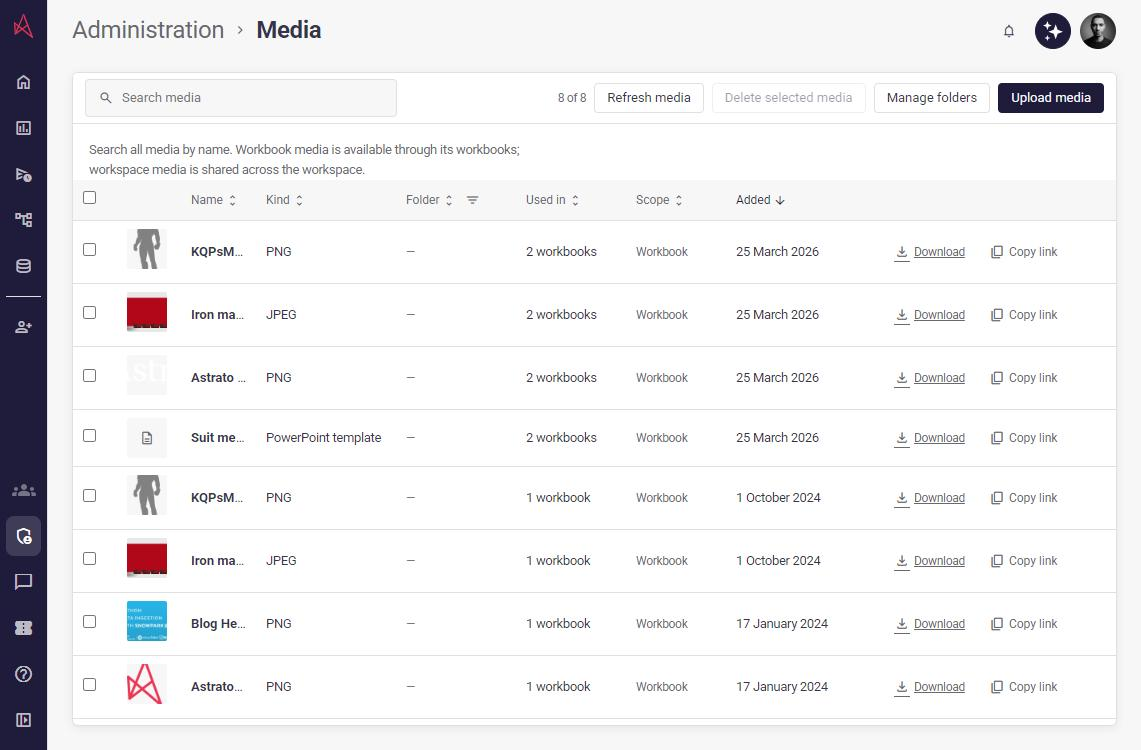
Search by name across the whole library, or change Sort media to order by name, date, kind, folder or scope. Load more media loads the next page of that search. Refresh media starts again from the first page. Folder names are shown in the table; they are not part of name search.
Use the filter icon beside Folder to select one or more folders, including Unassigned. In a narrow layout, use the All folders picker. Folder filtering combines with name search and sorting, and clears file selections. Choose Clear filter in the column menu, All folders in the picker, or Clear folder filter in the toolbar to remove it. If no files match, the filter remains available so you can change or clear it.
Folder filtering works when at most 100,000 files match your name search. If more match, refine your search or clear the filter. If the files cannot be loaded, the page shows an error; choose Refresh media to try again. If folder choices cannot be loaded, use Retry folders; name search and sorting remain available.
Workspace media is shared across the workspace. Workbook media belongs to its associated workbooks and is available through their access permissions. It is not necessarily private to the person who uploaded it. Used in shows the number of associated workbooks.
Upload and organize
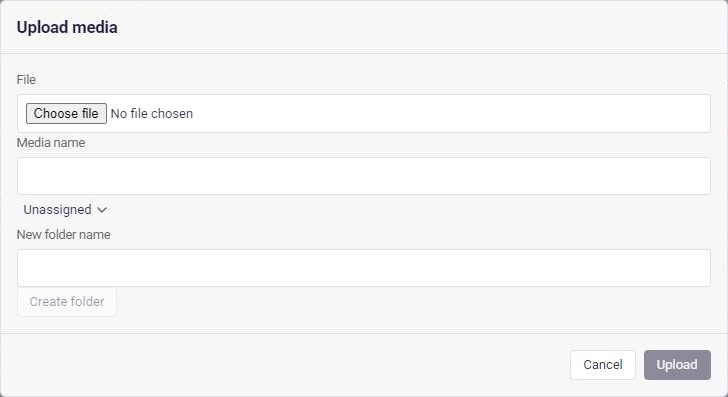
Section titled “Upload and organize”Choose Upload media, select a JPG, PNG, Excel or PowerPoint file of up to 20 MiB, and enter a name. You can assign it to an existing folder or create a folder before uploading.
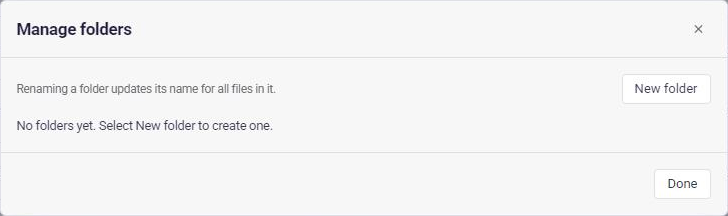
Choose Manage folders to view existing folders, including empty ones. Choose New folder, enter a nonblank name and select Create folder to add one. The new folder appears in the list and folder filter choices. Select Rename beside a folder, enter a nonblank name, then select Save. Cancel discards the edit. Renaming keeps files in the same folder and refreshes names in the table and filter choices; your current search, sorting and selected folder filters remain active. Unassigned is a filter option, not a folder you can rename. If saving fails, your entered name stays available for retry. Astrato checks your permissions before updating the folder.
Choose Edit beside a file to change its name. Workspace media can also move to another folder or become Unassigned. Workbook media retains its workbook scope. If folders cannot be loaded, you can still rename a file; its folder stays unchanged. Inline previews support JPEG, PNG, GIF, WebP and AVIF. SVG and other active image formats are not previewed.
Copy link copies the file address. The recipient still needs an Astrato sign-in and access to the workspace; copying a link does not make the file public.
Delete media
Section titled “Delete media”Select the files to remove, choose Delete selected media, and confirm. You can select up to 500 files at once. Check their workbook usage first: deleting media can remove images or report templates those workbooks need.
If deletion fails or only some files are removed, read the error and refresh the list before trying again. A failed upload or edit keeps the dialog open so you can review the error.