Promoting Workbooks Between Environments (DEV → UAT → PROD)
Overview
Section titled “Overview”A workbook environment in Astrato is a convention rather than a separate feature: you keep one workbook per stage, typically DEV → UAT → PROD, and group them with collections. You build in the DEV workbook and, when a version is ready, copy or move it into the UAT workbook and then into the PROD workbook. Each environment has two parts:
- Workbook: the sheets, charts and other objects your users interact with.
- Semantic layer: the data model the workbook queries, including its views, joins, fields and data connection.
When you copy or move a version, you choose which semantic layer the version uses in the destination workbook. The options are described below.
Recommended setup
Section titled “Recommended setup”- Give each environment its own semantic layer, and name it after the environment, for example
Marketing_Benchmarking_DEV,Marketing_Benchmarking_UATandMarketing_Benchmarking_PROD. - One semantic layer can serve several workbooks, so all the workbooks of one environment can share it.
- Keep each environment’s workbooks in their own collection, so that viewers of the PROD collection see only production workbooks.
Semantic layer options
Section titled “Semantic layer options”When you copy or move a version (Copy version to workbook or Move version to workbook in the version’s options menu), the Semantic layer step offers three options. These options are in Private Preview, so your account may not offer them yet.
Use current Semantic Layer
Section titled “Use current Semantic Layer”The version keeps the semantic layer it already uses. The destination workbook’s semantic layer is not changed, so a version promoted from DEV this way still queries the DEV semantic layer in the PROD workbook.
Best for: environments that share one semantic layer, or a first promotion into a workbook that has no published version yet. This is the only option available when the destination workbook has no published version.
Under the recommended setup, this means the first promotion into an empty PROD workbook leaves it querying the DEV semantic layer. After that promotion, switch the PROD workbook to the PROD semantic layer and publish it. Later promotions can then use Use destination workbook Semantic Layer or override the destination semantic layer.
Use destination workbook Semantic Layer
Section titled “Use destination workbook Semantic Layer”The version is connected to the semantic layer of the destination workbook’s published version. That semantic layer is not changed.
Best for: updating workbook content when the PROD semantic layer is already set up with the right data connection.
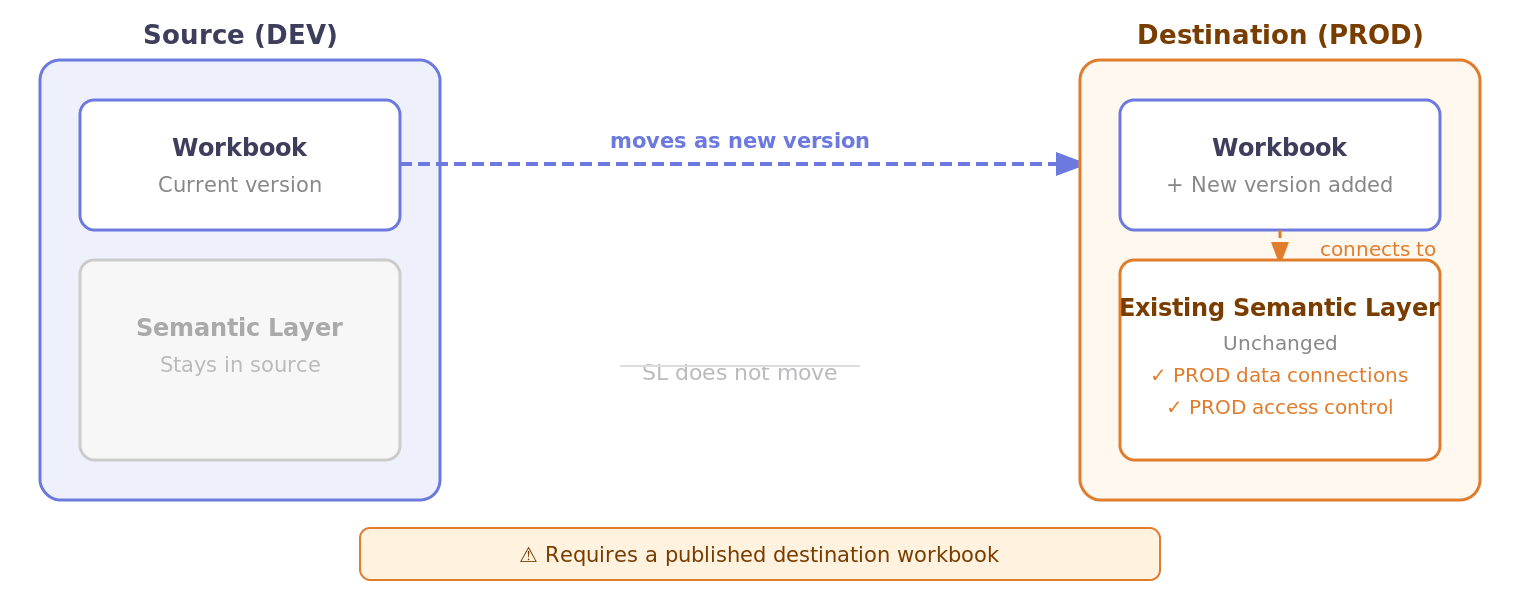
This option requires a published destination workbook.
Override the destination workbook Semantic Layer
Section titled “Override the destination workbook Semantic Layer”The option reads Override the destination workbook Semantic Layer with the current one and publish the transferred version in this container. The version is connected to the destination workbook’s semantic layer, and that semantic layer’s views, joins and fields are replaced with those of the version’s current semantic layer. The destination semantic layer keeps its name and its data connection. The transferred version is then published in the destination workbook, and the version that was published before is unpublished.
Best for: promoting updated semantic layer definitions from DEV or UAT to PROD while PROD keeps querying its own data connection.
This option requires a published destination workbook and permission to update the destination semantic layer. Without that permission, the modal shows You do not have permission to perform this Semantic Layer override operation.
Choosing the right option
Section titled “Choosing the right option”| Scenario | Option |
|---|---|
| All environments share one semantic layer | Use current Semantic Layer |
| The destination workbook has no published version yet | Use current Semantic Layer |
| The PROD semantic layer is set up correctly; only the workbook changed | Use destination workbook Semantic Layer |
| The semantic layer changed and PROD must keep its data connection | Override the destination workbook Semantic Layer |
How to promote a workbook
Section titled “How to promote a workbook”Before you start: you own the version, and it is a saved version, not a draft (select Save as version in Version history first; see Version history in the classic Workbook Editor). Use destination workbook Semantic Layer and the override option need a published destination workbook, and the override option also needs permission to update the destination semantic layer.
- Open the workbook you want to promote and select Versions in the top bar.
- In Version history, open the options menu of the version you want to promote.
- Select Copy version to workbook to leave the version where it is and add a copy to the destination, or Move version to workbook to take it out of this workbook.
- Under Destination workbook, select the workbook to promote to, and then select Next >. If there is no Next >, select Copy or Move: your account does not offer the semantic layer options yet, and the version keeps its current semantic layer.
- Under Semantic layer, choose one of the options above.
- Select Copy or Move.
The version appears in the destination workbook’s version history. Unless you chose to override the destination semantic layer, it is not published: publish it from the version history when you are ready.
For more about drafts, versions and publishing, see Workbook Life-Cycle: Versioning.