

Manage groups and assignment rules
Workspace owners and administrators can open Administration → Groups to create, rename, describe or delete groups. Search covers every group, including groups beyond the first displayed page. Select a group to view its members by name and email, including pending invitees and people added by SCIM or an assignment rule.
Creators can open Administration → Groups to browse groups and their members. Group and membership changes and the Assignment rules tab are restricted to owners and administrators.
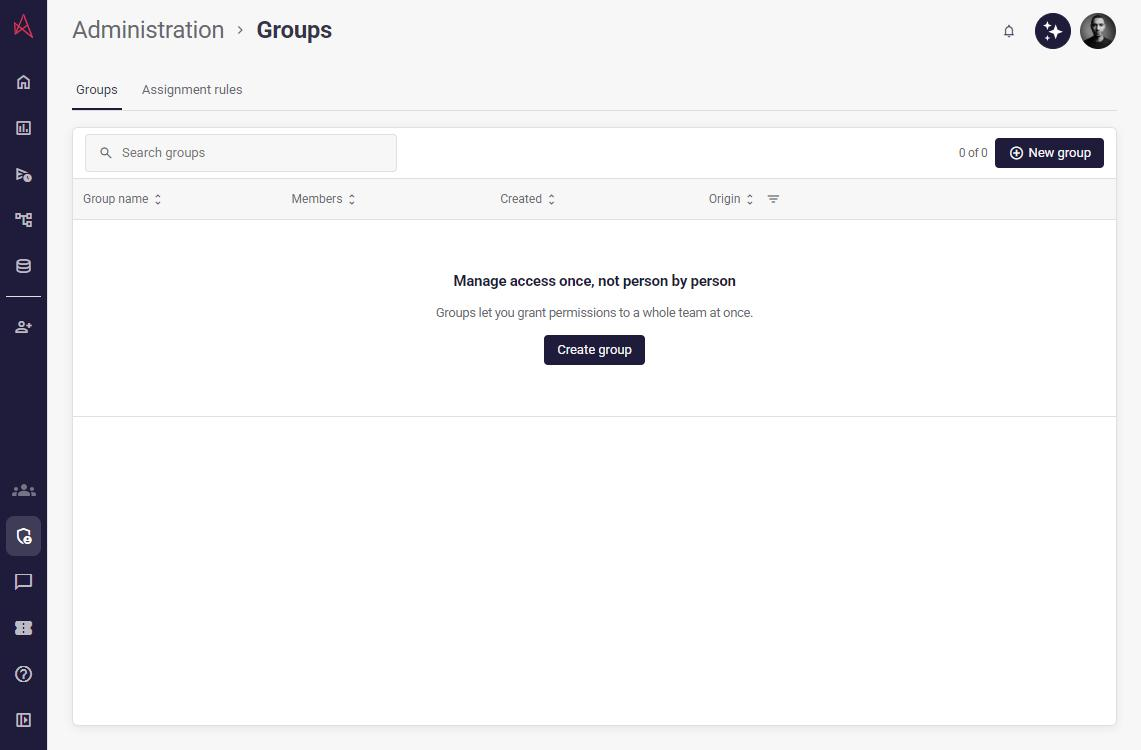
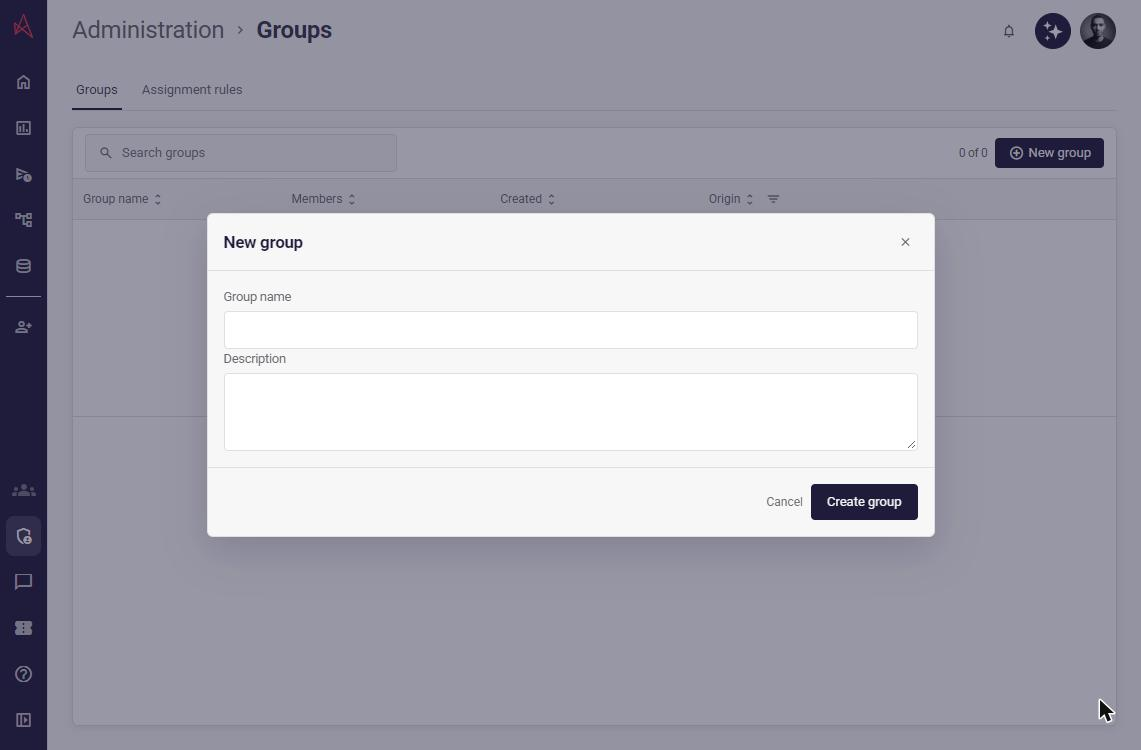
Choose New group, enter a name and optional description, then select Create group.
Manage members
Section titled “Manage members”Choose Add user to group to load the people available in your workspace. Search by name or email and select a person to add them. Pending invitees can also be added. If the people lookup fails, existing members remain visible; close and reopen the picker to retry.
Removing a member revokes access they receive through that group. Memberships controlled by SCIM or an assignment rule cannot be removed manually: the member list labels them Identity provider or Assignment rule where other members have a remove button. Change your identity provider or the assignment rule instead. SCIM groups cannot be renamed or deleted here. If a membership’s origin cannot be verified, it is labelled Unverified and manual removal is unavailable until it can be verified.
Assign members automatically
Section titled “Assign members automatically”Open Assignment rules and select Email address or Name. Rules use contains with a nonempty value of up to 320 characters. Select the target group and choose Add rule. Matching ignores case and surrounding whitespace. Email rules also apply to pending invitees.
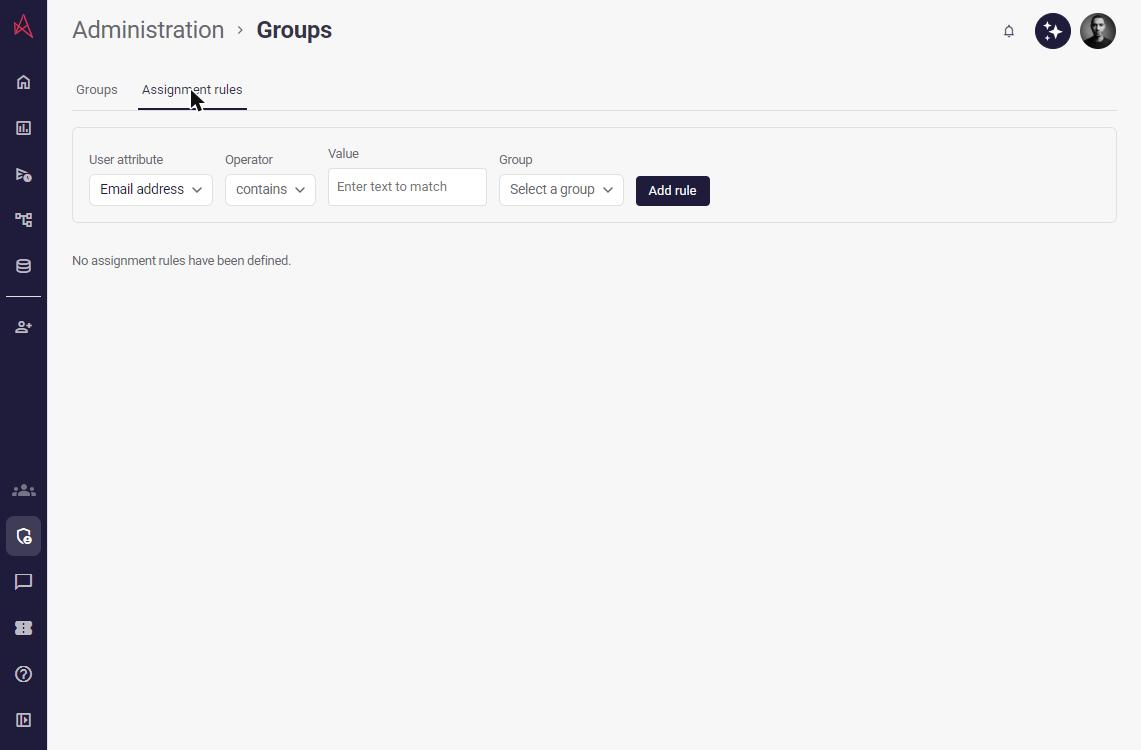
Choose Edit beside an existing rule to change its attribute, value or target group, then Save rule. Cancel edit discards your changes. Creating or changing a rule reconciles existing memberships, so changing a rule can remove memberships that no longer match.
Deleting a rule removes users and pending invitees whose membership depends only on that rule. Manual memberships and memberships still covered by another rule remain. Review the confirmation before deleting: affected people lose access granted by the group.
While SCIM provisioning is enabled for your workspace, assignment rules are read-only. If the provisioning status cannot be loaded, rule changes stay disabled until you reopen the tab and the status is available.