

Creating a Collection
Introduction
Section titled “Introduction”This article shows you how to create a collection, which you can use to organize your Astrato workbooks.
Creating a Collection
Section titled “Creating a Collection”To create a collection you need to be on the Collections page (Figure 1).
-
Click on Create Collection to open the Create Collection wizard.
-
Enter a Name and Description, then click Next to open Add Workbooks.
-
From the list of your published workbooks, click the name(s) to select them for the collection, or de-select to remove them. You can also use Remove all to empty the collection, or create a collection without any workbooks added.
-
Click Create Collection when you’ve made your selection.
Figure 1: Create Collection
When the collection has been created, it should appear in the Collections page (Figure 2) with the Name, Description and Creation Date displayed, as well as the number of workbooks (items) held in the collection.
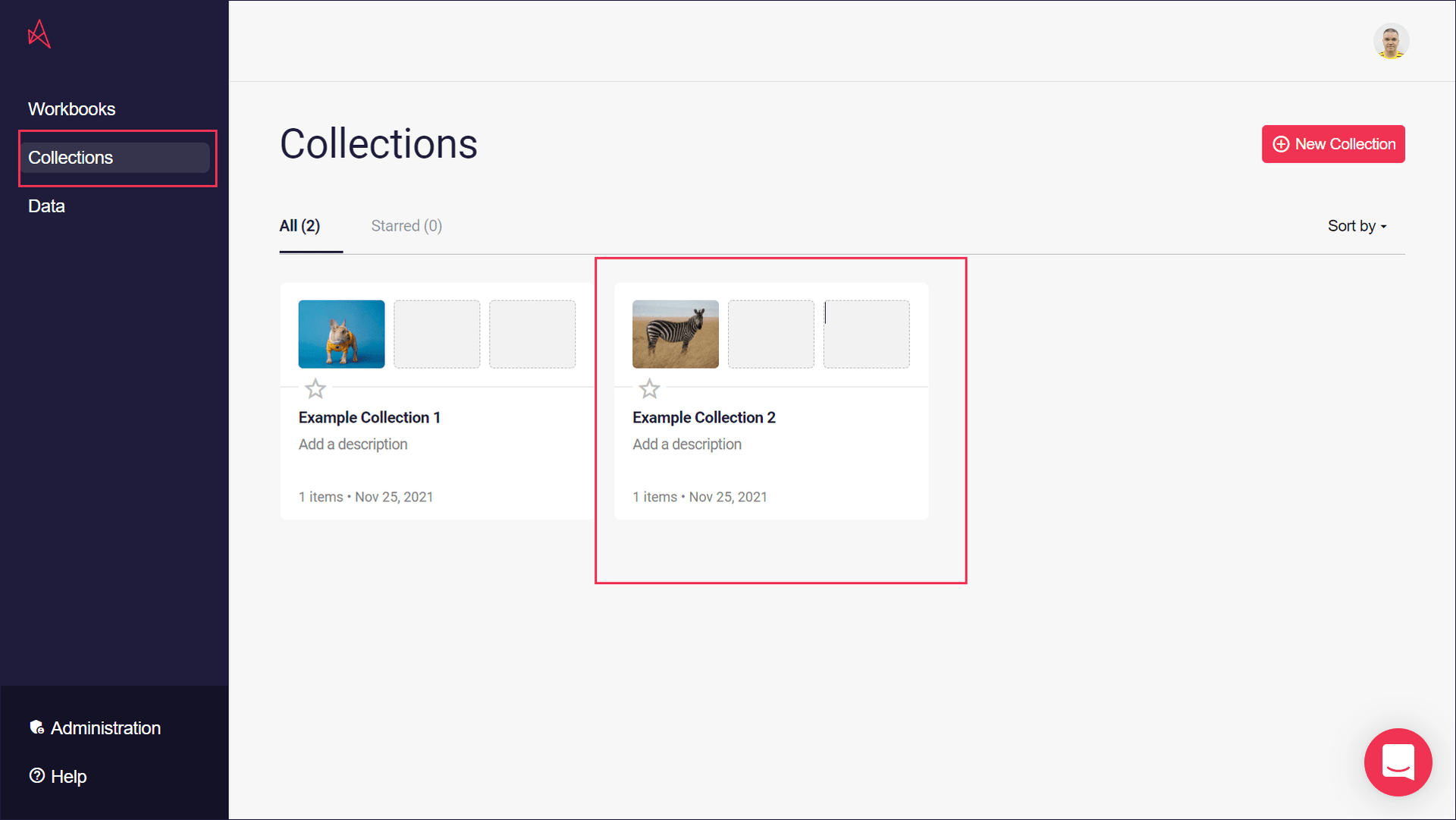
Figure 2: Collection Created
Creating a Collection from the Workbooks Page
Section titled “Creating a Collection from the Workbooks Page”The Collections list beside your workbooks has its own way to create a collection, with the folder chosen from a list instead of typed.
- Select + (New collection) in the Collections heading. The New collection panel opens.
- Optionally, choose a Folder. The list shows your existing folders as a tree; leave it on None (top level) to create the collection at the top.
- Optionally, enter a New subfolder to create inside the chosen folder. Use a forward slash to nest more than one level, for example
2026/Q4. - Enter a Name of at least three characters, and optionally a Description.
- Select Create.
The panel shows where the collection will appear before you create it. A folder is the path in front of the collection’s name, so the result is the same as typing the full path described in Creating Nested Collections. Workbooks are added to the collection afterwards, from each workbook’s Collections & Access tab.
In the Collections list, select a folder’s arrow to expand or collapse it. Selecting the name of a folder that is only a folder does the same; if the folder is also a collection, selecting its name opens that collection instead. To star a collection, point at it and select the star; starred collections, and folders that contain them, are listed first at each level.
Creating Nested Collections
Section titled “Creating Nested Collections”When creating or renaming a collection, enter a path using forward slashes.
Examples
The hierarchy will be created automatically.
Collection Name | Visible Structure |
Marketing/Advertising | Marketing → Advertising |
Marketing/Email-CRM | Marketing → Email-CRM |
Marketing/Advertising/Performance | Marketing → Advertising → Performance |
Collection Creation Helper
Section titled “Collection Creation Helper”A helper message is displayed beneath the collection name field:
To have nested collections, simply use a slash e.g. Collection/Sub-Collection
Back to Top
Astrato Collections Articles
Section titled “Astrato Collections Articles”You can find more articles about Astrato Collections in the Astrato Help Center.
Back to Top