

Share an app with people outside your team
This page takes a Data App you have built and makes it open for people who are not members of your Astrato workspace. You publish the app, switch on Public access, then copy the app’s hosted link and send it.
Before you start
Section titled “Before you start”- Publishing and public access are in preview. They work only in environments where they are switched on. Check before you start: open the properties of any Data App you can manage, as in step 2. If the panel has Manage Access but no Public access tab, public access is off in your environment. Astrato switches it on; see Check which preview features you have for how to ask, and for ways to share while you wait.
- You need publication Create and Publish permissions to publish, and Manage access permission on the app to change who can open it. Your role decides whether you may create Data Apps at all; see Roles. The person who creates an app is its owner. If someone else built it, ask them, or anyone who can see Manage access in the app’s row menu, to give you access.
- Check the prerequisites below before you start. A missing one stops step 3 or leaves your viewers with an error.
Prerequisites for a public link
Section titled “Prerequisites for a public link”| Requirement | Where to check it |
|---|---|
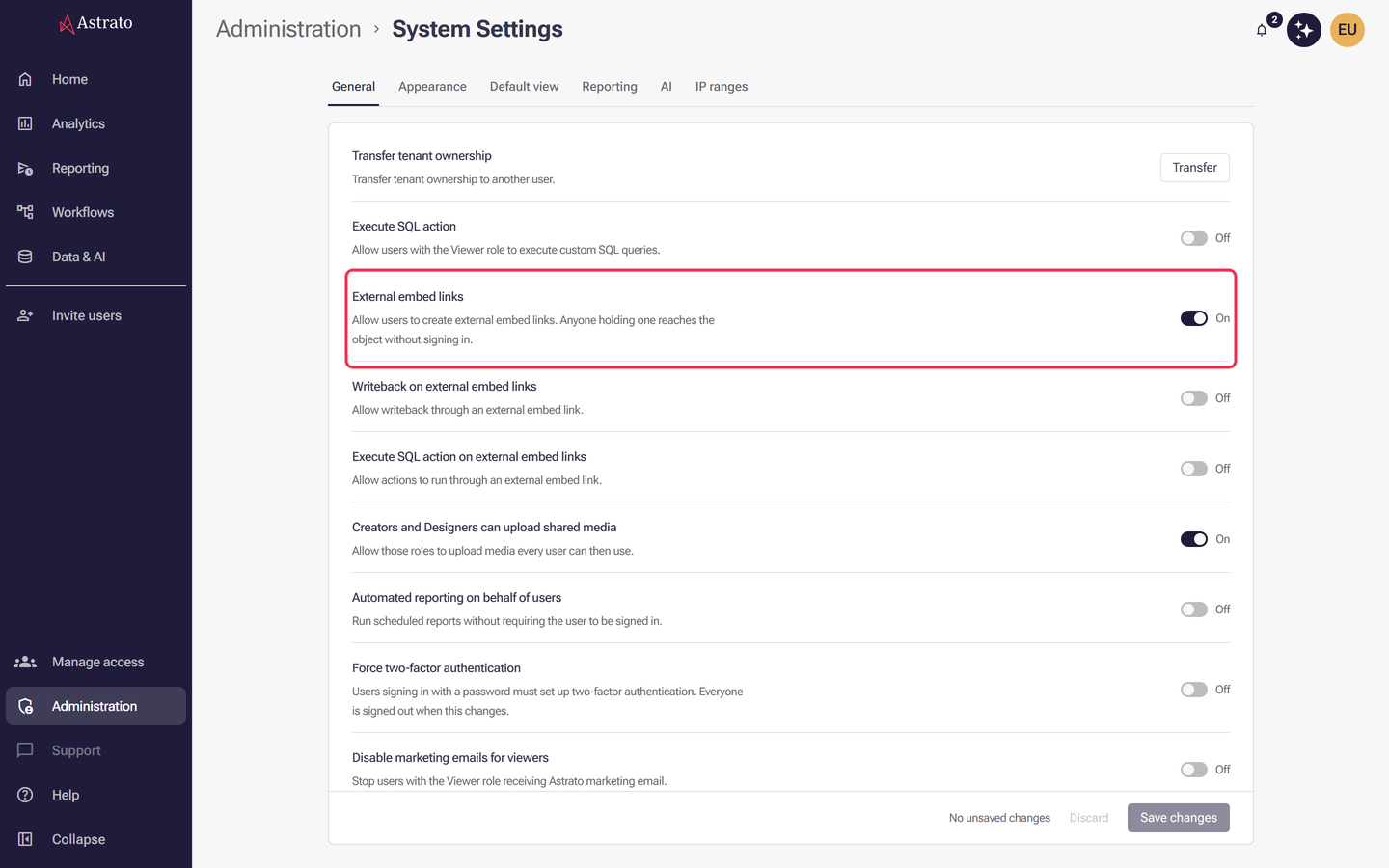
| External embed links is switched on | Administration → System Settings → General. See System settings. |
| The semantic layer is published | See Semantic layer publishing. |
| The semantic layer and its data connection are Visible to everyone | Their access settings. Step 3 can grant this for you. See Manage resource access. |
| The data connection uses one shared credential | A password, key pair or service account. A connection that signs each viewer in with their own identity (OAuth) cannot serve a public viewer. |
External embed links is a workspace-wide switch on the General tab of System Settings, and only an Owner or Administrator can open that page or change it. It governs public Data App links and Data App embedding as well as workbook embed links. While it is off, selecting Apply access settings with a public audience is refused with the message that external embedding is disabled for this tenant, and an app that is already public stops serving anonymous viewers. On the Public access tab, an Owner or Administrator also sees an Open system settings link beside the requirement; anyone else needs to ask one of them.
Choose how to share
Section titled “Choose how to share”| You want to… | Use |
|---|---|
| Let anyone with the link open the app, with no Astrato account | A public link (this page) |
| Give named people their own Astrato sign-in and let them join your workspace | Invite users or Invitation links, then grant access to the app |
| Let specific people or groups who already have accounts open the app | Manage Access on the app, as described in Manage Data Apps |
A public link is the simplest, but anyone who receives it can open the app and read the data it shows. Use it only for data you are happy to share that widely.
1. Publish the app
Section titled “1. Publish the app”Open the app in the Data App Builder and select Publish. A new app is private until you publish it. See Your first Data App.
To reopen an app you built earlier, open Analytics, select the Library tab, open the action menu at the end of the app’s row and select Edit Data App. Open Data App in the same menu opens the hosted app in a new tab, not the Builder.
An app built with the CLI or an AI assistant does not open in the Builder, so it has no Publish button. Where its row menu shows Edit Data App, the entry is greyed out with the reason “This Data App was created externally, and should be edited externally”. Publish it from your project instead, as described in Publish an app, then carry on from step 2.
You are done when the status beside the version badge reads Published.
2. Open the app’s properties
Section titled “2. Open the app’s properties”Open Analytics and select the Library tab. Find the app, open the action menu at the end of its row and select Properties. The property panel opens on the right. The same menu holds Copy link, which you use in step 4.
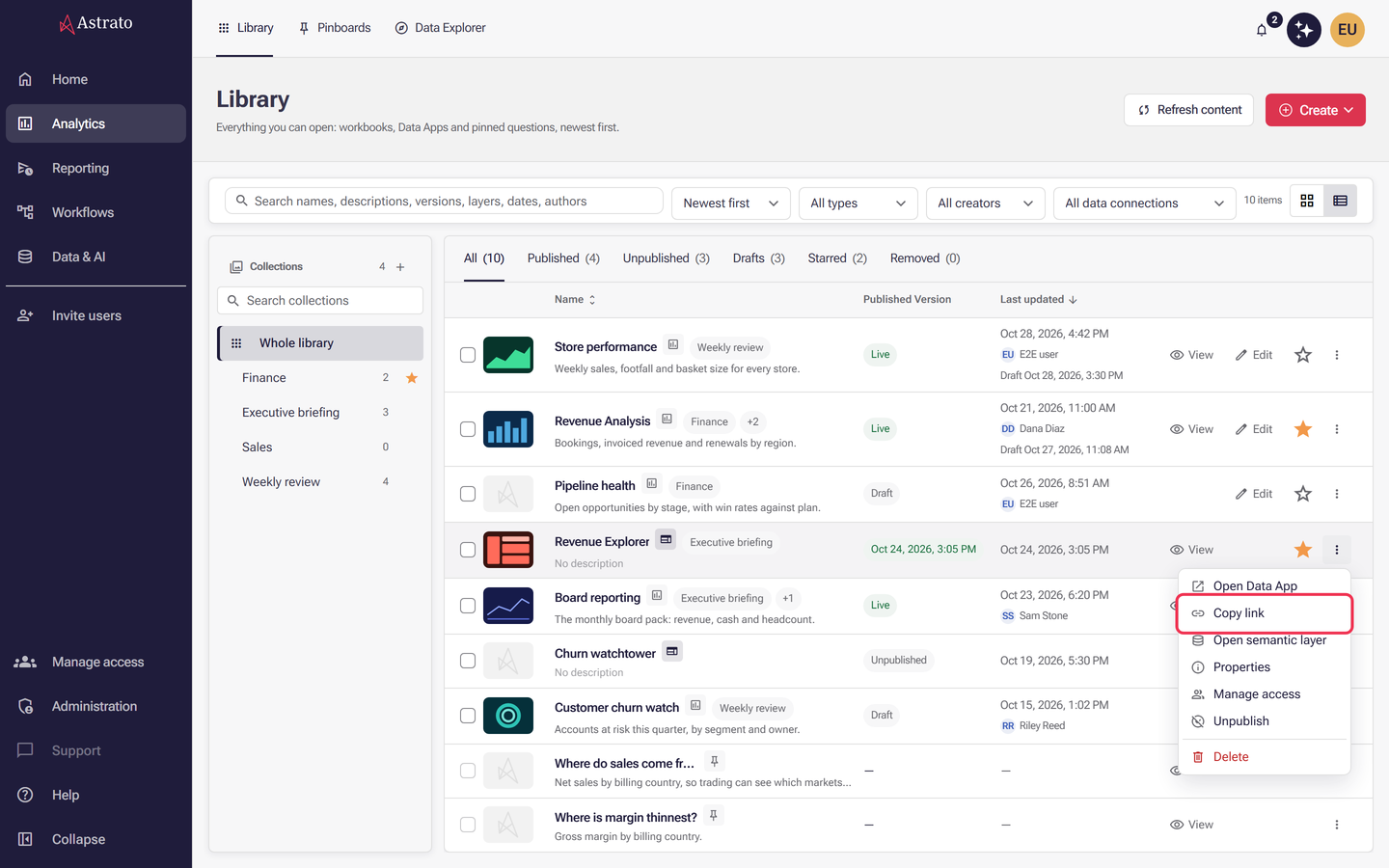
You are done when the panel shows the app’s name and labels.
3. Make the app public
Section titled “3. Make the app public”-
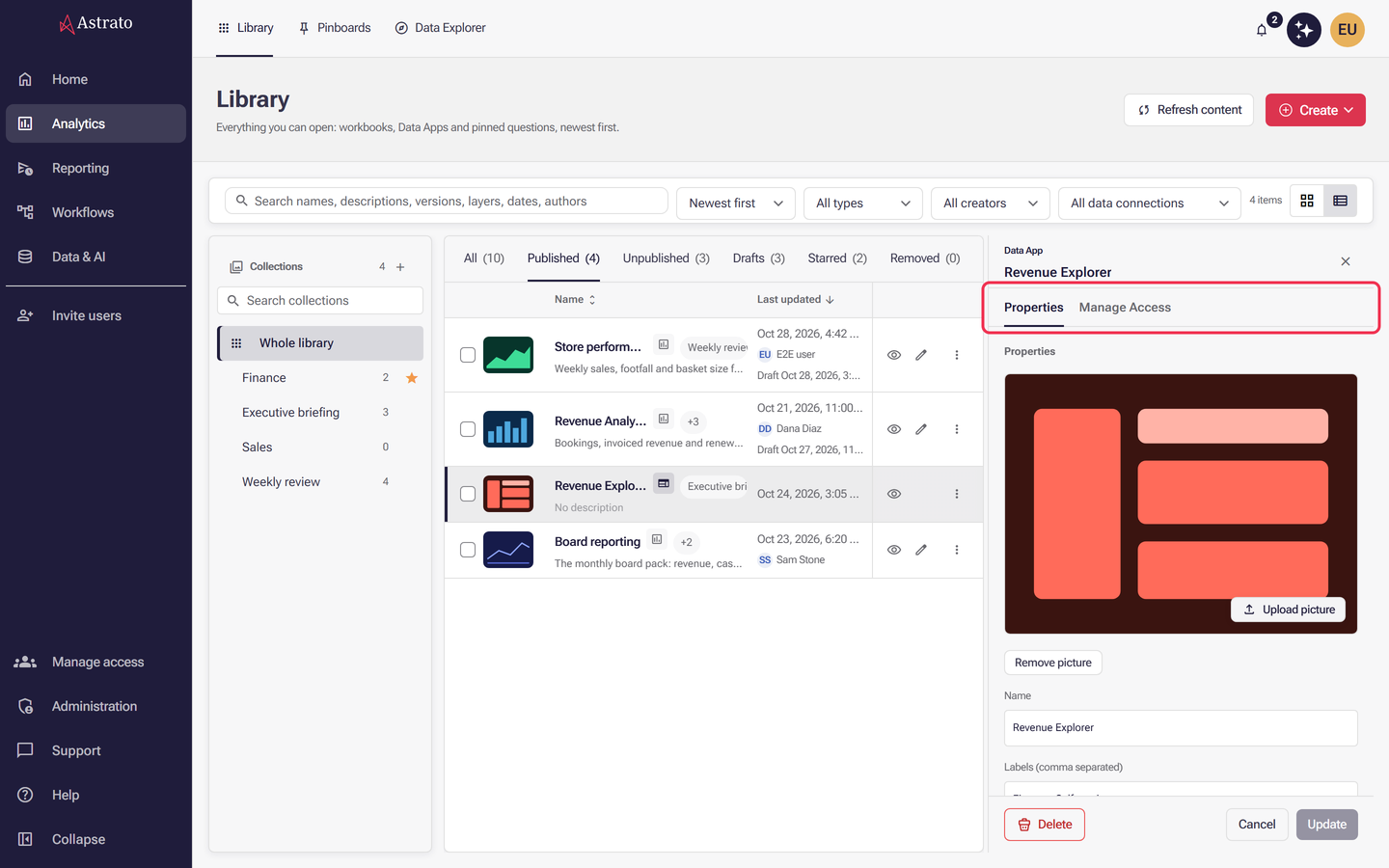
In the panel, select the Public access tab. If you cannot see it, look at the tabs that are there:
- Properties and Manage Access, but no Public access: you can manage the app’s access, so public access is not switched on for your environment. See Check which preview features you have.
- Properties alone: you lack Manage access permission on the app. Ask its owner, or anyone who sees Manage access in its row menu.
-
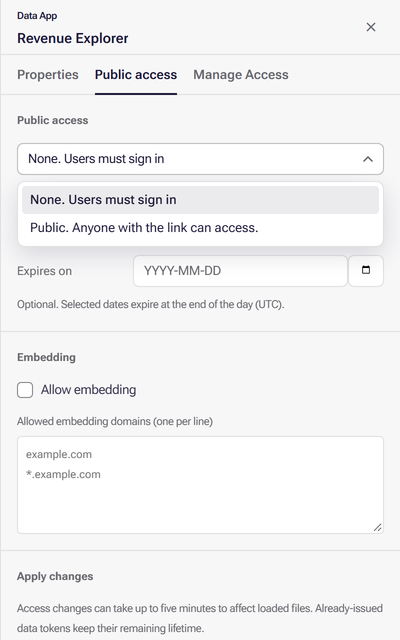
Under Public access, open the list that reads None. Users must sign in and select Public. Anyone with the link can access. If the option reads Public unavailable, the data connection signs each viewer in with their own identity. Read the reason shown under it; the app cannot be made public with that connection.
-
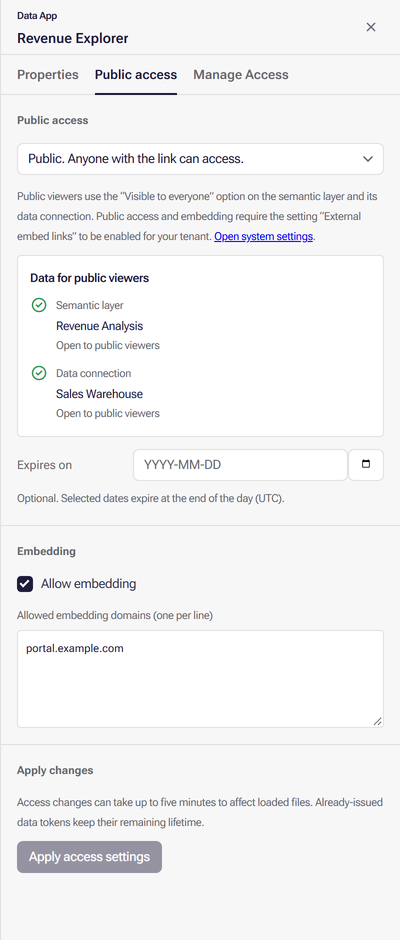
Optional: set Expires on if the link should stop working on a date. Optional: switch on Allow embedding and list the hostnames that may embed the app in Allowed embedding domains, one per line. Write a bare hostname such as
portal.example.com, withouthttps://or a path. Use*.example.comfor every subdomain, and add a port only if the portal uses one, as inportal.example.com:8443. See Public access and embedding. -
Select Apply access settings.
-
A confirmation dialog titled Make this Data App public? opens. If the semantic layer or its data connection is not yet open to everyone, the dialog lists each one with a ticked box (Let anybody read the …). Leave them ticked and select Grant access and make public. If nothing needs granting, the button reads Make public.
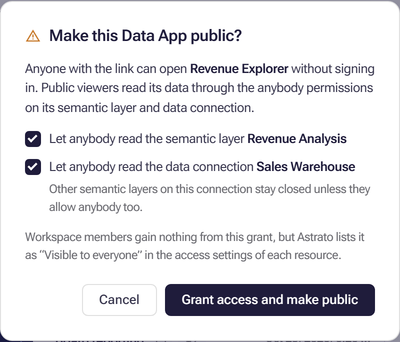
If you untick a box, the app still loads for public viewers but its data requests are refused.
You are done when Data for public viewers shows the semantic layer and the data connection as Open to public viewers. Access changes can take up to five minutes to reach viewers.
4. Copy the link
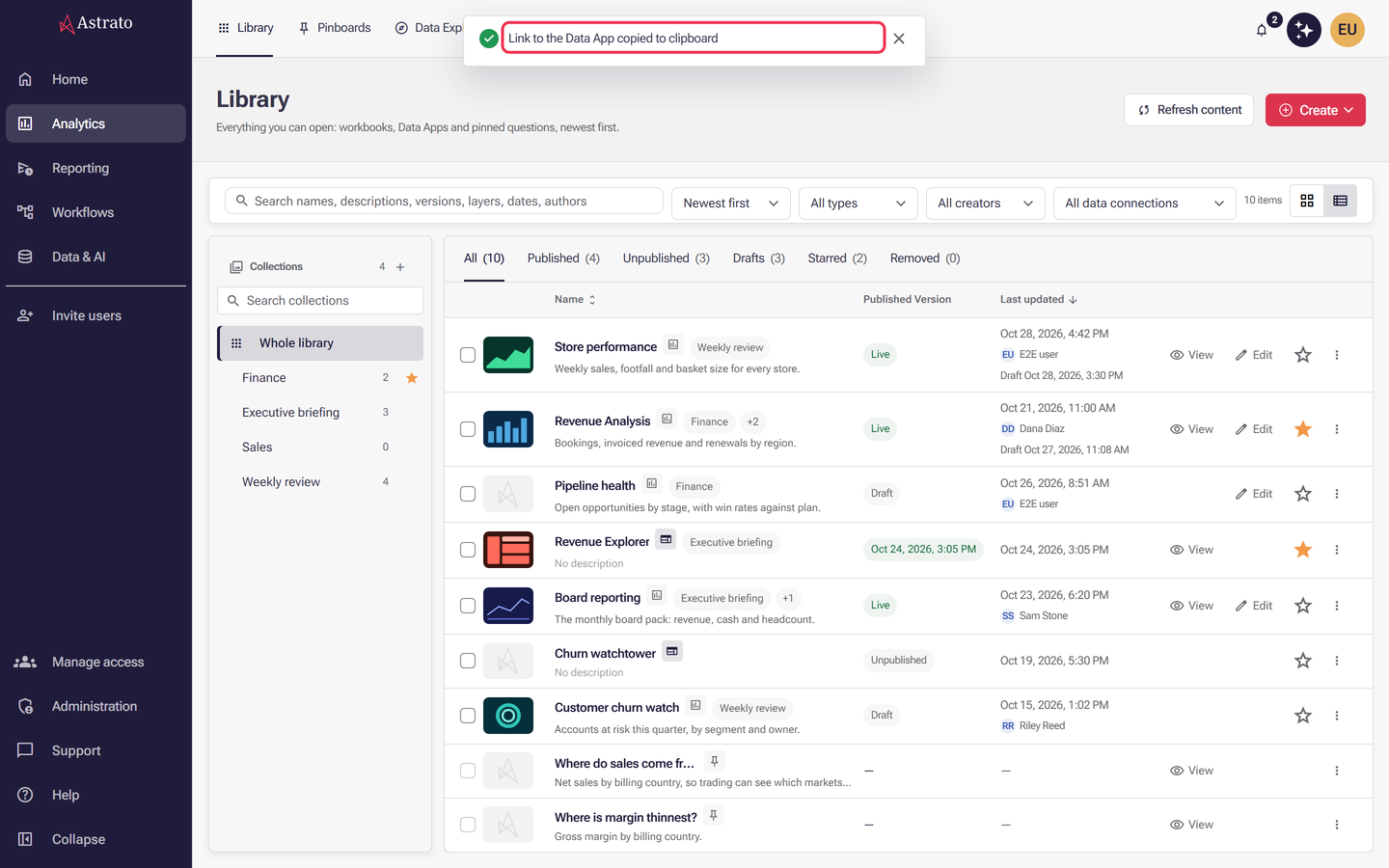
Section titled “4. Copy the link”Close the panel. In the Library, open the action menu at the end of the app’s row and select Copy link. The option appears only for a published app with a web address.
A toast at the top of the page confirms it: Link to the Data App copied to clipboard. If it reads Could not copy the link to the Data App, your browser blocked the clipboard; select Open Data App in the same menu and copy the address from the new tab instead.
The copied address is the hosted app, with the form https://<App ID>.<your apps domain>/, for
example https://0b111111-1111-4111-8111-111111111111.apps.example.com/. The App ID is the one
under Details on the app’s Properties tab. An address that starts with your Astrato
workspace address instead is a Library or Builder page, which outsiders cannot open. Paste the link
into your message or email.
You are done when the pasted address opens the app.
5. Check it as an outsider
Section titled “5. Check it as an outsider”Open the link in a private or incognito browser window where you are not signed in to Astrato. The app should load without a sign-in page. Check that the numbers appear: a successful publish does not by itself prove that data queries work.
What a public viewer can and cannot do
Section titled “What a public viewer can and cannot do”A public viewer is not a member of your workspace. Astrato serves them under one shared anonymous identity, even if they happen to be signed in to Astrato in the same browser, and the app never borrows your permissions.
- Rows. A security rule compares a field with the email address or groups of whoever is asking, and an anonymous viewer is not a person you have named. Check what the app shows in step 5’s private window before you send the link, and do not rely on a security rule to narrow what a public link reveals.
- Actions. Every data action the app runs is refused for public viewers, with the code
data_action_anonymous_refused. Keep an app that needs them open to signed-in people only. - Stars. Public viewers cannot star the app; the attempt is refused with “Sign in to star an app.”
If an external viewer cannot open it
Section titled “If an external viewer cannot open it”Work down this list.
-
They see a sign-in page. Check that Public access is set to Public. Anyone with the link can access. and that you selected Apply access settings and confirmed the dialog.
-
They see “Publication expired.” The app has an Expires on date in the past. Clear the date and select Apply access settings again.
-
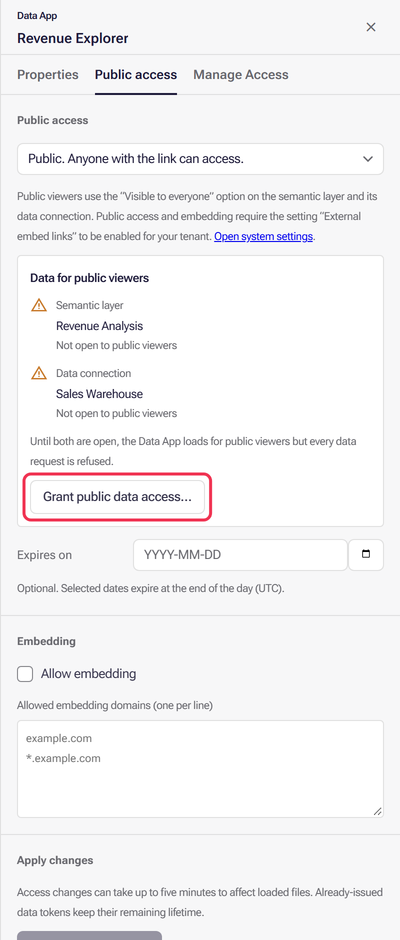
The app loads but shows no data. Open Public access and check Data for public viewers. If the semantic layer or the data connection reads Not open to public viewers, select Grant public data access…, which sits at the foot of that box. It appears only on an app that is already public, and only while something is still not open. Also check that the semantic layer is published (see Semantic layer publishing). After you republish the layer, publish the app again as in step 1.
-
The page is blank inside a portal. The portal’s hostname is not in Allowed embedding domains for this app, or Allow embedding is off. Add the hostname as the portal’s address bar shows it, without
https://, then apply. -
The option reads Public unavailable. The data connection needs a single shared credential.
-
Nothing changed yet. Wait five minutes and try again.
-
Apply access settings is refused because external embedding is disabled. Ask an Owner or Administrator to switch on External embed links in Administration → System Settings → General, as shown under Prerequisites for a public link.
Take public access off
Section titled “Take public access off”Open the app’s Public access tab, set the Public access list to None. Users must sign in and select Apply access settings. Granting public data access made the semantic layer and the data connection Visible to everyone, and that stays until someone removes it in their access settings. See Manage resource access.
What next
Section titled “What next”- Manage Data Apps: the full reference, including the CLI and MCP.
- Invitation links: bring people into your workspace instead.
- Manage embed links: share workbooks rather than Data Apps.