Multi-Factor Authentication (MFA)
Introduction
Section titled “Introduction”Multi-factor authentication helps secure access to Astrato tenants.
With Multi-Factor Authentication, all users using the user\password method will be required to authenticate using their mobile device.
Activating multi-factor authentication will enhance security in Astrato and help prevent undesired access to it.
-
Setting up Multi-Factor Authentication
-
Activating Multi-Factor Authentication
-
User- Setting up Multi-Factor Authentication
-
Prerequisites
Section titled “Prerequisites”Install the Google Authenticator App
-
Download the Google Authenticator App:
-
For iOS (Apple) Users: Go to the App Store, search for “Google Authenticator,” and download the app.
-
For Android Users: Go to the Google Play Store, search for “Google Authenticator,” and download the app.
-
Setting up Multi-Factor Authentication
Section titled “Setting up Multi-Factor Authentication”-
Activating Multi-Factor Authentication
Section titled “Activating Multi-Factor Authentication”-
Click Administration at the bottom of the left side panel in the Lobby.
-
Click on System Settings From the menu.
-
Enable the Forcet two-factor authentication switch.

-
-
User- Setting up Multi-Factor Authentication
Section titled “User- Setting up Multi-Factor Authentication”-
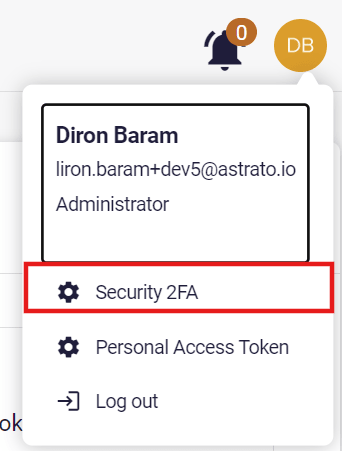
Click on the user image\initials at the top right corner of the screen.
-
Click on the Security 2FA option.
-
Open your Google Authenticator app.
-
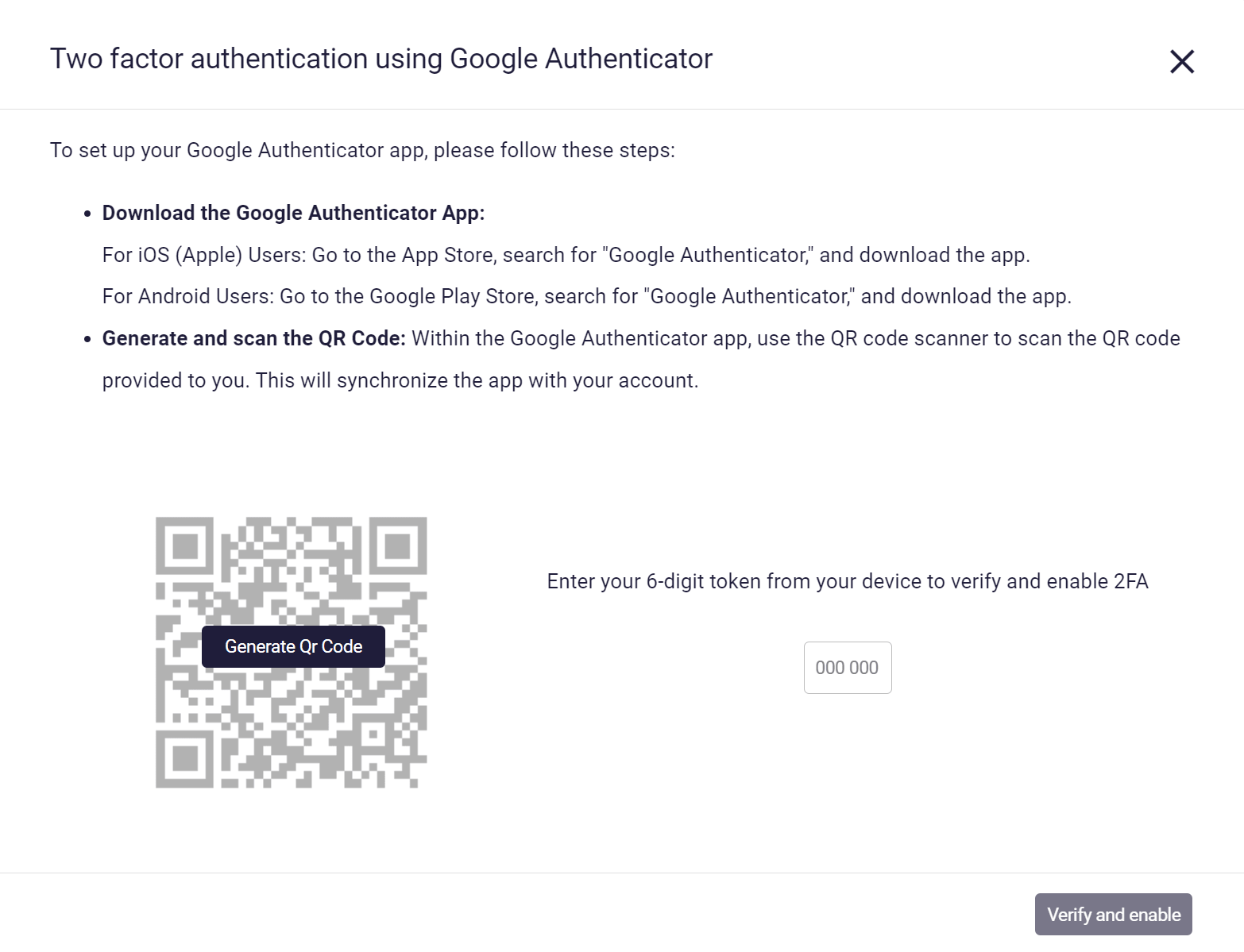
Click on Generate QR Code in the modal.
-
Scan the QR code with your Google Authenticator app.
-
Enter the six-digit Code from your mobile app in the input box on the right side.
-
Click Verify and enable.
-
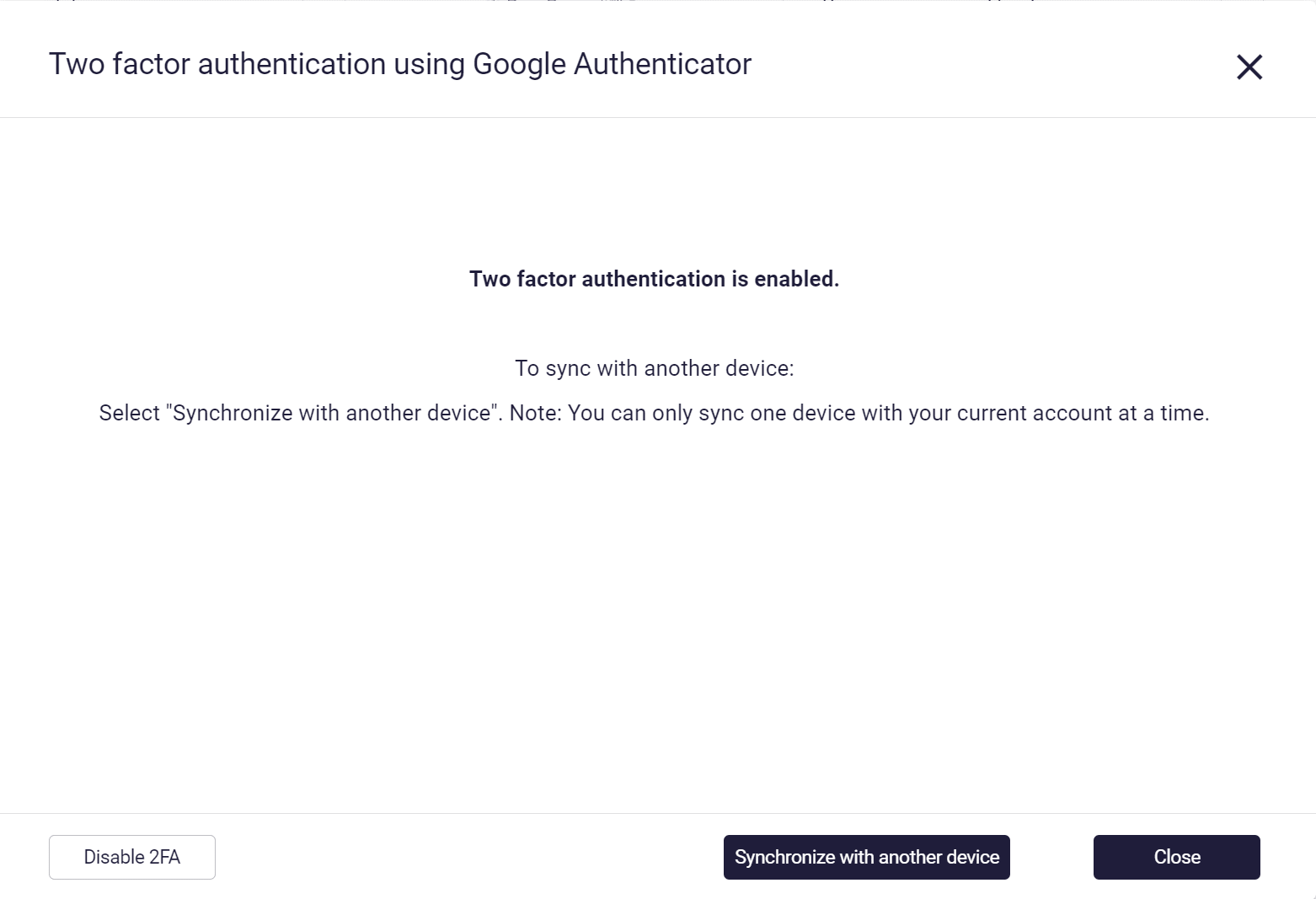
Click Close.
-
Login to Astrato when 2FA is enabled
Section titled “Login to Astrato when 2FA is enabled”-
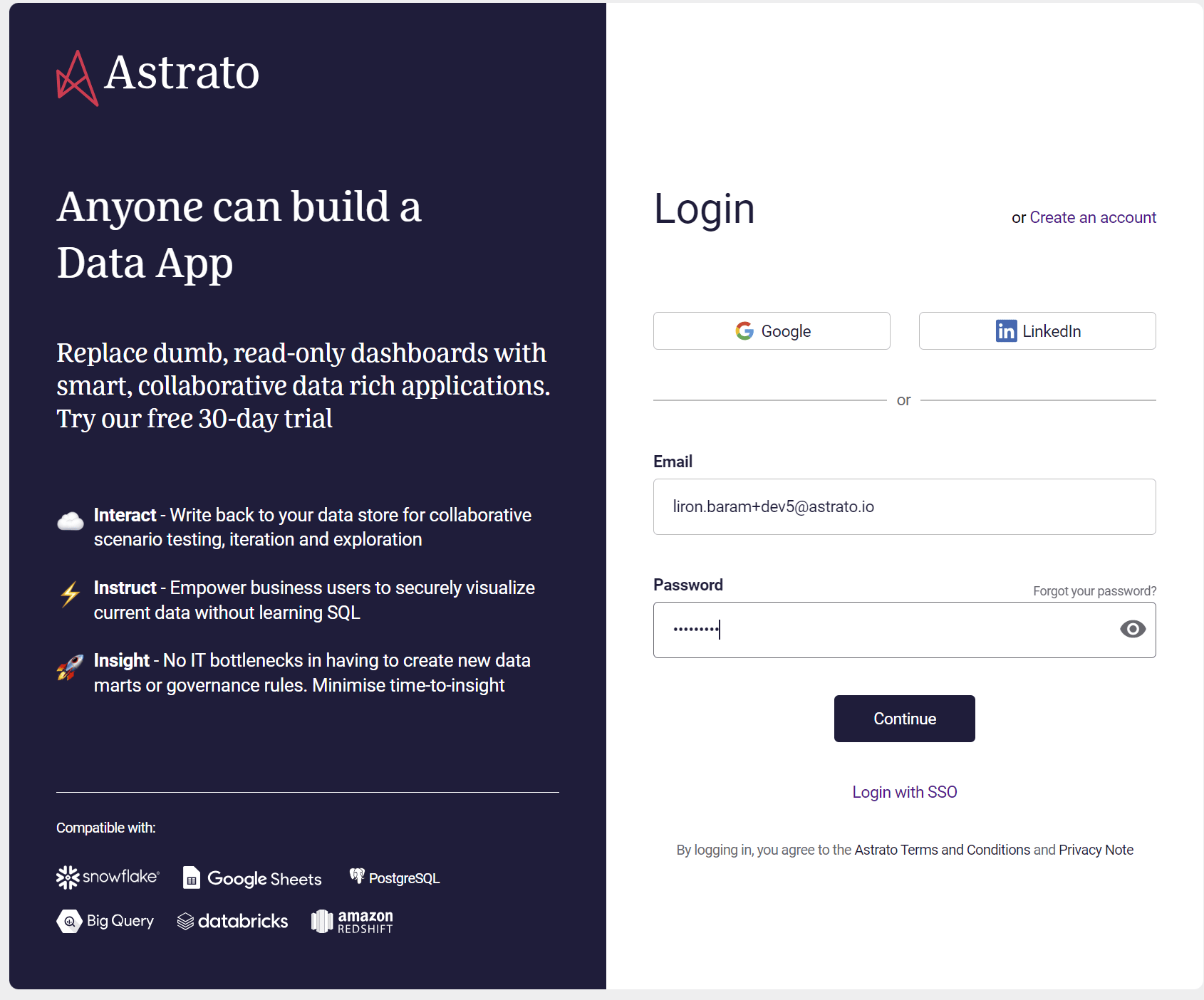
Enter the user and password in the login screen and click continue.
-
Open the Google Autenticator App.
-
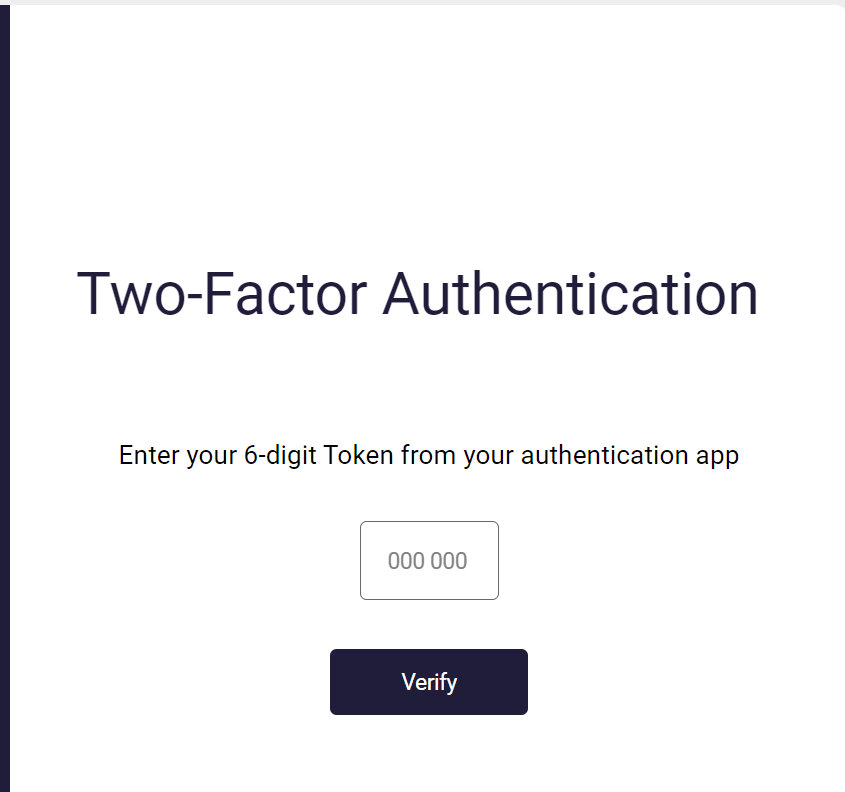
Type the six-digit code in the input box and click Verify.