

Understanding Join direction and quality
Understanding Join direction and quality
Section titled “Understanding Join direction and quality”Join quality is about using the right fields as keys: the field that holds many matching rows is the foreign key, and the field that is unique in the other table is the primary key. Get that right and a join returns the numbers you expect. Get it wrong and a chart can show nulls or inflated totals.
You work with joins in the Joins tab of the Semantic Layer Editor, or on the Map by selecting the line between two tables.
Join direction
Section titled “Join direction”Every join has a direction, shown as Cardinality at the top of the join panel. For the usual case it reads Many → One: it starts at the table with many rows per key (here Calendar, with one row per listing per day) and ends at the table where the key is unique (Listings).
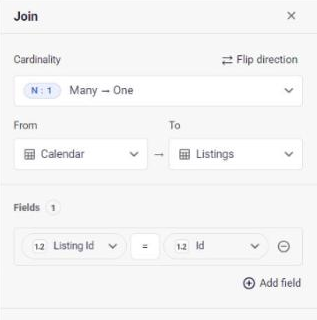
- From is the “many” side and To is the “one” side.
- Select Flip direction if the join was created the wrong way round.
- The join list shows the same information in short form, for example
N:1 · Listing Id = Id.
The data engine decides how to combine your tables from the direction of the join, not from the data itself, so a flipped join can return wrong results even when every key matches. That is why the direction matters.
On the Map, selecting a join highlights its line and the key fields at each end, and opens the join panel.
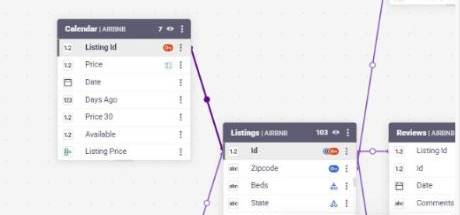
Join quality
Section titled “Join quality”Select Show quality in the join panel to check a join against your data. Astrato runs a query and reports a result next to Join quality (for example Good), followed by a table for each side of the join. The check needs a saved join with at least one pair of fields; if the request is not valid or the check is unavailable, the panel shows an error or an unavailable hint instead of a result.
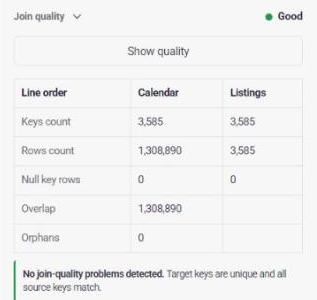
- Keys count: the number of unique key combinations (a join with several field pairs counts each combination once).
- Rows count: the number of rows in the table.
- Null key rows: rows where the key is empty.
- Overlap: rows whose complete key combination also exists in the other table.
- Orphans: on the many side, rows whose key has no match on the one side. Expect this to be zero or close to it; a high number usually means the join uses the wrong field. Keys on the one side that nothing refers to can be perfectly valid, such as products that were never sold.
On a healthy many-to-one join, the “one” side has the same Keys count and Rows count (here 3,585 each on Listings), because each key appears once. A message below the table tells you whether any problems were found.
Join suggestions
Section titled “Join suggestions”Astrato can suggest joins between your tables. The Suggestions button on the Map and Joins tabs shows how many are available.
Select Suggestions to open the panel. Each suggestion shows the table and field on each side, joined by an arrow that follows the join direction, and a coloured dot for its quality.
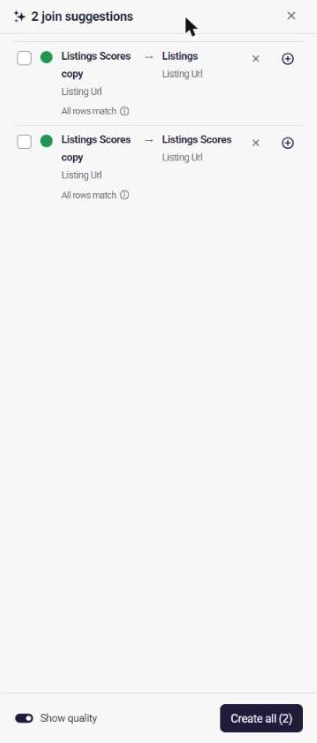
- Show quality switches the quality line under each suggestion on or off.
- Hover the information icon next to the quality line to read what it means. For example, “All rows match” means the target key is unique and every source row finds a matching target row.
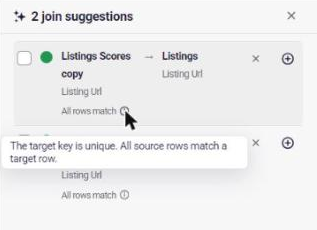
To act on suggestions:
- Select the + button on a suggestion to create just that join. It is added immediately.
- Select the checkboxes of the suggestions you want, then select Create all to create them together.
- Select × on a suggestion to dismiss it. A dismissed suggestion is not created by Create all.
Create joins yourself
Section titled “Create joins yourself”Select Add on the Joins tab to define a join by hand. Choose the From table (the “many” side) and the To table (the “one” side), then pick the key field on each side. Use Add field if the join needs more than one pair of keys, then select Create. A new join starts as Many → One, and you can change the direction after creating it. Check the result with Show quality before you rely on it.
To change a join later, select it in the list or on the Map, edit it in the panel and select Update. Use Remove to delete it.