Locked Filters
A locked filter keeps its value while viewers explore the rest of the workbook. Use it to keep a workbook scoped to one customer, region, reporting period or department, or to fix the filters that a guided, app-like workbook sets for its viewers.
Use Cases
Section titled “Use Cases”- Keep a team’s default scope. In a workbook shared across teams, lock filters such as Customer or Region so each team starts from, and stays on, its own slice of the data while it explores.
- Guided workbooks and templates. A button can set filters and lock them as part of a workflow. For example, a navigation button sets Region to EMEA and Year to 2025 and locks both. One workbook can then serve several customers or departments, each with its core filters locked.
- Keep calculations stable. Some filters are required for charts to return meaningful results. Lock those and leave optional filters open for exploration.
How It Works
Section titled “How It Works”You can lock a filter in two ways:
-
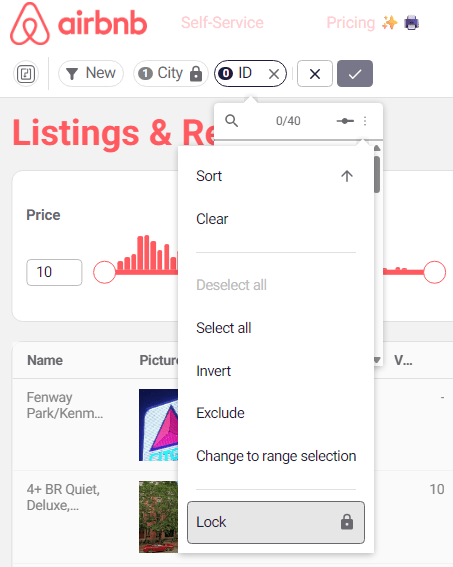
Manual locking. Open the filter’s dropdown and select Lock at the bottom.
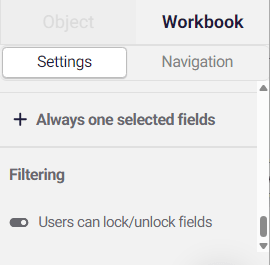
The setting for this is in the Workbook tab: open Settings and turn on Users can lock/unlock fields under Filtering.
-
Action-based locking. An action locks or unlocks the filter as part of a workflow; see Working with Actions. The lock action blocks work whether or not Users can lock/unlock fields is on.
Key Behavior Rules
Section titled “Key Behavior Rules”- A filter can be locked even if it has no value selected.
- If you lock a filter that has pending changes, those changes are applied first and then locked.
- The Set filter … to … and Append to filter … values … action blocks can still change a locked filter. The Set filter … NOT to …, Set filter … from … to … and Set filter … NOT from … to … blocks leave a locked filter unchanged.
- The Clear all … filters action block clears locked filters too.
- Applying a bookmark that saved filters replaces the lock state with the one saved in the bookmark. See Bookmarks in the classic Workbook Editor.
Working with Actions
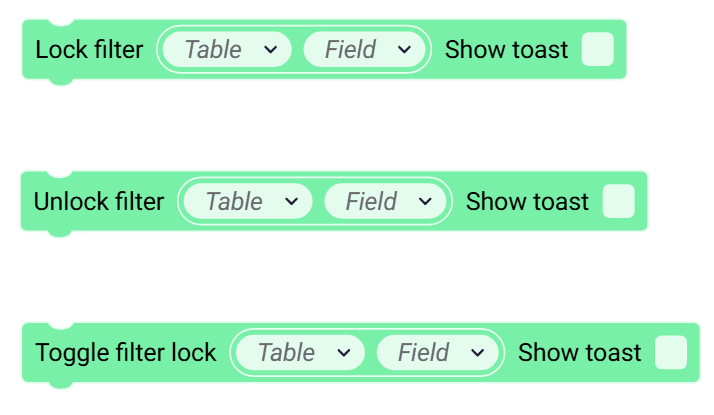
Section titled “Working with Actions”Three action blocks change a filter’s lock:
- Lock filter locks the field.
- Unlock filter removes the lock.
- Toggle filter lock locks the field if it is unlocked and unlocks it if it is locked.
Each block takes a field and has a Show toast checkbox. When it is ticked, the viewer sees a message such as “Region field was locked” or “Region field was unlocked”.
To set a value and lock it in one step, put a Set filter … to … block before Lock filter in the same action, for example behind a button labelled “View Finance Only”. For building actions, see Astrato Action Blocks: automating interactive workflows.
What Users See
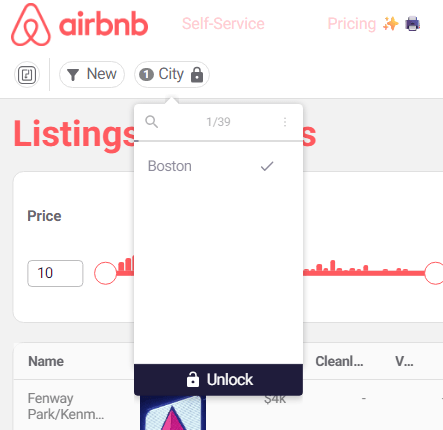
Section titled “What Users See”A locked filter’s dropdown shows its current value and an Unlock button instead of the list of values to choose from, as in the first picture on this page. Select Unlock to change the filter again.
For the filter bar’s own settings, see Filter Bar.