

Row-Level Data Reduction- Private Preview
Introduction
Section titled “Introduction”Row-Level data reduction restricts access to data based on the characteristics of the person viewing the data.
Astrato supports.
Row-level data reduction presents each user with only the specific rows in the data he has permission to view.
Astrato data reduction can be set using these user attributes:
-
User email address
-
User membership in Astrato’s groups.
Data reduction is done on a defined set of columns in a table.
When global data reduction is enabled, all queries that reference tables related to the table with the data reduction rule will be filtered.
-
-
using user email
-
using user groups
-
-
Example: how global data reduction works
Configure Data Reduction
Section titled “Configure Data Reduction”Data reduction is configured in the semantic layer editor.
To define a data reduction rule, follow these steps:
-
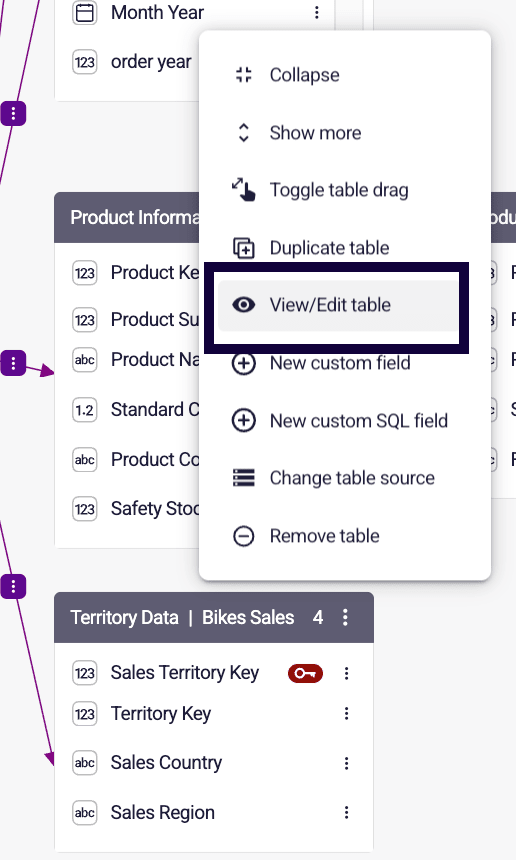
Select the target table in Map View, or in Tables & Fields, to open the table’s panel
-
Expand Pre-filter in the panel to define the data reduction rule

-
Using User Email
Section titled “Using User Email”-
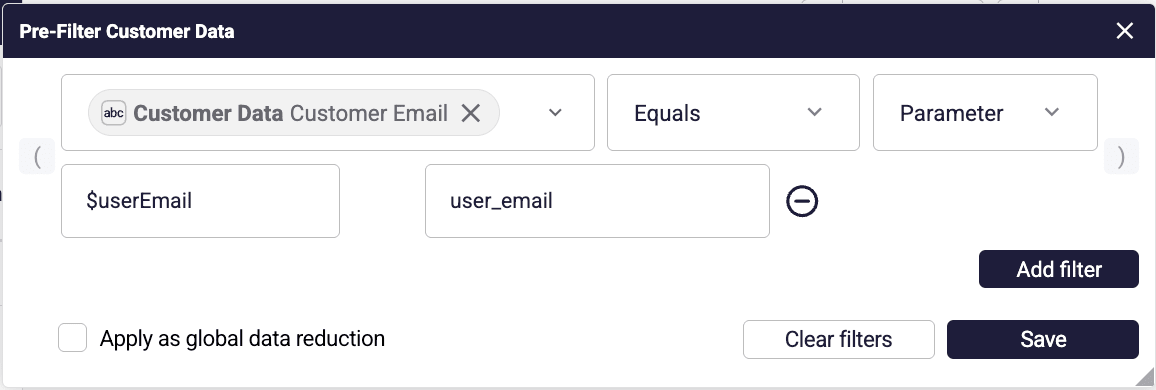
Select the email address field in the table, and define the data reduction as displayed in the image below.
-
Select Equals as the operator, and change Value to User Attribute.
-
Choose the $userEmail attribute (this is the system attribute).
-
-
-
Using User Groups
Section titled “Using User Groups”-
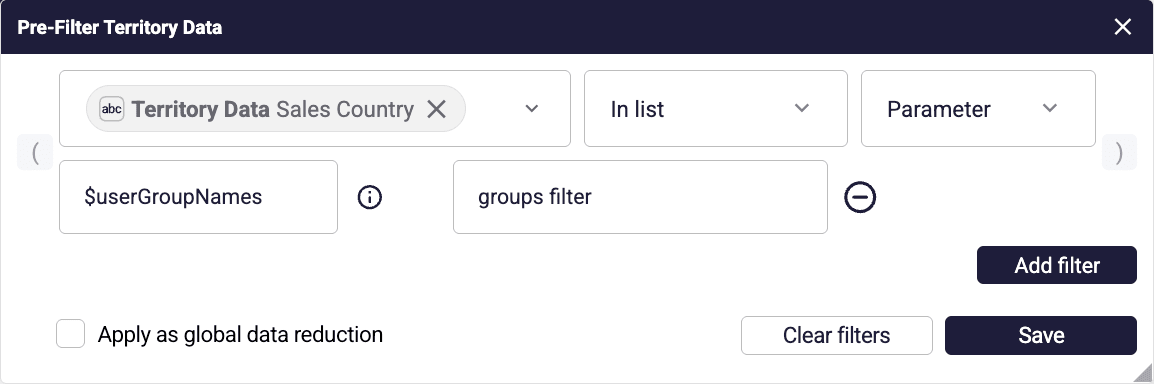
Select the field in the table with matching group names, and define the data reduction as displayed in the image below.
-
Select In list as the operator, and change Value to User Attribute.
-
Choose the $userGroupNames attribute (this is the system attribute).
-
-
Enabling Global Data Reduction
Section titled “Enabling Global Data Reduction”Global data reduction means that the filter defined in the table is applied whenever a field or measure from a table connected to the source table is used.
To enable global data reduction, follow these steps:
-
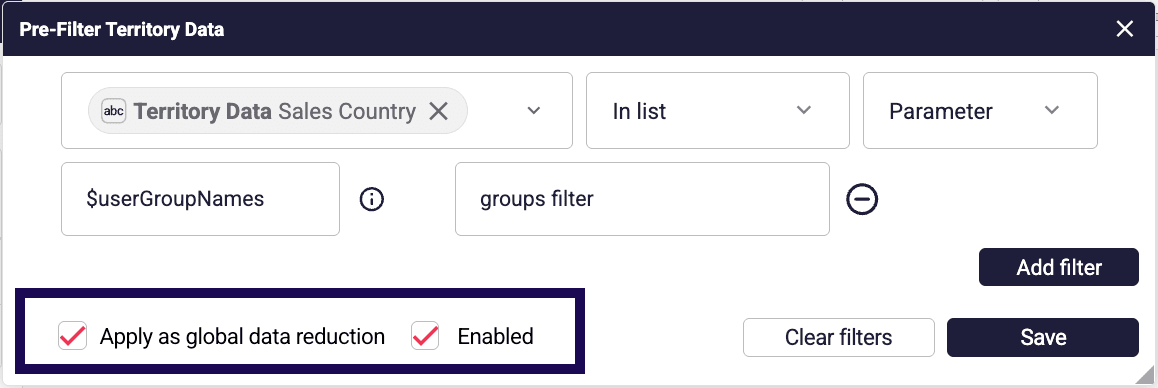
Check the box Apply as global data reduction
-
Optionally, check the box Strict, which appears once the first box is checked
When Apply as global data reduction is not checked, the filter is not applied to the connected tables.
Below is an image of a filter applied as a global data reduction
Editing Data Reduction Settings
Section titled “Editing Data Reduction Settings”To edit an existing data reduction rule, follow this process:
-
Open the Semantic layer editor and select the table with a shield and filter icon, in Map View or Tables & Fields
-
Find the table with a filter icon, and a shield when the rule uses a user attribute
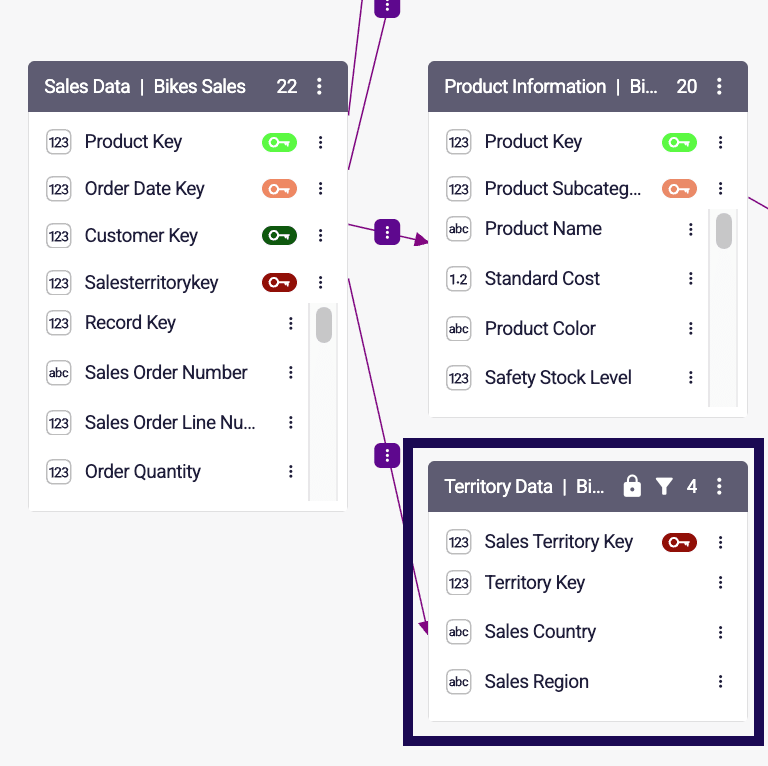
-
Expand Pre-filter in the table’s panel
-
Edit the data reduction settings and select Update.
Example: how data reduction works
Section titled “Example: how data reduction works”When a global data reduction is applied, all charts that use fields from tables connected to the data reduction table will be filtered.
Let’s look at an example:
In this example, all tables are connected to the Territory Data table, where a global data reduction is active.
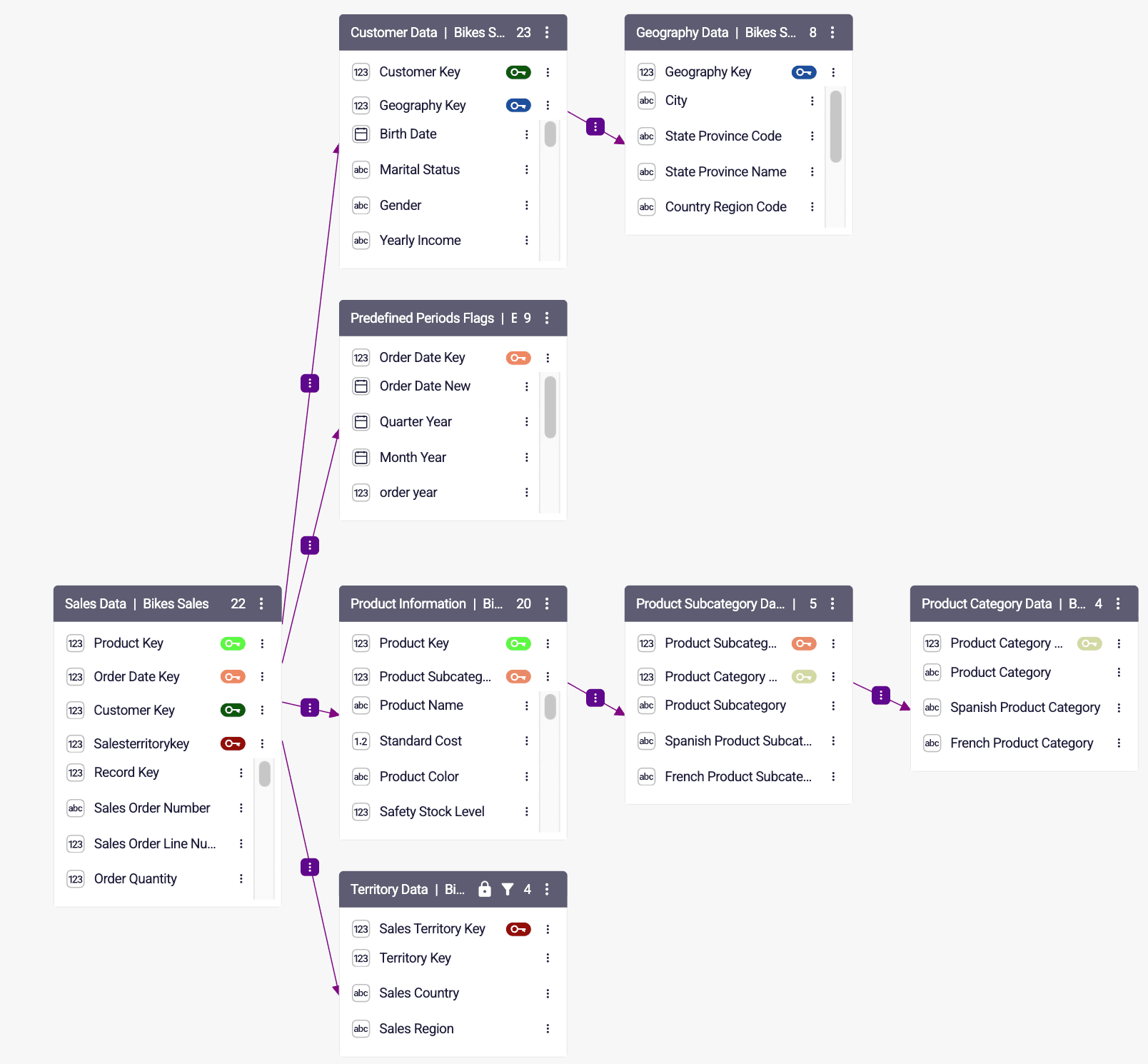
Now, if we look at the list of cities from the Geography data table, it’ll display only the cities that had activity related to the filtered countries in the Territory Data table.
The same will apply to the list of products or dates.