
Data Notification - Setup Guide (BETA)
Introduction
Section titled “Introduction”Astrato’s Data Notification allows users to share and receive notifications from their Astrato app in their organization messaging platform (Slack, Microsoft Teams)
Data notifications allow users to act quickly on any shared data insights by bringing the insights to the user.
Data notifications enhance collaboration between team members by sharing insights into a shared space and improving discussion and joint decisions.
Here are some use cases for data notifications:
-
Real-time notification when a condition is met, leveraging the real-time query engine of Astrato
-
Schedule data notification on certain KPIs’ performance status.
Prerequisites
Section titled “Prerequisites”-
Defined integration with the selected messaging platform.
Please look at this article on how to set up an integration. -
An admin role in Astrato is to set up the integration.
Defining a Data Notification
Section titled “Defining a Data Notification”The steps described below show how to create a notification for countries based on their YOY growth results.
The result is a notification for each country’s status.
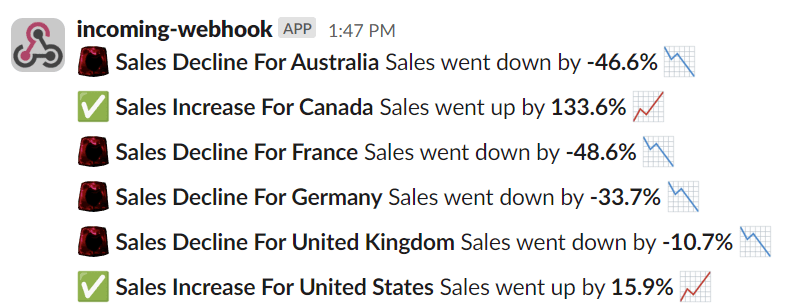
Steps to build the alerts.
-
Build a Table with the information needed for the notification,
in the example, the table includes the country and the YOY result.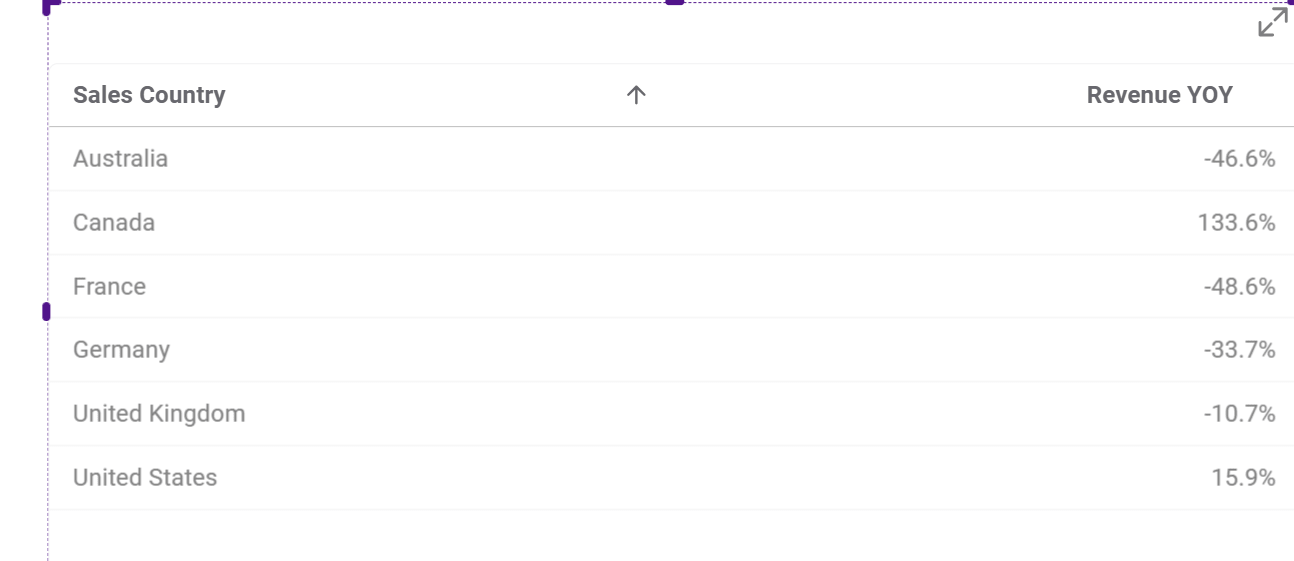
-
Give the Table object a meaningful name.
In the example, the name is Alert_Table. -
Open the Actions editor in the workbook.
-
Drag an Alert action block from the Notification/Alerts section.
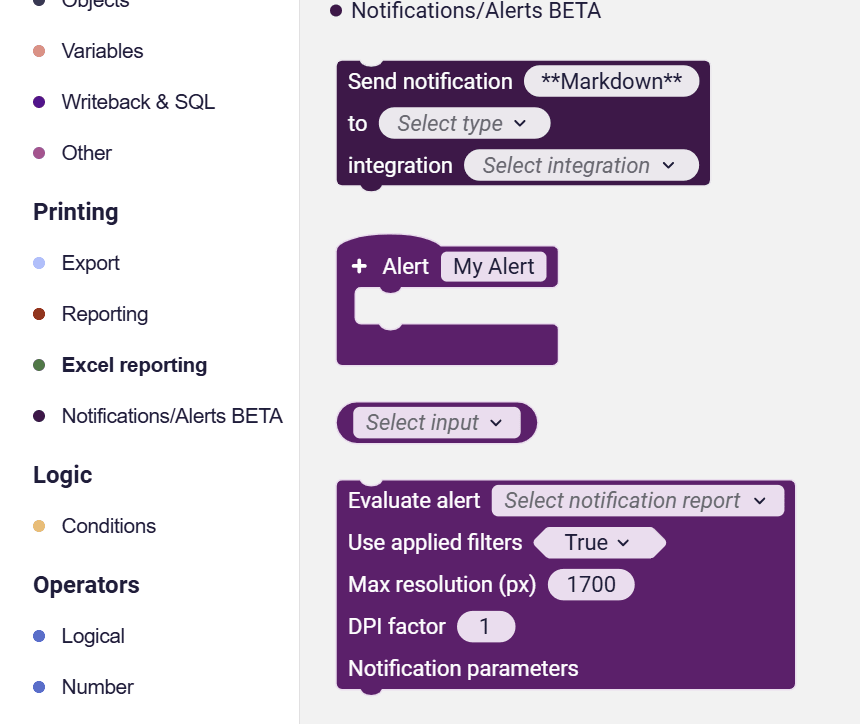
-
Fill the Alert with the relevant actions to build the alert
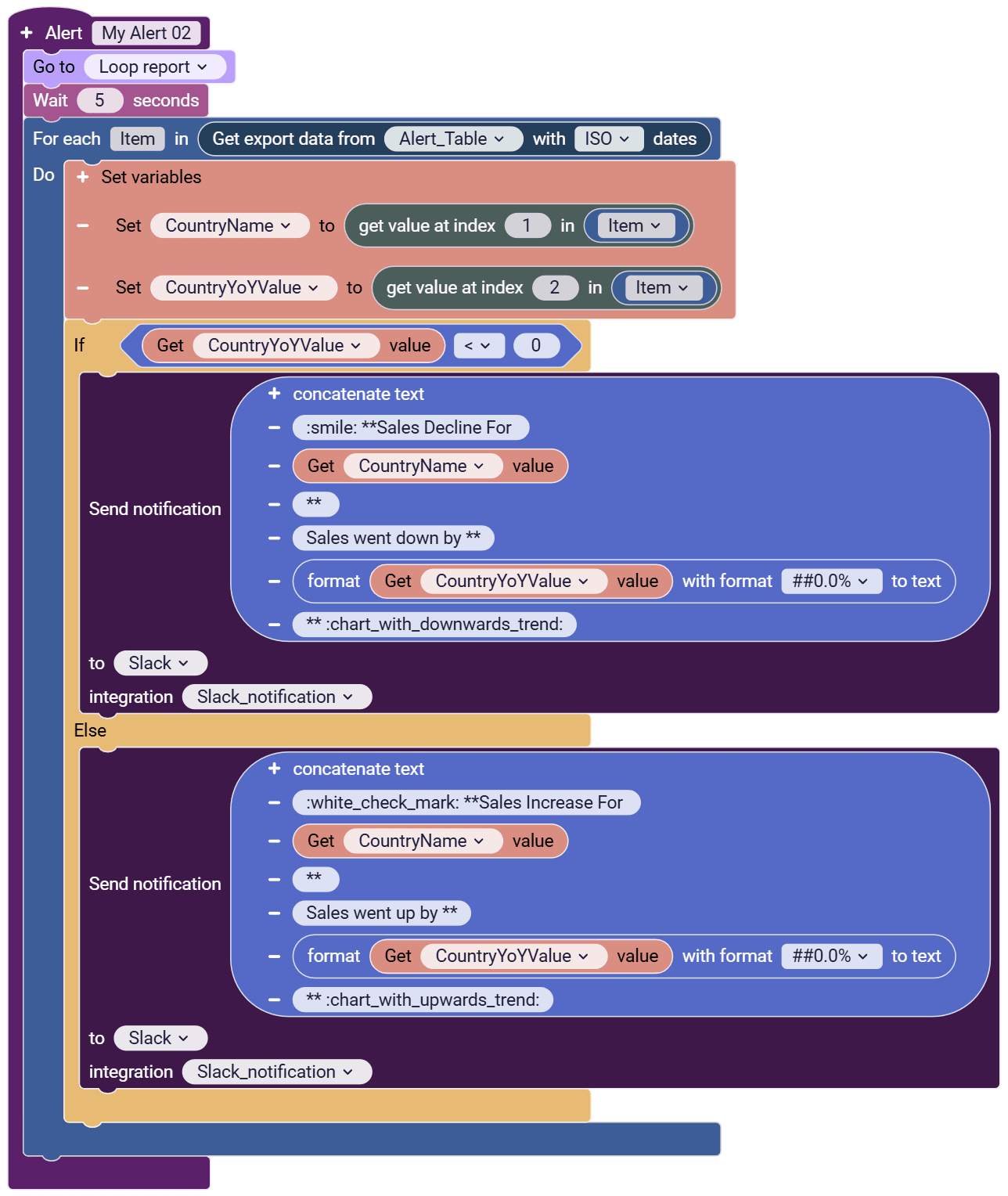
In the example, these are the actions for our alert.
Each block action is described below the image.Here is a Description of the different parts of the Alert action block.
1.Go to Action
- Navigate to the Loop report sheet, where the Alert_Table is.
*To get the data from an object, we need to navigate to the sheet where the object is displayed.
2. Wait
- To ensure the table has be loaded with the data, we need to wait.
3. Loop Block
-
The loop block generates the notification for each country in the table
-
Item is the name of the loop iterator.
-
Each item is a row in the table, returned as an array of one row with two columns.
-
4. Set Variable
-
Extract from the item Array the values for the message
-
In the example, we extract the country name and the country YoY value and populate the variables.
5. If/Else Block
-
Check if the Country’s YoY value is positive or negative to determine which notification to send.
-
Notification message construction:
-
Send notification- the message that is sent.
-
Using the Concatenate action block combines static information with dynamic information.
-
The Slack API supports markdown language that combines emojis and highlighting text.
Check this link to learn more about Markdown text styling
-
-
To- select the messaging platform
-
integration- select the integration(channel to send the messages to)
-
- Navigate to the Loop report sheet, where the Alert_Table is.
Scheduling a Data notification
Section titled “Scheduling a Data notification”-
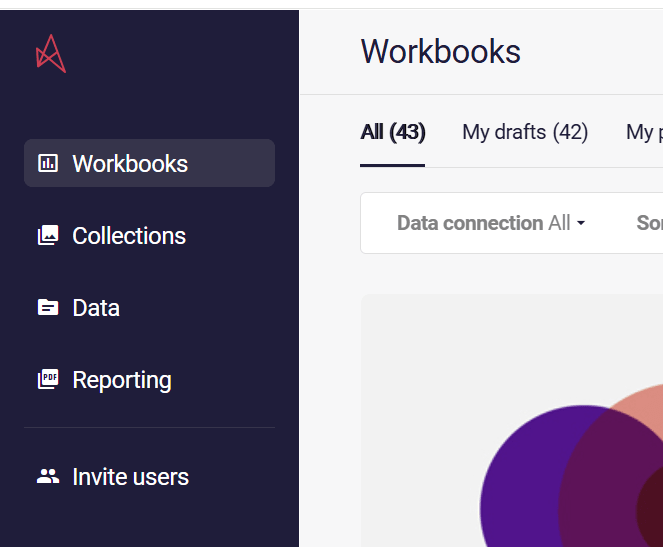
Open the Astrato Lobby and find Workflows in the left side menu.
-
Select Workflows in the left rail, then New Workflow in the top right corner. The page has two tabs, Workflows and On demand workflows; a scheduled notification belongs on the first.
-
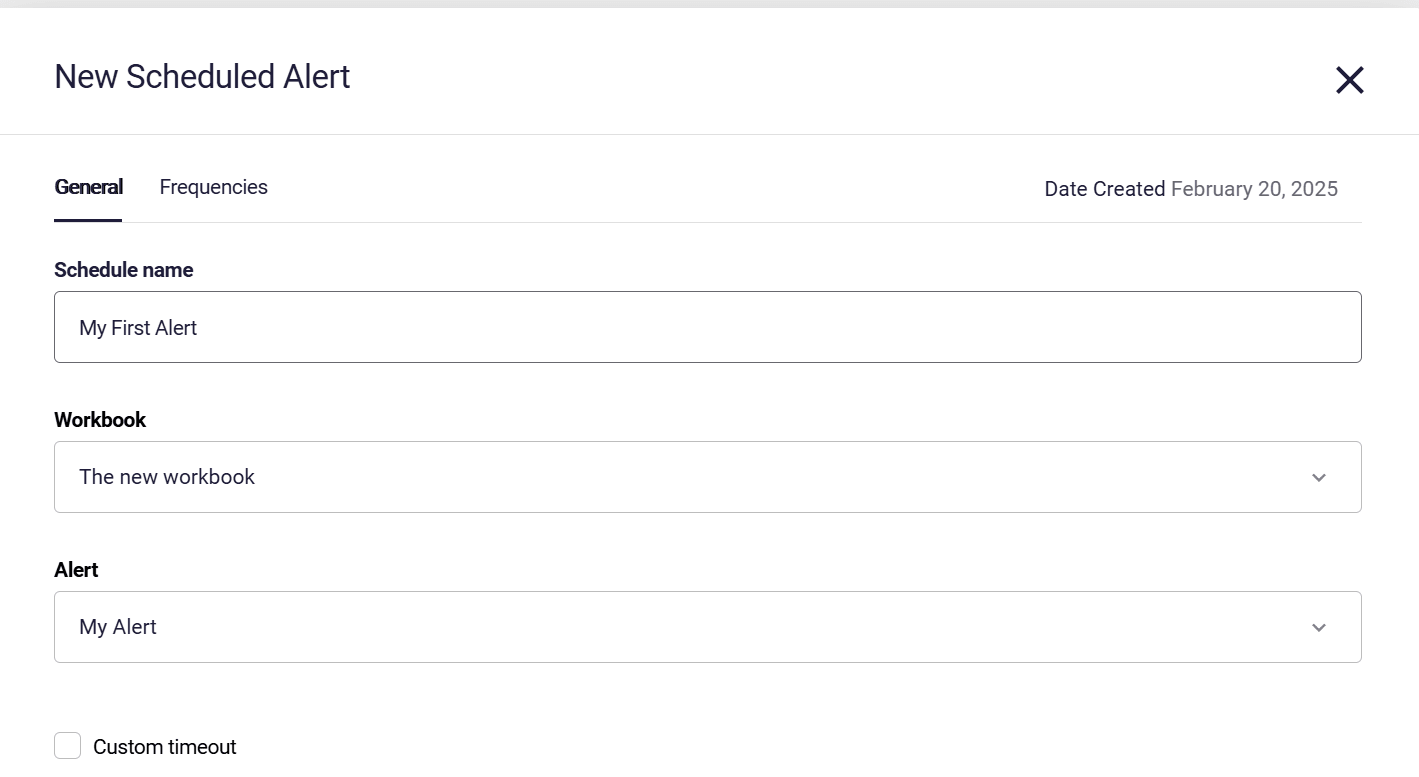
Give the Notification a name and select the Notification we created in the previous step.
-
Define the frequency of runs for the notification and click save.
Running a Data Notification Ad-hoc
Section titled “Running a Data Notification Ad-hoc”Alternatively, notification can be triggered by a user action in an Astrato workbook.
-
Open the Action editor in the workbook.
-
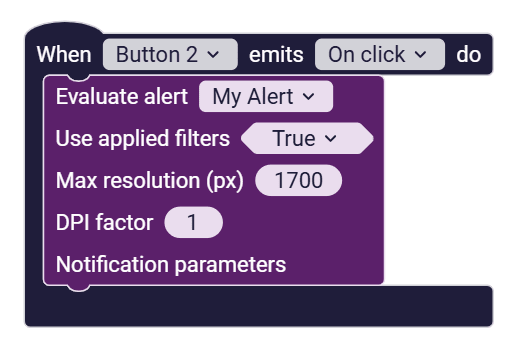
Add an Event block.
-
Inside, add an Evaluate Alert action block.
-
Select the notification to trigger and the other settings.
-
Close the Action editor.
-
To test, preview the workbook and click on the button.
Known Limitations
Section titled “Known Limitations”- The notifications include text only, not attachments.