

Connect to Astrato
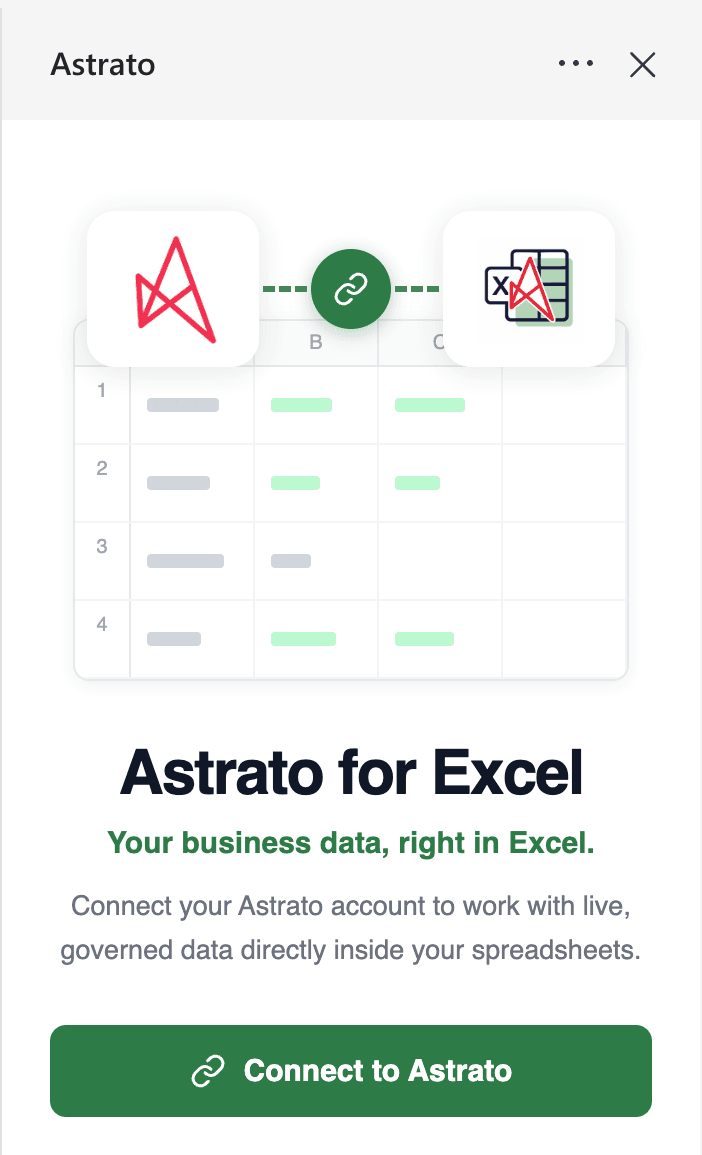
Once the Add-in is installed, the next step is to connect it to Astrato. A connection authenticates you against your Astrato instance. Until you’ve authenticated, the panel greets you with Connect to Astrato.
Before you start
Section titled “Before you start”-
The Add-in installed (see Install the Add-in).
-
Your Astrato sign-in details.
Authorize your Excel Add-in
Section titled “Authorize your Excel Add-in”Now you need to authorize your Add-in with your Astrato credentials:
Step 1: Click the Connect to Astrato button.
Step 2: You’ll be prompted to log in to your Astrato account.
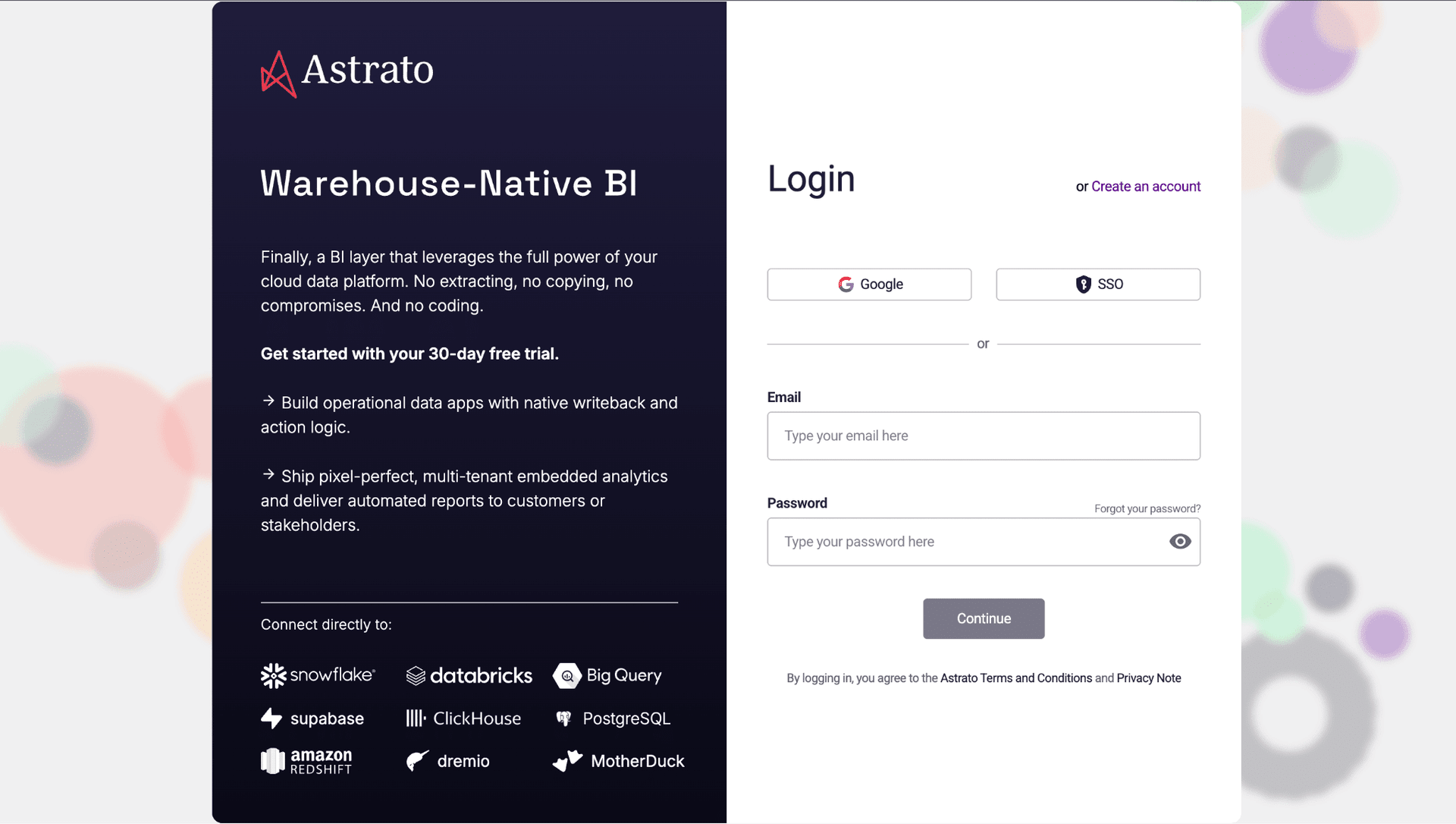
Step 3: Enter your login details and click Continue.
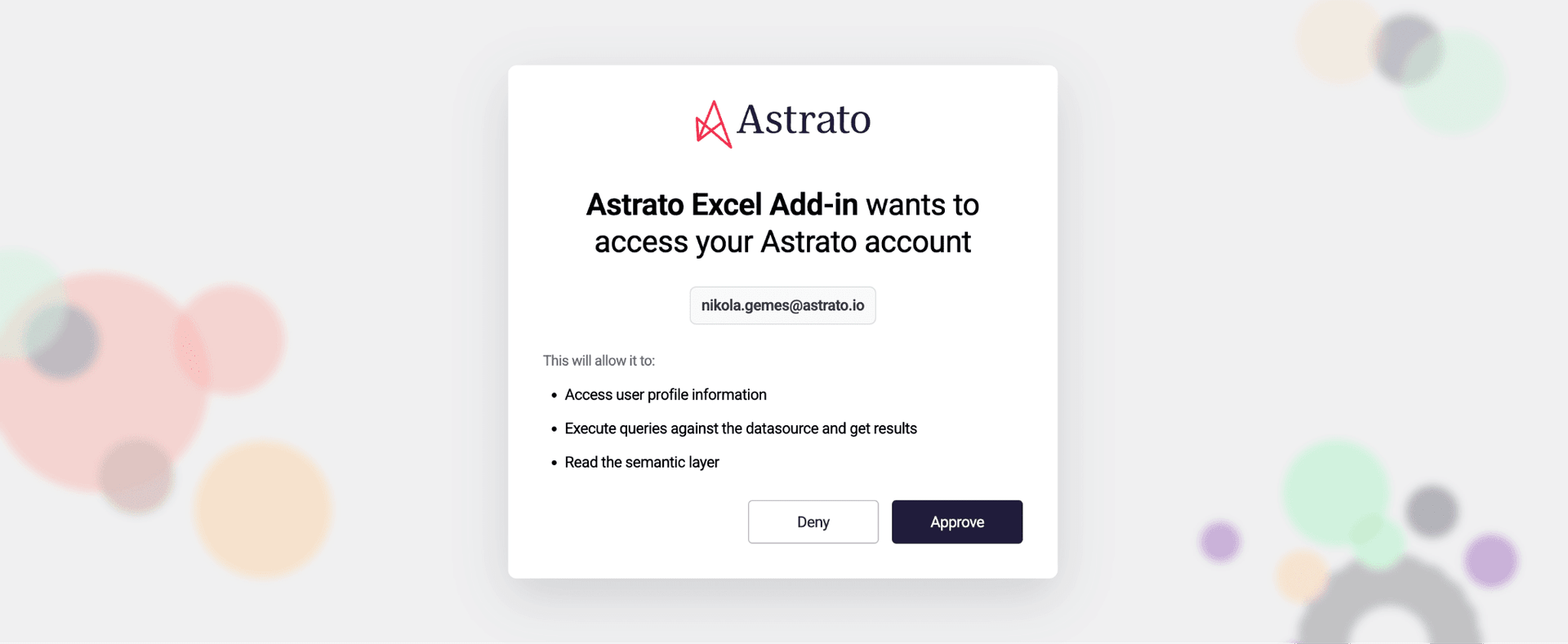
Step 4: The Excel Add-in will now connect to your Astrato account. Choose Approve.
Step 5: The Excel Add-in on your device is now authorized.
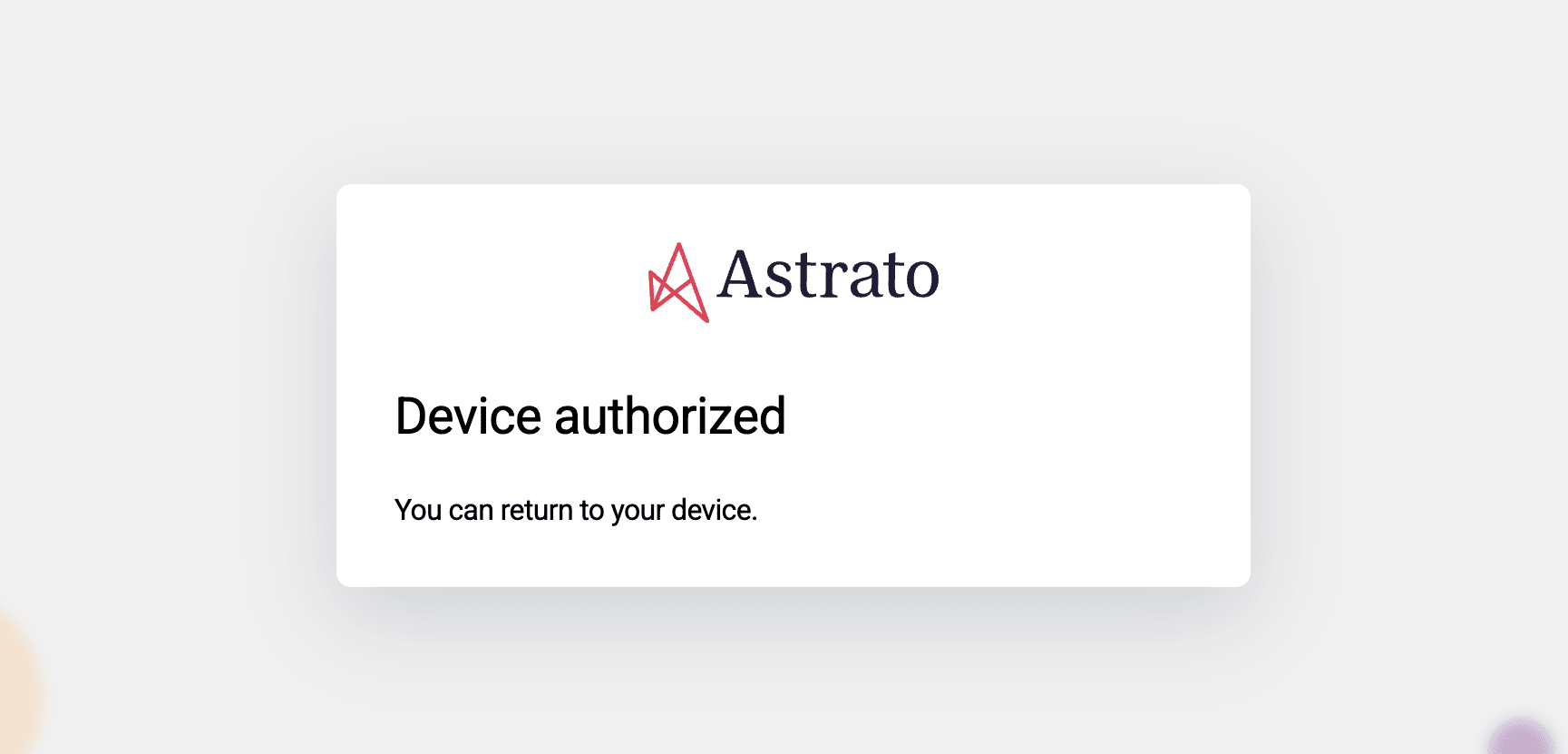
Now you can go back to Excel to create your first dataset.
Optional: More than one connection (advanced use case)
Section titled “Optional: More than one connection (advanced use case)”You can save several connections — handy if you work across, say, a production and a test environment. Each dataset remembers which one it uses.
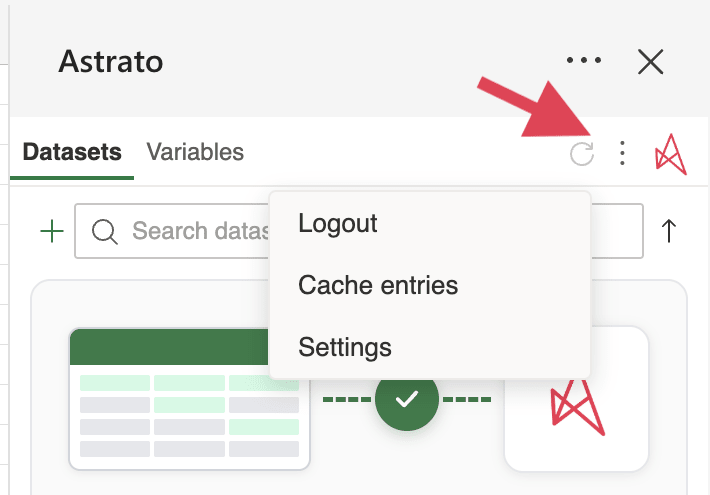
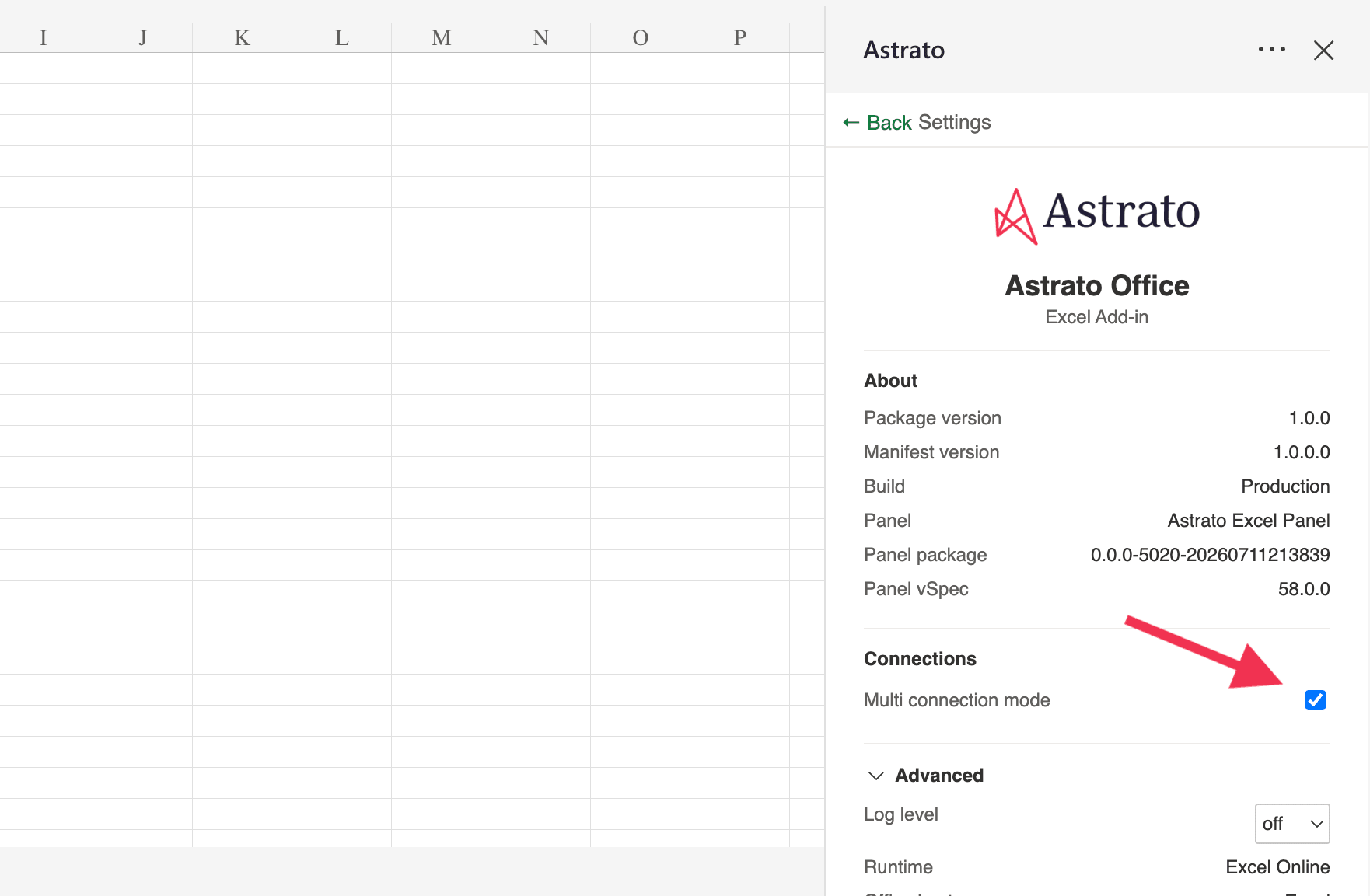
To turn this on, open Settings (the three-dots icon) and select the Multi connection mode checkbox.
-
With more than one connection, the dataset list shows Connection – Semantic Layer. With just one, it shows only the semantic layer.
-
When you share a workbook, whoever opens it may not have a connection with the same name. That’s fine — Astrato uses their first connection, so everyone refreshes with their own login.
For what happens when a recipient’s connection can’t reach the data, see Share a workbook.
Your credentials stay yours
Section titled “Your credentials stay yours”Your sign-in details and tokens are stored in your own Office settings, not in the workbook. When you share a workbook, your access never travels with it, and connections always use a secure HTTPS link.
Note: If another user installs the Add-in and has the same permissions, they can reuse the datasets you created. To refresh a dataset, they still need to complete the install and authorization steps first.