

Manage embed links
As a workspace Owner or Administrator, open Administration → Embed Links to review shared content.
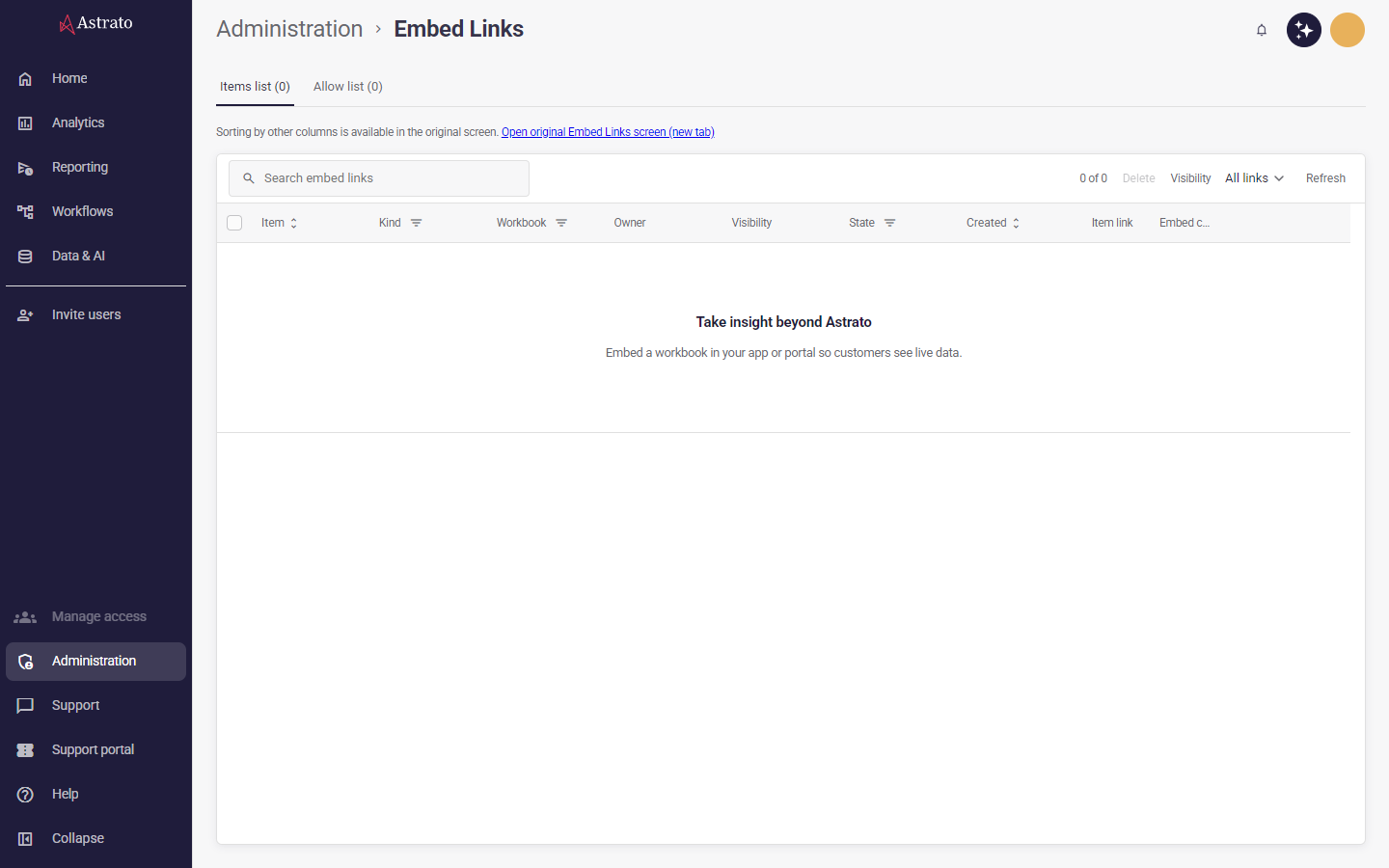
Search by item, workbook or owner, or filter by Public and Sign-in required. The list finishes loading all pages before showing search results and the public-link count. If any link’s visibility is missing or unrecognized, Embed links unavailable replaces the entire list and its counts. Refresh to retry; this error does not mean that no public links exist. Use the filter icon beside Kind, Workbook or State to select one or more values. Values within a column match any selection; filters across columns combine with search and visibility. State uses the displayed access status, including blocked and unverified links. Choose Clear filter to remove a column’s selections. Changing a filter clears selected links; filter controls stay available when no rows match.
Select Item or Created to sort the complete list; select the same column again to reverse the order. Sorting keeps your search, visibility filter and selected links. Missing creation dates appear last in either direction. Select Refresh to reload the list and workspace settings.
Understand access
Section titled “Understand access”A public link can provide access without signing in only when the link is active, has not expired and external embed links are enabled for your workspace. Disabled by workspace means the external-link setting blocks access. Access unverified means the page could not confirm the information needed to report effective access; refresh before relying on the count. Allowed domains also govern where content can be embedded.
The count reflects the loaded snapshot and updates as a listed link expires. Already expired links may be absent from the list.
Edit a link
Section titled “Edit a link”Select Edit beside the item. You can change its visibility, description, expiry, export permission and whether it persists user state. Expiry times are shown in your local time. Choose No expiry to clear an expiry date. Select Save changes to update the existing link while preserving its address, or Cancel to discard your edits.
When external embedding is disabled or unverified, you can restrict a public link by choosing Sign-in required. Public visibility requires external embedding to be enabled. If the link’s settings could not be read completely, refresh before editing. A failed save leaves your edits available to retry.
Revoke a link
Section titled “Revoke a link”Select Revoke and confirm to permanently remove the link. Consumers of that address lose access through it. Revocation cannot be undone; sharing the content again requires a new link.
To remove several links, select their checkboxes or Select all shown embed links, then choose Delete and confirm. Select-all covers the current search, column and visibility filters; changing search, column or visibility filters, tabs or refreshing clears the selection. Links without an identifier cannot be selected. After batch deletion, the list refreshes. If any selected links remain, review the result and retry. Cancelling the confirmation leaves the links unchanged.
Manage the allow list
Section titled “Manage the allow list”The Allow list tab lists the sites allowed to embed your workspace’s content. Select
New domain and enter a host such as example.com, *.example.com for every subdomain, or
example.com:8443 with a port. Do not include https:// or a path.
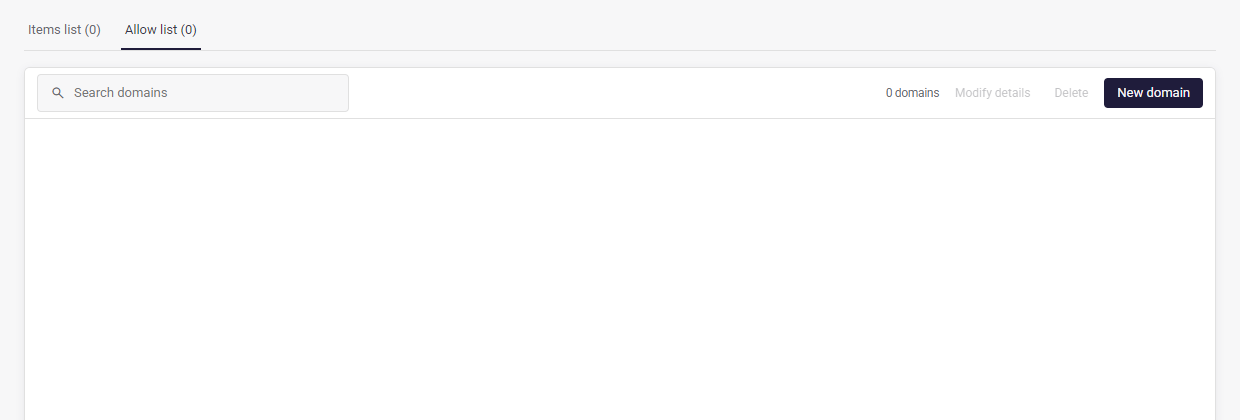
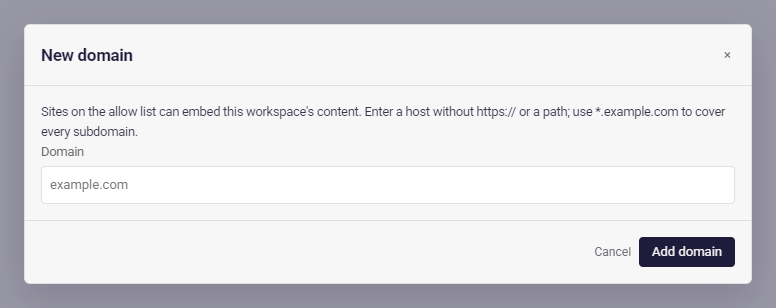
Select one domain and choose Modify details to change it. Select one or more domains and choose Delete, then confirm, to remove them. Sites that are no longer on the list cannot embed your content the next time their page loads.
The allow list is separate from Content Security Policy, which controls the external content that can load inside Astrato.
Copy or sort links
Section titled “Copy or sort links”Select Open original Embed Links screen (new tab) for Copy link, Copy code, sorting by other columns. These actions run in the original screen; Item and Created sorting, search, visibility filtering, editing, individual revocation and batch deletion are available here. The original screen uses your Astrato sign-in and permissions. Confirm that it shows the intended workspace before changing anything. If there are no embedded items, the original screen shows an empty state instead of link controls.