

Creating variables to use with objects
Using variables in Astrato
Section titled “Using variables in Astrato”You can use variables in Action flows and add interactions by changing a layer’s visibility.
Variables can act as containers to help you make changes across your data, where a single change to the variable is enough; you don’t need to change an item or data object.
Types of variables
Section titled “Types of variables”In Astrato, you can store boolean, number, and string variables.
-
Boolean variables have only two possible values: true or false. They’re most commonly used with control statements to determine the flow.
-
Number variables are used to store numeric information. Use them to perform equations or comparisons.
-
String variables hold a sequence of characters, such as letters, words, phrases, or symbols. They’re used to store text, for example, a sentence or paragraph or even a single character.
- String sub-types - the default type is plain text, but you can also enter a SQL query.
Creating variables
Section titled “Creating variables”-
Open your workbook from the toolbar on the left, and click the Variable icon.
-
Click the Add Variable button from the menu that displays
-
Enter a name for the variable
-
Select variable type
-
Boolean - select True or False
-
Number - enter the number
-
String variables - enter the text, or click More to classify the variables as plain text or a SQL query in the expanded field.
-
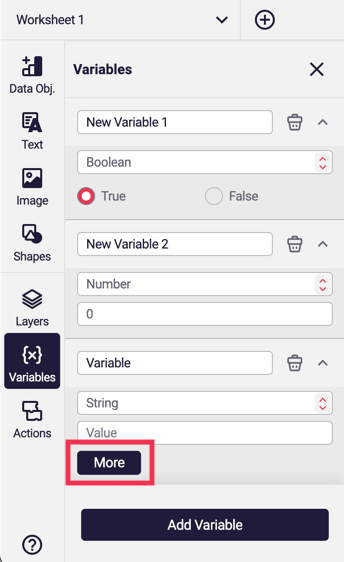
Figure 1: Variables options highlighting the More button displayed with String variables.
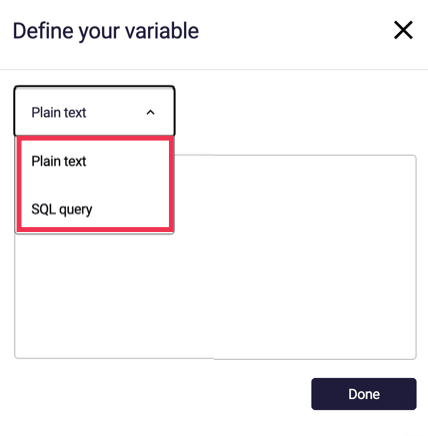
Figure 2: Use this larger field to select and enter String variables.
Suggested use cases
Section titled “Suggested use cases”Data-driven benchmarking
Section titled “Data-driven benchmarking”Watch the chart react as the target for fuel efficiency is updated. Variables were been used in:
-
Conditional coloring
-
Reference lines
See the video to learn how to setup a data driven reference line.