

Inputs
Inputs let the reader set a value and see the page recalculate: a price change, a discount, a commission rate. A value reaches the data as a parameter of a measure, which changes what the measure calculates, or as a selection on a field, which changes which rows count. Inputs sit in the filter bar, in step 1 of a numbered-steps page, or beside the chart they drive.
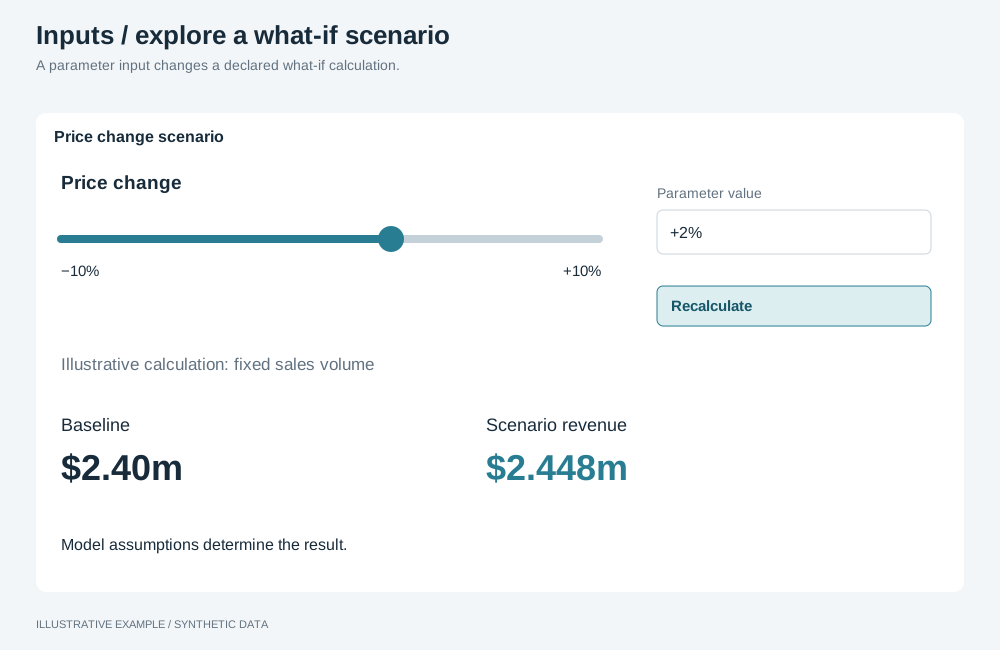
Illustrative example with synthetic data. A parameter input changes a declared what-if calculation.
Choose a variant
Section titled “Choose a variant”For a pick from a list use a filter object or quick filters; for a period use the period picker.
- Does the value change what a measure calculates, such as a price or a rate? Use a parameter input.
- Does it narrow rows to a range of a numeric or date field? Use a range selection.
- Is it on or off? Use a toggle, sent as a parameter if a measure declares it, otherwise as a selection.
| Variant | Control | Use cases | Choose another when |
|---|---|---|---|
| Parameter input | Native range or number input | Projected revenue at a price change of −20% to +20%; payout at a commission rate of 2–12% | The value selects rows |
| Range selection | The slider object, or a native input writing a selection |
Orders over a value threshold; customers by tenure band | The value enters a formula |
| Toggle | Checkbox with role="switch" |
Include returns in net sales; show amounts with tax | There are more than two states |
Markup
Section titled “Markup”<fieldset class="inputs"> <legend>Assumptions</legend>
<div class="input"> <label for="price-change">Price change</label> <output class="input__value" for="price-change" id="price-change-value">+5%</output> <input type="range" id="price-change" min="-20" max="20" step="1" value="5" aria-valuetext="+5%" /> <span class="input__range" aria-hidden="true"><span>−20%</span><span>+20%</span></span> </div>
<div class="input"> <label for="commission">Commission rate (%)</label> <input type="number" id="commission" min="2" max="12" step="0.5" value="6" inputmode="decimal" /> </div>
<div class="input input--toggle"> <label for="include-returns">Include returns</label> <input type="checkbox" role="switch" id="include-returns" /> </div>
<button type="button" class="inputs__reset">Reset assumptions</button></fieldset><output>shows the current value with its unit;aria-valuetextgives assistive technology the same text. A number input shows its own value, so put the unit in its label.role="switch"reads as on and off rather than checked.
The inputs read --muted, --line, --accent and --radius from the style. Each input has a fixed
height, so a value that grows from 5% to −20% does not move its neighbours.
:root {  /* 16 label + 4 + 24 control + 4 + 16 range = 64 */  --input-label-h: 16px;  --input-control-h: 24px;  --input-range-h: 16px;  --input-h: calc(var(--input-label-h) + var(--input-control-h) + var(--input-range-h) + 8px);  --input-min: 200px;}
/* One track needs 200px; two need 2 × 200 + 16 = 416px. */.inputs {  display: grid;  grid-template-columns: repeat(auto-fill, minmax(var(--input-min), 1fr));  gap: var(--gap);  min-width: 0;  margin: 0;  padding: 0;  border: 0;}.input {  display: grid;  grid-template-columns: minmax(0, 1fr) auto;  grid-template-rows: var(--input-label-h) var(--input-control-h) var(--input-range-h);  row-gap: 4px;  height: var(--input-h);  min-width: 0;}.input > label {  overflow: hidden;  line-height: var(--input-label-h);  text-overflow: ellipsis;  white-space: nowrap;}.input__value {  /* Tabular figures and a minimum width, so the value does not shift as it changes. */  min-width: 5ch;  font-variant-numeric: tabular-nums;  line-height: var(--input-label-h);  text-align: end;}.input > input {  grid-column: 1 / -1;  box-sizing: border-box;  width: 100%;  height: var(--input-control-h);  margin: 0;  accent-color: var(--accent);}.input__range {  grid-column: 1 / -1;  display: flex;  justify-content: space-between;  color: var(--muted);  line-height: var(--input-range-h);}.input > input[type='number'] {  border: 1px solid var(--line);  border-radius: var(--radius);  padding: 0 8px;}.input--toggle > input {  justify-self: start;  width: auto;}
accent-color colours the native range and checkbox from the style’s accent. In the filter bar, give
inputs the bar’s --filter-h instead of --input-h, so they line up with the filter hosts. A narrow
range input is hard to set precisely; pair it with a number input or widen --input-min.
Send a parameter
Section titled “Send a parameter”A measure can declare a parameter for its formula or filter. An app has no Workbook variables, so the page sends the value:
- To a query you build, on the calculation that declares it; see Parameters.
- To a mounted object’s measure, with
setMeasureDefinedParameterand astaticvalue. Most types publish it; check the type’s page, for example bar. Address the measure with the two keyscompilation.resolvedRefsreturned for its ref,dataItemInternalKeyanddataItemUniqueSignature, and nothing else: the payload rejects any other property.
// runtime and availableFields as in Mounting objects.declare const targets: { instanceId: string; ref: { dataItemInternalKey: string; dataItemUniqueSignature: string } }[];declare const priceChangeName: string; // the parameter's name as the measure exposes itdeclare function refreshFigures(): void; // your own queries, sending the same valuedeclare function checkResults(results: unknown): void; // as in Check operation resultsdeclare function markFailed(id: string, error: unknown): void; // shows the object's error state
// One chain, so a later value is always applied after an earlier one.let chain: Promise<void> = Promise.resolve();
const setPriceChange = (value: { type: 'static'; value: number } | { type: 'default' }) => {  chain = chain    .catch(() => undefined)    .then(async () => {      for (const { instanceId, ref } of targets) {        try {          const applied = await applyRuntimeOperations({            runtime,            instanceId,            availableFields,            operationRequests: [              {                id: 'price-change',                name: 'setMeasureDefinedParameter',                payload: {                  dataItemInternalKey: ref.dataItemInternalKey,                  dataItemUniqueSignature: ref.dataItemUniqueSignature,                  parameterName: priceChangeName,                  value,                },              },            ],          });          checkResults(applied.results);        } catch (error) {          // The other objects take the new value, so this one can no longer match the input.          markFailed(instanceId, error);        }      }      refreshFigures();    });  return chain;};
{ type: 'default' }removes the override; use it for Reset.- The operation changes the instance’s vSpec in memory. After a reload the object starts from its definition, so keep the value in your app’s state.
Write a range selection
Section titled “Write a range selection”A range selection narrows rows to an interval, and every object in the group follows it. Use the
slider object for a range on a numeric or date field: it writes the selection itself. Configure it
with slider operations such as setSliderRange,
setSliderStep and setSliderLayout, and turn setSliderQuickSelect off on a page with an
apply bar.
Use a native input when the value needs its own label, unit and formatting, and write the selection yourself; see Driving selections from your own UI:
declare const GROUP: string;declare const orderValueKey: string; // looked up by nameconst selections = app.client.services.selections;
const selectOrderValue = (min: number, max: number) =>  selections.selectValues(GROUP, { field: { fieldKey: orderValueKey }, operator: 'between', values: [min, max] });
Commit on change
Section titled “Commit on change”A range input fires input for every step and change when the reader releases it. Update the
displayed value on input; send on change, debounced, so a run of arrow-key presses sends once.
declare function formatPercentChange(value: number): string; // with the app's one locale
const range = document.querySelector<HTMLInputElement>('#price-change');const output = document.querySelector<HTMLOutputElement>('#price-change-value');if (!range || !output) throw new Error('Price change input not found.');
let timer: ReturnType<typeof setTimeout> | undefined;let sent = range.valueAsNumber;
range.addEventListener('input', () => {  const text = formatPercentChange(range.valueAsNumber);  output.value = text;  range.setAttribute('aria-valuetext', text);});
range.addEventListener('change', () => { clearTimeout(timer); timer = setTimeout(() => { const value = range.valueAsNumber; if (Number.isNaN(value) || value === sent) return; sent = value; setPriceChange({ type: 'static', value }).catch((error: unknown) => console.error('Price change not applied', error), ); }, 300);});- A committed parameter costs one query per object that uses it; a selection costs one query per mounted object in the group when it applies.
- Listen for
changeon a number input too; it fires when a typed value is committed. Do not sendNaNfrom an empty field, or a value outsideminandmax. - Send a toggle on
change; it needs no debounce. - Choose
stepso the keyboard reaches useful values in few presses; Home and End reachminandmax.