Send a report to Google Drive
A report schedule can save its files into a Google shared drive instead of emailing them. You pick the drive when you set up the schedule, by choosing one of your workspace’s Google Drive integrations.
Before you start: an administrator must have added a Google Drive integration; see Connect Astrato to Google Drive. Creating report schedules needs a role above Viewer; Reporting and workflows says who can manage which schedules.
Schedule a report to Google Drive
Section titled “Schedule a report to Google Drive”-
Open Reporting from the left rail and, on the Reports tab, select New Report. The form is described in full in Create a report schedule.
-
On the General tab of New Schedule, enter a Schedule name and set Delivery method to Google Drive.
-
Under Google Drive Integration, choose the integration for the drive the files should go to. The list shows only Google Drive integrations, by the name the administrator gave them. If it is empty, no Google Drive integration exists yet; ask an administrator to add one.
-
Optionally, enter a folder inside that drive in Custom directory path, such as
Reports/2026.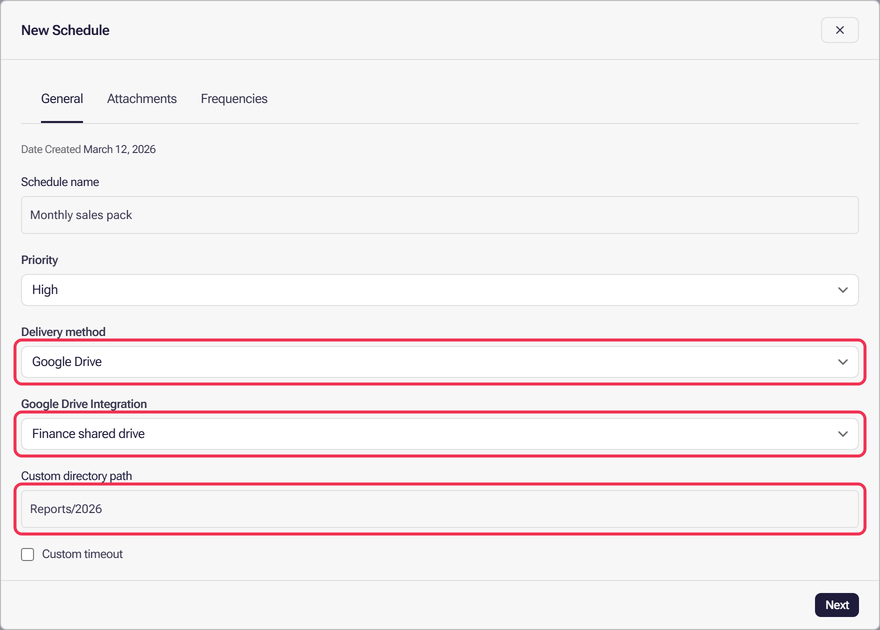
-
Select Next. It stays unavailable until the schedule has a name and an integration. A Google Drive schedule has no recipients, subject or message.
-
On the Attachments tab, choose the Workbook, the Type and the Report to deliver, and a File Type. File name is optional. Select Next.
-
On the Frequencies tab, set when the schedule runs and in which Timezone, then select Save.
The schedule appears on the Reports tab, and each run saves its files into the drive. To send it straight away, select Run from its row menu; see Run a schedule manually.
To change the drive later, open Edit details from the schedule’s row menu and choose another integration under Google Drive Integration.
If the file does not arrive
Section titled “If the file does not arrive”Open Run history from the schedule’s row menu. For a failed run, Attachment error details shows what went wrong; see Run a schedule manually.
Check these yourself first:
- The wrong integration. If your workspace has more than one Google Drive integration, the file may be in a different drive from the one you expected.
- The folder path. If delivery works with Custom directory path empty but fails with a path set, check the path names a folder in that drive, written with forward slashes, and that the folder is not restricted.
Anything else is in the integration’s Google setup, which an administrator manages. Point them at If files do not arrive.
From a button, in the classic Workbook Editor
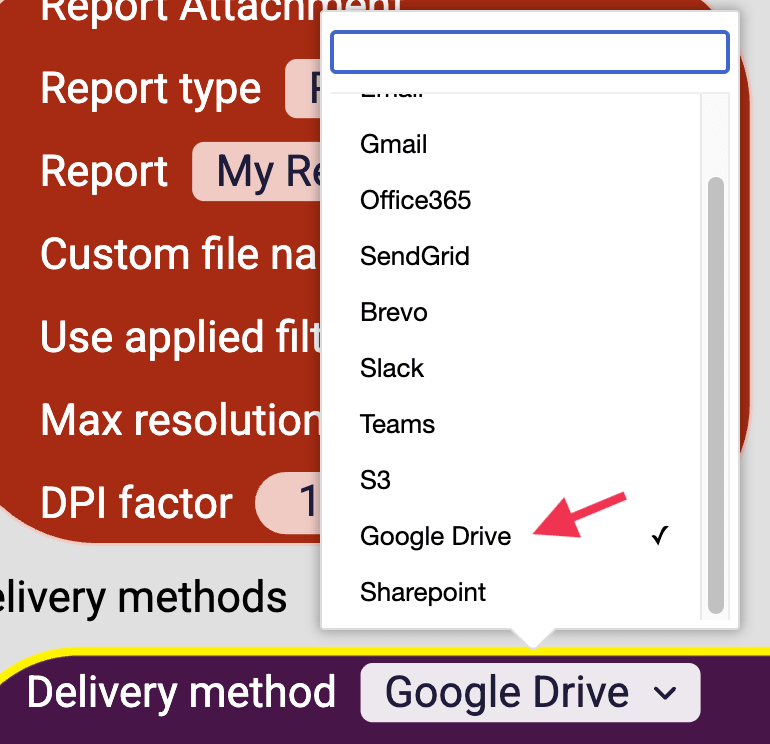
Section titled “From a button, in the classic Workbook Editor”In the classic Workbook Editor, a workbook can also deliver a report when someone selects a button, using Actions. The button needs a When block, with the button and On click chosen, holding a Report Delivery block. In Report Delivery, choose the Report type and the Report (the one a Report block names), then set Delivery method to Google Drive, choose the Integration, and optionally enter a File path inside the drive.
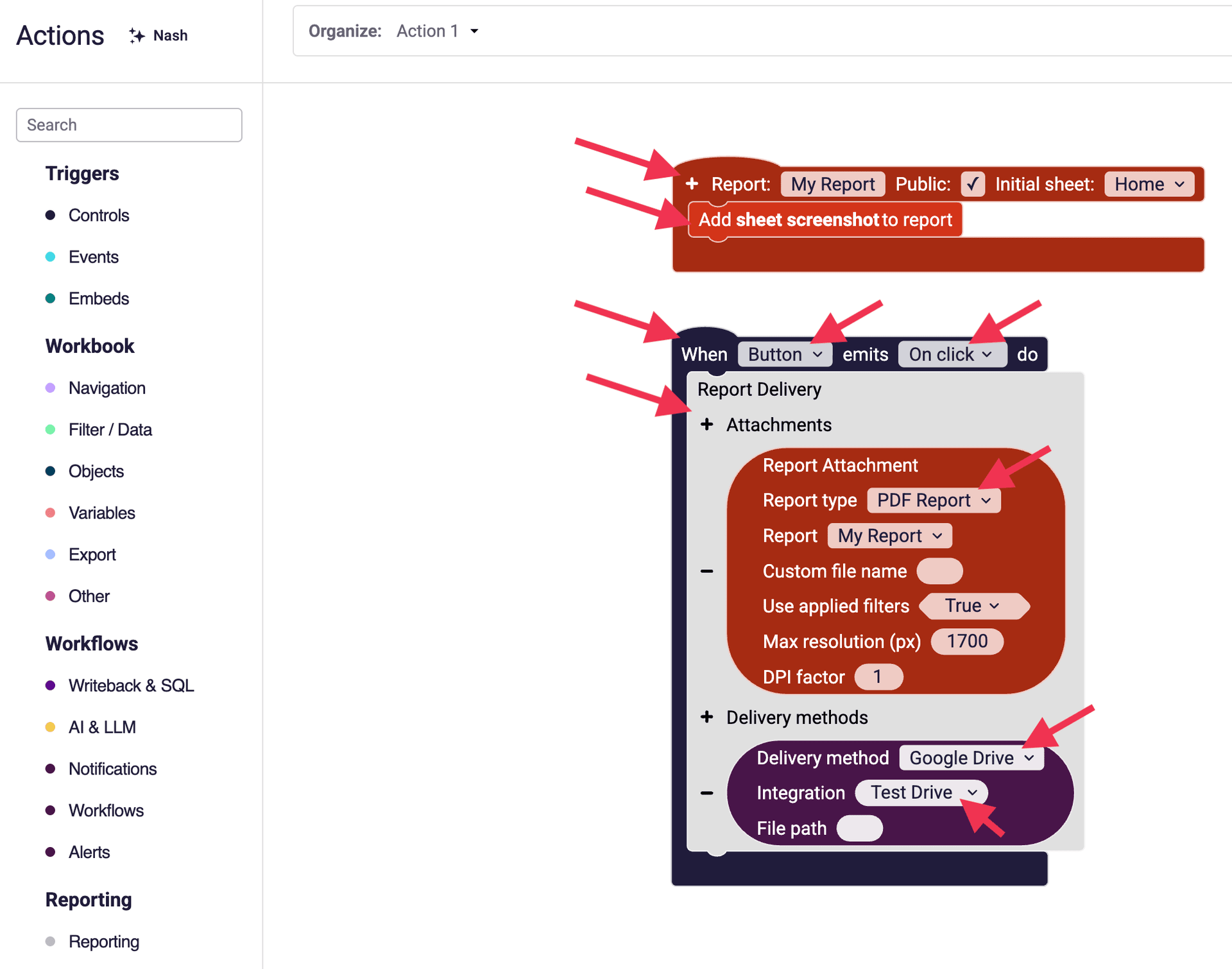
The rest of the action, the report definition the delivery sends, is described with the classic editor’s other report actions in Report blocks in the classic Workbook Editor.