

Administration - Exporting Workspace Data
Astrato provides ways to export your data and workbooks. Whether you’re auditing users or archiving up dashboards for audit & compliance, here’s how it works.
Global Exports (Admin Panel)
Section titled “Global Exports (Admin Panel)”📍 Location: Administration > Exports
Use this for bulk exports across your tenant. All files are downloaded as CSVs.
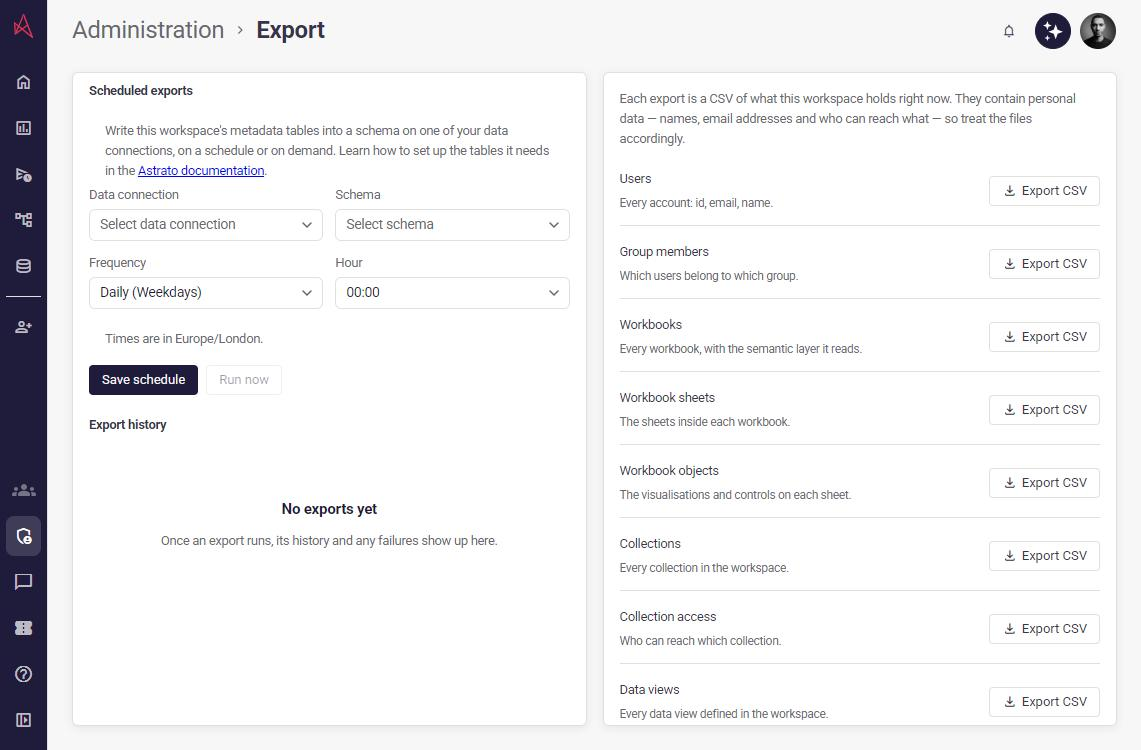
Available Export Options:
Section titled “Available Export Options:”-
Download workbooks
→ Exports metadata for all workbooks -
Download users
→ List of all users in your tenant -
Download collections
→ Exports metadata for all collections -
Download workbook sheets
→ Details of each sheet across all workbooks -
Download groups and members
→ All user groups and their memberships
✅ Good for tenant-wide audits or snapshots
Export a Specific Workbook
Section titled “Export a Specific Workbook”📍 Location: Workbooks > ••• menu on a workbook card
Use this to export a single workbook in .astx format, which can be re-imported or shared.
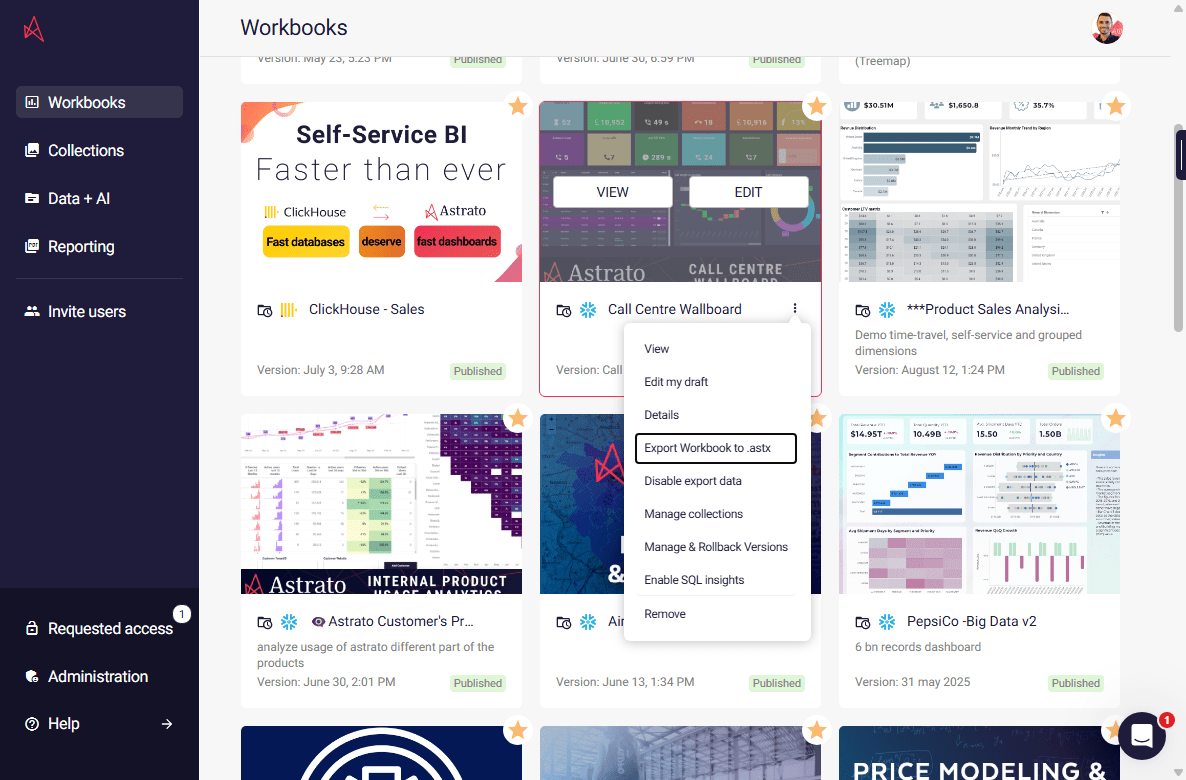
Steps:
-
Hover over the workbook you want to export.
-
Click the three-dot menu (•••).
-
Select “Export Workbook to .astx”
✅ Use when migrating workbooks, creating templates, or sharing with other tenants
Export a workbook in the new lobby
Section titled “Export a workbook in the new lobby”When the new lobby is enabled and you have permission to edit the workbook:
- Open Workbooks and click the workbook’s three-dot menu (•••) in either the list or card view.
- Select Properties, open Advanced, and click Export to .astx.
- Choose the workbook version and click Export. Your browser downloads a
.astxarchive named after the workbook.
If export fails, the dialog stays open and an error message appears so you can retry.
For workbooks using the new semantic layer editor, see what is included in an ASTX export.
Import a workbook in the new lobby
Section titled “Import a workbook in the new lobby”In the Library, select Create, then Workbook under Import. See Importing a Workbook for the steps, the semantic layer options and what to do if an import fails.