

Administrator or above
Provision users and groups with SCIM
SCIM provisioning lets your identity provider manage Astrato’s users and groups for you. The provider creates people in Astrato when you assign them, updates their names and email, deactivates them when you unassign them, and keeps group memberships in step. You turn it on under Administration → System settings and give the provider a base URL and a token.
Before you start
Section titled “Before you start”- You are a workspace owner or administrator.
- The workspace has a login connection. Until it has, the SCIM provisioning card reads SSO needs to be enabled for SCIM provisioning. and Enable is unavailable.
- Your identity provider can act as a SCIM 2.0 client with a bearer token, as Microsoft Entra ID does for enterprise applications.

What changes once SCIM is on
Section titled “What changes once SCIM is on”Read this before you enable it: the provider becomes the owner of the accounts and groups it sends.
- People are matched by email. The SCIM
userNameis the person’s email address. - A new person joins as a Viewer. Change their role afterwards in Users, or with role sync. Any pending invitation for that email is removed.
- An existing member with the same email is taken over. Their Origin changes from Internal to SCIM, and from then on you change them in the provider, not in Users.
- An email that belongs to another Astrato workspace is refused with
User transfer is forbidden with SCIM. Provisioning cannot move an account between workspaces. - Unassigning or deleting a person in the provider deactivates them in Astrato. It does not delete the account.
- Groups are matched by name. A group the provider sends whose name matches an existing Astrato group takes that group over. SCIM groups cannot be renamed or deleted in Astrato, and their SCIM members cannot be removed there. Deleting the group in the provider deletes it in Astrato.
- Assignment rules become read-only in Groups while SCIM is on.
Enable SCIM in Astrato
Section titled “Enable SCIM in Astrato”- Open Administration → System settings and stay on General.
- On the SCIM provisioning card, select Enable.
- In the dialog, select Enable SCIM.
- Copy the Base URL and the JWT token with their Copy buttons. The token is shown only in this dialog; once you close it, it cannot be retrieved.
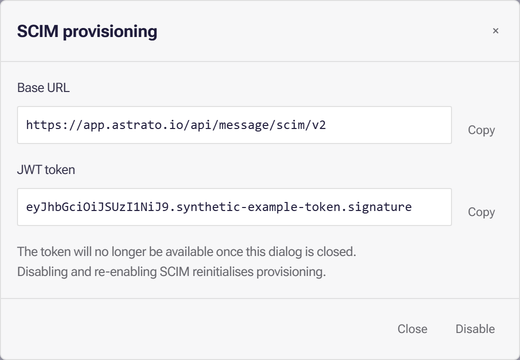
If you lose the token, select View on the card, then Disable, confirm with Disable SCIM, and enable it again. That generates a new token and reinitialises provisioning; update the token in your provider straight away.
Connect your provider
Section titled “Connect your provider”In your identity provider’s provisioning settings for the Astrato application:
| Provider setting | Value |
|---|---|
| SCIM endpoint (Entra: Tenant URL) | The Base URL from Astrato |
| Bearer token (Entra: Secret Token) | The JWT token from Astrato |
Then map the attributes Astrato reads. Remove other mappings; Astrato ignores them.
| Astrato uses | SCIM user attribute |
|---|---|
| Email, to sign in and match | userName |
| Display name | displayName |
| First name | name.givenName |
| Last name | name.familyName |
| Active or deactivated | active |
| The provider’s user ID | urn:ietf:params:scim:schemas:extension:enterprise:2.0:User:employeeNumber |
| Astrato uses | SCIM group attribute |
|---|---|
| Group name | displayName |
| The provider’s ID | externalId |
| Members | members |
| Description | urn:ietf:params:scim:schemas:extension:enterprise:2.0:Group:description |
In Microsoft Entra ID, map userName from mail, the employee number from objectId, and the
group externalId from objectId. The provider sends only the people and groups assigned to the
application; Entra’s own provisioning guide covers its screens and schedule.
Check that it works
Section titled “Check that it works”- In the provider, provision one assigned test user, for example with Entra’s Provision on demand.
- In Astrato, open Administration → Users. The user is listed with Origin SCIM. Filter Origin by SCIM to see every provisioned account.
- Open Administration → Groups. Provisioned groups are listed, and their members are labelled Identity provider.
If provisioning fails
Section titled “If provisioning fails”| What the provider reports | Likely cause | What to do |
|---|---|---|
401 Unauthorized |
The token is wrong, or SCIM was disabled and enabled again since | Enter the current JWT token in the provider |
User transfer is forbidden with SCIM |
The email already belongs to another Astrato workspace | Provisioning cannot move an account between workspaces |
Operations on internal users are forbidden, convert them to scim users first |
A group’s members include an Internal account the provider has not provisioned | Assign that person to the application in the provider so SCIM takes the account over |
Turn SCIM off
Section titled “Turn SCIM off”Select View on the SCIM provisioning card, then Disable, and confirm with Disable SCIM. Provisioning stops. Deleting the workspace’s login connection also stops SCIM provisioning through it.
What next
Section titled “What next”- Sync groups and roles at sign-in, to set roles from the provider
- How access works, to grant the provisioned groups access
- Users and Groups