Connect Astrato to Google Drive
A Google Drive integration lets report schedules save their files into a Google shared drive. Astrato does not sign in to Google as a person. It writes as a service account, an account you create in Google Cloud and control, so delivery does not depend on anyone’s own Google login and you can cut it off without changing a password.
Before you start: you need the Administrator or Owner role in Astrato, and on the Google side someone who can create a service account and its key in a Google Cloud project, and someone who can add members to the shared drive the files should land in.
Most of the setup happens in Google:
- Google Cloud console (
console.cloud.google.com): create the service account and its key. - Google Drive (
drive.google.com): give the service account access to a shared drive. - Google Admin (
admin.google.com): only if your organization blocks sharing outside your domain.
Google’s own pages, linked below, describe their screens. Their wording can change; the three values Astrato asks for do not.
Create the service account and its key
Section titled “Create the service account and its key”In the Google Cloud console:
- Choose a project, or create one, for the integration. Every step below happens in that same project.
- Enable the Google Drive API for the project, from APIs & services → Library. See Enable and disable APIs.
- Create a service account. A name such as
Astratosays what it is for. It needs no roles on the Google Cloud project: access to Drive comes from the shared drive membership in the next section. See Create service accounts. - Note the service account’s email address, which ends in
.iam.gserviceaccount.com. - Add a key to the service account, choose JSON, and create it. A
.jsonkey file downloads. See Create and delete service account keys.
If key creation is refused, an organization policy is blocking service account keys in the project.
The policy is iam.disableServiceAccountKeyCreation, and Google enforces it by default in newer
organizations. Someone with the Organization Policy Administrator role can make an exception for
the project in the Google Cloud console; the key creation page
describes it.
Give the service account a shared drive
Section titled “Give the service account a shared drive”Creating the service account gives it access to nothing. Add it to the drive the files should go to.
If you have no shared drive and cannot create one, your organization restricts who may create them. Ask your Google Workspace administrator to create one or add you to an existing one; see Create a shared drive.
In Google Drive:
- Open the shared drive and select Manage members.
- Add the service account’s email address with a role that can add files: Contributor is enough to add files; Content manager can also move and delete them. See Create a shared drive for what each role can do.
- Copy the ID from the browser’s address bar while the shared drive, or the folder inside it that
should receive files, is open: the part after
/folders/.
Sharing the drive with everyone in your organization does not include the service account, because its address is outside your domain. For the same reason, if your organization blocks sharing outside the domain, adding it fails until a Google Workspace administrator allows it. See Manage external sharing for your organization.
Add the integration in Astrato
Section titled “Add the integration in Astrato”-
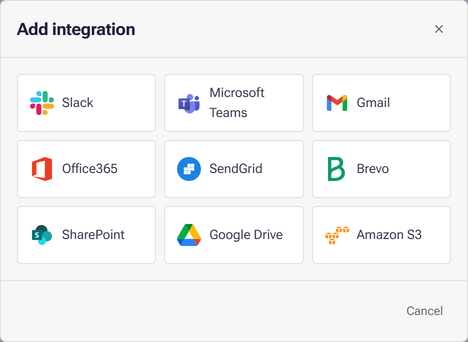
Open Administration → 3rd Party Integrations and select Add integration.
-
Pick Google Drive.
-
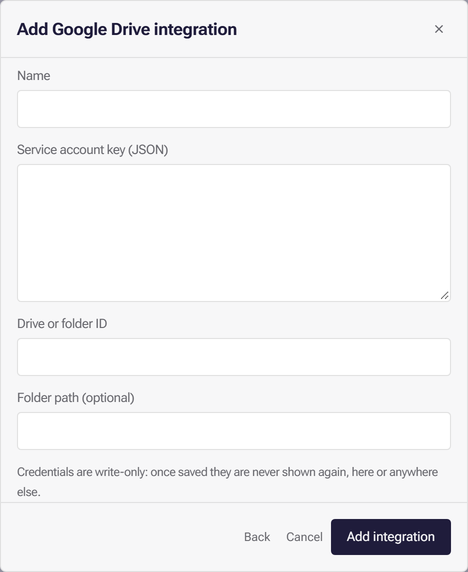
Fill in the Add Google Drive integration form:
- Name: what people see when they choose this integration in a schedule, such as
Finance shared drive. It must be 2 to 200 characters long. - Service account key (JSON): paste the whole contents of the key file. Astrato rejects anything that is not a JSON object.
- Drive or folder ID: the ID you copied from the address bar.
- Folder path (optional): a folder inside that drive or folder.
- Name: what people see when they choose this integration in a schedule, such as
-
Select Add integration. The form closes and the integration appears in the list with Google Drive under Provider. If the form stays open, it shows the reason above its buttons.
Saving checks only that the key is JSON. It does not contact Google, so a missing drive membership or a disabled Drive API shows up the first time a schedule delivers.
The key is write-only once saved. When you select Edit on the integration later, the form shows Service account: with the address taken from the key, which is the address that must be a member of the shared drive. Leave Service account key (JSON) blank to keep the stored key, or paste a new one to replace it. Editing and removing integrations are described in Manage delivery integrations.
To stop delivery, remove the integration and delete the key, or the service account, in Google Cloud. Removing the integration in Astrato does not revoke the key at Google.
Next: Send a report to Google Drive — choose the integration in a report schedule.
If files do not arrive
Section titled “If files do not arrive”On the Reporting page, open the schedule’s Run history, then Attachment error details for the failed run; Reporting and workflows describes them. Then check the Google side:
- The service account is not a member of the drive. Under Manage members, check the address shown on the integration’s Edit form is listed, on the same drive whose ID you entered.
- Its role cannot add files. Viewer and Commenter cannot. Change it to Contributor or Content manager.
- The ID is a folder in someone’s My Drive. A service account cannot store files there. Use a shared drive.
- The Drive API is enabled in a different project. The key file names its project in
project_id. Check Google Drive API is enabled in that project. - A folder inside the drive is restricted. If delivery works without a folder path but fails with one, check the service account can add files to that folder.