

Dimensions and Measures Custom Labels
Introduction
Section titled “Introduction”Custom Labels for dimensions and measures allow a dynamic change of the label according to users’ interaction with the Astrato app.
Common use case for custom labels:
-
The dimension label changes according to the active field in a drill-through dimension.
-
The dimensions label indicates a filter that is applied in the chart.
-
The measure label indicates the time period of the measure; for example, instead of current year-to-date, it is 2024 year-to-date, and it changes dynamically when a year changes.
-
-
Static Custom Labels
-
Dynamic Custom Labels
-
-
Examples of Dynamic Custom Labels
-
Dimension label of drill-through dimension
-
Time-aware measure dynamic label
-
Working with Custom Labels
Section titled “Working with Custom Labels”Custom labels are available for dimensions and measures in all visualizations.
Custom labels are enabled in the measure and dimension properties.
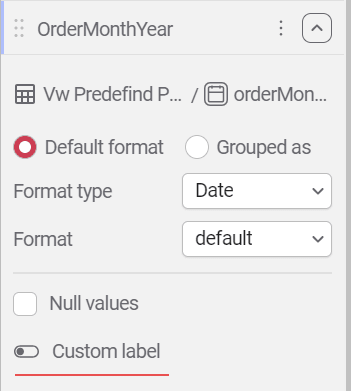
-
Static Custom Labels
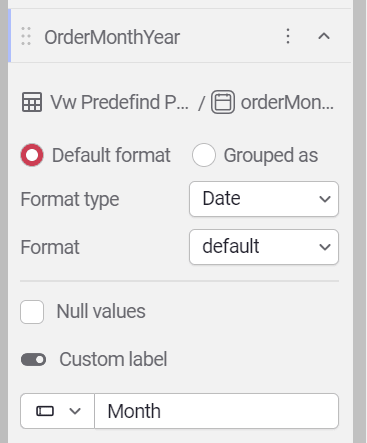
Section titled “Static Custom Labels”Static custom labels override the dimension field name or defined label in this particular visualization is defined.
In the example below, the custom label: “Month” will override the field name “OrderMonthYear”
-
Dynamic Custom Labels
Section titled “Dynamic Custom Labels”Dynamic custom labels are defined using string variables.
(To learn more about defining variables, check out this article)
Astrato actions can assign a value to a variable on particular events.
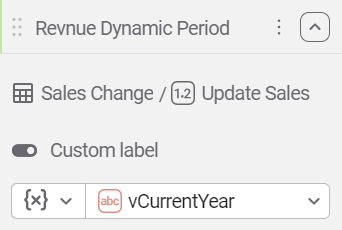
Examples for Dynamic Custom Labels.
Section titled “Examples for Dynamic Custom Labels.”-
Dimension label of drill-through dimension
Section titled “Dimension label of drill-through dimension”-
The drill-through dimension contains a list of fields that the end-user can select from and change the dimension in all the visualizations that use the drill-through dimension.
The visualizations should show the right dimension label to articulate the right context to the user.
Using custom labels and actions, it’s fairly simple to achieve this following this script.-
Create a drill through the dimensions (General Dimension in this example), and check this article.
-
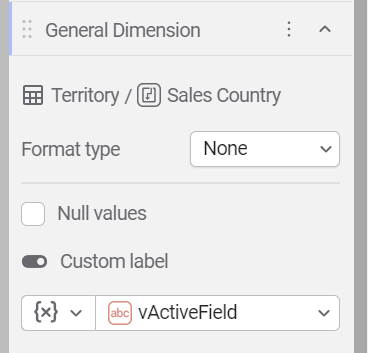
Create a variable. In our case, we’ll name it vActiveField.
-
Create a chart using the drill-through dimension and use the variable in the custom label.
-
Create an action that assigns the new active field name to the active field variable on every change to the drill through dimension.

You’ll notice that we only take assign part of the active field to the variable. The reason is that the active field is represented as tableName.fieldName
And we only want to show the fieldName in the label.
To learn more about how to take action in Astrato, -
You can see this script in the live demo in the image at the top of the article.
-
-
-
Time-aware measure dynamic label
Section titled “Time-aware measure dynamic label” -
consider the table in the image below:
Notice how the measures labels display the relevant year.
We want the year to update when a new selections is made in the year field,
Always showing the maximum year vs the previous year’s data.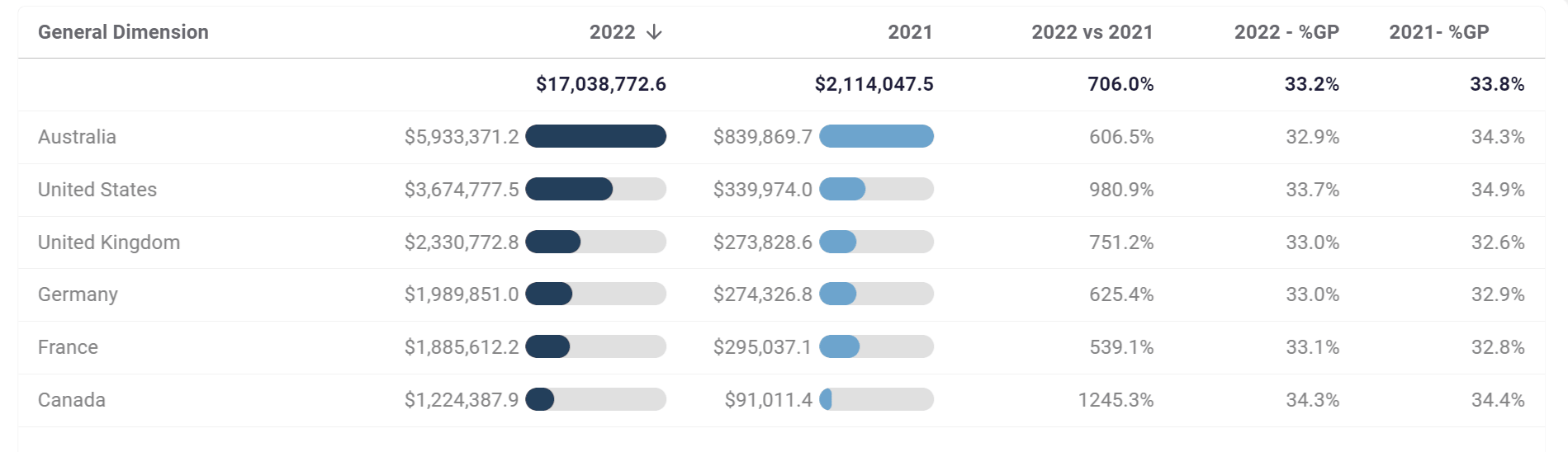
To achieve this, follow this script.
-
Create a measure for each year. You can achieve this using parameters.
(more information on measures creation)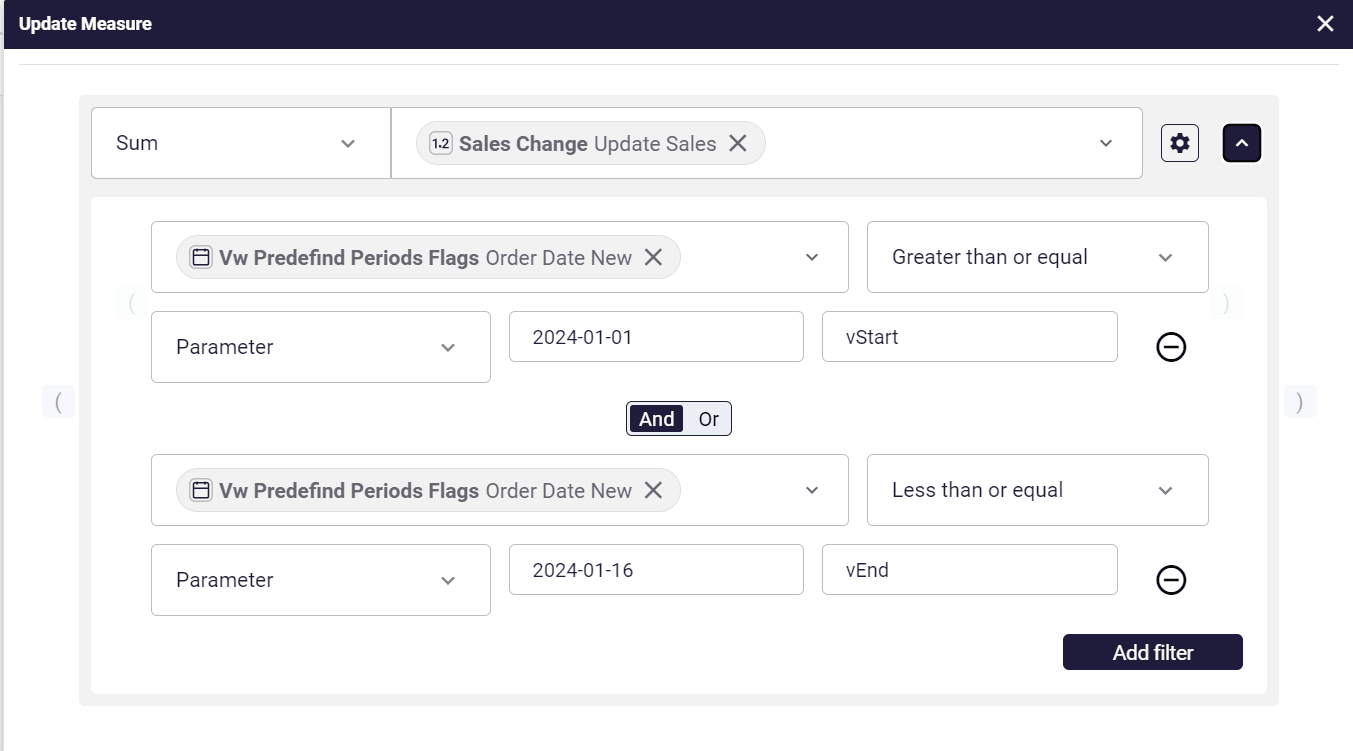
-
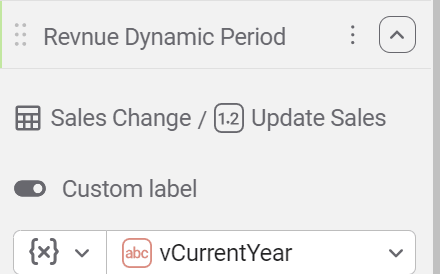
Crate variables that will hold the year’s value.
-
Assign the variables to a custom label of the measures.
-
Create an action block that updates the variable values after each change to the date field.

-
A live example of this script can be shown in the video at the top of this article.
-