

Review permission requests
Request access to a semantic layer
Section titled “Request access to a semantic layer”In workspaces that use explicit resource ownership, opening a semantic layer you cannot read shows that the layer is unavailable and offers Request access. Add an optional reason, then select Request access. The request asks for permission to view and edit the layer, less any access you already have. The layer’s owners and the workspace administrators are notified and review it on the page below. If you have already asked, the page says so instead of offering the form again.
In other workspaces, a semantic layer you cannot edit opens in Data Explorer. Select Request edit access above the explorer to open the same form. Data Explorer offers it whenever the layer is not marked editable for you and you do not own it. If you already have view and edit access, the form says so when you submit it.
Review requests
Section titled “Review requests”As a workspace owner or administrator, open Administration → Tenant Permission Requests. In the lobby, Manage access in the left rail opens the same page. Members who cannot open Administration see that button disabled.
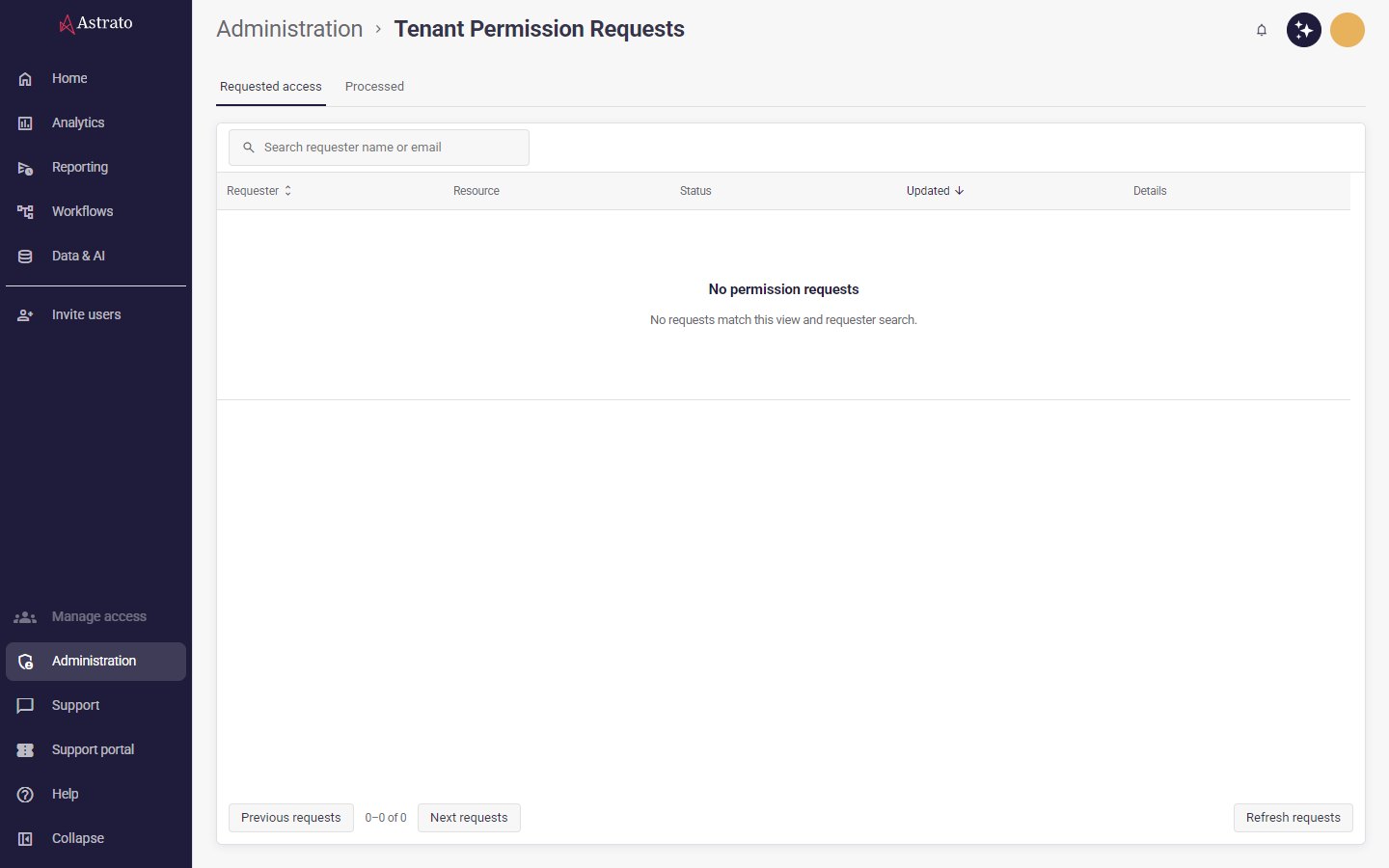
Requested access shows pending requests. Processed shows approved, rejected and partially processed requests. Search by requester name or email across the selected view, and use Previous requests and Next requests to move through the results. Requests show newest updates first by default. In either view, select Requester or Updated to sort all matching requests, and select the same column again to reverse the order. Requester sorting uses the requester’s name. Changing the sort returns to the first page and keeps your search.
Select View to see the requester, reason and requested permissions. Each resource is identified by its type and ID. A request can include several resources, including dependencies. The details show each rule’s status, resource owner, and who processed it and when.
Choose Approve access or Reject access to process pending rules you are authorized to act on. Astrato checks your permissions for each rule; already processed rules remain unchanged. After submitting a decision, review the refreshed statuses. A successful submission can leave other rules awaiting action, so it does not mean that every requested permission was approved.
If a decision or refresh fails, use Refresh details to check the current state before trying again. Refresh requests reloads the list. Opening a request does not change anyone’s access.