

Astrato Parameters & Variables, and when to use each
Overview
Section titled “Overview”In Astrato, variables and parameters work together to make analytics dynamic and context-aware.
-
Variable = the value that can change during a user session
-
Parameter = the placeholder that receives that value inside the semantic model / SQL
Think of a parameter as the socket and the variable as the plug.
Variables drive interactivity across the workbook. Variable can also be nested inside other variables usinf $() notation, Dashboard: $(vCurrentSheet).
They store values that can be:
-
selected by a user
-
set by an action
-
controlled by embedding context
-
written back to a database
-
set to trigger actions on value update
What they control
| Typical use cases
|
Parameters
Section titled “Parameters”Parameters are “placeholders” that receive a value when the paramter is used, they can utilize a default value, a custom value, or a value linked to a variable. Parameters are available in custom SQL and in measures created in the Semantic Layer.
Global Parameters | User Attributes
Section titled “Global Parameters | User Attributes”Admins can assign and persist Global Parameters directly on user profiles from the admin portal, a fast alternative to managing user-specific parameters via actions or API. Not only is UI editing supported, but also bulk upload via CSV/XLSX.
Available dynamic parameter values:
Value | Description | Use case |
| returns the email of the current user | Filter to data associated with a user email |
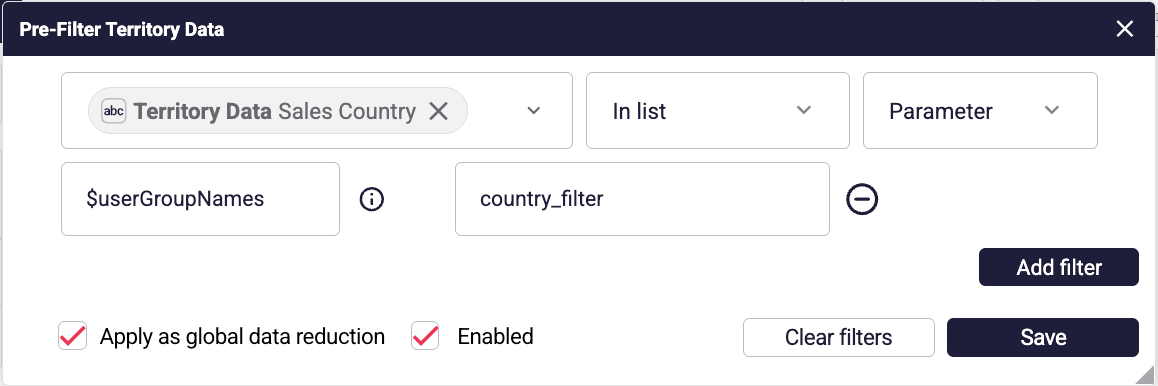 | returns the groups, that the current user is part of (comma separated list) | Filter to data associated with the name of the group |
Use cases:
• Pre-filter data per user (e.g. region, team, customer)
• Personalised row-level access for embedded and internal analytics without reliance on database user/role linking
• Default dashboard settings or layout per user
• Auto-scoped operational dashboards (e.g. a manager only sees their stores on open)
• Feature flags to control beta access or workbook variants by user
• Sales and customer success views preloaded with their own account portfolio
Example use
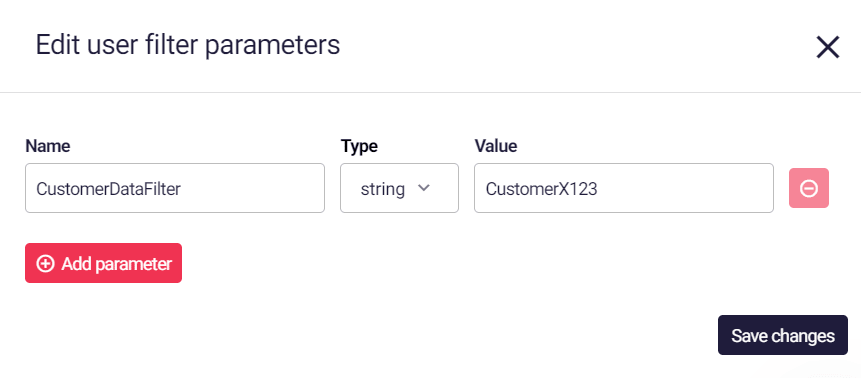
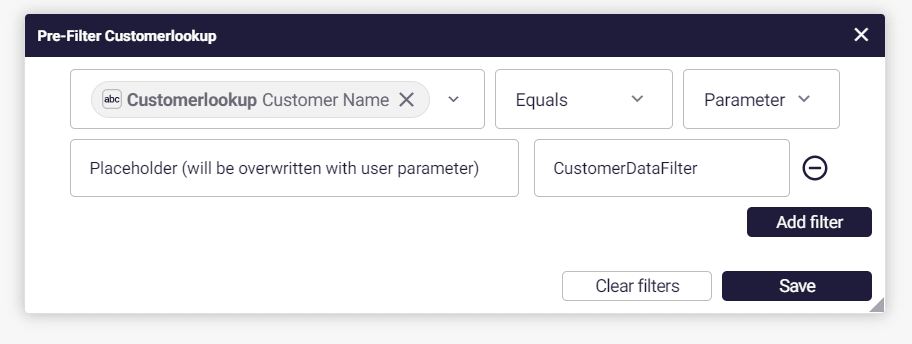
Section titled “Example use”The user-parameter is automatically linked to any parameters of the same name and type. For example, in the semantic layer.
[1] Setup the user parameter
[2] Set a table filter, using a the same parameter name in the Semantic Layer.
This will pass any user-level parameter values, where the parameter name is the same.
Parameter file upload
Section titled “Parameter file upload”An example structure for file upload is as follows:
name | type | value | |
MeasureParam | float | 12 | |
MeasureParamFilter | string | XXXXX | |
Excluded_Sales_Agent | string | XXXXX, YYYYY | |
MeasureParamFilterDate | date | 2017-04-20 | |
MeasureParamFilterInt | int | 4 | |
MeasureParamFilterBool | boolean | FALSE | |
YearParam | int | 1994, 1997 | |
MeasureParam | float | 12 | |
MeasureParamFilter | string | XXXXX | |
Excluded_Sales_Agent | string | XXXXX, YYYYY | |
MeasureParamFilterDate | date | 2017-04-20 | |
MeasureParamFilterInt | int | 4 | |
MeasureParamFilterBool | boolean | FALSE | |
YearParam | int | 1994, 1997 |
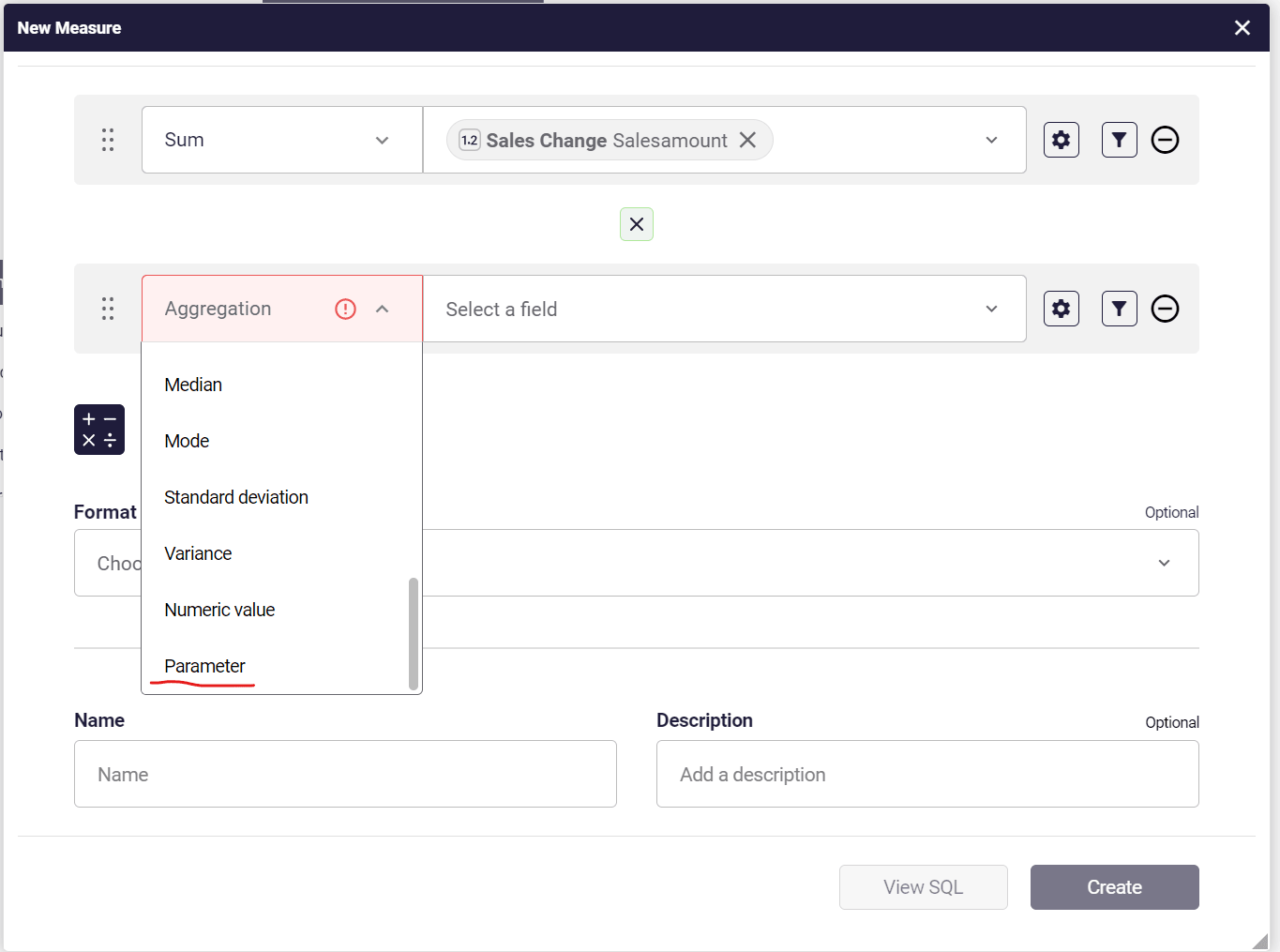
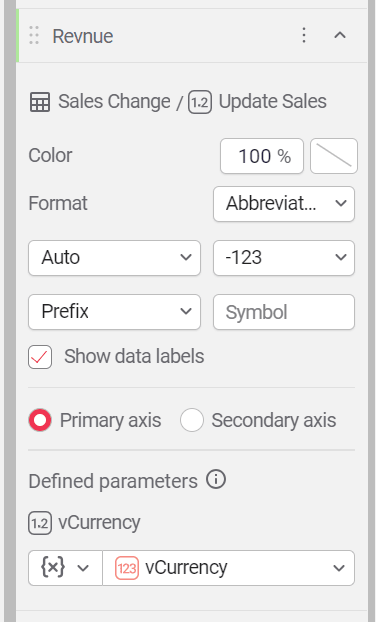
Measure parameters open an opportunity for end-users to change the result of a measure by changing the parameter values.
 |  |
SQL Parameters (and why they matter in Astrato)
Section titled “SQL Parameters (and why they matter in Astrato)”Using parameters in SQL gives you control, speed, and safety. Parameters turn SQL from fixed code into a flexible engine that users can control.
Here are the real, practical wins:
One query, many uses Example:
| Faster to build and maintain Less code = fewer bugs and less upkeep. | Better performance That means:
|
What it does
When the view runs, Astrato swaps in the actual values — from users, variables, controls, or defaults — to generate the final query.
How it works
-
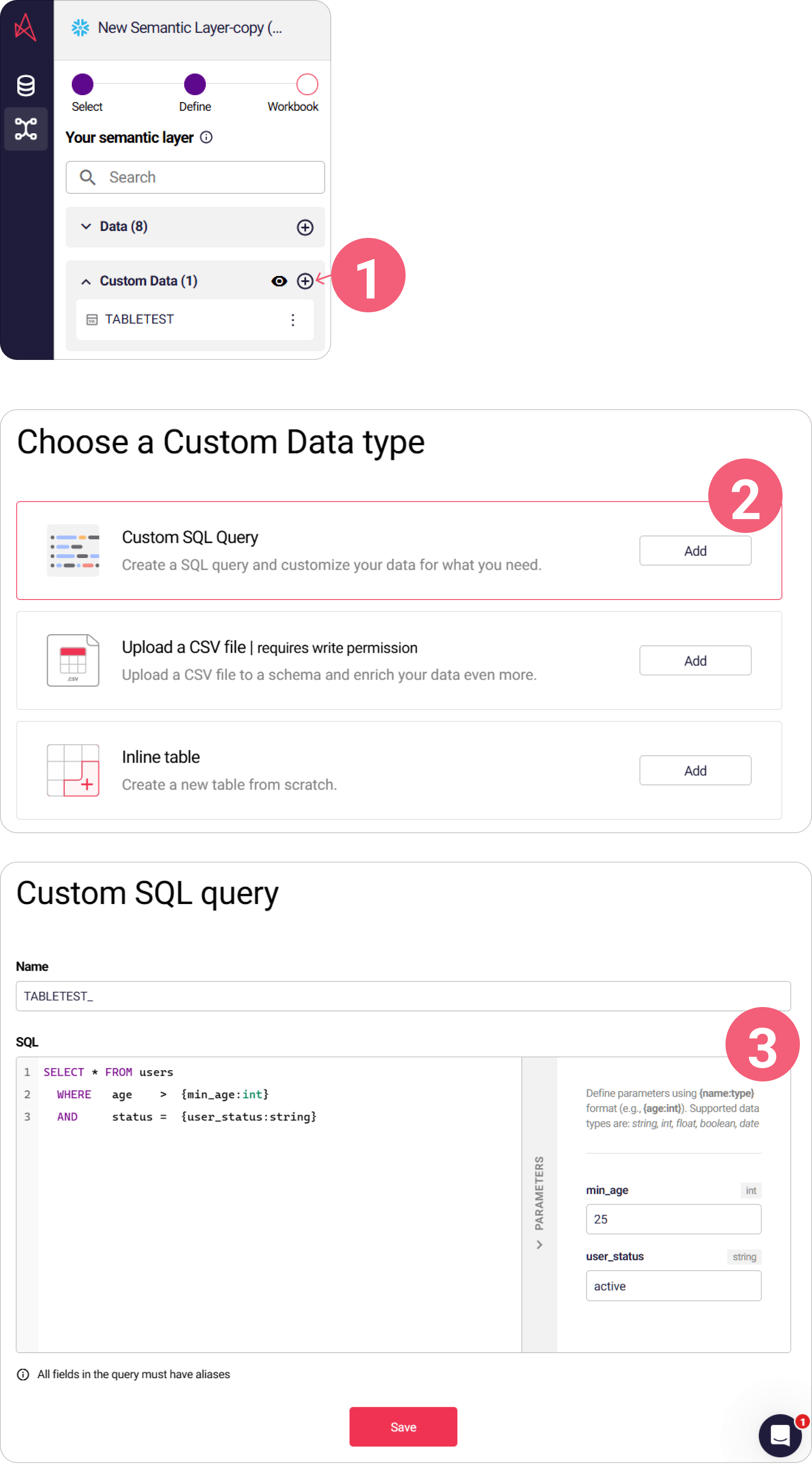
Supported for Custom SQL views (sourceType: “statement”).
-
Declare parameters inline using {name:type} — e.g. {store_id:int}, {from_date:date}.
-
Types include string, int, float, boolean, date, and more.
-
Astrato auto-parses all parameters and handles substitution at runtime.
Example
A view with source: SELECT * FROM users WHERE age > {min_age:int} AND status = {user_status:string}
Parameters:
-
min_age:
int -
user_status:
string
This allows one reusable view to power many scenarios — filters, what-if inputs, user-personalised data slices — all without duplicating SQL.
In each object, you can link a variable (or hardcode a value) to each parameter you have in use.
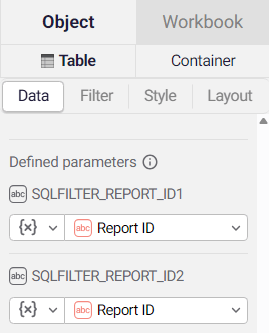
How they work together
Section titled “How they work together”-
Variable gets a value in the workbook
-
Variable is mapped to a parameter
-
Parameter injects the value into the semantic model query
If a parameter is not mapped, its default value is used.
Naming best practice
Section titled “Naming best practice”Use identical names for variables and parameters.
Why:
-
Avoid manual mapping
-
Prevent falling back to default parameter values
-
Faster model setup
-
Lower risk of deployment mistakes
If names differ → manual mapping is required (works fine, easier to forget).