

AI providers
An AI provider is one model endpoint plus the credential Astrato calls it with. The empty list puts it as No AI providers, and Add a provider to turn on Nash and the AI authoring features.
That is truer of some features than others. Whether this screen governs Nash at all depends on
a workspace feature flag, global.sle.tenant-ai-providers. While it is off, Nash runs on the
deployment’s own model and nothing configured here affects it — so a tenant with no providers is
not a tenant with a broken Nash. While it is on, Nash takes only providers it finds eligible; see
Choose an AI provider.
The one capability whose dependence is visible in the product is self-service report generation: with no provider configured, System Settings → AI shows Self-service is unavailable until an AI provider is configured. and disables the switch.
Configuring a provider does not switch any feature on by itself. It makes the provider available to the per-capability pickers in System settings — Insights provider and Nash provider — which decide which configured provider each capability uses.
Where the screen is
Section titled “Where the screen is”Open Data & AI → AI Providers. Administration → System Settings → AI also reaches it: under the two provider pickers, AI providers offers Manage AI providers, which opens the same screen. Going the other way, owners and administrators get a Go to AI Settings link in the toolbar, which opens the classic AI settings page in a new tab.
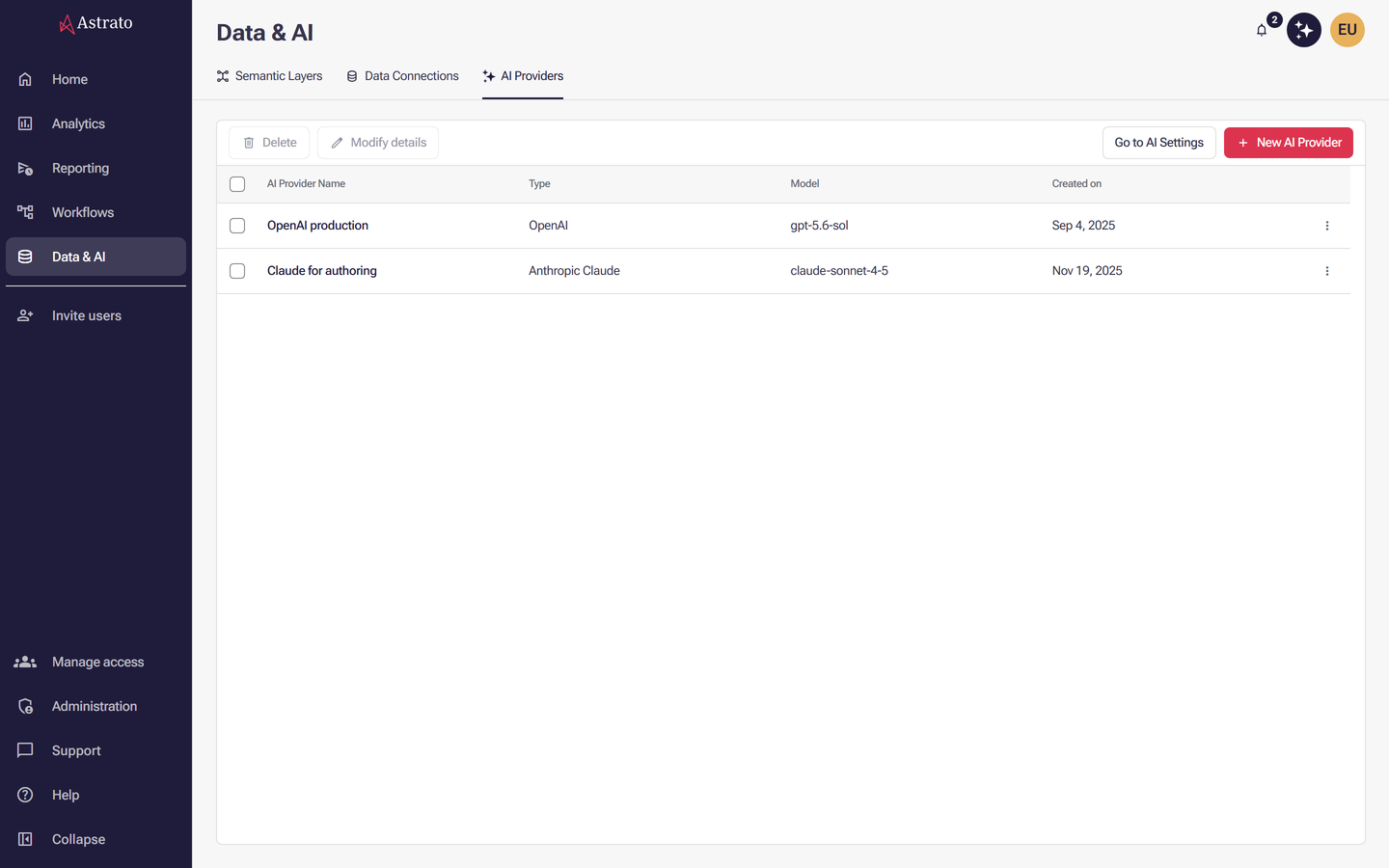
The tab itself appears to anyone who can edit content, so a creator or designer can see the list. Adding one is narrower: New AI Provider is offered only to owners and administrators, and the server refuses a create from anyone else with Managing AI providers requires the owner or administrator role. Modify details and Delete are offered on a provider you own, and on every provider if you are an administrator.
The list shows AI Provider Name, Type, Model and Created on. A date Astrato cannot read shows as a dash rather than an error, and so does Model on a provider that has none. Each row you can manage carries its own actions menu holding Modify details and Delete. The toolbar buttons of the same names act on the rows you select instead: Delete needs at least one row selected and every provider in that selection to be one you can manage; Modify details needs exactly one row.
Which providers you can configure
Section titled “Which providers you can configure”New AI Provider and Modify details both open Configure AI Provider, whose Provider Type picker offers these:
| Provider Type | What it needs beyond a name |
|---|---|
| Astrato Default | Nothing — no credential, no model |
| Anthropic Claude | API Key |
| Azure OpenAI | API Key, API Url, Deployment Name, API Version |
| Fireworks AI | API Key |
| Google Gemini | API Key |
| OpenAI | API Key, API Url |
| Snowflake Cortex LLM | A Snowflake Data Connection — no key and no URL |
| Snowflake Cortex API | Username, Account Identifier, RSA Private Key |
Two of those are gated. Snowflake Cortex API sits behind global.ai-providers.snowflake-cortex-api
and Fireworks AI behind global.ai-providers.fireworks-ai, so a tenant with neither sees six
entries rather than eight. Name the flag when you ask for one to be switched on. A provider already saved
as a gated type still appears in the picker when you edit it, so you can see what it is.
Astrato Default is the one you can only have once. It is the endpoint Astrato’s own deployment configures, so it asks for no credential and offers no model; its Name is fixed by that deployment too, and the field is disabled. Once the tenant has one, the option is greyed out in the picker, and a save that tries anyway is refused with An Astrato Default provider already exists.
What every provider’s form asks for
Section titled “What every provider’s form asks for”The dialog has two sections: General, which is the same for everyone, and Configuration, which changes with the type. Astrato Default has no Configuration section at all.
Provider Type comes first, and the line beneath it is the provider’s own description — what it is good for, and whether data leaves your warehouse. Snowflake Cortex LLM is the only one that says data never leaves Snowflake.
Name fills itself in. Until you type in it, it follows the type and model as Anthropic Claude (claude-sonnet-4-6), and stops following the moment you edit it. It must be at least three characters and unique across the tenant, compared without regard to case. Editing an existing provider never re-derives the name.
API Key is a password field, and the stored key never comes back from the server — on an existing provider it reads Leave blank to keep the stored key, and leaving it blank does exactly that. Switching the type makes the key compulsory again. A blank key is only kept while the provider stays the type it was saved as, because after a switch the old vendor’s key would be sent to the new vendor.
API Url appears for OpenAI and Azure OpenAI only, and is required for both. Choosing
OpenAI with the field empty fills in https://api.openai.com/v1/ for you.
Choosing a model
Section titled “Choosing a model”Every provider with a Configuration section needs a Model, except Azure OpenAI, and most
open with a sensible one already chosen: llama3.1-8b for Snowflake Cortex LLM,
gemini-2.5-flash for Google Gemini, claude-sonnet-4-6 for Anthropic Claude and Kimi K2.6 for
Fireworks AI. OpenAI, Azure OpenAI and Snowflake Cortex API start with nothing selected.
The open list carries what you need to choose between models: a cost rating in dollar signs and a sentence of guidance for OpenAI, credit cost, context window, performance per credit and benchmark scores for Snowflake, and a description for Google Gemini, Anthropic Claude and Fireworks AI. Azure OpenAI lists model names alone — the deployment is yours, so Astrato has nothing to say about what it costs or how it performs. Some models cannot be newly chosen: they are listed as Unavailable and are not selectable, though a provider already saved on one keeps it.
Use a custom model opens Custom model name for a model the catalogue does not list — a fine-tuned deployment, or one newer than this release. Type it and select Apply. Azure OpenAI is the exception: its list is not searchable, leaves out the models only OpenAI itself serves, and takes no custom entry.
Advanced Options
Section titled “Advanced Options”Every type with a Configuration section collapses its sampling controls behind Advanced Options, closed when the dialog opens. For most providers that is Default Temperature and Default top_p, each a slider paired with a number box, and each starting at 0.1 — low variation, repeatable answers, which is what you want for numbers. Raise them towards 0.7–0.9 only if you would rather the AI explored than agreed with itself.
Temperature runs 0 to 2, except on Snowflake Cortex LLM, where Snowflake caps it at 1.
Anthropic Claude is the exception to the labels as well as the sliders. Its temperature control is spelled Default temperature, with a lower-case t, where every other provider writes Default Temperature. It also shows one slider at a time: Default temperature appears only while Sampling mode is Temperature, Default top_p only on Top P, and on Provider default neither is on screen. The About Sampling mode tooltip gives the reason — Claude accepts one or the other, never both. top_p runs 0 to 1 everywhere.
Snowflake Cortex API is its own provider
Section titled “Snowflake Cortex API is its own provider”Do not configure Cortex API as OpenAI. An older Help Center article tells you to select OpenAI, paste a Snowflake personal access token as the API key and type the Cortex model name into the custom-model box. That is not how it works now. Snowflake Cortex API is its own Provider Type, and it authenticates with a key pair rather than a token:
- Username — the Snowflake user the requests run as.
- Account Identifier — a bare identifier such as
ds60687.eu-west-2.awsormyorg-myaccount, asnowflakecomputing.comaccount URL, or a Snowsight URL in theapp.snowflake.com/<organization>/<account>form. Anything else is rejected before you can save, and the message names all three forms it accepts. - RSA Private Key — the private half of the key pair registered against that Snowflake user,
pasted whole into the multi-line box,
-----BEGIN PRIVATE KEY-----and all. It takes the place of the API key, so it is the field that reads Leave blank to keep the stored key when you come back to edit.
It shares Snowflake’s model catalogue with Cortex LLM and takes the standard Advanced Options, with temperature up to 2 rather than Cortex LLM’s 1.
Snowflake Cortex LLM runs in your warehouse
Section titled “Snowflake Cortex LLM runs in your warehouse”Cortex LLM is the provider that asks for no credential, because it runs inside a connection you already have. Data Connection is a multi-select of your Snowflake data connections and nothing else; at least one is required, and if you have none the field says so rather than sitting empty. Each selection appears as a chip you can remove.
The model is checked before the provider is saved, and the check is not a dry run. Selecting
Save runs one real Cortex completion in each selected connection —
SELECT SNOWFLAKE.CORTEX.COMPLETE('<model>', 'Hi!') — so it spends Snowflake credits and needs
each connection’s warehouse to be usable. It runs on every save, including one that then fails for
an unrelated reason, so re-saving repeatedly to clear a validation error is not free. Snowflake
Cortex LLM is the only type checked this way; every other type, Snowflake Cortex API included, is
saved without a server-side model test.
A failure names the connections it affected, and each reason has its own fix:
| What the check reports | What to do |
|---|---|
| “The Snowflake Cortex model ‘model’ is not available for the selected connection region” | Choose another model, turn on Snowflake cross-region inference, or use a connection in a supported region. The info link beside Model opens Snowflake’s guidance on it. |
| “The model ‘model’ is not supported by following connections” | Snowflake does not recognise that model name. Choose a model from the list, or check a custom model name for a typo. |
| “Following connections: names are not allowed to access ‘model’ model” | Snowflake refused those connections access to that model. Choose a model they may use; access itself is not granted from this screen. |
| “There is no warehouse defined for following connections” | Define one in the data connection’s advanced settings, or ask for warehouse access in Snowflake. |
A failure the check cannot classify is reported with the upstream message rather than swallowed; a connection that failed without one reads An unknown error occurred for following connections. The save succeeds only when no connection failed.
The check needs the owner or administrator role, while saving a provider needs only ownership. A creator or designer who owns a Snowflake Cortex LLM provider therefore cannot save an edit to it: the refusal — Managing AI providers requires the owner or administrator role — arrives from the check, before the update is attempted.
Data Connection lists Snowflake connections alone, filtered by driver, and loads once when you first choose the type; it reads Loading data connections… meanwhile. The server checks again when you save, and refuses a connection that is not Snowflake, or one you cannot see, with Snowflake Cortex needs Snowflake data connections that you can access.
Its Advanced Options add two controls the other providers do not have:
- Default max_tokens (output) — a whole number from 1 to 8,192, starting at 4,096. It caps the response, not the input.
- Guardrails — passes Snowflake’s guardrails option through with the request, off by default. Leave it off unless your Snowflake account expects it on.
OpenAI: Fast mode
Section titled “OpenAI: Fast mode”OpenAI’s Advanced Options hold the usual two sliders, plus Fast mode — but only on a model that supports it, and a model name the catalogue does not list never does. On any other model the checkbox is not drawn at all rather than greyed out, so nothing in the panel tells you why. Look for the sentence Supports Fast mode. at the end of a model’s description row, rather than for a model name: the catalogue changes, that sentence does not. Today one model carries it.
It is off by default, and it is cleared twice over — once when you switch to a model without it and again when the form is saved — so it can never be stored against a model that cannot use it.
Fast mode runs your requests on OpenAI’s priority service tier: noticeably lower latency at a higher price per token, with no change to model quality. It is worth turning on for Nash, where someone is waiting for the answer, and rarely worth it for background work.
Azure OpenAI: the model is only an estimate
Section titled “Azure OpenAI: the model is only an estimate”Azure serves whatever its deployment serves, so Deployment Name and API Version are the fields that decide what actually answers, and both are required. The Model you pick here is for estimation only — the dialog says so beneath the picker — which is why that list is neither searchable nor open to a custom name.
Anthropic Claude: sampling, effort and response length
Section titled “Anthropic Claude: sampling, effort and response length”Claude’s Advanced Options are the most unusual of the set, because Claude accepts temperature or top_p, never both.
Sampling mode decides which slider you get. The picker offers Provider default, Temperature and Top P, and it opens on Provider default, which sends neither and lets Claude use its own sampling behaviour. Choose Temperature or Top P and that one slider appears; the other is dropped from what Astrato sends. Switching between them remembers both numbers, so you can compare without retyping. On an existing provider, the mode is inferred from whichever value was stored.
Reasoning effort sets how much thinking Claude does before answering: Provider default,
Low, Medium, High or Max. A new provider starts at Low, which keeps Nash
responsive; raise it when the questions being asked are genuinely hard, and accept the extra latency
and tokens that come with it. The control is hidden for a model that does not support effort, such
as claude-haiku-4-5, and switching to such a model resets the setting to Provider default. A
provider saved before this setting existed reads back as High, which is how it has been
behaving — so an older provider you open and save keeps that behaviour rather than silently dropping
to Low.
Max response tokens caps the generated answer at between 1 and 8,192 tokens. It starts at 4,096 on a new provider, and a provider saved before the setting existed reads back as 8,192. It limits output only; it does not change the model’s context size.
Google Gemini and Fireworks AI
Section titled “Google Gemini and Fireworks AI”Both are the simple case: API Key, a Model, and the standard Default Temperature and Default top_p under Advanced Options. Fireworks lists its models under friendly names — Kimi K3, Kimi K2.6, Kimi K2.5 — and sends the full account path underneath.
Saving, and what deleting costs
Section titled “Saving, and what deleting costs”Save stays disabled until the form is valid, so a greyed-out button means a field above is empty, too short, a duplicate name, or out of range. Cancel backs out and changes nothing. Save failures appear both as a banner at the top of the dialog and as a toast, carrying the server’s own message.
Deleting asks first, and the question it asks depends on what you are deleting:
- Deleting your last provider turns four switches off on System Settings → AI: Insights, Measure generation, Name suggestions and Self-service. Insights provider and Nash provider are set back to None at the same time. The Nash switch itself is left as it was.
- Deleting a provider that is the default for a capability clears that default, and the confirmation names which: the Semantic Layer Editor’s AI, the workbook assistant, or Nash. It warns that those features may stop working until you pick a new default in System settings.
- Otherwise it is the plain question, and you can select several rows and delete them together.