
Bookmarks - Share & Revisit Insights
Introduction
Section titled “Introduction”Bookmarks in Business Intelligence (BI) tools can provide significant business value. Here’s an overview of their key benefits:
-
Collaboration: Share insights, cut duplicate work, transfer knowledge
-
Time Savings: Quick access to views, faster decisions
-
Consistency: Same metrics for all, fewer errors
-
Adoption: Easier for non-technical users, stronger data culture
-
Flexibility: Personal views, role-based detail
-
Decision Support: Fast KPI access, compare trends
-
Onboarding: Less training, instant insights
General Workbook Settings
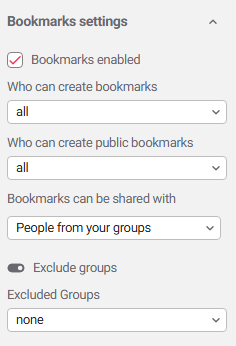
Section titled “General Workbook Settings”Bookmarks general settings allow users to define who can create bookmarks
With whom bookmarks can be shared, and more.
The bookmark setting can be found in the workbook tab in the properties panel.
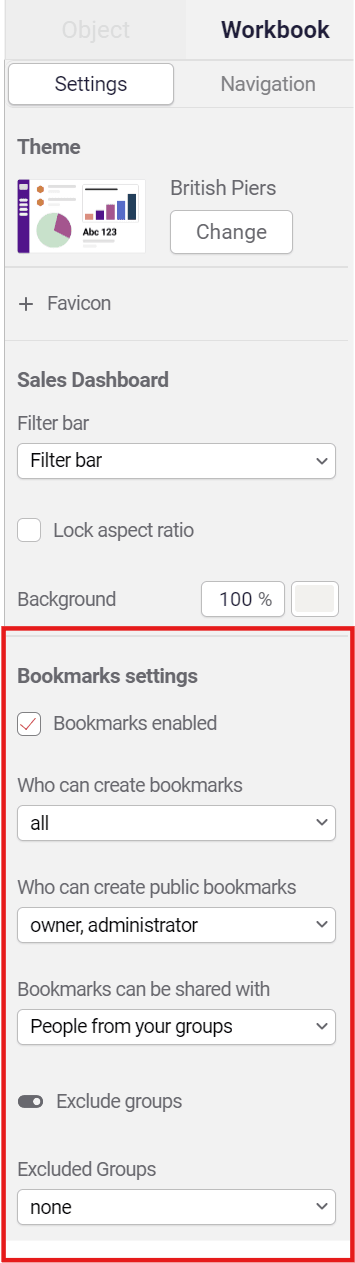
Below, you can learn more about each setting:
-
Bookmarks enabled- enable or disable bookmarks in the workbook.
-
Who can create bookmarks- select which Astrato roles can create bookmarks.
-
Who can create public bookmarks- select which Astrato roles can create public bookmarks.
Public bookmarks are shared with all users of the workbook. -
Bookmarks can be shared with- Select with whom all users can share their bookmarks:
-
With nobody- users can’t share their bookmarks.
-
People from your groups- Users can share their bookmarks with the groups they belong to or with individual users from the groups.
-
With everybody- users can share their bookmarks with all groups and other users of the workbook.
-
-
Exclude groups- exclude specific groups from the bookmarks sharing list.
- Excluded Groups- select which groups to exclude from the bookmark sharing.
Creating and Sharing Bookmarks
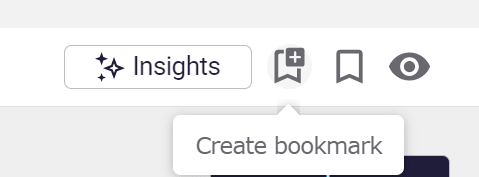
Section titled “Creating and Sharing Bookmarks”Bookmarks are created by clicking the Create bookmark icon on the filter bar on the right side.
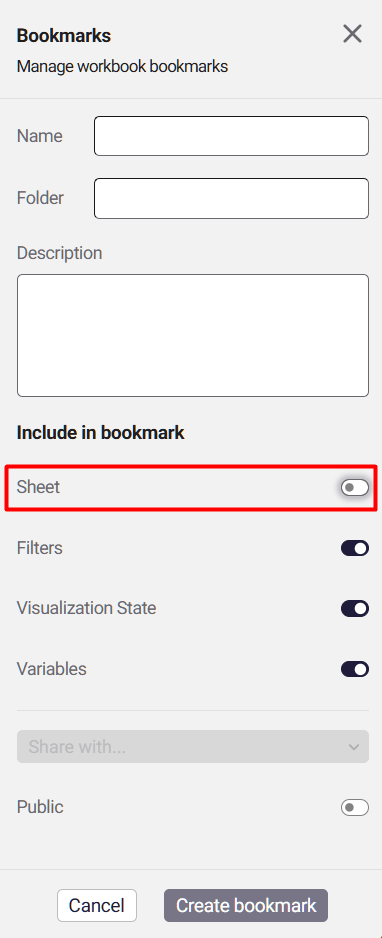
This will open the bookmark creation form.
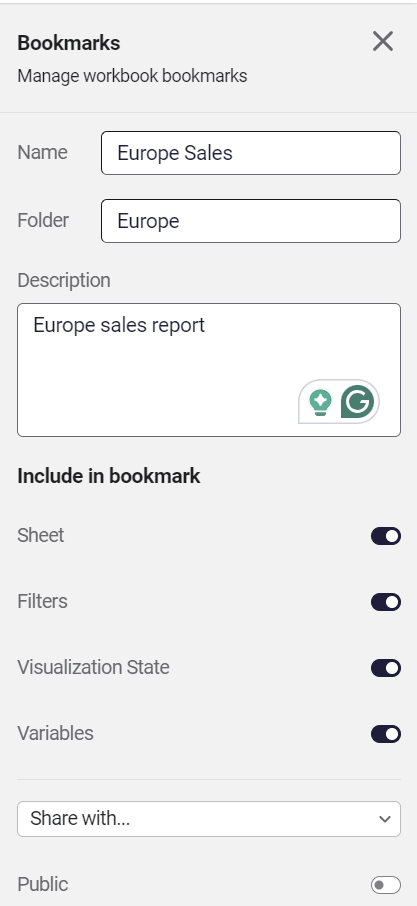
The settings for a bookmark are:
-
Name - the bookmark name that will be shown in the bookmark list
-
Folder - arrange bookmarks into groups to simplify navigation.
-
Description- details about the bookmark content appear in the description. When hovering on the bookmark name.
-
Include in bookmark
-
Sheet - If active, when selecting a bookmark, the user will be redirected to the sheet on which the bookmark was created.
-
Filters- if active, filters will be applied when selecting the bookmark
-
Visualization State - if active, visualization, such as the custom report, includes the selected field and visualization.
-
Variable- if active, the variable value will be changed to the value when the bookmark was created.
-
-
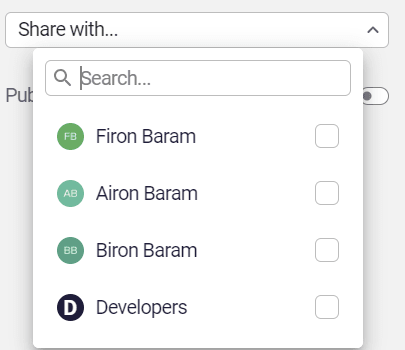
Share with - Select the users and groups with which to share the bookmark.
-
Public- share the bookmark with all other users of the workbook.
Limiting /locking down bookmark visibility to teams and customers
Section titled “Limiting /locking down bookmark visibility to teams and customers”ℹ️ For limiting bookmark visibility to certain teams/customers, ensure that each group of users is part of the same group in Astrato. Users can be part of multiple groups.
Once sharing is set to People from your groups, Astrato can automatically lock bookmark visibility to the group, so that sales teams only see sales bookmarks and marketing only sees marketing bookmarks.
Applying and Managing Bookmarks
Section titled “Applying and Managing Bookmarks”To apply a bookmark, click on the bookmark icon in the filter bar.
Select the bookmark to apply from the menu.
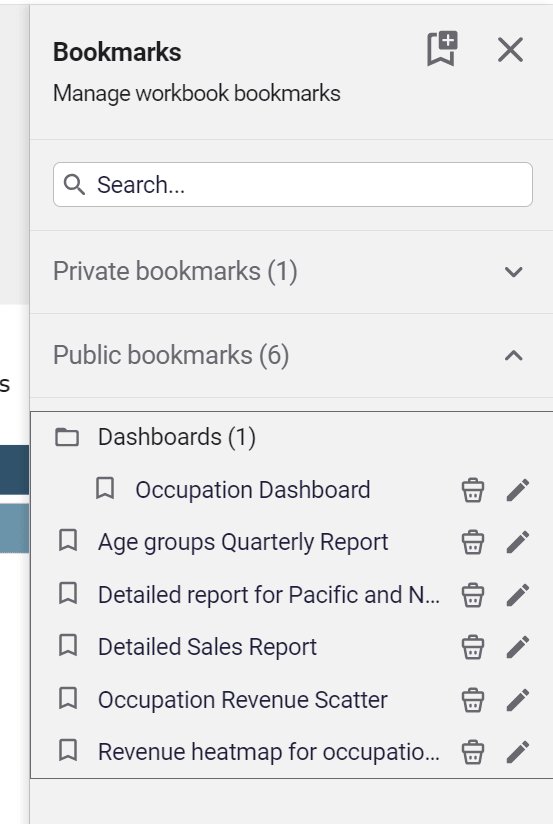
The menu shows the bookmarks in private and public sections.
Public bookmarks include bookmarks created by other users.
-
Managing bookmarks
Section titled “Managing bookmarks”-
Click on the pen icon to edit the bookmark. The editable settings are:
-
Name
-
Folder
-
Description
-
Filters.
-
-
Click on the trashcan icon to remove a bookmark.
-
Bookmarks Object
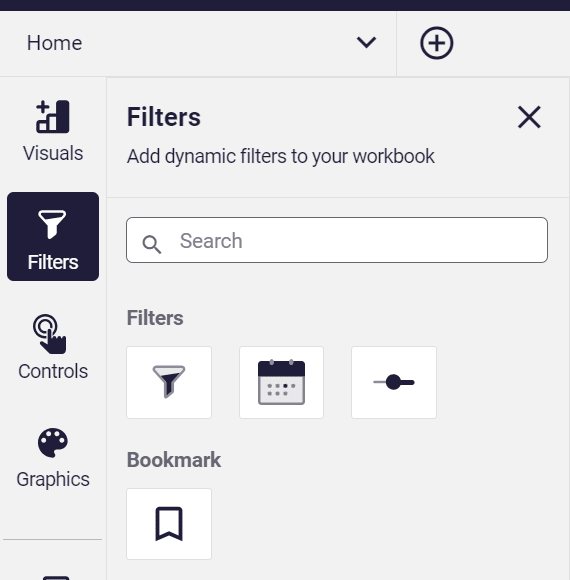
Section titled “Bookmarks Object”The bookmark object makes the bookmark list more accessible, allowing users to save their preferred display and share it with others.
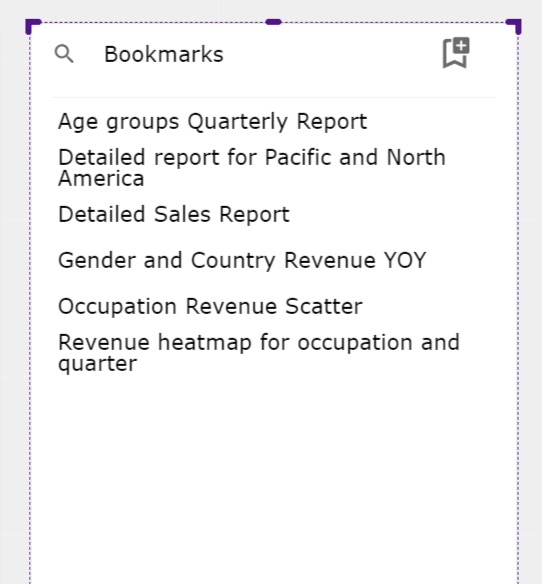
The bookmark object is found in the filters section in the workbook editor’s left panel.
Simply add it to the sheet you want to use it on.
-
Modifying the bookmark object
Section titled “Modifying the bookmark object”-
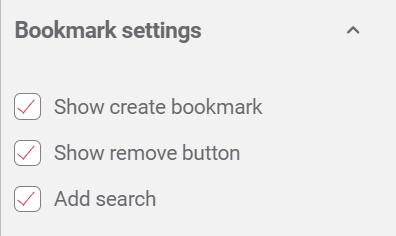
Bookmark Settings
Set which controls will be available in the bookmark object
-
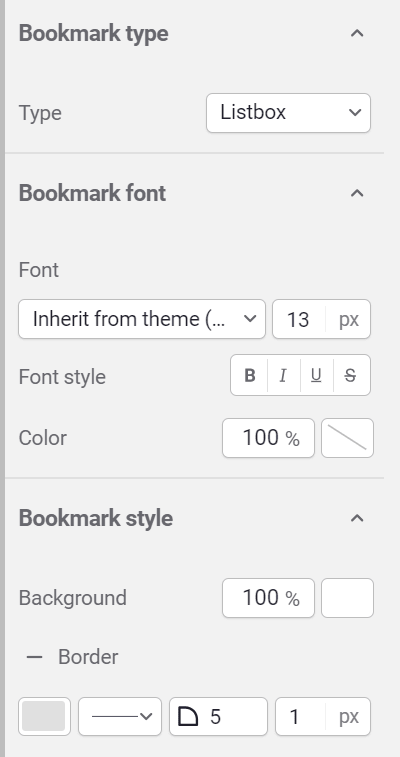
Object Styling
Set the bookmark object styling.
Select the type of display between listbox and dropdown.
-
Known Limitations
Section titled “Known Limitations”- Public bookmark creation is possible only on published workbooks.
Why do I lose filters after applying my bookmark?
Section titled “Why do I lose filters after applying my bookmark?”In some cases, users choose to include actions on sheet enter/sheet change, these can clash with workbooks. See the diagram below to learn why this may occur.
ℹ️ Sheet actions apply after bookmarks are applied.
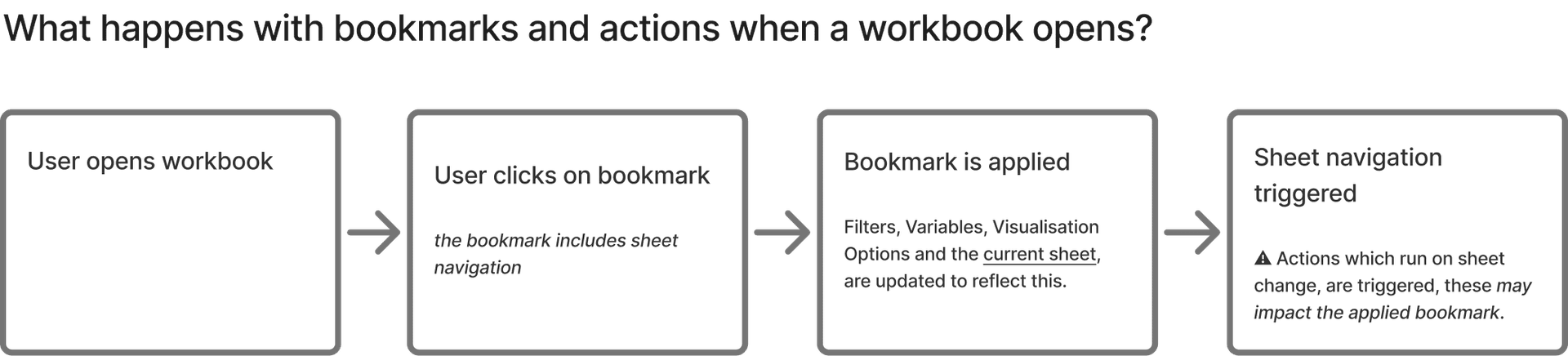
If you have challenges applying filters as part of a bookmarks, do not include sheets in bookmarks.