

Setting up a custom domain for Astrato
Contents
-
Custom domain setup for Astrato with Customer-hosted AWS CloudFront
-
Custom domain setup for Astrato with Customer-hosted Google Cloud Load Balancing
Custom domain setup for Astrato with Customer-hosted AWS CloudFront
Section titled “Custom domain setup for Astrato with Customer-hosted AWS CloudFront”Availability: This feature is available exclusively on the Astrato Enterprise pricing plan.
Overview
This document outlines the process for configuring a custom domain for Astrato using AWS CloudFront hosted on Customer infrastructure. We provide two configuration examples for setting up the custom domain: one using the web interface (manual setup) and the other using Terraform (automated setup).
Important
After completing the setup, please contact Astrato Support and provide the following information so that your configuration can be allowed:
-
The full custom domain name, including any prefix (e.g.,
app.example.com) -
The CloudFront domain name.
Web Interface
Section titled “Web Interface”-
In the AWS Management Console, navigate to Certificate Manager → Certificates, then click Request a certificate.
-
Important: AWS region must be us-east-1.
-
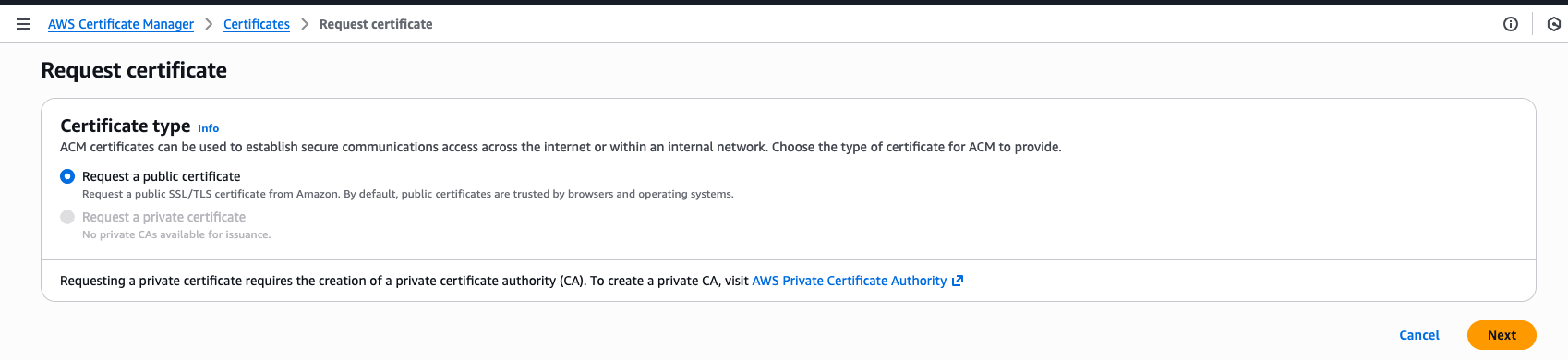
Select Request a public certificate
-
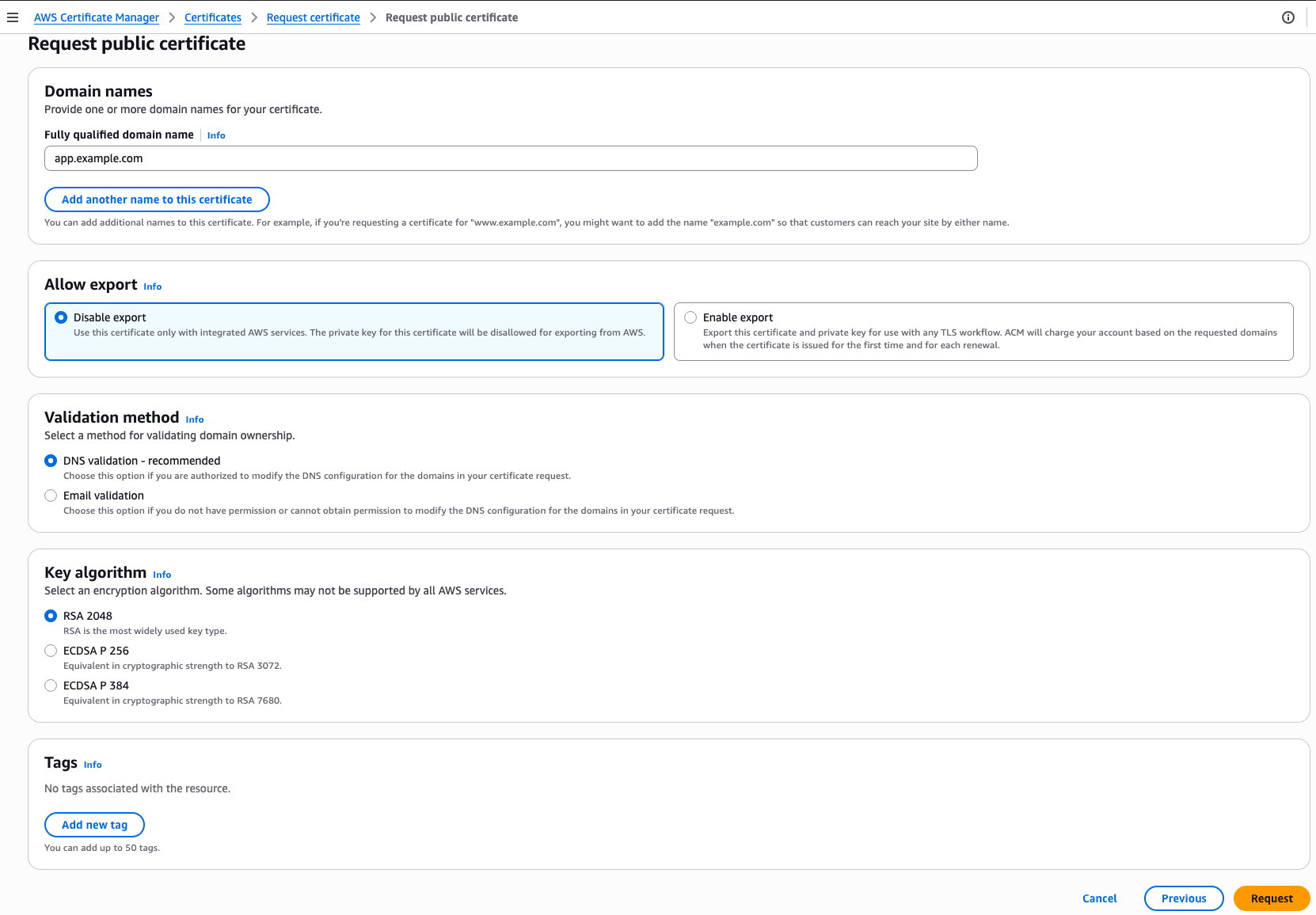
Enter your Fully Qualified Domain Name (FQDN) and choose DNS validation as the validation method.
-
Click Request. Then, add the required DNS record in your DNS provider. Wait until the certificate status changes to Issued, indicating that the validation and creation are complete.
-
-
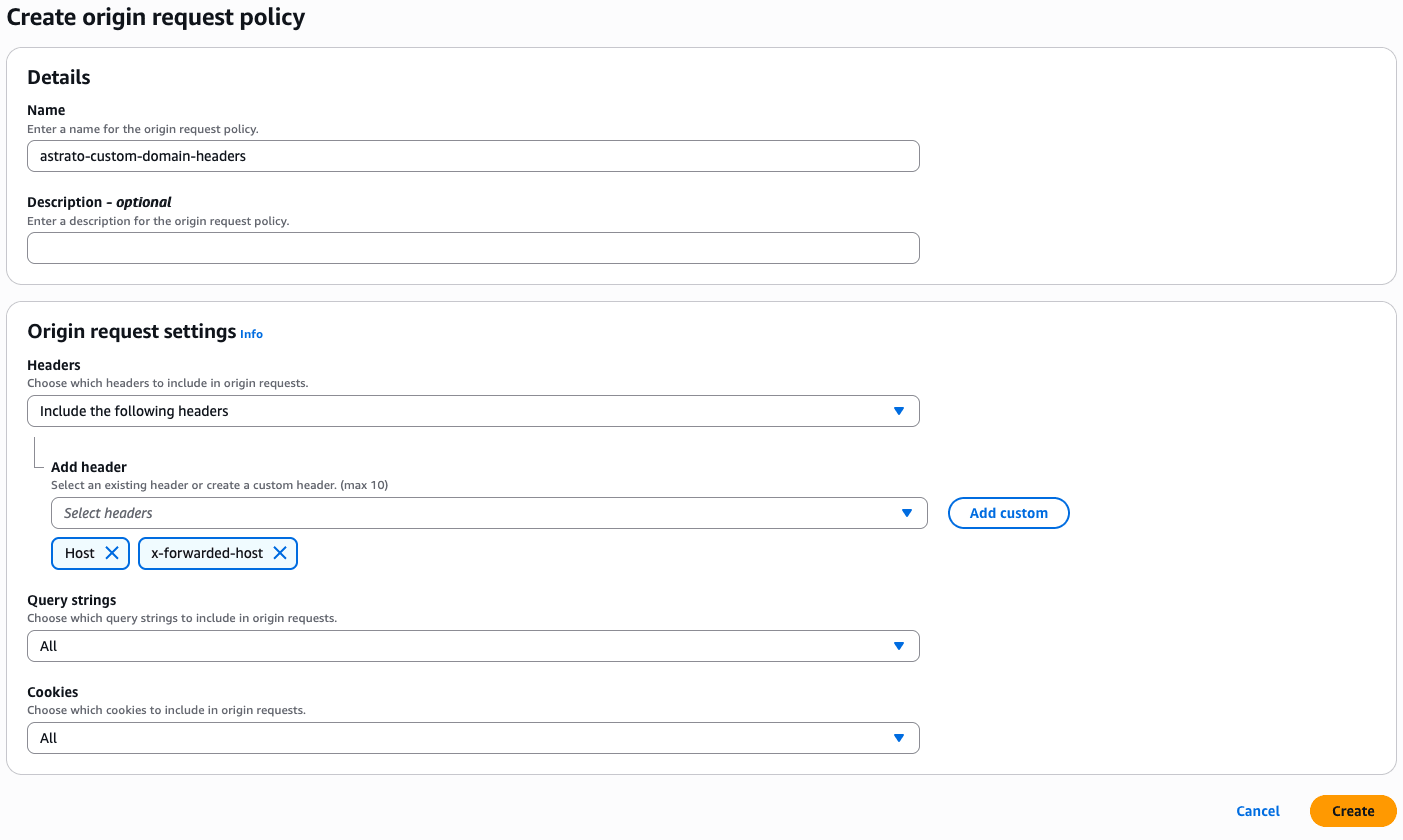
Navigate to CloudFront → Policies, then open the Origin request tab. Click Create origin request policy. Configure the policy with the following settings:
-
Origin request settings: Select Include the following headers and add
HostandX-Forwarded-Host. -
Query settings - Set to All
-
Cookies - Set to All
-
-
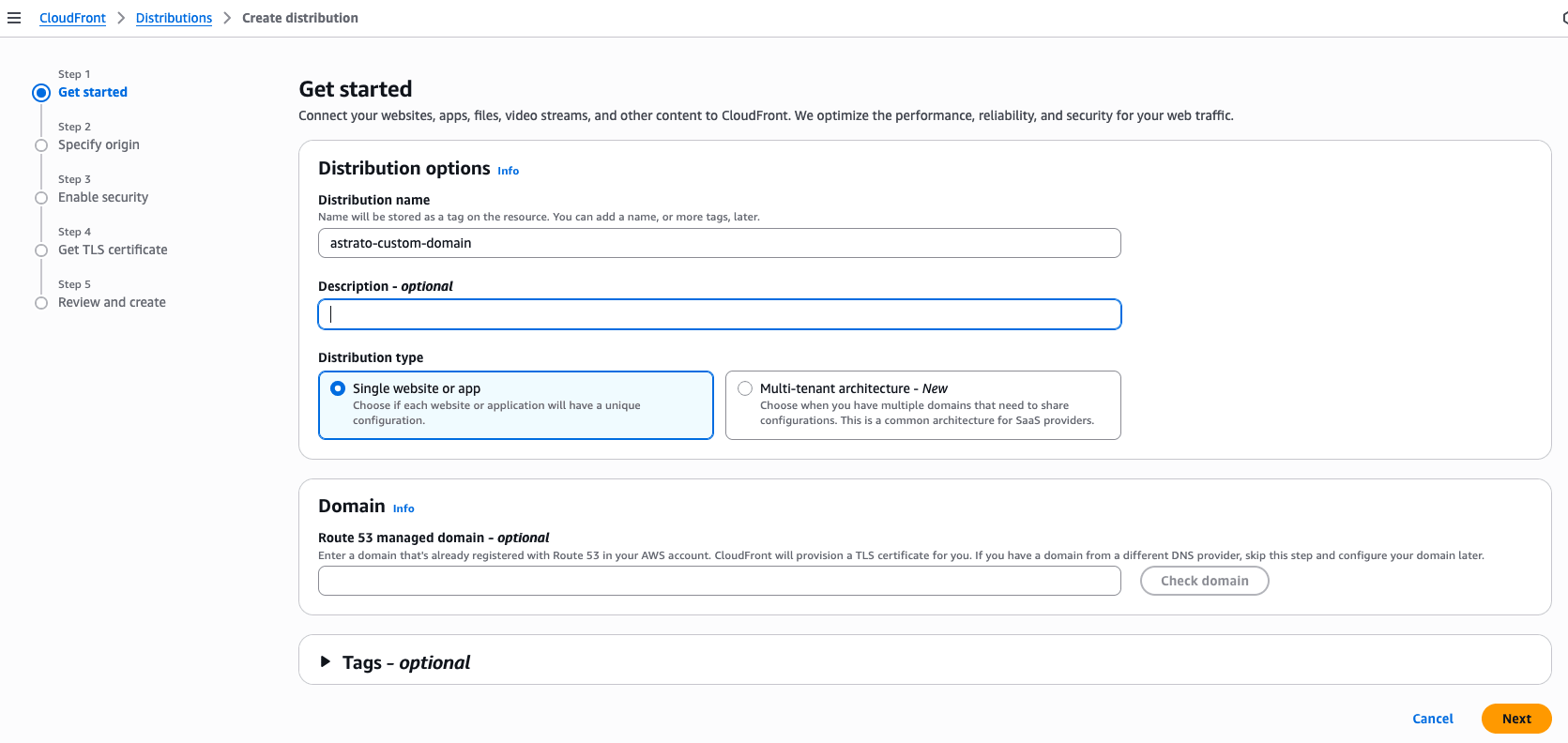
Create distribution. Navigate to CloudFront → Distributions and Create distribution.
-
Under Distribution type, select Single website or app.
-
In the Origin section, specify
app.astrato.ioas the Custom origin. Under Settings → Origin settings section choose Customize origin settings. Add a custom header namedX-Forwarded-Hostand set its value to your custom domain name (including the prefix).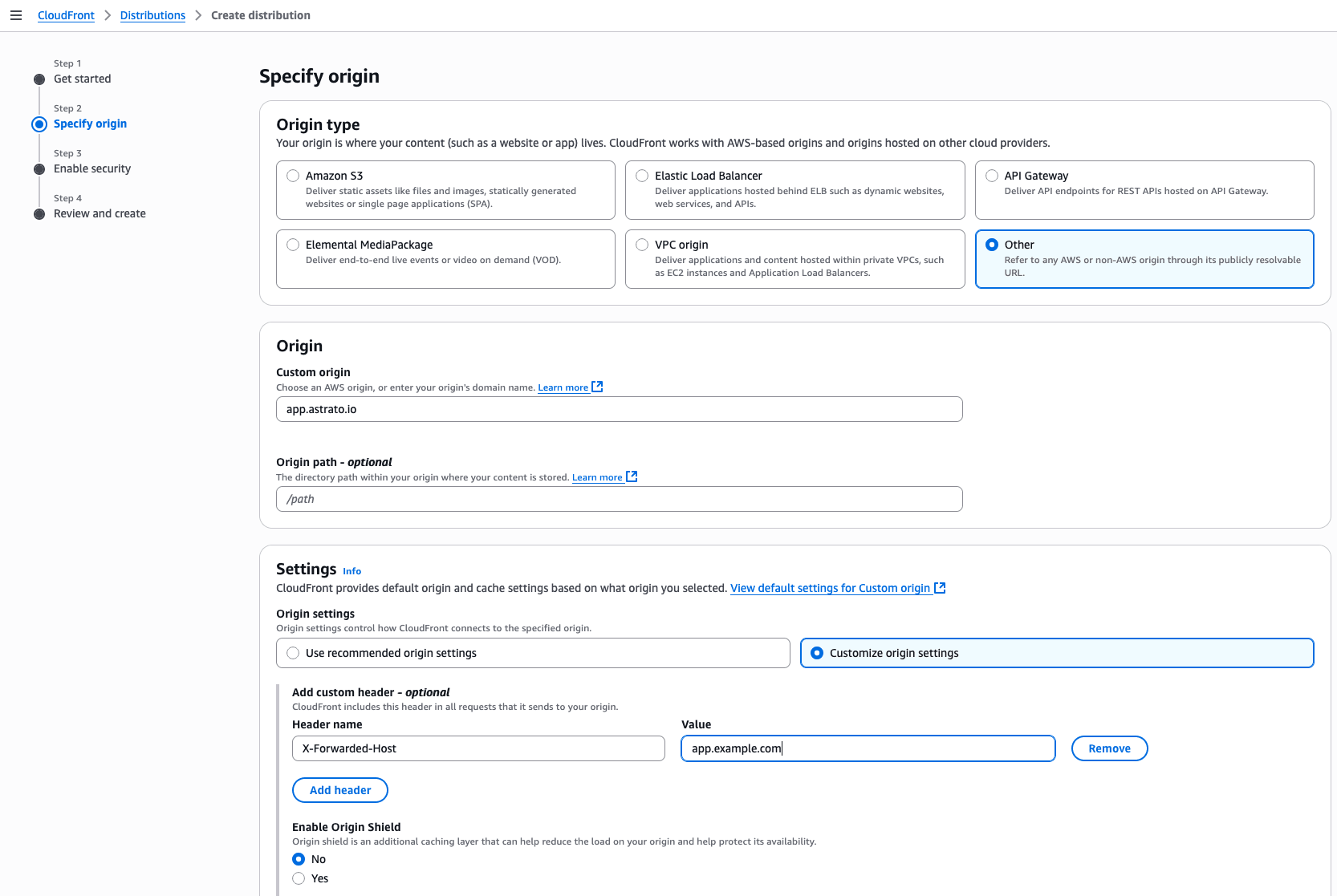
-
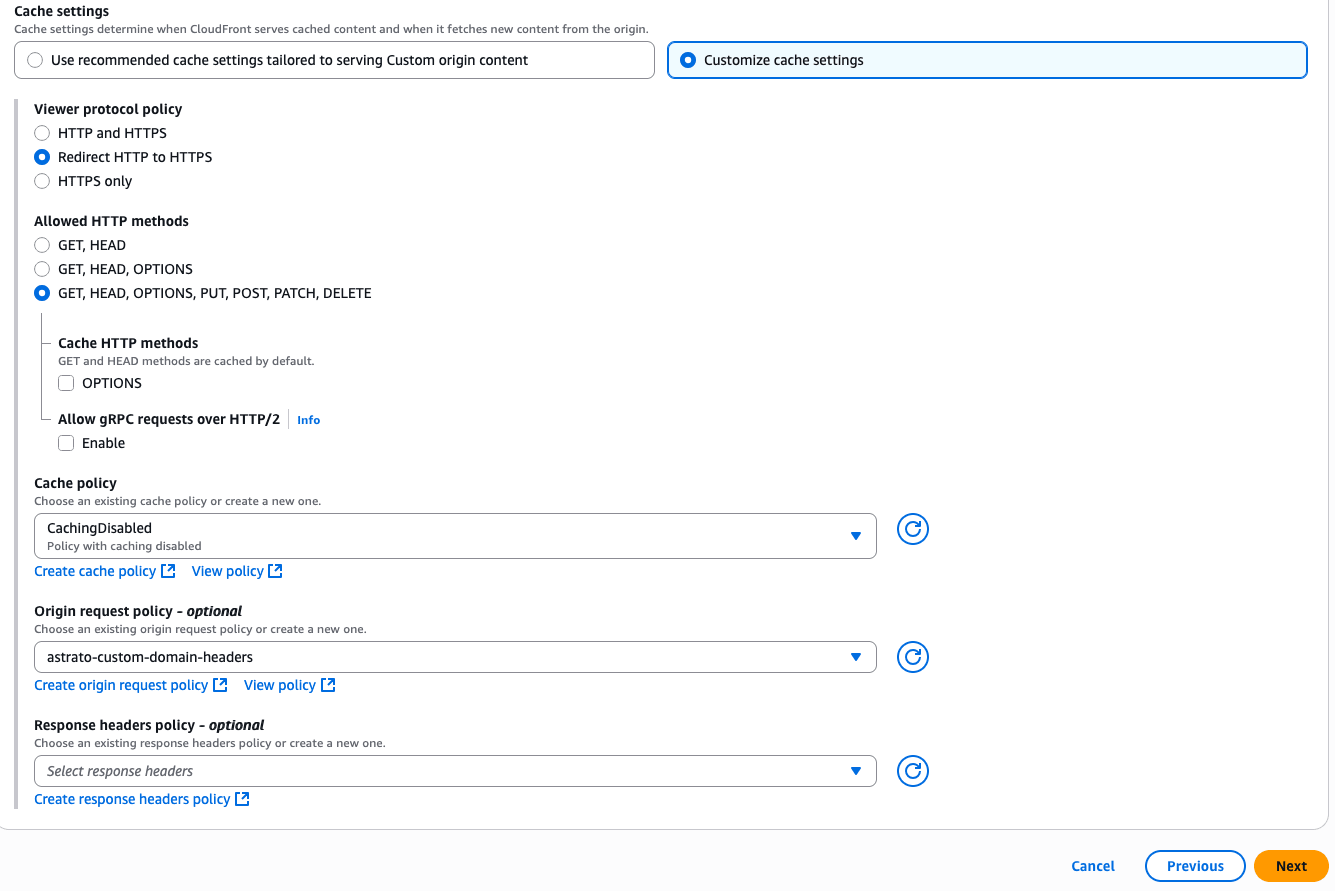
In the Cache settings section, select Customize cache settings. Set Cache policy to CachingDisabled. then under Origin request policy, select the policy created in the previous step.
-
Terraform
Section titled “Terraform”############################# Inputs############################locals { domain = "app.example.com" app_astrato_domain = "app.astrato.io"}############################# Certificate############################resource "aws_acm_certificate" "astrato_custom_domain" { domain_name = local.domain validation_method = "DNS" region = "us-east-1" # CloudFront requires its cert here lifecycle { create_before_destroy = true }}resource "aws_cloudfront_origin_request_policy" "astrato_custom_domain" { name = "astrato-custom-domain-headers" headers_config { header_behavior = "whitelist" headers { items = ["host", "x-forwarded-host"] } } cookies_config { cookie_behavior = "all" } query_strings_config { query_string_behavior = "all" }}############################# Cache Policy############################data "aws_cloudfront_cache_policy" "astrato_custom_domain" { name = "Managed-CachingDisabled"}############################# CloudFront distribution -> custom origin (https only)############################resource "aws_cloudfront_distribution" "astrato_custom_domain" { enabled = true is_ipv6_enabled = true aliases = [local.domain] comment = "Reverse proxy for ${local.domain} -> ${local.app_astrato_domain}" origin { domain_name = local.app_astrato_domain origin_id = "custom-${local.app_astrato_domain}" custom_origin_config { origin_protocol_policy = "https-only" https_port = 443 http_port = 80 origin_ssl_protocols = ["TLSv1.2"] } custom_header { name = "X-Forwarded-Host" value = local.domain } custom_header { name = "Host" value = local.domain } } default_cache_behavior { target_origin_id = "custom-${local.app_astrato_domain}" viewer_protocol_policy = "redirect-to-https" allowed_methods = ["GET", "HEAD", "OPTIONS", "PUT", "POST", "PATCH", "DELETE"] cached_methods = ["GET", "HEAD", "OPTIONS"] cache_policy_id = data.aws_cloudfront_cache_policy.astrato_custom_domain.id origin_request_policy_id = aws_cloudfront_origin_request_policy.astrato_custom_domain.id } restrictions { geo_restriction { restriction_type = "none" } } viewer_certificate { acm_certificate_arn = aws_acm_certificate.astrato_custom_domain.arn ssl_support_method = "sni-only" minimum_protocol_version = "TLSv1.2_2021" }}Custom domain setup for Astrato with Customer-hosted Google Cloud Load Balancing
Section titled “Custom domain setup for Astrato with Customer-hosted Google Cloud Load Balancing”Availability: This feature is available exclusively on the Astrato Enterprise pricing plan.
Overview
This document outlines the process for configuring a custom domain for Astrato using Google Cloud Load Balancer hosted on Customer infrastructure. We provide two configuration examples for setting up the custom domain: one using the web interface (manual setup) and the other using Terraform (automated setup)
Important
After completing the setup, please contact Astrato Support and provide the following information so that your configuration can be allowed:
-
The full custom domain name, including any prefix (e.g.,
app.example.com) -
The public IP address of your Google Cloud Load Balancer
Web Interface
Section titled “Web Interface”-
Navigate to Network Services → Load balancing, then click Create load balancer
-
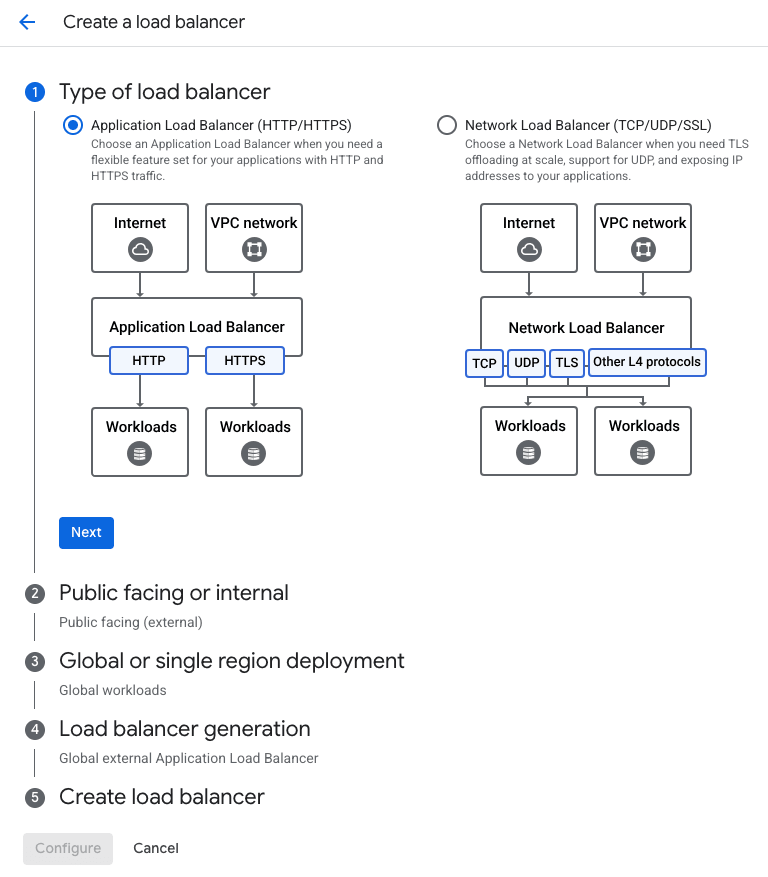
Select Application Load Balancer (HTTP/HTTPS) as the load balancer type.
-
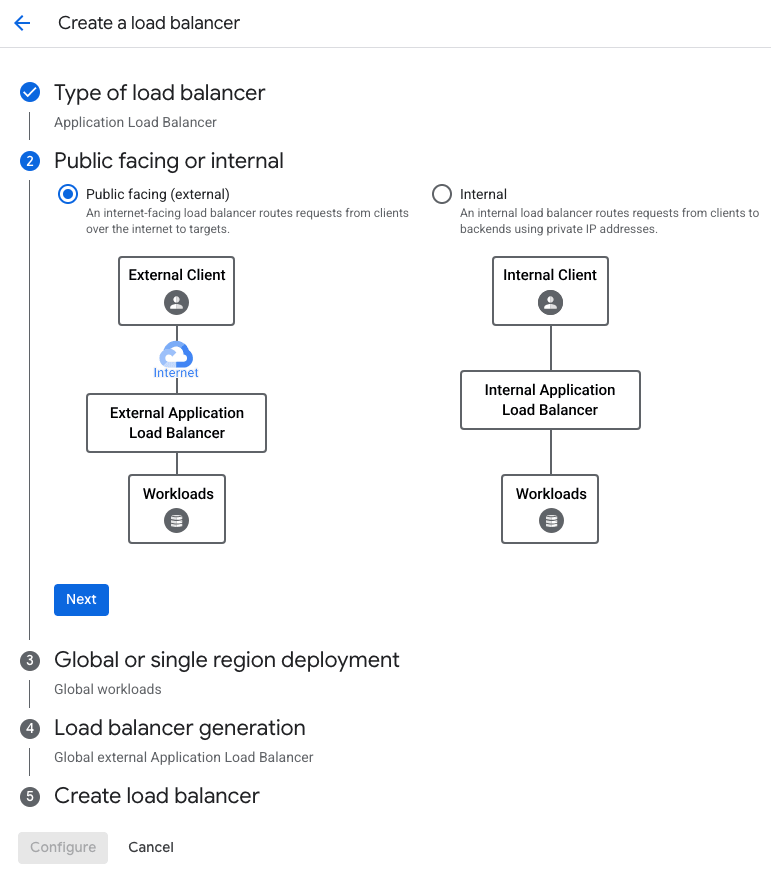
Select Public facing (external) as the load balancer type.
-
Choose the load balancer scope: Global or Regional. For this setup, select Global.
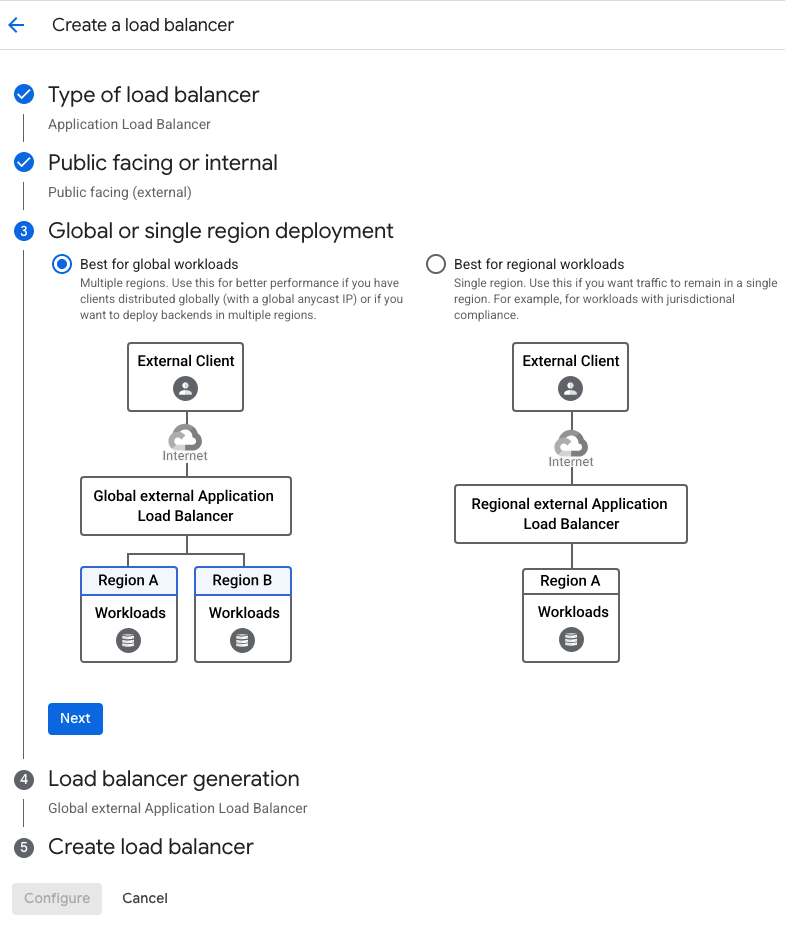
-
Proceed with the recommended option: Global external Application Load Balancer.
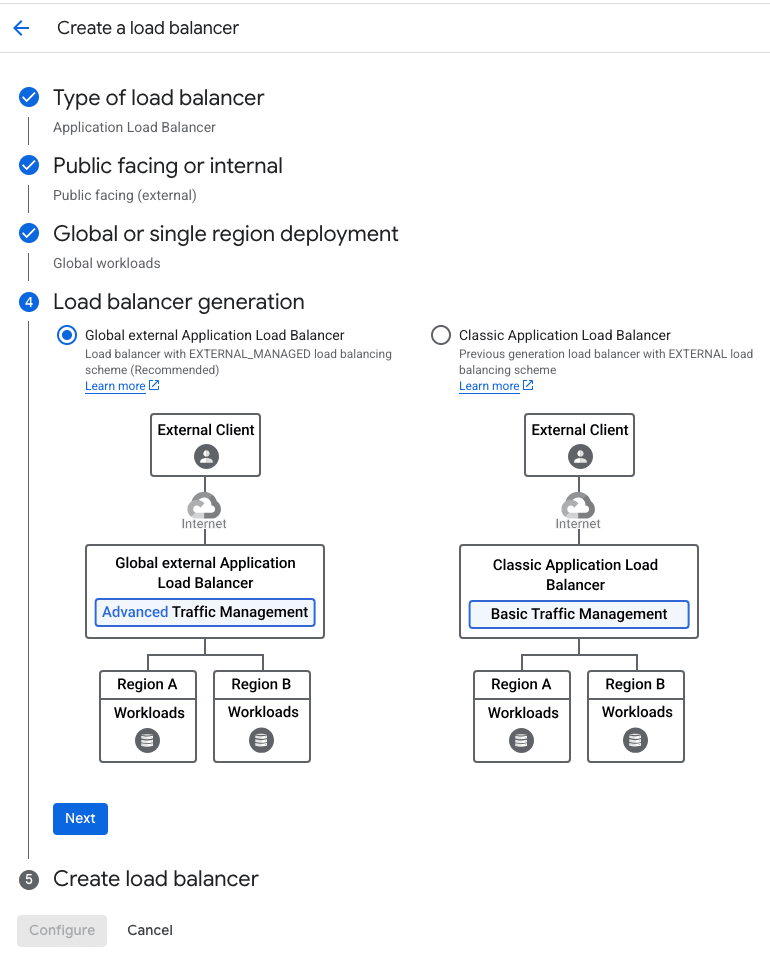
-
Continue to the configuration phase.
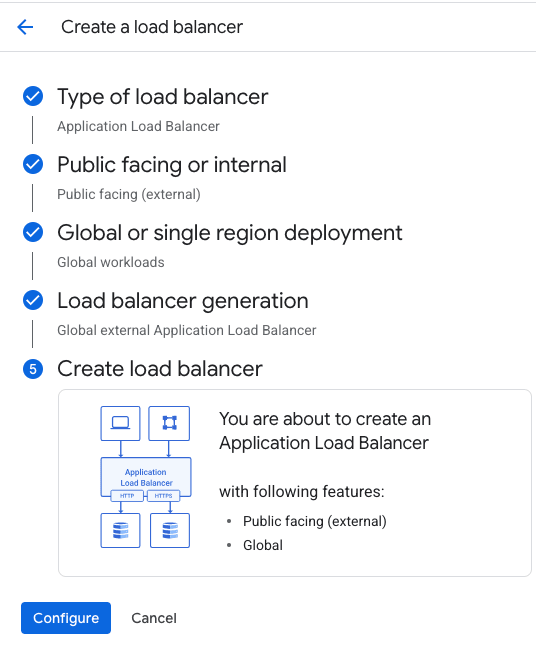
-
Provide Load Balancer name and begin a configuration starting from Frontend:
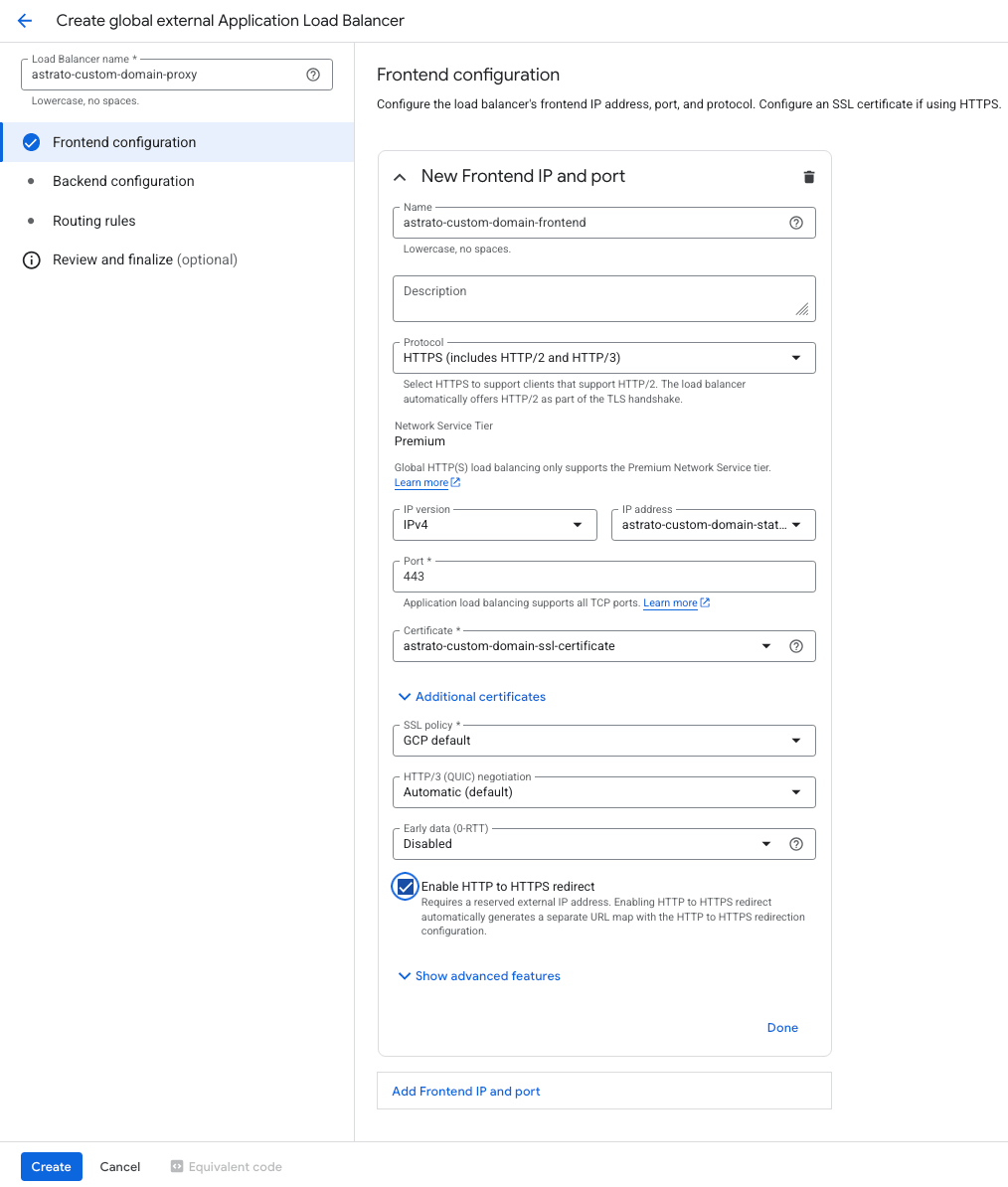
-
Enter a name for the frontend configuration.
-
Set the protocol to HTTPS.
-
Reserve a static IP address and use it to create a DNS record with the desired domain prefix. Important: The DNS entry must be created before generating the SSL certificate. Failure to do so will result in certificate creation errors.
-
-
Backend Configuration:
-
Navigate to Compute Engine → Network Endpoint Groups, and create a new Network Endpoint Group (NEG).
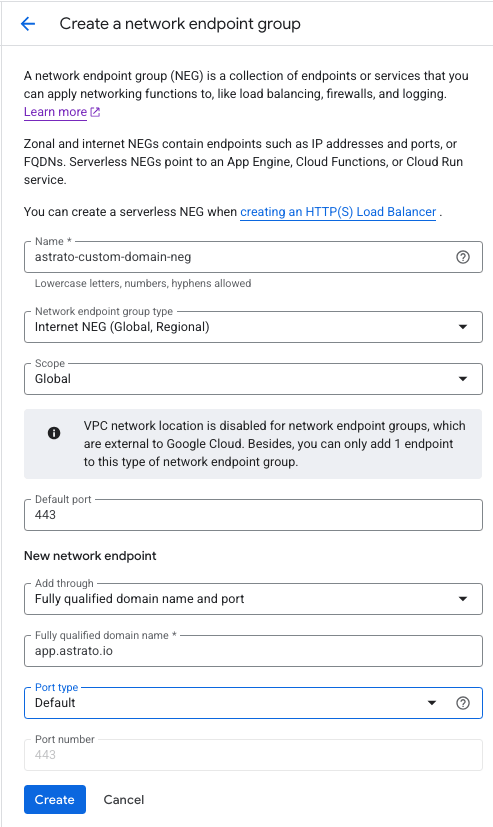
-
Create a Backend Service, and select the Internet NEG created in the previous step.
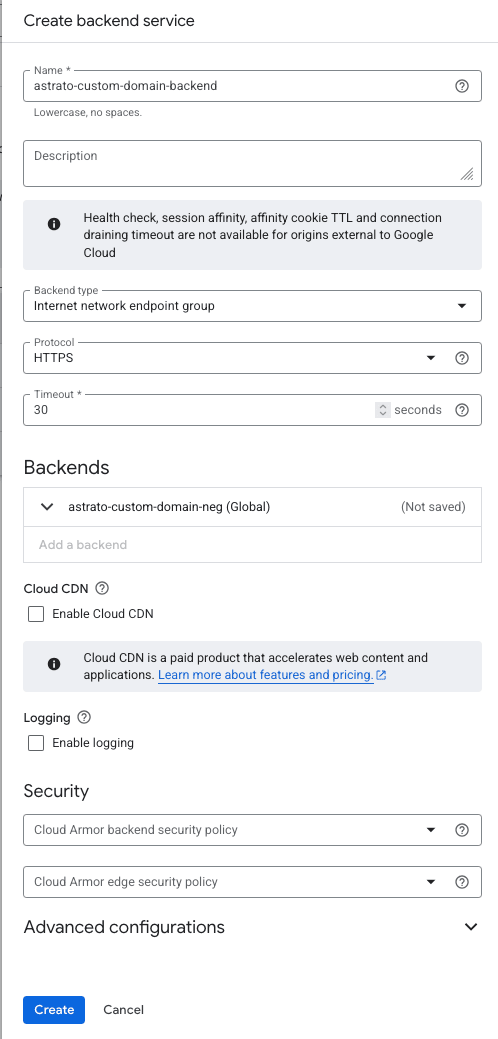
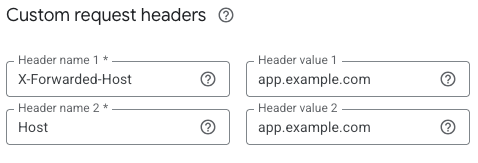
Configure the backend to send the following custom request headers:
-
-
Create Load Balancer
Terraform
Section titled “Terraform”- variables.tf
-
variable "astrato_custom_domain_name" { description = "Custom domain for Astrato" type = string default = "app.example.com" }
- astrato_custom_domain.tf
-
#################################################################################################################### #### Custom domain Certificate #################################################################################################################### resource "google_compute_managed_ssl_certificate" "astrato_custom_domain" { name = "astrato-custom-domain-certificate" managed { domains = ["${var.astrato_custom_domain_name}."] } } resource "google_compute_global_address" "astrato_custom_domain" { provider = google-beta name = "astrato-custom-domain-static-pub-ip" } #################################################################################################################### #### NEGs - Internet Network Endpoint Group (External backends) #################################################################################################################### resource "google_compute_global_network_endpoint_group" "astrato_custom_domain" { name = "astrato-custom-domain" network_endpoint_type = "INTERNET_FQDN_PORT" default_port = "443" } resource "google_compute_global_network_endpoint" "astrato_custom_domain_endpoint" { global_network_endpoint_group = google_compute_global_network_endpoint_group.astrato_custom_domain.name fqdn = "app.astrato.io" port = 443 depends_on = [ google_compute_global_network_endpoint_group.astrato_custom_domain ] } #################################################################################################################### #### Backends #################################################################################################################### resource "google_compute_backend_service" "astrato_custom_domain" { provider = google-beta name = "astrato-custom-domain-backend" enable_cdn = false timeout_sec = 30 connection_draining_timeout_sec = 10 load_balancing_scheme = "EXTERNAL_MANAGED" locality_lb_policy = "ROUND_ROBIN" protocol = "HTTPS" custom_request_headers = ["host: ${var.astrato_custom_domain_name}", "X-Forwarded-Host: ${var.astrato_custom_domain_name}"] backend { group = google_compute_global_network_endpoint_group.astrato_custom_domain.id } depends_on = [ google_compute_global_network_endpoint_group.astrato_custom_domain, google_compute_global_network_endpoint.astrato_custom_domain_endpoint ] } #################################################################################################################### #### LoadBalancer #################################################################################################################### resource "google_compute_global_forwarding_rule" "astrato_custom_domain" { name = "astrato-custom-domain-forwarding-rule-https" target = google_compute_target_https_proxy.astrato_custom_domain.id port_range = "443" load_balancing_scheme = "EXTERNAL_MANAGED" ip_address = google_compute_global_address.astrato_custom_domain.id depends_on = [ google_compute_global_network_endpoint_group.astrato_custom_domain, google_compute_global_network_endpoint.astrato_custom_domain_endpoint, google_compute_backend_service.astrato_custom_domain ] } resource "google_compute_target_https_proxy" "astrato_custom_domain" { name = "astrato-custom-domain" url_map = google_compute_url_map.astrato_custom_domain.id ssl_certificates = [google_compute_managed_ssl_certificate.astrato_custom_domain.id] depends_on = [ google_compute_global_network_endpoint_group.astrato_custom_domain, google_compute_global_network_endpoint.astrato_custom_domain_endpoint, google_compute_backend_service.astrato_custom_domain, google_compute_url_map.astrato_custom_domain ] } resource "google_compute_url_map" "astrato_custom_domain" { name = "astrato-custom-domain" description = "Astrato custom domain url map" default_service = google_compute_backend_service.astrato_custom_domain.id host_rule { hosts = ["app.astrato.io"] path_matcher = "astrato" } path_matcher { name = "astrato" default_service = google_compute_backend_service.astrato_custom_domain.id path_rule { paths = ["/"] service = google_compute_backend_service.astrato_custom_domain.id } } depends_on = [ google_compute_global_network_endpoint_group.astrato_custom_domain, google_compute_global_network_endpoint.astrato_custom_domain_endpoint, google_compute_backend_service.astrato_custom_domain ] }