

Connecting to Dremio Cloud
In this article, we’ll show you how to connect your Astrato workspace to Dremio Cloud.
Dremio Checklist
Section titled “Dremio Checklist”-
Data connection: Hostname, such as
eu.dremio.cloud -
Credentials: a Dremio personal access token (PAT). Signing in with a Dremio user name and password is not supported.
-
Data source: Project name and Source (space) name
Connecting your Dremio data source
Section titled “Connecting your Dremio data source”-
Open Data & AI → Data Connections, select New connection and choose Dremio.
-
Under Authentication, paste your token into Personal access token.
-
Under Connection details, enter the Host, then select Validate Connection.
-
Under Data to use, choose a Project. If your token reaches only one project, it is chosen for you. The Source list then shows that project’s spaces and sources; choosing another project lists its sources instead.
-
Choose a Source, review the connection name and select Save connection.
-
Choose a schema or leave it for later, then select Finish. Saving or changing a source without choosing a schema uses the selected source as its schema.
To change the token of a saved connection, edit the connection, select Replace personal access token, enter the new token and select Save changes.
In the older lobby
Section titled “In the older lobby”-
Select Data in the sidebar
-
Create Data to open the Create New Data Source screen
-
Click on the Dremio icon
-
A dialogue box displays to Connect to Dremio (Figure 1)
-
Complete the required fields in the connection dialog box, and click Test Connection
-
If the connection is successful, the following dialog displays for selecting your project and your space name; the data source displays, and click Connect.
-
If the connection is successful and the data source is created, the Data View Editor displays.
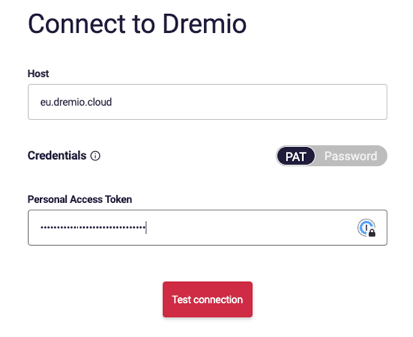
Figure 1: Dialogue box displays to enter personal access token (PAT)
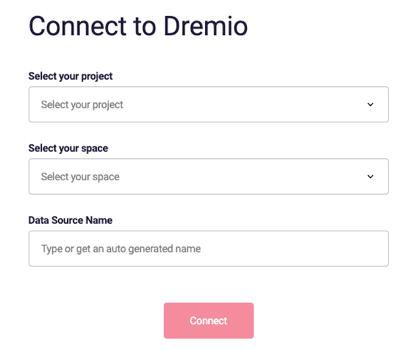
Figure 2: Dialog displays for selecting your project and your space name; the data source displays, click Connect.