

Use variables
Variables let a cell in your sheet drive what a dataset returns — type a region in a cell, and the data underneath re-queries for that region. It’s what-if analysis on live, trusted data.
A variable has a name (e.g. Color) and a cell or range it reads from (e.g. Sheet1!B2).
Create a variable
Section titled “Create a variable”You’re connected to Astrato (see Connect to Astrato).
-
Open the Astrato panel and go to Variables.
-
Click +.
-
Name it.
-
Enter or pick the cell (or range) it should read.
-
Click Save.
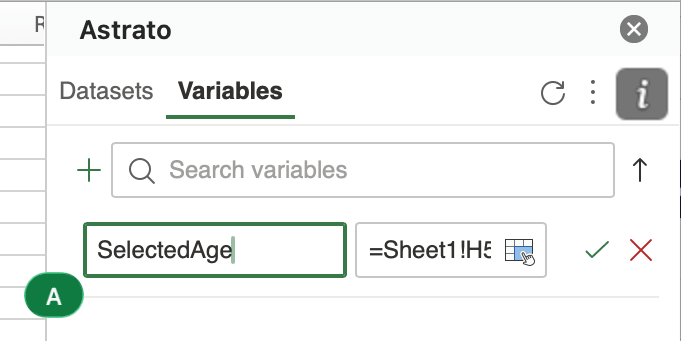
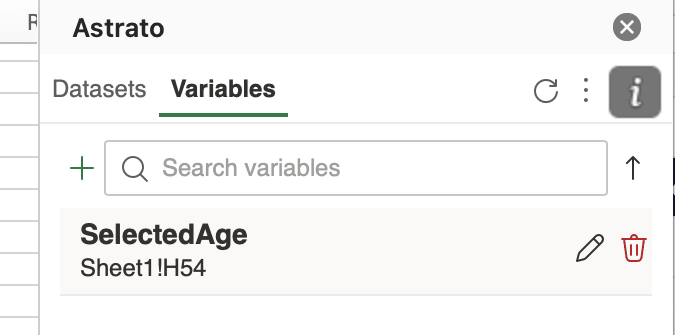
Result: the variable shows up in your Variables list with the cell it’s watching.
Use it in a dataset
Section titled “Use it in a dataset”In the dataset panel, find a setting that accepts a variable and map it to yours. From then on, whatever’s in that cell is sent with the query. Change the cell, and datasets that use it can refresh themselves automatically (unless their refresh mode is Refresh manual).
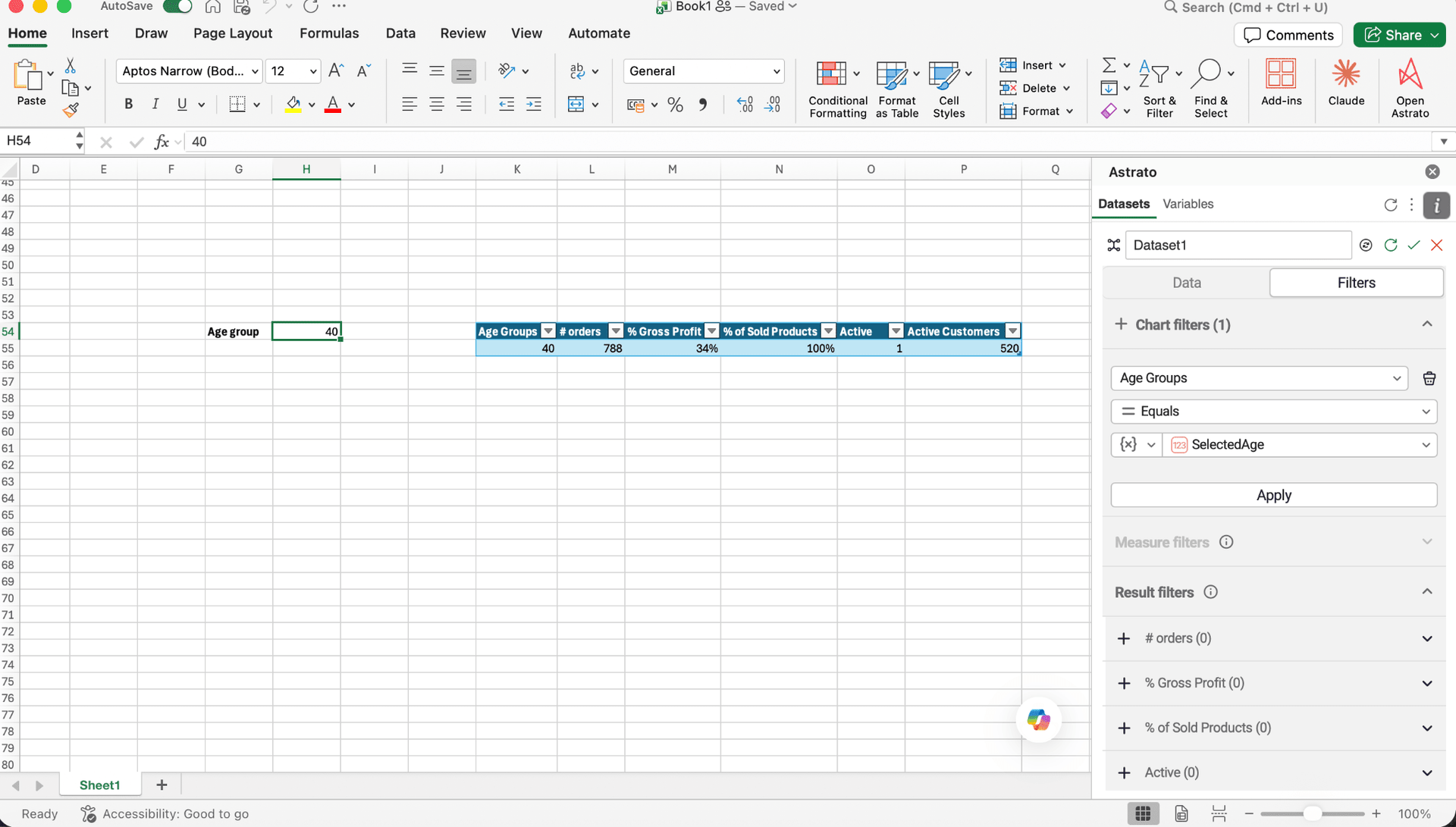
How refresh mode affects this: see Refresh modes in Create and manage datasets.
Override it for one formula
Section titled “Override it for one formula”Want a different value just once? Override it inline:
=ASTRATO.TABLE("Sales", ASTRATO.VARIABLE("Color", "Blue"))That uses Blue for this formula only; your saved variable doesn’t change.
Turn an optional filter off
Section titled “Turn an optional filter off”If a variable drives a filter, set it to NA() to switch that filter off for one formula:
=ASTRATO.TABLE("Sales", ASTRATO.VARIABLE("Regions", NA()))Variables can read a range
Section titled “Variables can read a range”A variable can point at a range, not just one cell — perfect for a list, like several selected regions. Blank cells in the range are ignored.