

AI Admin & Policy (Snowflake Cortex LLM, OpenAI, Google Gemini)
Introduction
Section titled “Introduction”Astrato AI Features are a core part of the self-service capabilities. The AI features help users in all areas of the products, from giving fields and tables business-friendly names to analyzing dashboards and surfacing hidden insights.
This article covers the management and setup of the AI features.
-
-
-
Snowflake Cortex LLM ❄️
-
Snowflake Cortex API
-
Azure OpenAI
-
-
Insights
-
Copilot
-
Field Name Suggestions
-
Self-Service
-
Measure Generation
-
-
AI Disclaimer ⚖️
AI Settings
Section titled “AI Settings”Open Administration → System Settings and select the AI tab. It holds the Nash, Store Nash chats, Insights, Measure generation, Name suggestions and Self-service toggles, and two provider choices: Insights provider, used for insights, name suggestions and measure generation, and Nash provider. Self-service cannot be switched on until at least one AI provider exists. Where your workspace supports them, Nash also carries Nash in Lobby, Nash in Semantic Layer and Nash in Workbook Editor checkboxes, shown cleared and locked while Nash is off.
For the current controls and an up-to-date screenshot, see System settings.
Providers
Section titled “Providers”Open Data & AI → AI Providers. Administration → System Settings → AI reaches the same screen through Manage AI providers. The tab is there for anyone who can edit content. New AI Provider and Go to AI Settings, which opens the classic AI settings page in a new tab, are offered to owners and administrators only. Modify details and Delete are offered on a provider you own, and on every provider if you are an owner or administrator.
Astrato has eight provider types. Two sit behind workspace features, so a workspace with neither sees six in the Provider Type list:
- Astrato Default — OpenAI models provided by Astrato,
subject to fair usage. It takes no credential and no model, and a workspace can hold only one. - Anthropic Claude
- Azure OpenAI
- Fireworks AI — behind a workspace feature.
- Google Gemini
- OpenAI
- Snowflake Cortex LLM — 20+ Snowflake models.
- Snowflake Cortex API — behind a workspace feature.
AI providers covers each form field by field. Configuring a provider does not switch a feature on by itself: which provider each capability runs on is chosen in System settings.
Snowflake Cortex LLM ❄️
Section titled “Snowflake Cortex LLM ❄️”When Snowflake Cortex LLM is used in Astrato, data does not need to be shared - we share the query and Snowflake does the rest of the work.
This removes the need for any additional data transfer, business contracts or security processes.
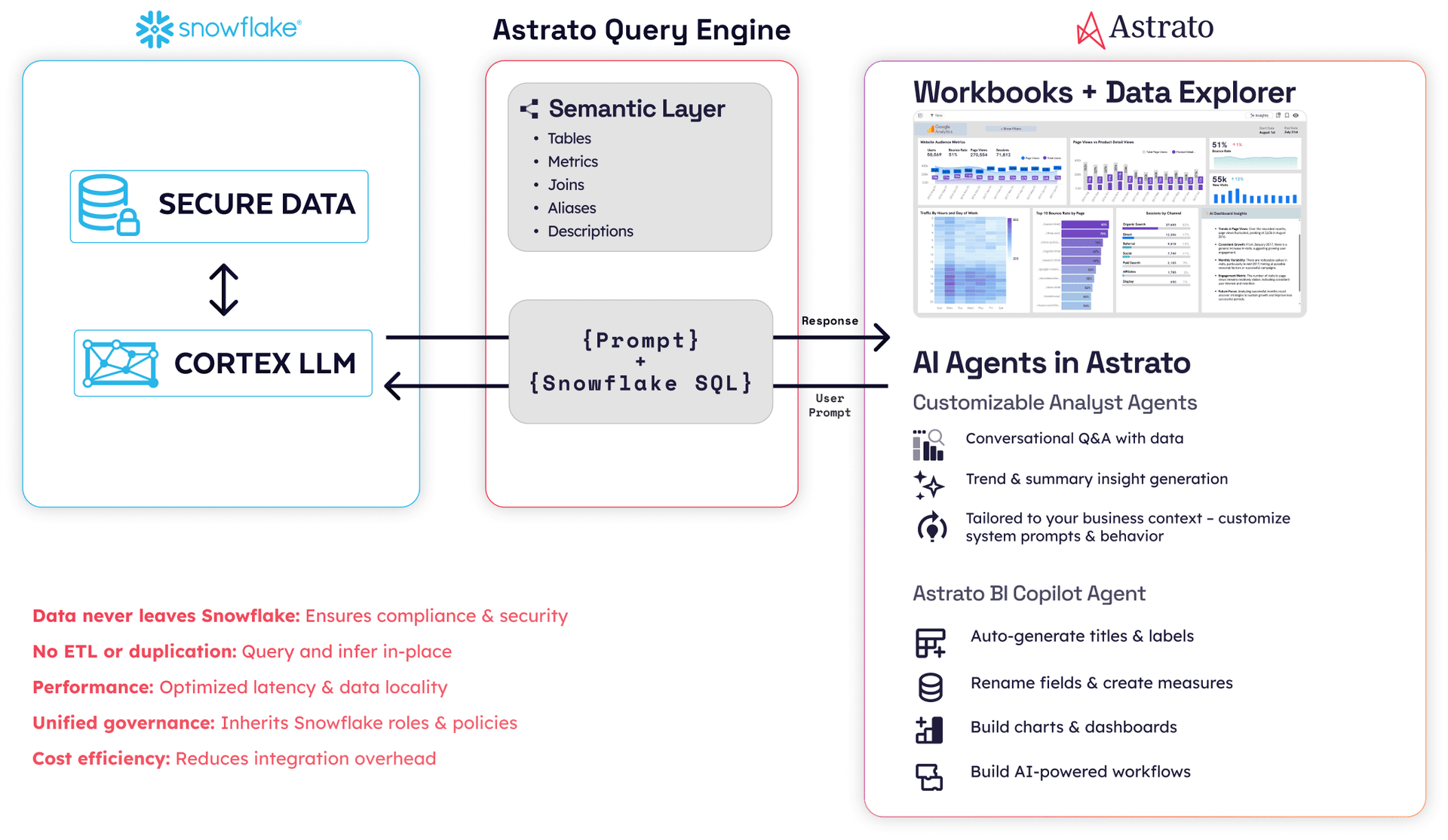
ℹ️ Some Astrato features share metadata, such as semantic models, which include measure definitions, field names and join criteria.
ℹ️ If you have not used Snowflake Cortex LLM before, please ensure you set it up and meet these Prerequisites:
Snowflake AccountAdmin role access
Astrato workspace with AI configuration enabled
Cortex enabled on your account
🔐 Step 1: Enable Cross-Region Cortex (if needed)
Section titled “🔐 Step 1: Enable Cross-Region Cortex (if needed)”ALTER ACCOUNT SET CORTEX_ENABLED_CROSS_REGION = 'ANY_REGION';👤 Step 2: Set Up Permissions in Snowflake
Section titled “👤 Step 2: Set Up Permissions in Snowflake”USE ROLE ACCOUNTADMIN;CREATE ROLE cortex_user_role;GRANT DATABASE ROLE SNOWFLAKE.CORTEX_USER TO ROLE cortex_user_role;GRANT ROLE cortex_user_role TO USER some_user;Replace some_user with the username used by Astrato.
🔧 Step 3: Configure in Astrato
Section titled “🔧 Step 3: Configure in Astrato”-
Open Data & AI → AI Providers and select New AI Provider, which needs the owner or administrator role.
-
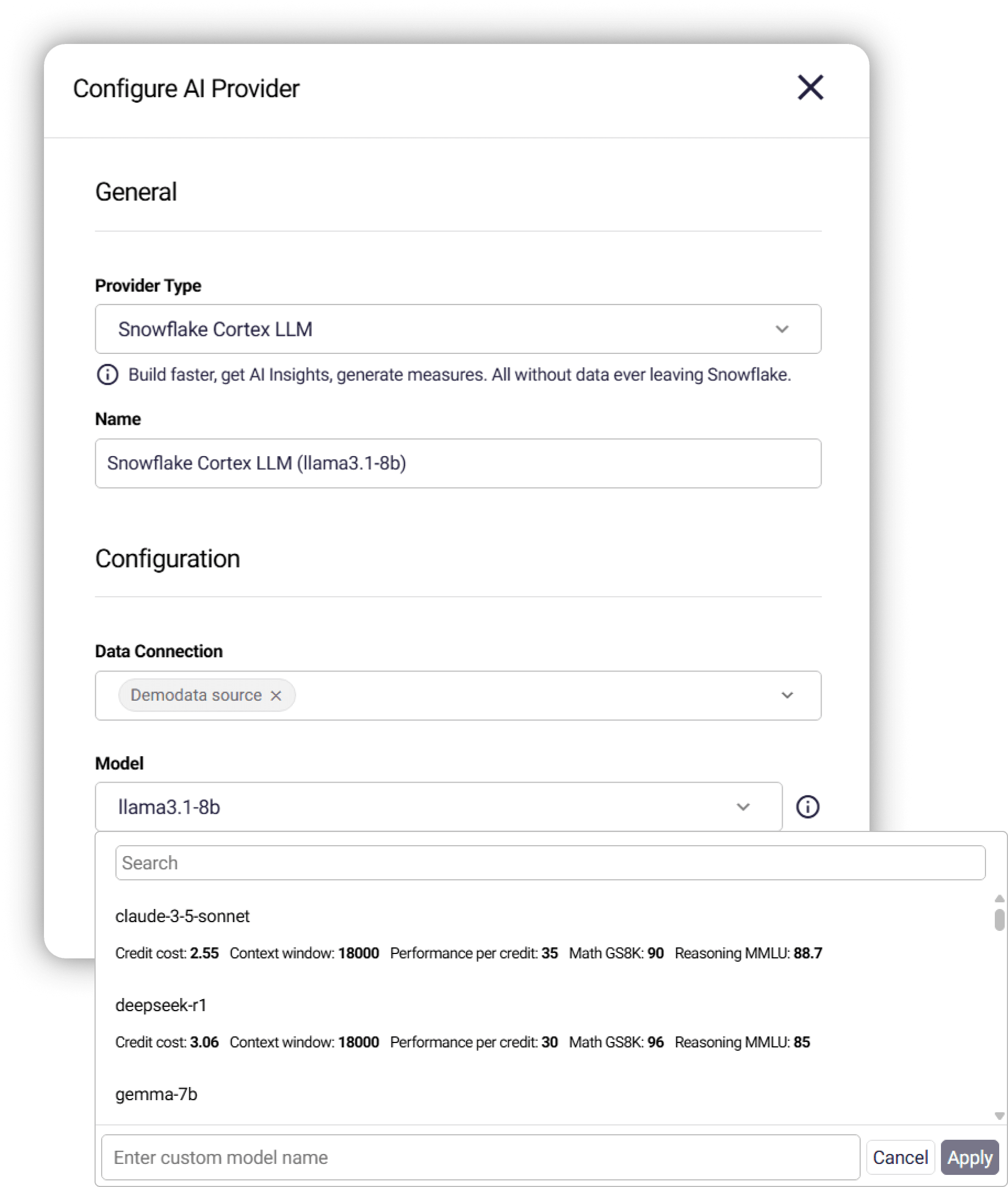
Select Provider Type:
Snowflake Cortex LLM -
Leave Name as it is unless you want your own. It fills itself in from the type and model — Snowflake Cortex LLM (llama3.1-8b) — and stops following them once you type in it.
-
Under Data Connection, select one or more Snowflake connections (e.g.,
Demodata source). At least one is required. -
Under Model, choose a model. It opens on
llama3.1-8b, and each row carries the credit cost, context window and benchmark scores to choose on. A Snowflake model the list does not offer goes in through Use a custom model → Custom model name → Apply. -
Select Save.
🧠 Astrato will now use Snowflake Cortex without data ever leaving your warehouse.
💡 Snowflake Cortex LLM Tips from Astrato
Section titled “💡 Snowflake Cortex LLM Tips from Astrato”1️⃣ Start with a commerical model from OpenAI or Anthropric (Claude) if unsure, they provide great quality outputs.
2️⃣ You can change models at any time without reconnecting the data.
3️⃣ Custom & fine-tuned models can be entered through Use a custom model → Custom model name → Apply, if supported by Snowflake.
4️⃣ If you are able to process data in multiple regions, enable cross-region Cortex (Step 1) to reach models your own region does not host.
Using Nash with Snowflake Cortex API
Section titled “Using Nash with Snowflake Cortex API”Snowflake Cortex API is its own provider type, and it is in the Provider Type list only
while that workspace feature is switched on. It authenticates with a key pair rather than a token:
Username, Account Identifier and RSA Private Key, a multi-line box that takes the whole
-----BEGIN PRIVATE KEY----- block. It offers no API Key and no API Url, and it shares
Snowflake Cortex LLM’s model catalogue.
Snowflake Cortex API is its own provider
covers the form. Save commits the dialog; the Apply button beside Custom model name
only confirms a model name you typed.
Whether Nash offers a Cortex API provider is decided by what Nash accepts, not by this screen: Select an AI provider names the provider types that reach its model selector and says the rest are left out of it.
If Snowflake Cortex API is not in the list, your workspace does not have the feature. Configure an OpenAI provider pointed at Snowflake’s OpenAI-compatible endpoint instead:
- Select OpenAI. Put
https://<account-identifier>.snowflakecomputing.com/api/v1/openaiin API Url, overwriting thehttps://api.openai.com/v1/that choosing OpenAI prefills, and a token for your Snowflake user in API Key. - Select Use a custom model, type the Snowflake Cortex model name into Custom model name, and select Apply. The OpenAI model list does not carry Snowflake’s models, so it has to be typed.
- Name it for what it is — we suggest
Snowflake Cortex API {ModelName} {Account Name}. The list’s Type column still reads OpenAI, because it prints the provider type you saved.
Reference documents from Snowflake
Open AI
Section titled “Open AI”- Provider Type — OpenAI.
- Name — on a new provider, fills itself in from the type and model until you type your own. Editing an existing provider never re-derives it.
- API Key — your OpenAI key. On an existing provider whose type you have not changed, the field reads Leave blank to keep the stored key, and leaving it blank does that.
- API Url — required. Choosing OpenAI with the field empty prefills https://api.openai.com/v1/.
- Model — the OpenAI model to use. The open list gives a cost rating and a line of guidance per model.
- Advanced Options, closed when the dialog opens — Default Temperature and Default top_p, both starting at 0.1, plus Fast mode on a model that supports it. Fast mode buys lower latency at a higher price per token. Look for Supports Fast mode. at the end of a model’s description row: on any other model the checkbox is not drawn at all.
Azure OpenAI
Section titled “Azure OpenAI”- Provider Type — Azure OpenAI.
- Name — on a new provider, fills itself in from the type and model until you type your own.
- API Key — your Azure OpenAI key.
- API Url — required, for example https://azure-openai-184867.openai.azure.com/.
- Deployment Name — required. This is what actually answers, not Model.
- API Version — required.
- Model — for estimation only, as the dialog says beneath the picker: your application’s actual model comes from the deployment name. It is the one Model picker you may leave empty, and its list is neither searchable nor open to a custom name.
- Advanced Options, closed when the dialog opens — Default Temperature and Default top_p, both starting at 0.1.
Google Gemini
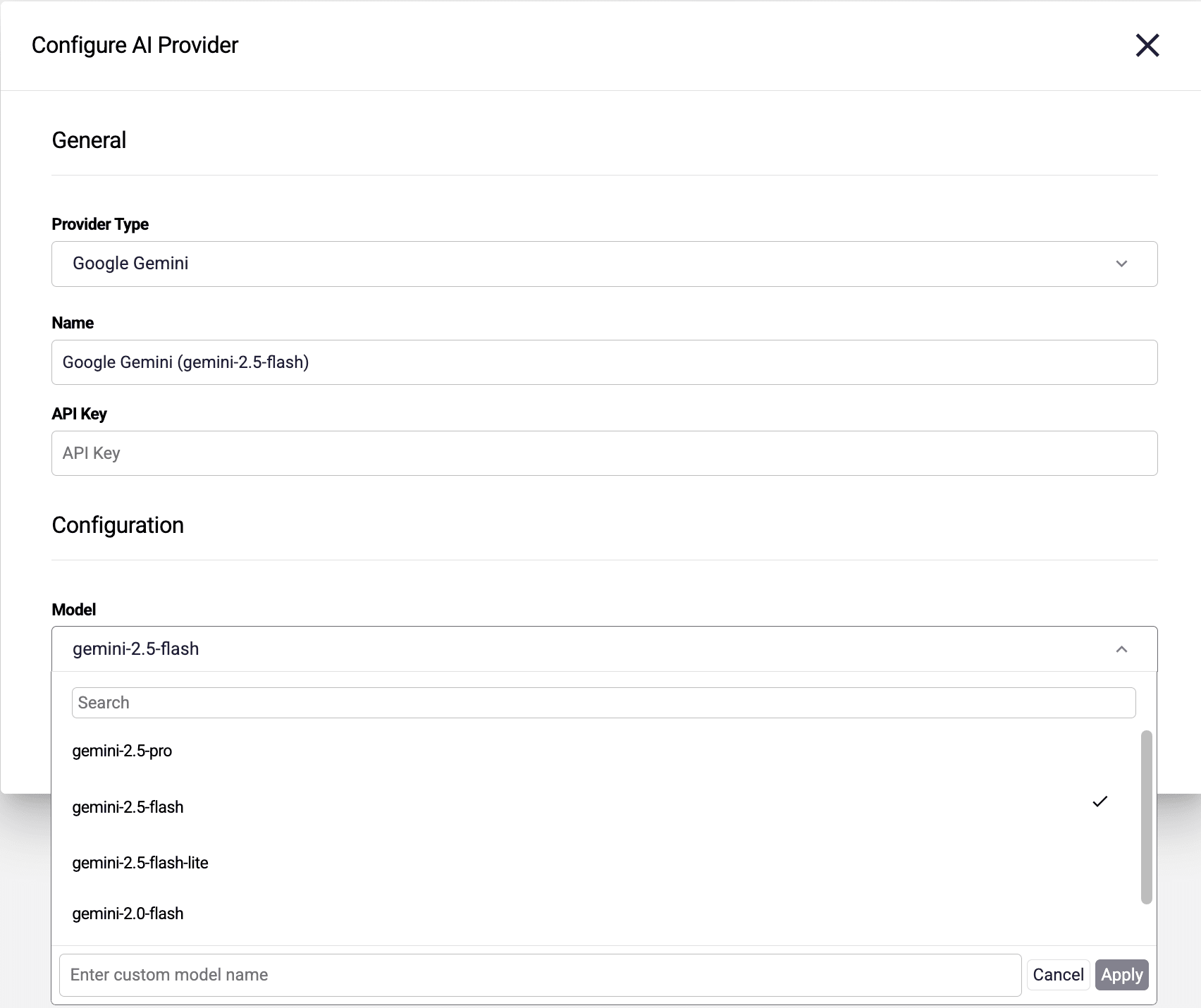
Section titled “Google Gemini”- Provider Type — Google Gemini.
- Name — on a new provider, fills itself in as Google Gemini (gemini-2.5-flash) until you type your own.
- API Key — your Google Gemini key.
- Model — the Gemini model to use. The list opens on
gemini-2.5-flashand carries a description per model. - Advanced Options, closed when the dialog opens — Default Temperature and Default top_p, both starting at 0.1.
Capability | Description | Notice & Risks for Third-Party AI Providers |
Insights | Enable AI-powered insight generation to discover patterns and meaningful information in your data automatically. This feature includes:
* Runs on the provider chosen as Insights provider in Administration → System Settings → AI. | ℹ️ Data from query results is neccesary to be shared for this capability - Risk of bias in AI-generated insights. |
Field Name Suggestions | This AI-powered feature helps Creator role users generate business-friendly field names in the semantic layer editor. It suggests intuitive and meaningful names for fields based on the meta data in the table and context provided. * Runs on the provider chosen as Insights provider in Administration → System Settings → AI, which also serves insights and measure generation. | ℹ️ Data is not shared for this capability. Data structures & query requests are shared (fields, measures, aggregations, filter values). |
Self-service Custom Report | Enable natural language custom report generation to allow users to create reports using conversational language. This feature makes report creation more accessible to users who may not be familiar with traditional query languages. | - Natural language queries may be misinterpreted, leading to incorrect reports. ℹ️ Data is not shared for this capability. Data structures & query requests are shared (fields, measures, aggregations, filter values). |
Measure Generation | This feature allows users with Creator permissions to create measures in natural language. When enabled, users can describe the measure they want to create in plain language, and the system will generate the appropriate measure definition. | ℹ️ Data is not shared for this capability. Data structures & query requests are shared (fields, measures, aggregations, filter values). |
Actions | Astrato actions include a block for custom prompting. Request custom insights, ask for validation, generate reports, recommendations and actions. | ℹ️ Data sharing is determined by the creator of the action workflow. |
Disclaimer
Section titled “Disclaimer”At Astrato Analytics, we are committed to ensuring that our AI-powered features align with the latest regulatory frameworks, including the EU AI Act. While we serve a diverse range of customers, including those in healthcare, the majority of our AI applications fall into the minimal or limited risk categories, ensuring compliance without imposing significant regulatory burdens.
1. Minimal Risk AI Systems
Section titled “1. Minimal Risk AI Systems”-
Most of our AI-powered features, such as insight generation, field name suggestions, and measure generation, are designed to assist users in data analysis and reporting. These systems do not make autonomous decisions or significantly impact individuals, placing them in the minimal risk category under the EU AI Act.
-
For these features, no additional compliance requirements apply, as they pose no significant risk to users or society.
2. Limited Risk AI Systems
Section titled “2. Limited Risk AI Systems”-
For our systems, we ensure transparency by clearly informing users when they are interacting with AI and providing explanations of how the AI works.
-
This aligns with the EU AI Act’s requirements for limited risk systems, ensuring users are aware of AI involvement without imposing heavy compliance obligations.
3. High Risk Considerations (Healthcare Customers)
Section titled “3. High Risk Considerations (Healthcare Customers)”-
For customers in healthcare or other high-risk sectors, we take additional precautions to ensure compliance with the EU AI Act. While Astrato itself does not directly provide high-risk AI systems, we support our customers in meeting their regulatory obligations by:
-
Ensuring data governance and quality standards are maintained.
-
Providing tools for transparency and explainability in AI-driven insights.
-
Enabling human oversight to validate AI-generated outputs.
-
-
Our platform is designed to empower users in high-risk sectors to comply with the EU AI Act while leveraging AI responsibly.
4. No Unacceptable Risk AI Systems
Section titled “4. No Unacceptable Risk AI Systems”- Astrato Analytics does not develop or deploy AI systems that fall into the unacceptable risk category (e.g., social scoring or manipulative AI). Our focus is on providing tools that enhance productivity and decision-making without compromising ethical or regulatory standards.
Key Takeaways for Stakeholders:
Section titled “Key Takeaways for Stakeholders:”-
Low Regulatory Burden: The majority of Astrato’s AI features are minimal or limited risk, requiring no additional compliance measures beyond transparency and user awareness.
-
Support for High-Risk Sectors: For healthcare customers, we provide the tools and framework to ensure compliance with the EU AI Act’s high-risk requirements.
-
Commitment to Ethical AI: We prioritize transparency, explainability, and user control in all our AI-powered features, ensuring they are both effective and compliant.
By focusing on minimal and limited risk AI systems, Astrato ensures that our customers can leverage the power of AI without facing significant regulatory challenges. For high-risk use cases, we provide the necessary support to ensure compliance while maintaining the highest standards of data privacy and security.