

Publish your changes
Publishing is how your work reaches everyone else. Until you publish, changes to your semantic layer live in the draft — your workbooks and dashboards carry on using the last published version.
Before you start: you’ve made and saved some changes. If you’re unsure how saving and publishing differ, read How versioning works first.
Publish now
Section titled “Publish now”Select Publish in the toolbar.

Result: your semantic layer goes live, and everything reading from it picks up your changes. A version is recorded at that point, so you can always come back to exactly what you published.
Over MCP: astrato_semantic_layer_publish publishes one draft revision. It takes semanticLayerId and expectedRevision — the exact revision a fresh astrato_semantic_layer_preview_publish, astrato_semantic_layer_get_summary or astrato_semantic_layer_validate reports — and refuses a stale one, so re-read the revision before calling it, and call it only when publishing was asked for. Publishing sends the whole draft, so call astrato_semantic_layer_preview_publish first and show the user everything it would send. The publishing modes below are a browser setting and do not apply. See Version, export, and publish for the rest of the contract, including the join-quality ratings the call returns.
Publish from a Nash chat
Section titled “Publish from a Nash chat”When Nash changes a semantic layer and leaves the change unpublished, or checks what publishing a layer would send, a Publish card appears under its answer. Publishing always sends the whole working copy, not only that answer’s change, so the card says what publishing would send before you press anything:
- which semantic layer it publishes;
- every change since the last published version, counted by kind, for example 1 join, 4 business questions, 1 dimension, 1 measure;
- each change by name, whether it was added, changed or removed, and who made it, marked Nash or MCP when an assistant made it. Past 200 changes, the card names the first 200 and says how many more there are.
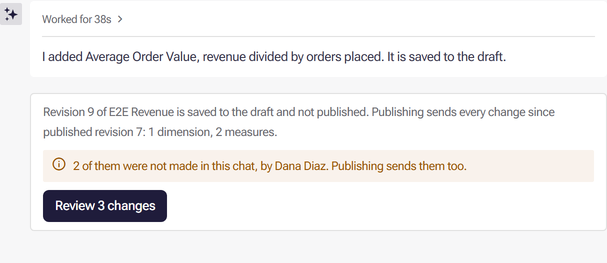
If any of those changes were not made in this chat — by a colleague, in the editor, or in another Nash conversation, even your own — the card says how many and who made them. You then choose Review N changes to see the full list, and Publish all N changes to publish. Cancel leaves everything unpublished. When every change came from this chat, a single Publish publishes it.
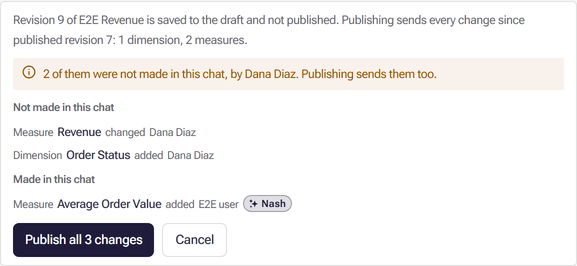
The card publishes exactly what it showed. If the layer changes in the meantime, publishing stops and asks you to open the semantic layer and publish its latest version from there.
Include a published layer in an ASTX workbook export
Section titled “Include a published layer in an ASTX workbook export”When ASTX 3.0 export is enabled, a workbook using this editor’s semantic layer includes its latest published document and the model compiled from that document. Changes saved after that publication remain in the draft and are excluded from the export.
If the layer has no recorded publication in this editor, the export includes the live model currently used by the workbook as a legacy model. Opening the layer in this editor does not require you to publish before exporting. Publish when you want your saved changes included. Export requires read access to the layer.
Import the workbook to create a new layer on a target connection, or optionally reuse a compatible existing layer. A new layer retains the published SLE document, including its business questions, and starts its own version history. Reuse leaves the existing layer’s document and history unchanged.
Choose when publishing happens
Section titled “Choose when publishing happens”Next to Publish is a dropdown with three choices:
- Manual — never publish automatically. You decide when. This is the default.
- Delayed — publish after 30 seconds without changes. Publishes once you’ve paused.
- Instant — publish after every saved change. Every saved edit goes straight out.
Your choice is remembered in your browser.

If the layer still has its generated Untitled name, publishing asks you to name it first. A name can’t be Untitled or begin with that word. If you cancel while Delayed or Instant is on, automatic publishing pauses until you press Publish, and the dropdown says so, for example Delayed (paused).
Tip: stay on Manual for a semantic layer other people depend on. It lets you make a series of related changes and release them as one coherent update, instead of pushing half-finished work to everyone downstream. Reach for Instant when you’re experimenting on your own and want to see the effect in a workbook immediately.
When Publish is greyed out
Section titled “When Publish is greyed out”Next to Publish you’ll see Issues with a count. These are problems the editor has found in your semantic layer. While any validation issue is unresolved, Publish is unavailable and carries a warning marker. Some findings are listed without blocking publishing: a warning on a business question, which is about how that question runs rather than the model you publish; a source check that failed or could not verify an object; a datatype or rename change the database reported, which is offered as a suggested fix rather than applied; and changes reported on an imported Snowflake or Databricks view.
A table or column your database confirms is missing is different. It is marked missing in the model, every definition that reads it then fails validation, and publishing is blocked until you repair them — see When your database schema changes.
This is on purpose. Publishing pushes your model to everyone using it, so the editor won’t release one it knows is broken.
Hover the greyed-out Publish and it tells you exactly what’s holding it up — for example Resolve 7 semantic-layer validation issues before publishing.

- Select Issues to see the list. Its first line says how many issues Publish is waiting on, and each of those rows is marked Blocks publishing.
- Work through them.
- Return to Publish — it becomes available again once they’re cleared.
Your work is saved the whole time. A blocked publish never costs you anything; it just waits.
If a publish doesn’t go through
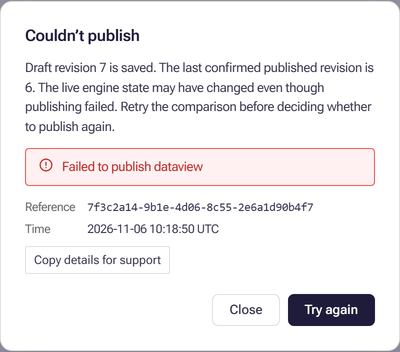
Section titled “If a publish doesn’t go through”Occasionally a publish fails — a connection drops, or something changed underneath you. The editor tells you, and offers to try again. Your changes stay saved in the draft throughout, so nothing is lost while you sort it out.
The Couldn’t publish dialog shows the underlying message, a reference and the time, and Copy details for support copies them for a support request.
If someone changed the live model elsewhere
Section titled “If someone changed the live model elsewhere”Your semantic layer can also be edited outside this editor. When that happens, the editor notices as you open the layer and pauses automatic publishing rather than quietly overwriting that work.
Legacy changes appears beside Versions. Select it to choose whether to bring the changed model in: Import engine version imports it, and Not now declines. When you edit a measure or dimension from a workbook, this choice opens by itself before the editor does, and Not now cancels that edit.
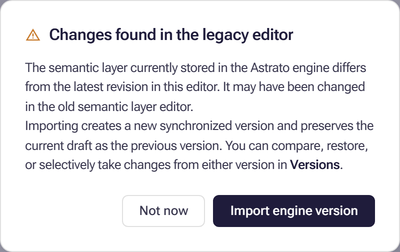
Importing doesn’t overwrite anything. Your existing work is kept as a version, the incoming model becomes the next version, and both sit in Version history for you to compare. Nothing is merged automatically and nothing is lost — you decide what to keep using the normal compare and restore controls. You’ll see the two versions named for you, one either side of the import.
If you decline, both states are kept exactly as they are and automatic publishing stays paused. You can carry on editing, and publish manually once you’ve decided. A manual publish in that state is a deliberate overwrite, so make sure it’s the outcome you want.
You’re most likely to meet this with a semantic layer built in the older editor, the first time you open it here.
If the engine comparison is unavailable
Section titled “If the engine comparison is unavailable”An Engine comparison unavailable notice means the editor cannot verify the live engine model. Your draft is preserved, but automatic publishing is paused. Use Try again to repeat the check.

To deliberately submit a valid draft anyway, select Publish, read the warning, and confirm Publish without comparison. This may overwrite changes made outside this editor. If the draft changes while the confirmation is open, cancel and review it again.
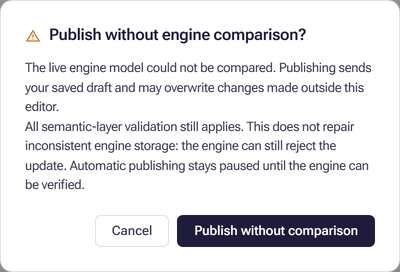
All validation still applies. Fix blocking semantic-layer issues before publishing; this action cannot bypass them. If the engine rejects the update, the draft stays saved and Couldn’t publish provides details for support. The live engine state may have changed even after a failed update, so retry the comparison before deciding to publish again. Automatic publishing resumes only when the engine can be verified.
Next: Learn how to go back to an earlier version if you need to undo something you’ve published.