

Invitation links
As a workspace owner or administrator, open Administration → Invitation Links to manage links that let people join your workspace with a selected role, license team, and groups.
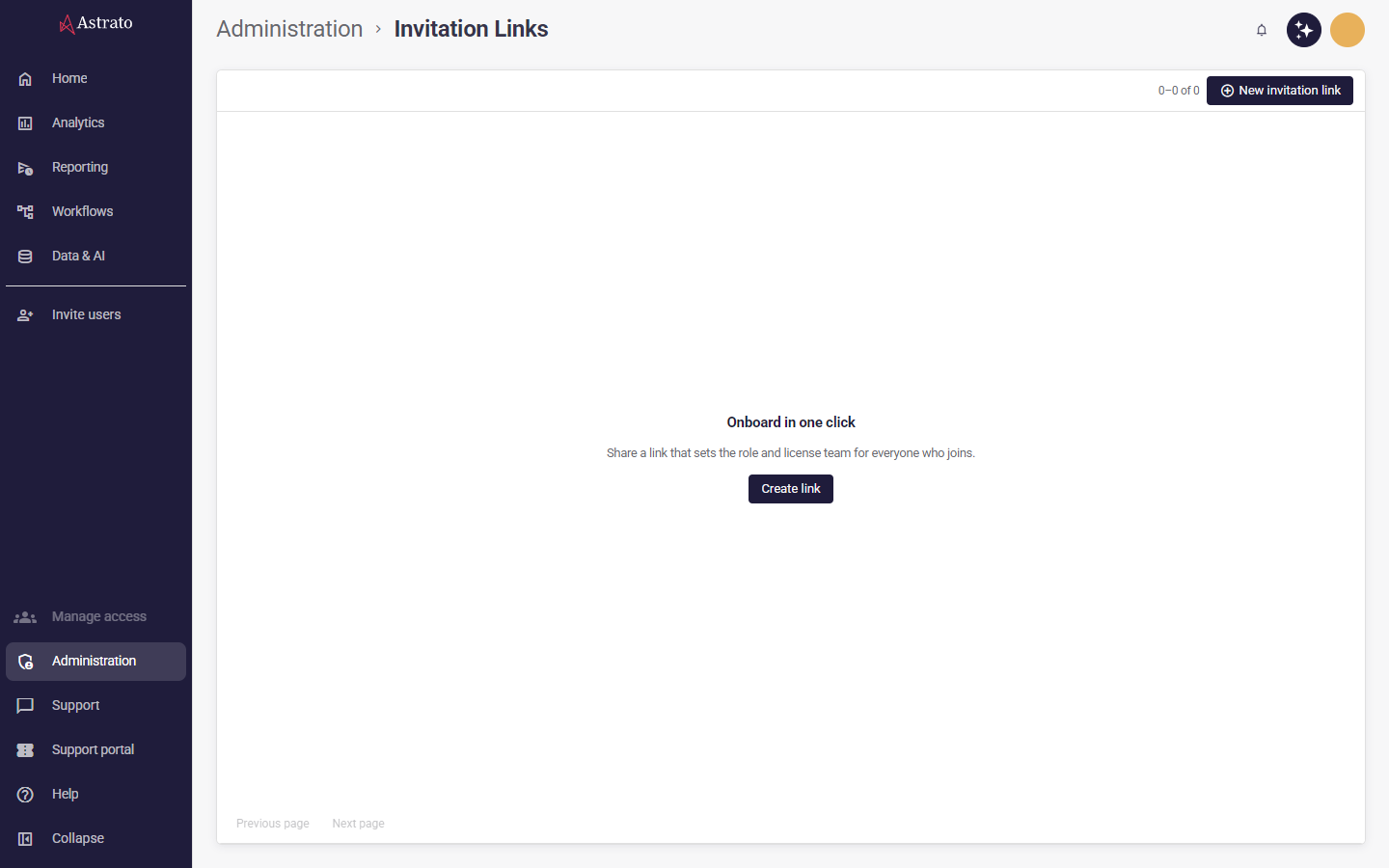
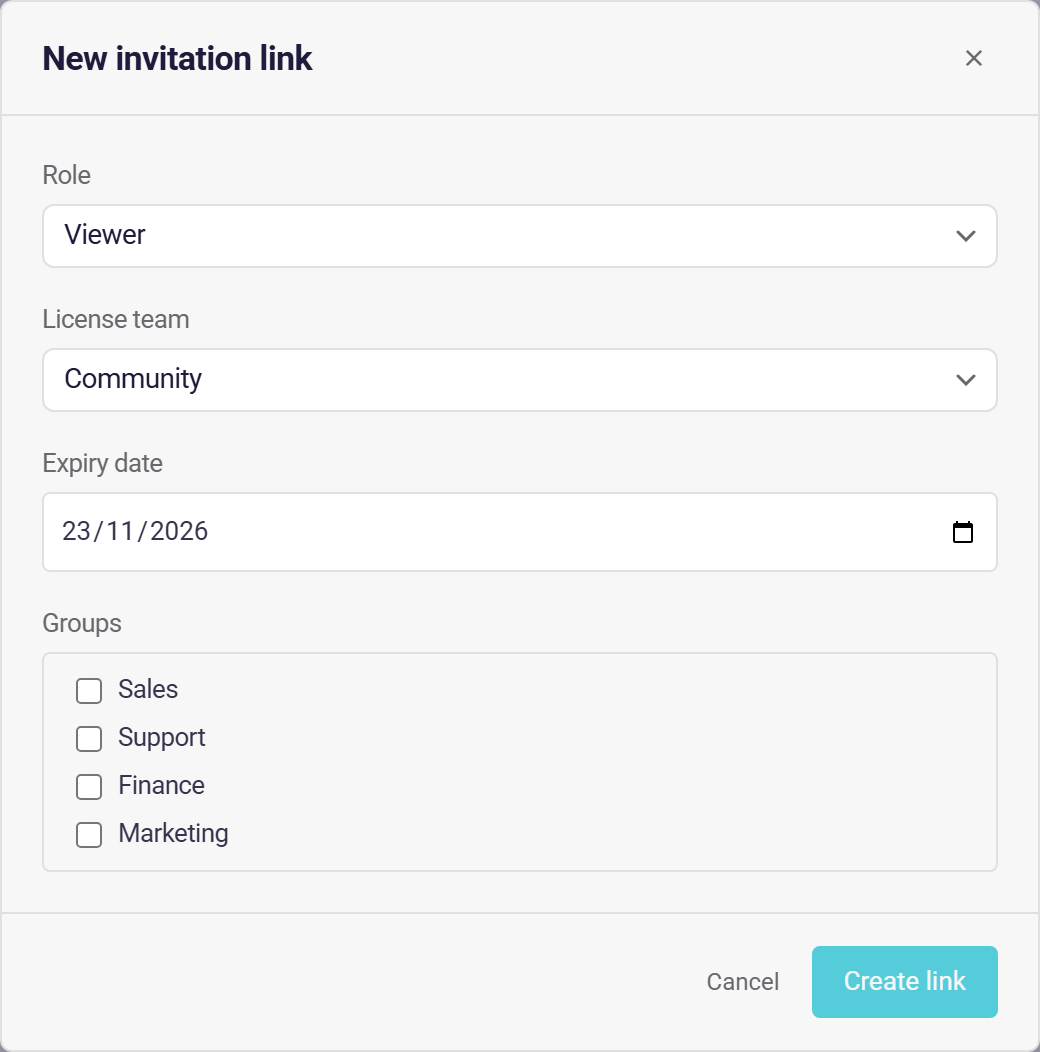
Choose New invitation link, select the role and license team, choose any groups, and enter a future expiry date. A newly chosen date expires at the start of that day (midnight) in your local timezone. After saving, use Copy link to copy the full invitation address.
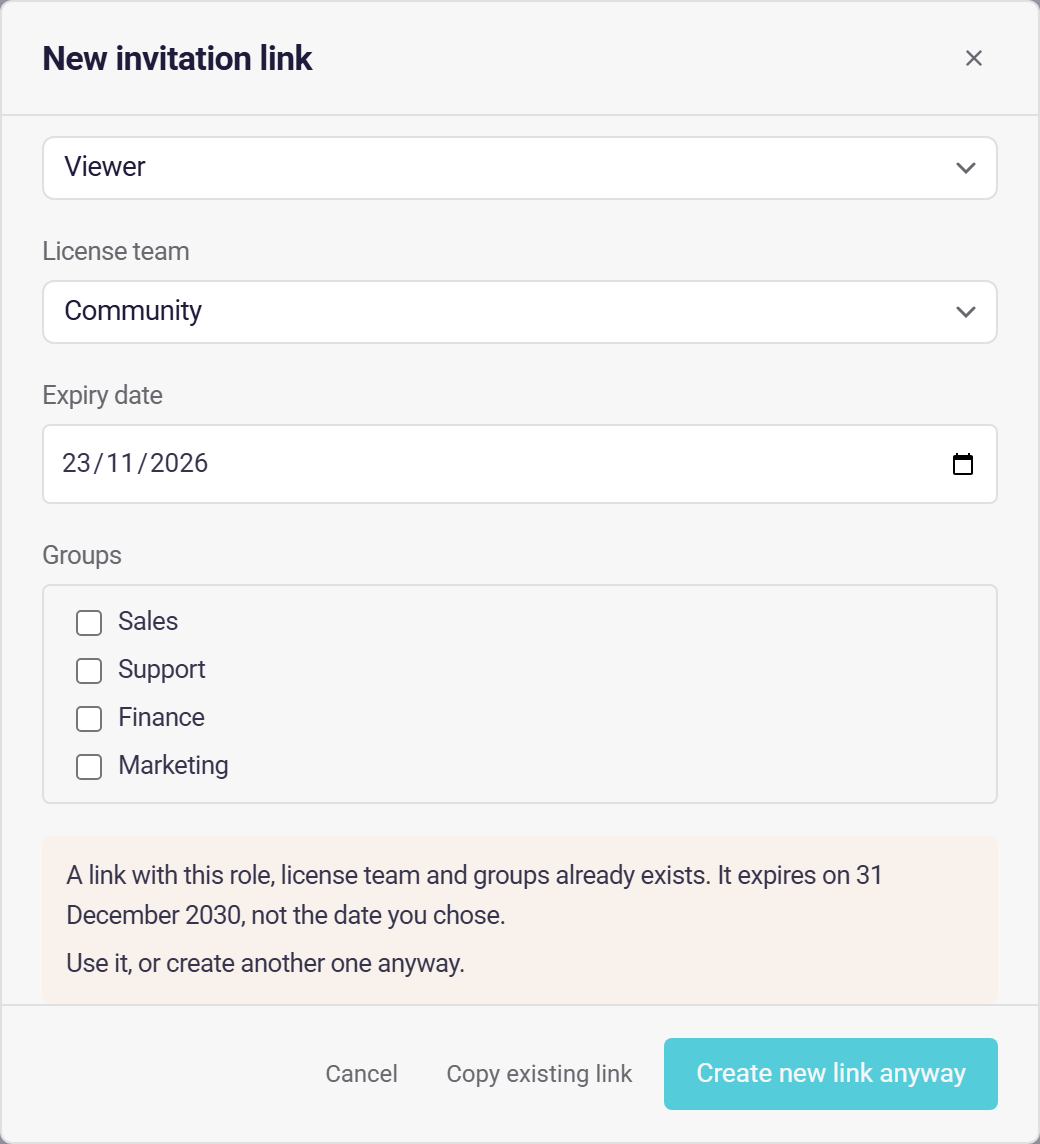
If a link with the same role, license team and groups already exists among the links loaded on the page (the first 100, newest first) and has not expired, the dialog tells you before it saves, and says whether that link expires on a different date from the one you chose. Choose Copy existing link to use it, or Create new link anyway to make another.
Share that address only with the people you want to invite: anyone holding it can use it to join while the invitation is valid.
Use Next page and Previous page to browse the complete list. Select the Role, Expiry date, or Created heading to sort it. Expired invitations are marked in the list. Timestamped expiries show your local calendar day consistently in the list and editor. A person in another timezone may see a different day for the same expiry instant. A date-only expiry keeps its calendar date.
Choose Edit details to change a link’s role, license team, groups, or expiry. Saving keeps the same invitation address, so you do not need to distribute a replacement link. Changing another field preserves the existing expiry. Renew an expired link by choosing a future date.
Choose Delete and confirm to revoke a link. People can no longer join using that address; people who already joined remain in your workspace.
If license teams or groups cannot be loaded, the list remains available, but creation and editing wait until you select Retry and those choices load successfully. Failed saves remain in the dialog so you can review the error and try again. Editing a field clears the previous save error; saving again reports any remaining problem.
In the create and edit dialogs, Tab stays within the dialog. Press Escape to close it and return focus to the control that opened it. Closing is disabled while a save is in progress.