

Embedding and sharing interactive analytics
Building customer-facing analytics from scratch is a quarters-long engineering project: query layer, viz library, multi-tenant security, white-labeling, performance tuning.
Embedding Astrato collapses that to days. Dashboards run natively against your warehouse, so security and tenancy you’ve already configured carry through automatically — no separate identity layer, no extract pipeline, no custom API to maintain.
Introducing Astrato Embeds
Section titled “Introducing Astrato Embeds”The Embed feature in Astrato lets you take content from a published workbook and embed it in other web-based material. The content retains its interactivity and connection to the live source data meaning you have a single source of truth for your analytics wherever they’re used.
Share key live content from the business applications your team uses every day - CRM, HubSpot, Confluence, publicly on your website or in another SaaS product.
⚠ Please note: Some actions are not supported within embedded objects, groups, or sheets. A full list of supported actions can be found here
Quickstart Guide
Section titled “Quickstart Guide”1. Setup (Admin)
-
Turn on External Embed links in Admin settings.
-
Add allowed domains where embeds can be shown (HTTPS only). Wildcards (
*.example.com) work too.
2. Create an Embed Link
-
From a published workbook, right-click the chart/group/sheet you want.
-
Choose type: single object, group, or whole sheet.
-
Pick Restricted (internal) or External (open) view permission.
-
Copy link or Copy embed code for your site.
In the new Lobby, open Administration → Embed Links → Items list to copy an existing link. Each row offers icon buttons with Copy link and Copy code tooltips for its address and an HTML iframe using that address. Both preserve the saved query filter, where present. A checkmark and Copied tooltip confirm clipboard success; if copying is blocked, allow clipboard access for the site and try again. Copying does not change the link’s permissions, expiry or active state. External embedding still requires an enabled workspace setting and an allowed destination domain.
How Astrato Embeds works
Section titled “How Astrato Embeds works”The Embed feature creates a link to the source content you select from a published workbook. You can use the Embed link within an HTML -->
Figure 8: Astrato Embed filter source data
You can append a filter to a link by adding the filter query to your URL. The filters added to the link are structured as follows:
#queryFilter=Schema/Table/Field in ('value')"So, for example:
#queryFilter=Sales/Territory/Country in ('United States')"This filter query applies a filter on the United States in the Country field from the Territory table in the Sales schema.
The second example shows how to pass selections in multiple fields:
#queryFilter=Default/Territory/'Sales Country' in ('Australia', 'Canada') and Default/'Product Category'/'Product Category' in ('Bikes')*Custom Data fields and Inline Table fields aren’t supported for filtering in embed URL
🔒 Extending Security
Section titled “🔒 Extending Security”For added security, duplicate your embed filter field and hash the value. This way, the value of the field is not revealed to the view, providing an added layer of security. If filters are removed, all data will be visible
Passing variables value in the embed link
Section titled “Passing variables value in the embed link”An embed link can include values for variables defined in the workbook.
This can be used to control the display of the content by showing and hiding objects, setting the titles of objects, showing different languages for different users, and more.
You can append a variable value to a link by adding the variable tag to your URL. The variables added to the link are structured as follows:
#variable=variable_name:my nameFor example:
#variable=vTop:10&variable=vIsMale:false&variable=vText:This is a nice appThis example sets the values for different variable types:
vTop a numeric variable, vIsMale a boolean variable, and vText a string variable
The example below combines passing a variable value and applying a filter on a field.
#variable=vTop:10&queryFilter=Default/Territory/'Sales Country' in ('Australia', 'Canada')Adding a Refresh parameter to your Embed link
Section titled “Adding a Refresh parameter to your Embed link”At the end of your Embed link, add the code:
[Embed link]#refreshData=60In this example, the chart data refreshes every 60 seconds.
Back to Top
Return single object from embed
Section titled “Return single object from embed”Individual objects from embeds can be presented by calling the URL with the given object ID. An example of how to call an individual object from an embed, is shown below.
ℹ️ If using “scoped variables” and passing variable values over URL parameter, the scoped variables for the object specified in the URL parameter will also be set.
https://app.astrato.io/embed/<embed-id>?objectId=<object-id>
Managing Embed links
Section titled “Managing Embed links”Viewing and Sorting Embed links
Section titled “Viewing and Sorting Embed links”Administrators can see all Embed links; however, users with a Creator role can only see the Embed links they’ve made.
There are detailed sorting and searching options to help you manage your Embedded links.
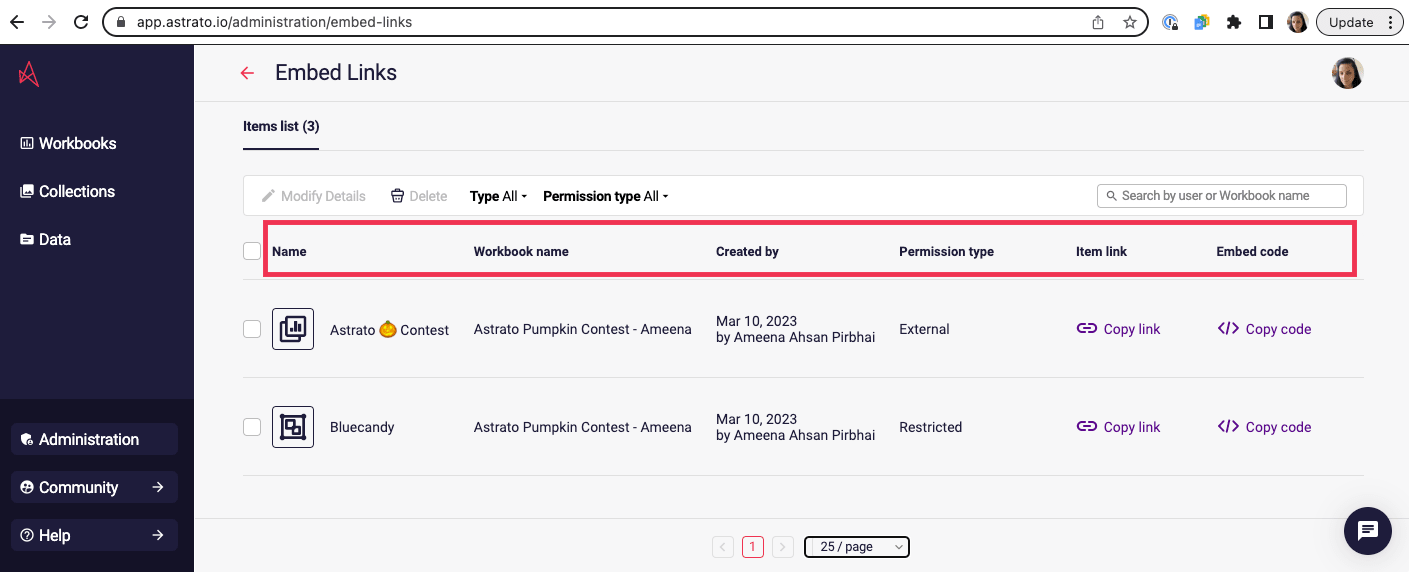
From the Items list tab, the options are:
-
Name (Embed link), with the icon showing the type of link (object, group, sheet)
-
Workbook name
-
Created by
-
Permission type (External or Restricted)
-
Item link
-
Embed code
The icon beside the link name is linked to the type of object the link is for:
 | The chart icon indicates the Embed link is for a single object. |
 | Two squares inside a box indicate the Embed link is for a group. |
 | The icon showing a chart with a layer indicates the Embed link is for the whole sheet. |
Amending Embed link permissions
Section titled “Amending Embed link permissions”Users can change a link’s view permissions from Restricted to External or vice versa.
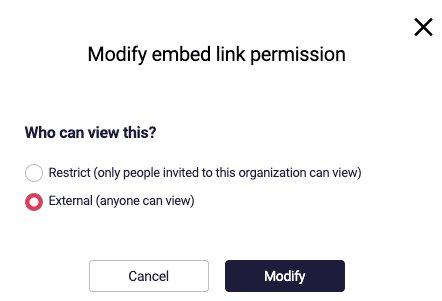
To modify an Embed link’s permissions:
-
Click the box beside the links you want to change.
-
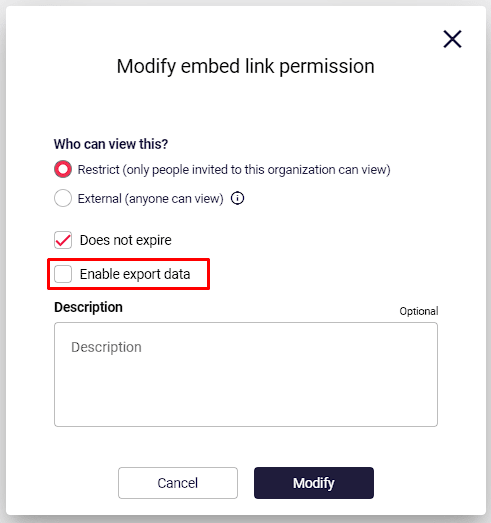
The ‘modify embed link permission’ dialogue displays. With the question, ‘Who can view this?’
-
Select the option you want, Restrict or External.
-
Click Modify to amend permission or Cancel if you don’t want to make the change.
Back to Top
Exporting from embeds
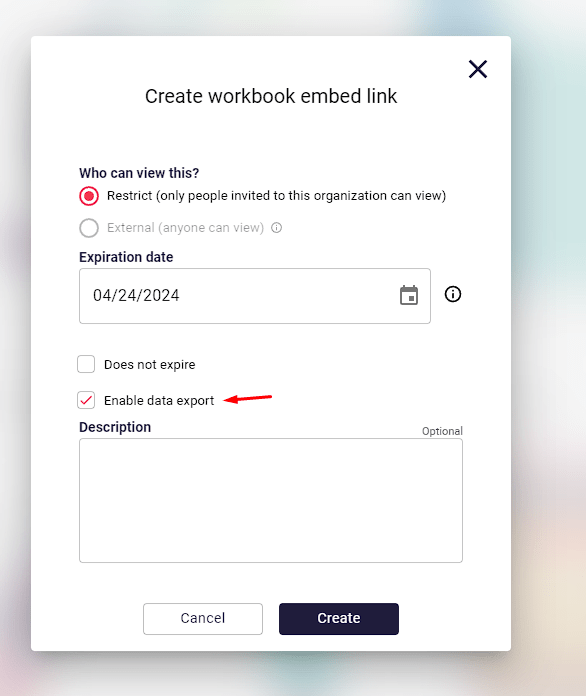
Section titled “Exporting from embeds”To create a new embed and enable export, be sure to check the Enable data export.
For existing embeds, enable export data. You can view existing embeds here.
First, select the embed link you wish to edit.
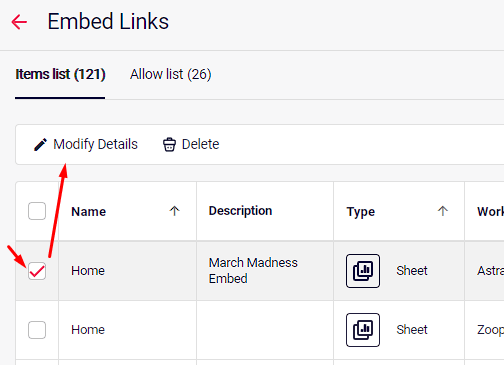
Then modify the embed link as shown below.
Troubleshooting
Section titled “Troubleshooting”Nested iFrames
If nested frame are in use, make sure all URLs loading Astrato’s iFrame are including in the allow list.
Data connections & Data View
For external links, the data connection and data view must be set to “Visible to everyone”, since all users, including anonymous users can have access to the embed, if the link has been shared with them. See full guide here.
Where can I embed an Astrato dashboard?
Anywhere your team works with live data — CRM (Salesforce, HubSpot), wikis (Confluence, Notion), your company website, or another SaaS product. As long as the destination supports an iframe and the domain is on your administrator’s allow list, the embed will render with full interactivity and live connection to your warehouse.
Who can create embed links?
Users with the Creator, Workspace Owner, or Administrator role can create embed links. Administrators control the underlying allow-list of domains and the global toggle for external (public) embeds.
What’s the difference between Restricted and External view permissions? Restricted embeds require the viewer to be a signed-in Astrato user with permission to view the source workbook — use this for internal embeds where the audience is your own team. External embeds are visible to anyone with the link, including users who don’t have an Astrato account — use this for public dashboards or customer-facing content. External embeds require the data connection and data view to be set to “Visible to everyone.”
Can I control what data shows in the embed?
Yes. You can filter the embedded content by passing filter values in the embed link’s URL parameters, and you can pass variable values the same way. This means the same source workbook can power many different filtered embeds — one per customer, region, or context — without building separate workbooks.
Why am I seeing “Domain not added. Please contact your administrator”? Your destination domain isn’t on the administrator’s allow list. Ask your Astrato administrator to add it under Administration → Embed Links → Allow List. Only HTTPS domains are supported, and wildcards (*.example.com) work for adding all subdomains of a domain.