

Working in the Semantic Layer Editor
Your semantic layer is your organisation’s shared data model — the tables, joins, measures and dimensions that every workbook and dashboard is built on. The Semantic Layer Editor is where you shape it.
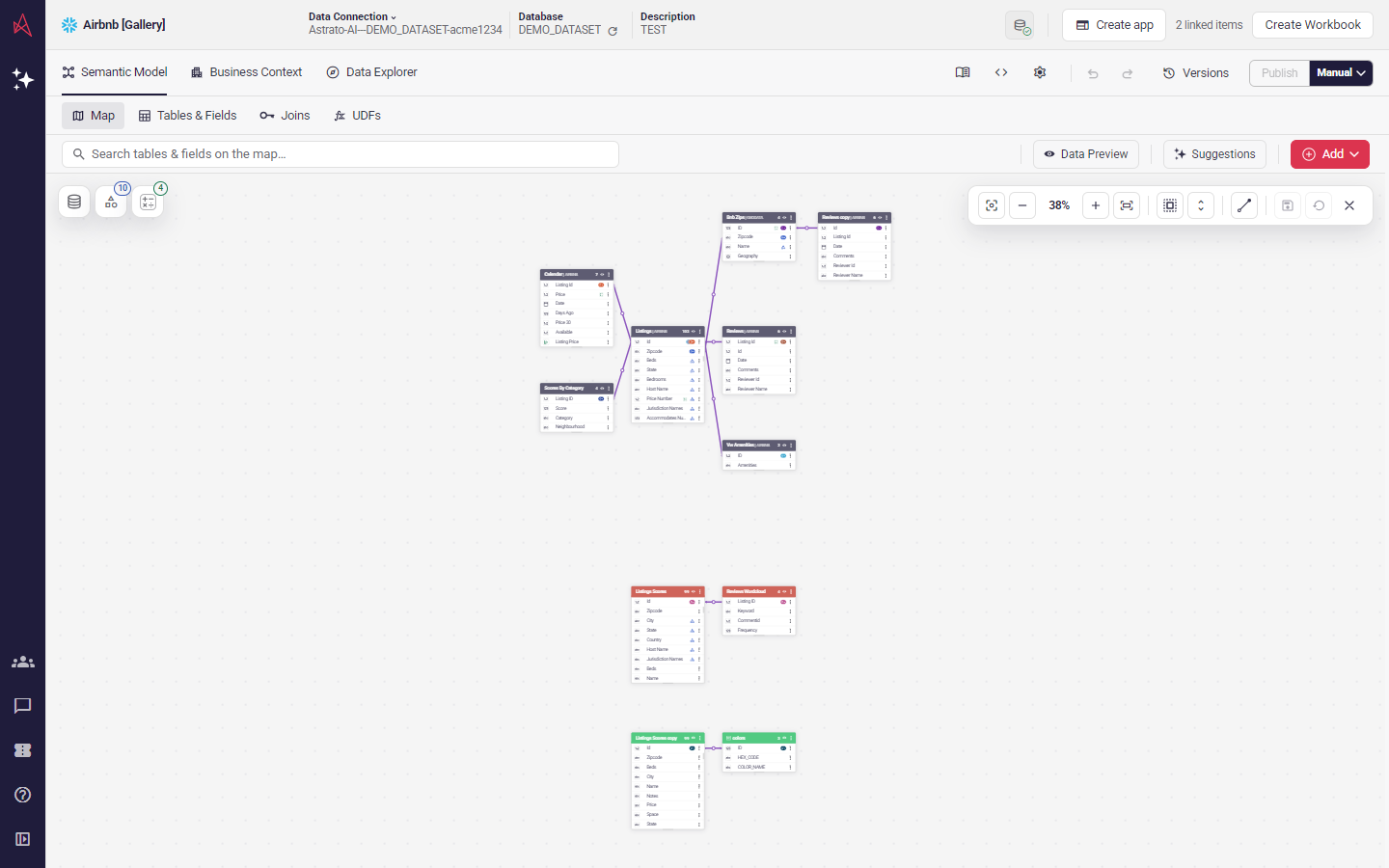
These articles cover working in it day to day: how your changes are saved, how to go back if you change your mind, how to release your work to everyone else, and how to let an AI assistant help.
If you’re setting up a semantic layer for the first time — choosing tables, building joins, creating dimensions and measures — start with Getting started with the Semantic Layer Editor.
The articles in this guide
Section titled “The articles in this guide”Read them in this order:
- Find a semantic layer — search, filter and sort the list in Data & AI, and read what each column is telling you.
- Create a semantic layer — start an empty layer, copy one, or import a Snowflake semantic view or a YAML file from the Create menu.
- How versioning works — your edits save themselves, your history is kept, and publishing is a separate step you choose. The rest of the guide assumes it.
- Go back to an earlier version — compare your model against an earlier version and bring back all of it, or just the parts you want.
- Publish your changes — release your work to everyone, choose when publishing happens, and understand why the button is sometimes greyed out.
- Connect an AI assistant — let ChatGPT, Claude or a coding assistant work with your semantic layer on your behalf.
- When your database schema changes — what happens when a table or column changes underneath your model, and how to repair it.
- Import a Snowflake semantic view — start a semantic layer from a semantic view your team already built in Snowflake, instead of rebuilding it by hand.
Connected workbooks
Section titled “Connected workbooks”The editor header shows how many workbooks are connected to the current semantic layer. While the list loads, it shows Loading connected workbooks…. If the list cannot be loaded, choose Retry to try again. A failed request does not mean there are no connected workbooks; a zero count appears only after an empty list is loaded successfully.
Hover over the linked-items count to open the list, then move into it and choose Open workbook beside a workbook.
When you open the editor from a workbook, Back to Workbook returns to that workbook and sheet, even if the connected-workbook list cannot be loaded. Opening a semantic layer directly shows Create Workbook instead.
Finding tables in Tables & Views
Section titled “Finding tables in Tables & Views”Select Add in the editor, then choose Tables & Views from the menu. The menu also lists the other ways to bring data and model items in.
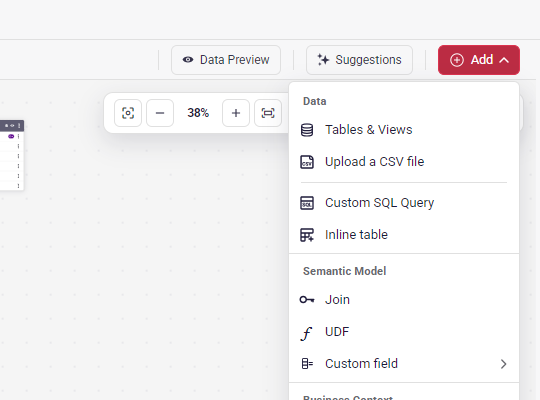
Table names are listed alphabetically within each schema, ignoring letter case. Missing tables stay in that order with their strikethrough styling. Searching or reopening a schema keeps the same ordering.
A connection’s table list can leave out a table that exists. When you search for a table’s exact name and an open schema has no table by that name, Tables & Views and the Change source table picker offer Look up “name” in schema. Choosing it reads that one table from the connection; if it exists it joins the list, marked Not listed, and you can add it or switch to it like any other table. A table this model already reads keeps its row, marked the same way, when the table list leaves it out and the source check has not found it missing; its tooltip says it has not been checked yet. If the lookup cannot find the table, it says so, and names the table’s listed spelling when the list holds it in another letter case.
The search box finds schemas, and tables only inside schemas you have opened; when nothing matches it says so and suggests opening the schema or searching for it. On a connection with several databases, the database you are browsing sits beside the Tables & Views heading. A table’s menu on the map offers Show in Tables & Views to open the list at that table.
What uses a field
Section titled “What uses a field”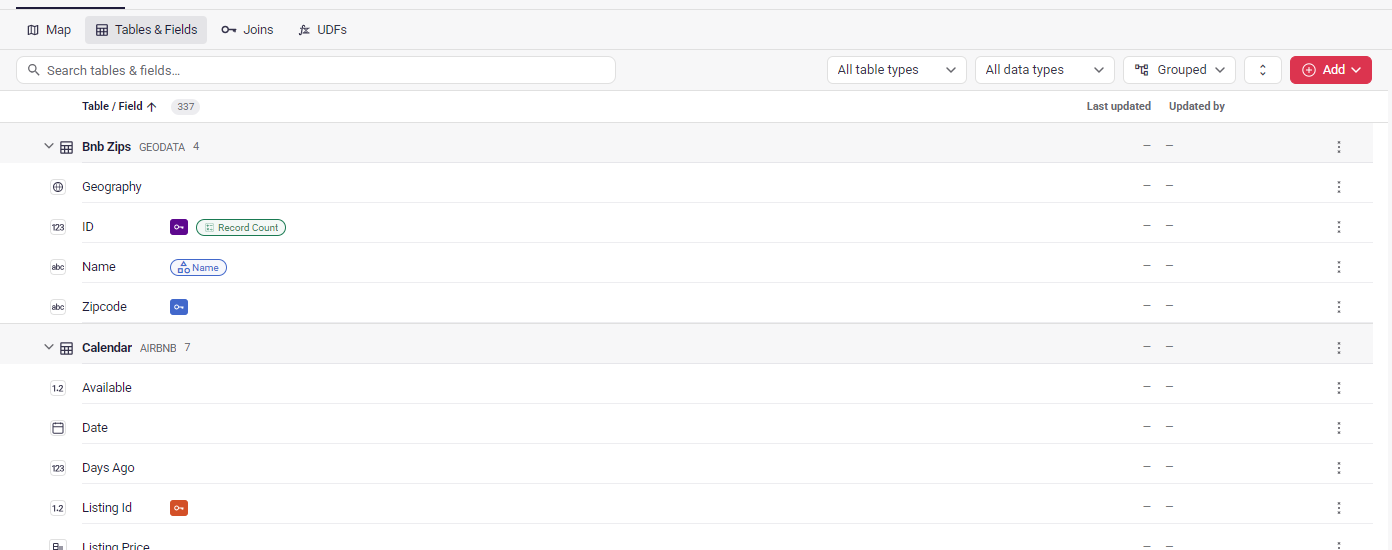
A field’s Used in lists the dimensions, measures and joins that read it directly. Under Also affected if this field changes, it also lists what depends on it through them — business questions, table pre-filters, datasets and set filters — the same list the Remove dialog shows. Its heading counts these as +N more.
In the lists, Last updated and Updated by show a dash for an item with no change of its own: a field whose table changed, or an item unchanged since the first version. Hover the dash to read which it is. Sorted by either of those columns, the list shows the borrowed date or name in italics, so the order stays readable.
Finding a dimension on the map
Section titled “Finding a dimension on the map”In Business Context → Dimensions, choose Show on map on a dimension’s row to open the map and its Dimensions browser, select the dimension, and highlight its referenced fields. Repeating the action for the same dimension clears the highlights.
Applying join suggestions
Section titled “Applying join suggestions”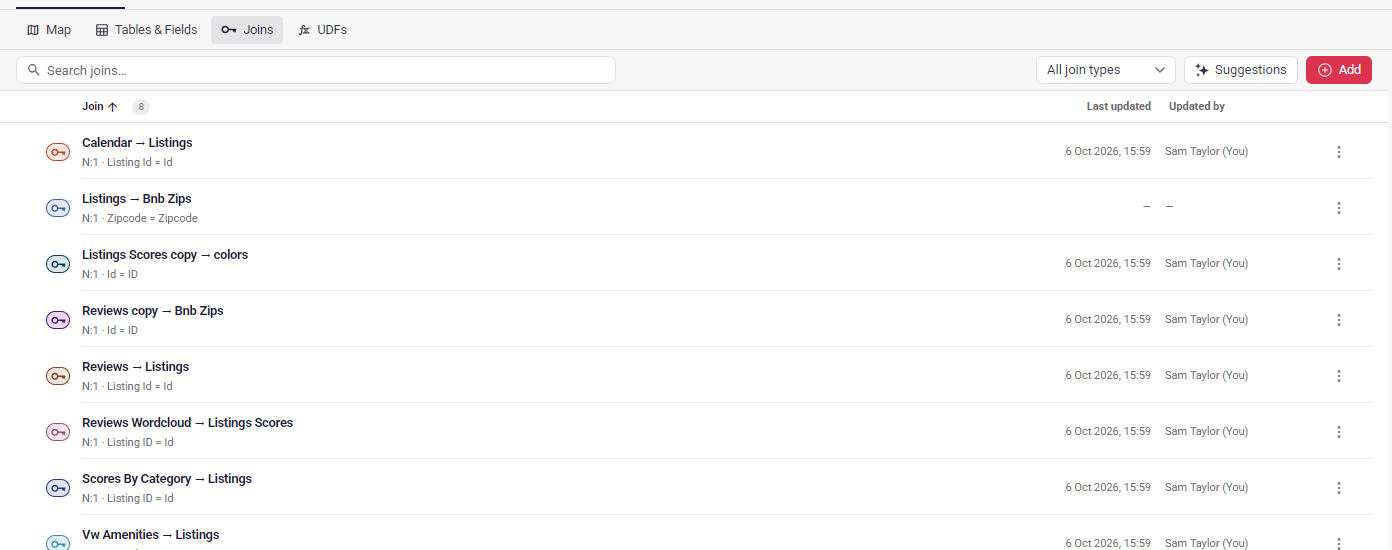
Accepting a join suggestion with Create join or Create all updates your working copy. Applying suggestions does not itself publish the semantic layer. Review the joins before publishing your changes through your chosen publication settings.
When connected-data analysis is available, suggestions use the current saved draft, including unpublished tables and joins. If the draft changes during analysis, run the analysis again. A failed analysis shows an error instead of using a previously published model. If connected-data analysis is unavailable for your session or your connection has no eligible exit node, suggestions use model metadata only. This applies to saved drafts as well as unsaved changes.
Opening Suggestions reuses connected-data analysis already loaded for the same saved draft. Adding tables can show suggestions on the map first; the panel shows candidates for the whole model from that analysis. Changing the draft requires new analysis. If you remove an accepted join, a later analysis can suggest it again.
Agents using astrato_semantic_layer_suggest_joins receive the same connected-data suggestions
when enabled and supported, including measured join quality when available. Otherwise, candidates
use field names and data types; their confidence describes metadata evidence.
Connected-data suggestions include the quality measured during analysis when supported by your environment. All rows match means the target key is unique and every source row matches. Partial match identifies a unique target key with some unmatched or null source keys; the explanation includes those counts. Candidates that fail the engine’s quality checks are excluded. Show quality controls the colored indicators without repeating analysis when its result is already available. An unavailable result remains unknown; it is not a confidence percentage. In a saved join’s properties, Show quality analyzes all its predicates together, including compound keys, and reports matching rows, null keys and orphan rows. Connected-data quality is unavailable when your connection has no eligible exit node.
Exploring an unpublished draft
Section titled “Exploring an unpublished draft”Where your connection supports it, Data Explorer uses the current saved draft. You can query new tables, joins and measures before publishing. Its field catalog and queries use the same saved revision. If the draft changes during a query, reload the catalog and run the query again.
Without an eligible exit node, Data Explorer continues to use the published model.
Data Explorer is blocked while the semantic layer has blocking validation issues, even when the fields you want to query are unaffected. A notice replaces the query workspace and lists the issues. Select an issue to open its editor, fix it, and return to Data Explorer. In standalone Data Explorer, use Open semantic layer to review issues; authors with edit access can make the repairs. Reloading does not resolve invalid references. Data Explorer does not remove broken elements or fall back to an older published model to bypass validation.
Exploring a draft does not publish it or change the model used by connected workbooks.
When the query tools advertise draft, agents can send { revision, headToken } from the saved
layer to astrato_data_prepare_query. A supported response returns draft; repeat it unchanged
for astrato_data_execute_query or astrato_semantic_layer_execute_question, including previews
and subsequent pages. If preparation returns draftUnavailable, its catalog describes the
published model. Omit draft to query that model. Explicit draft execution fails if the draft
changes or the connection loses support; it never switches models silently.
Checking measure compatibility
Section titled “Checking measure compatibility”When your data connection supports it, the measure editor checks which views can supply
the fields used together inside each aggregation. For example,
SUM(PARTSUPP.PS_SUPPLYCOST * LINEITEM.L_QUANTITY) needs a common row source for both fields.
The editor shows compatible views or explains why the calculation cannot be connected.
An incompatible calculation must be corrected before saving.
It checks the model’s relationships; it does not inspect warehouse data or prove that join keys are unique. Unsupported data sources, including legacy Google Sheets connections, show that compatibility analysis is unavailable. If draft validation errors prevent analysis, the editor explains that compatibility cannot be checked. You can still save a valid individual repair while other draft errors remain.
The words you’ll see
Section titled “The words you’ll see”Semantic layer — your organisation’s shared data model. One semantic layer can power many workbooks.
Working copy — your own in-progress version of the model. It’s saved as you go, and nobody else sees it until you publish.
Revision — every saved change, numbered in order. You’ll see these as Rev 0, Rev 1 and so on.
Version — a full snapshot you can return to. Some are taken automatically, and you can name your own.
Publish — sending your work to the live model, so workbooks and dashboards pick it up.
Issues — problems the editor has found in your model. While any validation issue is unresolved, you can’t publish; source-check findings don’t block it.
The one thing to remember: saving and publishing are not the same. Your work is safe in the editor long before anyone else sees it, and nothing reaches your workbooks until you publish.
Where to go next
Section titled “Where to go next”If the application reports an available update, see Reload when an application update is available for how to reload or dismiss the notification.
If you’re about to make a big change to a model other people rely on, read How versioning works first — particularly the part about naming a version before you start. It’s the difference between a confident change and a nervous one.
Repair an engine file that cannot be imported
Section titled “Repair an engine file that cannot be imported”Inline tables can include calculated fields alongside their stored columns. Importing and exporting a layer preserves those expressions and their metadata without adding columns to the inline data. Calculated fields appear in the normal field list and can be edited there. The expression must still be valid for the data it reads; importing it does not prove that it will run successfully.
While calculated fields are present, the inline data grid allows cell edits and new columns at the end. To remove, reorder or rename existing columns, remove the calculated fields first and recreate their expressions against the updated column positions. This prevents an existing expression from silently reading a different column.
If an existing layer cannot be converted, recovery mode opens its original engine semantic file instead of the visual editor. The error names the failing definition where possible. No definitions are removed to make the layer load.
Edit the JSON or YAML in Original engine semantic file. Download original saves the preserved source; Download edits saves your current changes. Fix the reported conversion error, then choose Validate and create draft. Further errors may appear as you repair the file.
The editor scrolls through the complete source. Errors appear once in the Issues panel on the right. Use Go to definition when the importer identifies a definition, or Go to error when a syntax error has a precise location. Only located syntax errors are underlined; conversion errors do not mark the entire file as invalid.
Successful conversion creates a new draft and keeps the original in version history. Review the normal validation issues before publishing. Recovery does not publish or change the existing engine layer. If saving fails, your edits remain available in the recovery editor.