

How versioning works in the semantic layer
Your semantic layer is shared. The measures, dimensions and joins in it feed every workbook built on top, so editing it can feel riskier than editing something of your own — one wrong move and you’ve changed what a room full of people are looking at.
Versioning is what takes that risk out. As you work, the editor keeps a history of your semantic layer: what changed, when, and who changed it. You can look back at any point in that history, compare it against what you have now, and bring back all of it or just the part you want. Nothing you do reaches your workbooks until you choose to publish.
So you’re free to try things. Make a change, see exactly what it affected, keep it or undo it — none of it visible to anyone downstream while you work.
You’ll find that history behind Versions in the editor toolbar, sitting right next to Publish. Each item’s own panel also shows that item’s history in its footer, for example Measure history.

Your edits save themselves
Section titled “Your edits save themselves”There’s no Save button, and you don’t need one. Every change you make is written to your draft automatically.
What counts as a change is worth knowing, though. Typing in a property panel doesn’t save anything on its own — your input sits there until you select Update. Until you do, you can close the panel and nothing has changed.
If you make a flurry of quick edits, they’re grouped into a single revision rather than dozens of tiny ones, so your history stays readable.
You’ll see Saving draft… while a save is on its way, and nothing once it has landed. A browser-local layer shows Saved locally instead.
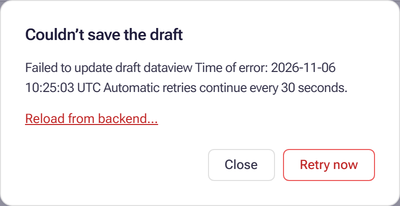
If a save fails: your changes aren’t lost. The editor keeps the full set of changes and retries shortly, and any new edit you make triggers another attempt straight away. You’ll see Save failed — retrying in the toolbar while that’s happening. If the connection to Astrato is lost you’ll see Offline instead: your edits stay in this browser, the editor tries to reconnect every 30 seconds, and it checks for remote changes before saving resumes. If the draft changed remotely you’ll see Review remote changes, and saving pauses until that’s resolved.

Select it for Couldn’t save the draft, which says what went wrong and offers Retry now.
Saving is not publishing
Section titled “Saving is not publishing”Saving keeps your work in the editor. Publishing pushes it to the live model, which is what your workbooks and dashboards read.
Until you publish, your changes stay in the draft, and your workbooks and dashboards carry on reading the last published version. The draft is shared: anyone else who can edit this layer sees your saved changes and can edit the same draft.
The Publish button in the toolbar is your signal: it’s available whenever there’s something waiting to go out.

You choose how publishing happens:
- Manual — never publish automatically. You press Publish when you’re ready. This is the default.
- Delayed — publish after 30 seconds without changes. Publishes once you’ve stopped editing for a moment.
- Instant — publish after every saved change. Every saved edit goes straight out.
Your choice is remembered in your browser, and new browsers start on manual.

Tip: manual mode is the safe default for shared semantic layers. It lets you make a series of related changes and publish them as one coherent update, rather than pushing half-finished work to everyone editing workbooks downstream.
Publish stays available whenever there’s something to publish — unsaved changes, saved changes newer than what’s live, or a previous publish that failed. If you try to close the tab with changes that haven’t reached the live model, your browser will ask you to confirm.
When publishing is blocked
Section titled “When publishing is blocked”Next to Publish you’ll see Issues with a count. These are problems the editor has found in your semantic layer, and while any validation issue is unresolved, Publish is greyed out with a warning marker over it. Not every finding in that count holds Publish back — see When Publish is greyed out for the ones that don’t.
This is deliberate. Publishing sends your model to everyone using it downstream, so the editor won’t let a known-broken model out.
Hover the greyed-out Publish and it tells you exactly what’s holding it up — for example Resolve 7 semantic-layer validation issues before publishing.

Select Issues to see the list and work through them. Once they’re resolved, Publish becomes available again. Your work is saved throughout — a blocked publish never costs you anything.
Revisions and versions
Section titled “Revisions and versions”Two words that sound alike and mean different things:
- A revision is every saved change, one after another. This is the fine-grained trail of your editing.
- A version is a full snapshot you can reliably come back to. These are the durable points in your history.
Versions are created when:
- you first open a draft
- you name one yourself, with Name version
- a publish succeeds
- the editor takes one automatically from time to time
Worth knowing: every version stores a full snapshot and stays restorable, including the ones the editor takes by itself. It’s the individual revisions a version bundles that are best-effort — see When a version isn’t available. If you’re about to make a change you might want to undo, name a version first — not for durability, but to leave a point you’ll recognise later.
Version history
Section titled “Version history”Open Versions and the Version history panel appears on the right.
Versions are grouped by day, newest first: Today, Yesterday, the weekday for the rest of the past week, and the date for anything older. Each one shows the time it was taken, its revision number and who made the change, and a line on what it changed, when the history records that — or No contributor for one the editor took by itself.
A card that ends at the revision you’re on is badged Current version. The top card is normally your live draft rather than a stored version — it’s titled Current draft, and its ⋮ menu offers neither Compare nor Restore version. The very first stored version is called Initial version.
A version that bundles several revisions has an arrow beside its ⋮ menu; it lists those revisions underneath. Each card can be reached with the keyboard: Tab to it and press Enter to compare.
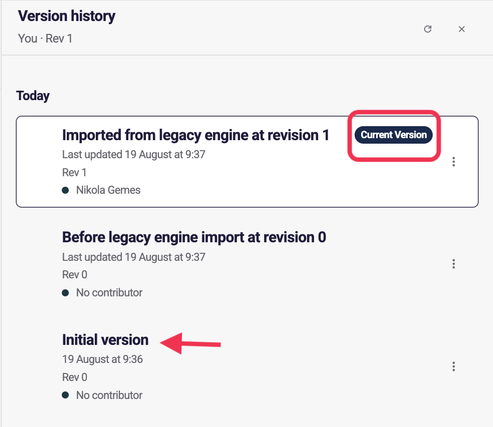
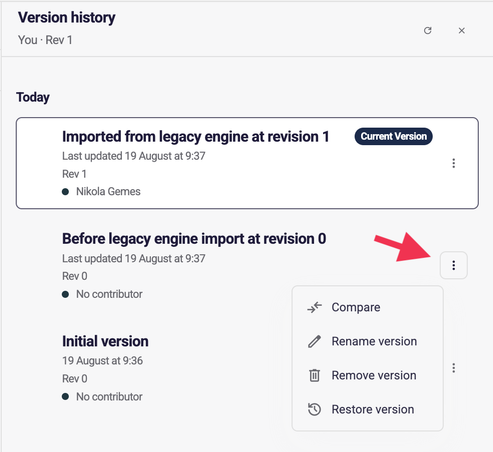
Open the ⋮ menu on a version. What you’re offered depends on which version it is:
- Compare — see that version against the one you have now.
- Restore version — go back to it.
- Name version, or Rename version if it already has one — give it a label you’ll recognise later.
- Remove version — take it out of the history. It sits last, below a divider.
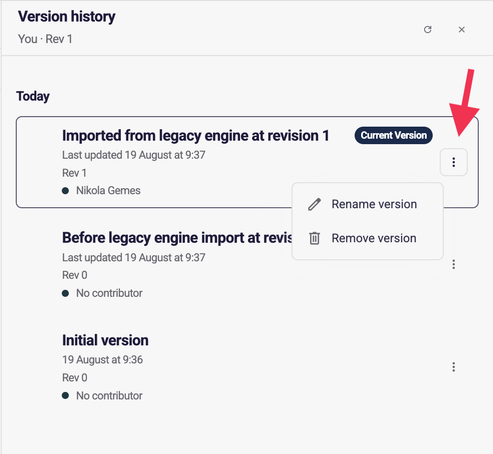
The version you’re working on can’t be compared or restored against itself, so it offers only renaming and removal.
Some versions are named for you. Importing a model from the legacy editor, for example, leaves one version either side of the import so you can see exactly what it changed.
Removing isn’t undoing. Removing a version deletes that restore point from your history. It doesn’t change your model — but it does mean you can no longer go back to that moment.
Compare two versions
Section titled “Compare two versions”Compare opens the two versions side by side, with a count of what changed between them — for example 2 changes. Changes are sorted into tabs (Tables, Fields, Joins, Dimensions, Measures, Settings and so on); only the kinds that changed get a tab. Each entry names what was affected and how many properties changed.
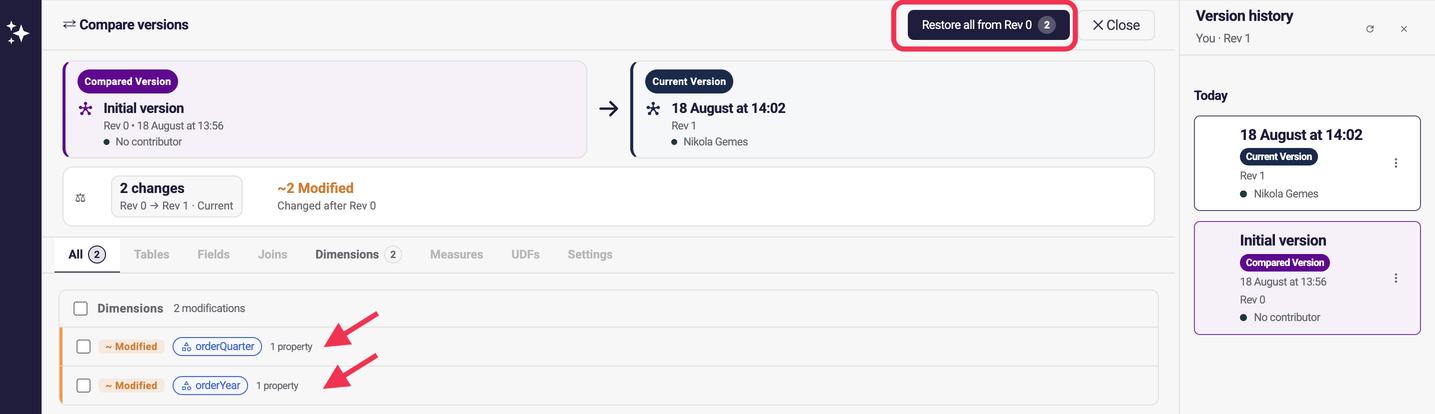
From here you can take back everything at once with Restore all from Rev 0, or tick just the changes you want and restore only those. You don’t have to take all of it.
After a restore, the comparison’s header says what was restored and that Ctrl+Z steps back.
Restore a version
Section titled “Restore a version”Restoring asks you to confirm first — Restore this version?, telling you the date you’re reverting to. Nothing changes until you select Restore.
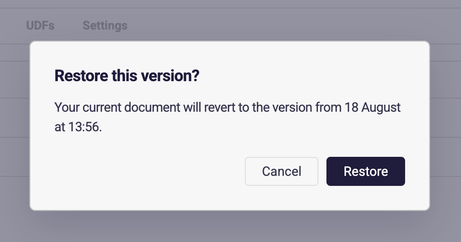
Restoring doesn’t publish on its own. A restore is a saved change to the draft like any other, so what happens next follows your publishing mode: on Manual the restored draft waits for you to select Publish, while Delayed and Instant publish it automatically unless a validation issue blocks it or the engine comparison is unavailable. See Choose when publishing happens.
When a version isn’t available
Section titled “When a version isn’t available”Versions stay restorable — the initial one, the ones you name, the one a publish records, and the ones the editor takes by itself. What can go is an individual in-between revision: once a version covers it and it’s more than a week old, the detail behind it is tidied away.
When that happens the editor tells you instead of guessing. It won’t reconstruct a point it isn’t certain about, because a semantic layer that’s almost right is worse than one that’s honestly unavailable.
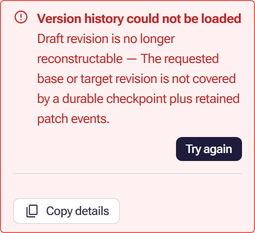
Note: version history is available for semantic layers connected to Astrato. It isn’t available for browser-local layers, which don’t publish either.
Open the layer in the old editor
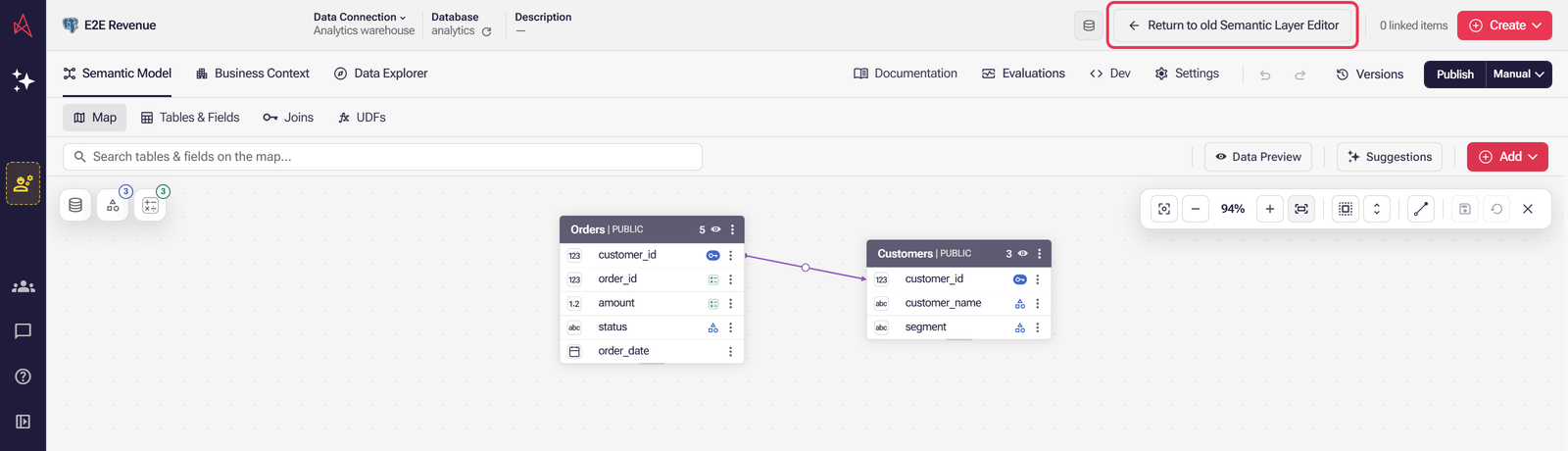
Section titled “Open the layer in the old editor”Return to old Semantic Layer Editor in the editor header opens the current layer in the old editor in a new tab. It appears only for a layer that also exists in the old editor, and is hidden where your workspace requires the new Semantic Layer Editor. In a narrower window it shows only its arrow.
If the live model changed somewhere else
Section titled “If the live model changed somewhere else”If the live model was edited outside the editor — for example in the legacy editor — the editor notices when you open the layer, and pauses automatic publishing rather than quietly overwriting that work.
Legacy changes appears beside Versions. Select it to choose whether to import the changed model. When you edit a measure or dimension from a workbook, this choice opens by itself before the editor does, and declining cancels that edit.
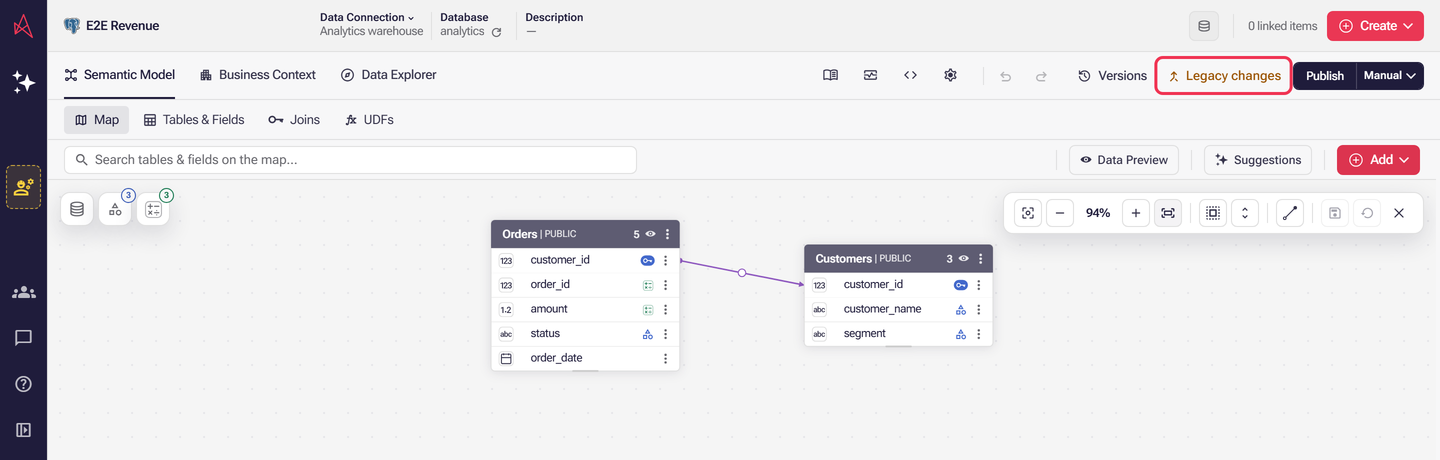
If you decline, both states are preserved and automatic publishing stays paused. You can still edit your draft throughout, and a manual Publish remains available as a deliberate overwrite.
If the check can’t complete, the editor says so and offers a retry — an unavailable check isn’t treated as evidence that someone changed something.
Good habits when editing a semantic layer
Section titled “Good habits when editing a semantic layer”- Name a version before a risky change. Restructuring joins, renaming measures, bulk edits.
- Stay on manual publishing for shared layers, and publish when a set of changes is complete.
- Check what’s unpublished before you finish for the day.
Data Apps have their own versions. This history covers the semantic layer only. Restoring a layer version does not change any Data App, and publishing the layer again stops every Data App built on it until each one is published again. For a Data App’s source versions, releases and rollback, see Go live: publish, versions and rollback.
Next: Read View and restore a previous version for the panel walkthrough, and Publish your semantic layer for publish modes and what to do when a publish fails.