
Managing Licensing and Usage
Astrato’s License options
Section titled “Astrato’s License options”The License & Usage area of the Administration section allows Owners and Administrators to view their license type and manage time allocation to users and teams. Please see our article on Managing Users and Teams to manage your users and license allocation.
Types of licenses for an Astrato tenant:
-
Seat-based: 30-day free trial
-
Seat-based: 10 or more users
-
Consumption-based: 10 or more users
Please note: Consumption-based licensing is only available to Enterprise-level customers
Contents
Seat-based License management
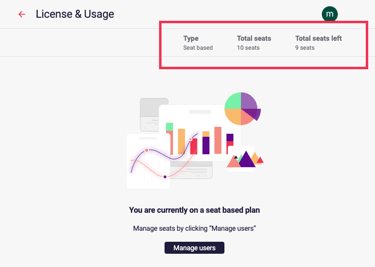
Section titled “Seat-based License management”If you’re using our free trial or aren’t an Enterprise-level, all users have a seat-based license. The details of your license type, total seats, and seats left are visible on the top right of the page.
Clicking the button Manage users opens the Users area, from which to view the list of all users and their account details and make any changes required.
Consumption-based license management
Section titled “Consumption-based license management”Enterprise-level customers can choose to organize their users and assign them to teams, with each assigned the most appropriate licensing model.
Consumption-based licensing usage is measured using credits assigned per user or within a team. A credit block is assigned to each five-minute chunk. You can view usage as credits or by time allocation.
Viewing Team time allocation
Section titled “Viewing Team time allocation”-
Click Administration from the Astrato homepage, and click License & Usage.
-
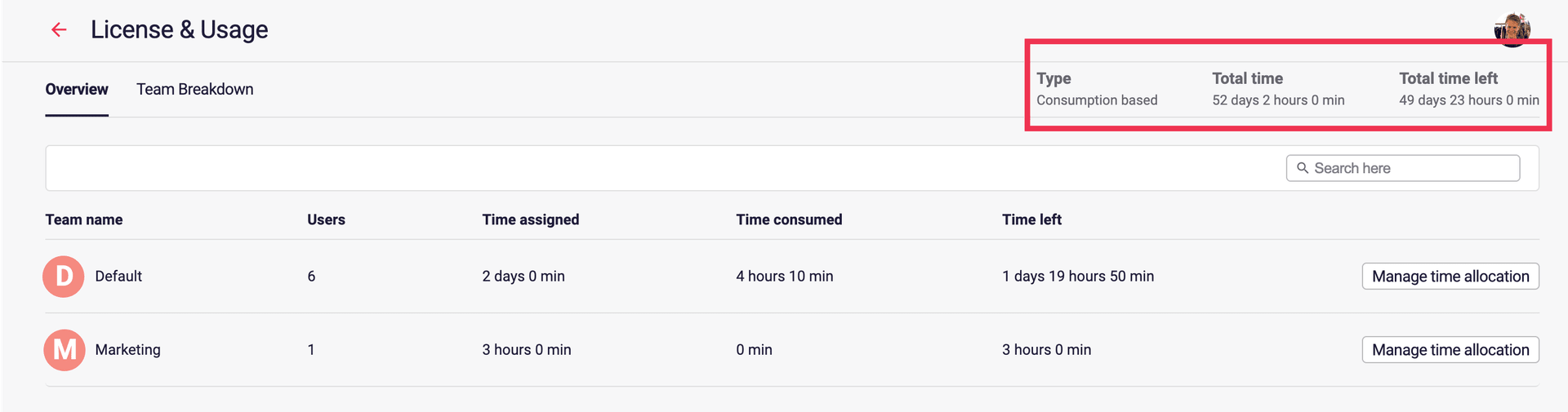
The Allocation by license team table lists the teams and their time usage.
-
Team details include the: number of users in a team, the time assigned, time consumed, and time left.
-
Use the Search field, or scroll down to view the team details.
-
Click the Manage time allocation button to amend the allocation.
Viewing Team Credit usage
Section titled “Viewing Team Credit usage”-
Click Administration from the Astrato homepage, and click License & Usage.
-
Scroll to the Usage breakdown table on the same page.
-
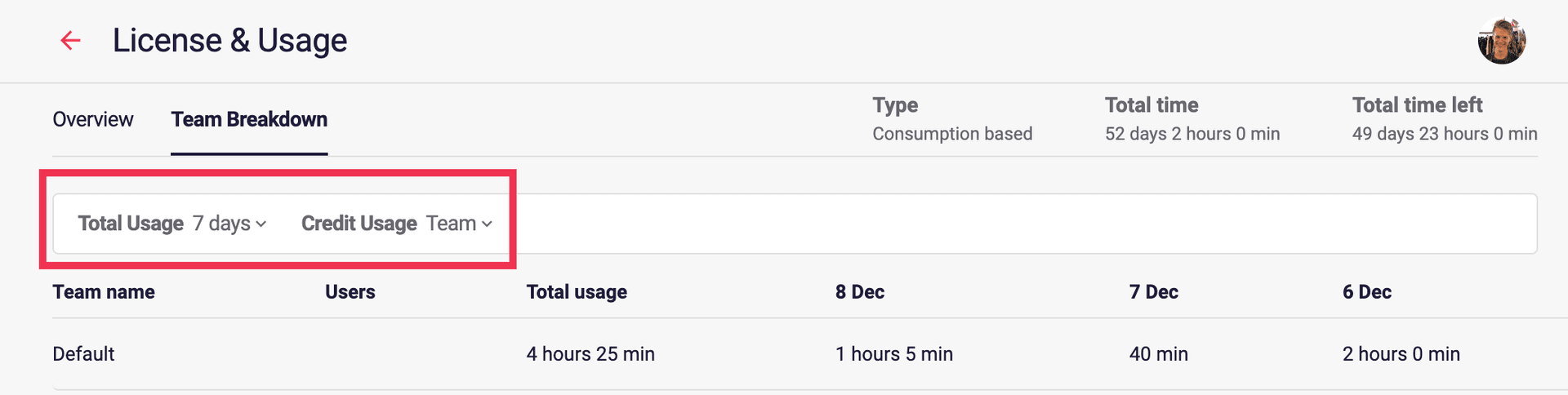
From the Total usage dropdown list, click to view the list of predefined periods. The options include the past: 7 days, 30 days, 3 months, and 6 months.
-
Set Credit usage to Team for one row per license team, or User for one row per user. The total usage is displayed as well as split by day or month depending on the option selected.
Reallocating time
Section titled “Reallocating time”-
In the Allocation by license team table, find the team you need to reallocate time.
-
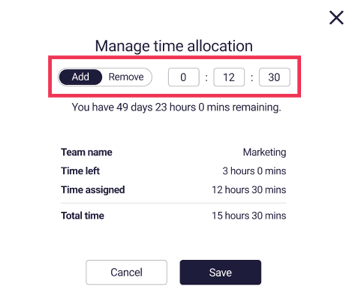
Click the Manage time allocation button; the dialog displays the unassigned time and the team’s time left.
-
Enter the change in minutes: a positive number adds time from the unassigned balance, a negative number returns unused team time. Changes must be non-zero multiples of five minutes; you can also use + and − to step by five minutes.
-
Click Save allocation to complete the time allocation.