

License and usage
Open Administration → License & Usage as a workspace owner or administrator. The existing
/sle/administration/license-and-usage link remains available. Once your deployment supports the
new URL layout, you can also use /web/administration/license-and-usage.
Understand your balance
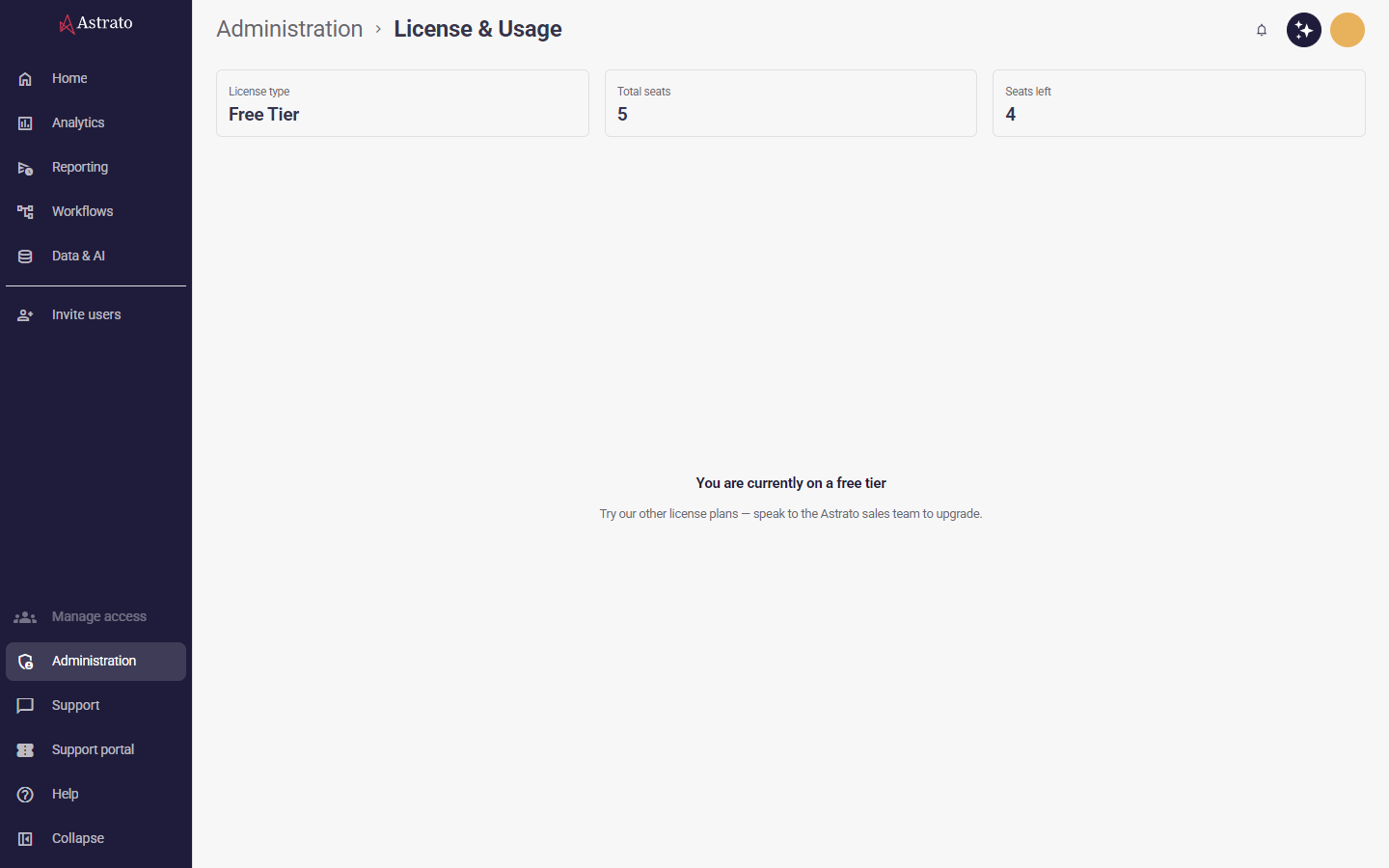
Section titled “Understand your balance”The summary shows your license type and the entitlements appropriate to that type:
- Total time is the workspace’s time entitlement. Time not assigned has not yet been allocated to a license team. Each figure also shows the equivalent credits; one credit provides five minutes of usage.
- Total seats is the seat entitlement. Seats left subtracts active users for seat-based and free-tier licenses, or active seat-licensed users for hybrid licenses.
If the license details cannot be read, the page reports an error instead of calculating balances from incomplete or invalid values. Missing active-user counts leave Seats left unavailable.
On a seat-based plan every active user takes a seat; select Manage users to open the Users page. A free tier shows its seats only; contact Astrato sales to change plan.
Allocation by license team
Section titled “Allocation by license team”For consumption and hybrid licenses, the allocation table shows each team’s users, time assigned, time consumed and time left. Hybrid licenses also show the seats each team uses. Search by team name, and select a column heading to sort.
Allocate or return time
Section titled “Allocate or return time”Choose Manage time allocation on a license team. Enter a positive number of minutes to allocate time from the workspace’s unassigned balance, or a negative number to return unused team time, or use + and − to step in five-minute increments. Changes must be non-zero multiples of five minutes. The dialog previews the team’s time left after saving.
Select Save allocation to apply the change. You cannot allocate more than the unassigned balance or return time the team has already consumed. Astrato checks your permissions and the current balances when saving. If the request is refused, the entered change remains visible so you can correct it. A successful save reloads the workspace entitlement and team allocations.
Choose seats or time for each user
Section titled “Choose seats or time for each user”On a hybrid license, choose Manage team users on a license team to list its users. For each active user, set License type to Seats or Time. A user can take a seat only while one is free, and disabled or pending users cannot be changed. If Astrato refuses a change, the reason appears on that user’s row.
Read the usage breakdown
Section titled “Read the usage breakdown”The Usage breakdown table shows time used over Total usage: 7 days or 30 days in daily columns, or 3 months or 6 months in monthly columns. Columns use UTC calendar dates, newest first.
Set Credit usage to Team for one row per license team, or User for one row per user. In the user view, the Team filter narrows the rows to one license team; it matches team names containing the chosen name. Sort by team name, user name or total usage, and use Previous and Next to page through teams or users.
If the breakdown cannot be read, the page says so and offers a reload; it does not show a failed request as zero usage. The allocation remains available when the breakdown fails.