Events (Triggers)
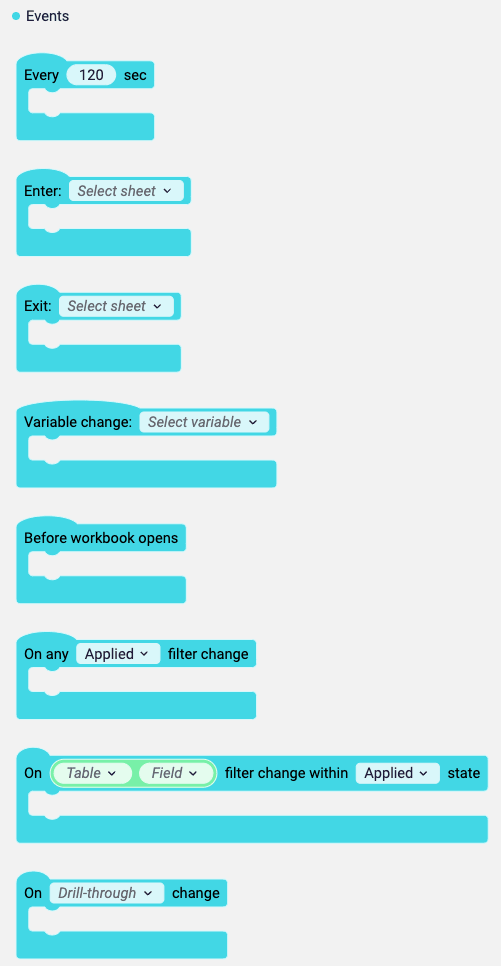
An event block is a trigger: it runs the blocks attached inside it when something happens in the workbook, without the user clicking a button. Use one to refresh data on a timer, set up a sheet when the user arrives on it, react when a filter or variable changes, or set values before the workbook renders.
This page describes eight of the blocks in the Events category:
None of these blocks runs in reports. Each section says whether the block runs in embeds.
Every [Number of seconds] sec
Section titled “Every [Number of seconds] sec”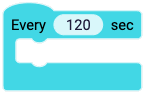
The Every [Number of seconds] sec block runs the blocks attached inside it repeatedly, at an interval you set in seconds. It is placed with an interval of 120 seconds; change the number to change the interval. Use a whole number of 2 or more: decimals are dropped, so 2.9 runs every 2 seconds, and an interval of 1 or less means the block does not run. This is useful for periodic tasks such as refreshing data or updating objects.
Configuration
Section titled “Configuration”| Inputs | Description |
|---|---|
| Number of seconds | The interval between runs, in seconds. |
| Child blocks | The blocks to run at each interval. |
Drag the block to the workspace and attach the blocks you want to run at each interval inside the Every block.
Supports
Section titled “Supports”| Feature | Support |
|---|---|
| Embeds | Yes |
| Reporting | Not supported |
Enter [Sheet]
Section titled “Enter [Sheet]”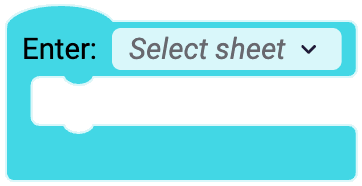
The Enter [Sheet] block runs the blocks attached inside it when the user navigates to the selected sheet. This is useful for setting up content or settings when a sheet becomes active.
Configuration
Section titled “Configuration”| Inputs | Description |
|---|---|
| Sheet | The sheet to react to. Choose Any sheet to run the blocks whenever the user enters any sheet. |
Select the sheet from the dropdown menu. Attach the blocks you want to run on entering the sheet.
Supports
Section titled “Supports”| Feature | Support |
|---|---|
| Embeds | Yes, workbook embeds only. |
| Reporting | Not supported |
Exit [Sheet]
Section titled “Exit [Sheet]”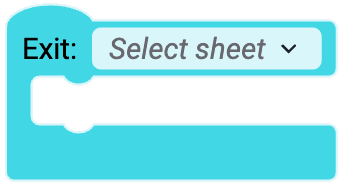
The Exit [Sheet] block runs the blocks attached inside it when the user navigates away from the selected sheet. The attached blocks finish before the user leaves the sheet, which makes the block useful for cleanup tasks or saving state.
Configuration
Section titled “Configuration”| Inputs | Description |
|---|---|
| Sheet | The sheet to react to. Choose Any sheet to run the blocks whenever the user leaves any sheet. |
Select the sheet from the dropdown menu. Attach the blocks you want to run on leaving the sheet.
Supports
Section titled “Supports”| Feature | Support |
|---|---|
| Embeds | Yes, workbook embeds only. |
| Reporting | Not supported |
Variable change [Variable]
Section titled “Variable change [Variable]”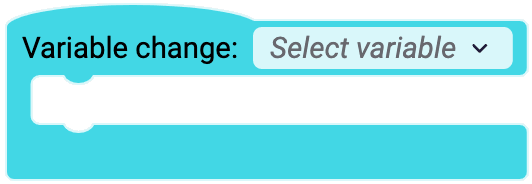
The Variable change [Variable] block runs the blocks attached inside it when the selected variable’s value changes. For creating variables, see Creating variables to use with objects.
Configuration
Section titled “Configuration”| Inputs | Description |
|---|---|
| Variable | The variable to react to. |
Select the variable from the dropdown menu. Attach the blocks you want to run when the variable changes.
Supports
Section titled “Supports”| Feature | Support |
|---|---|
| Embeds | Yes |
| Reporting | Not supported |
Before workbook opens
Section titled “Before workbook opens”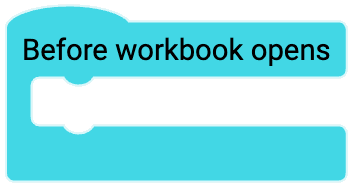
The Before workbook opens block runs the blocks attached inside it before the workbook opens. Use it to set up conditions, or to load or write back data, before the workbook renders and the user starts interacting with it.
Configuration
Section titled “Configuration”Attach the blocks you want to run before the workbook opens, such as filtering, working with data and setting variables.
Supports
Section titled “Supports”| Feature | Support |
|---|---|
| Embeds | Yes |
| Reporting | Not supported |
On any [Applied/Pending] filter change
Section titled “On any [Applied/Pending] filter change”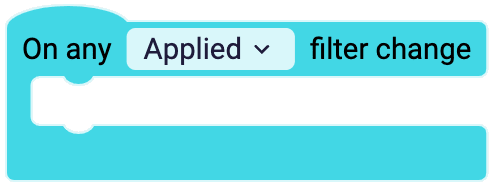
The On any [Applied/Pending] filter change block runs the blocks attached inside it whenever any filter changes in the selected state, applied or pending. This is useful for updating objects or recalculating values when filters change.
A filter change includes adding or removing a filter value, or other changes to the filter, such as inverting it.
Configuration
Section titled “Configuration”| Inputs | Description |
|---|---|
| Filter state | Applied: the filter change is applied and affects the data. Pending: the filter change has been made but not yet applied. |
Attach the blocks you want to run when any filter changes in the selected state.
Supports
Section titled “Supports”| Feature | Support |
|---|---|
| Embeds | Yes |
| Reporting | Not supported |
On [Table].[Field] filter change within [Applied/Pending] state
Section titled “On [Table].[Field] filter change within [Applied/Pending] state”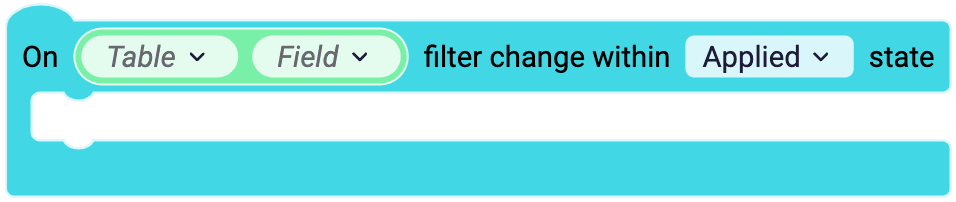
The On [Table].[Field] filter change within [Applied/Pending] state block runs the blocks attached inside it when the filter on one field changes in the selected state, applied or pending.
A filter change includes adding or removing a filter value, or other changes to the filter, such as inverting it.
Configuration
Section titled “Configuration”| Inputs | Description |
|---|---|
| Table - Field | Select the table in the semantic layer that contains the field to react to, then the field. The input takes text, so the Table.Field block can be replaced with any block that outputs the name as text, such as Marketing Table.Traffic Source. |
| Filter state | Applied: the filter change is applied and affects the data. Pending: the filter change has been made but not yet applied. |
Select the table and field from the dropdown menus. Attach the blocks you want to run when the filter on that field changes.
Supports
Section titled “Supports”| Feature | Support |
|---|---|
| Embeds | Yes |
| Reporting | Not supported |
On [Drill-through] change
Section titled “On [Drill-through] change”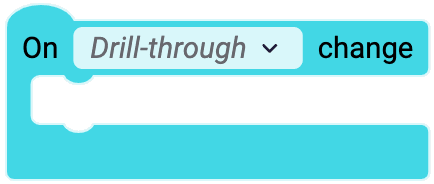
The On [Drill-through] change block runs the blocks attached inside it when the active field of the selected drill-through dimension changes. Use it to show detailed data in a popup or to move to a more detailed view for the new field. Drill-through dimensions are described in Drill-Down and Drill Through Dimension Actions.
Configuration
Section titled “Configuration”| Inputs | Description |
|---|---|
| Drill-through | The drill-through dimension to react to. |
Attach the blocks you want to run when the active field changes.
Supports
Section titled “Supports”| Feature | Support |
|---|---|
| Embeds | Yes |
| Reporting | Not supported |
What is an event block?
An event block is a trigger that runs the blocks attached inside it when something happens in the workbook: a timer fires, the user enters or leaves a sheet, a variable or filter changes, the workbook is about to open, or a drill-through changes. Drag an event block onto the Actions workspace and attach the blocks you want to run; they run whenever the event occurs.
How is an event block different from a regular action?
A regular action runs when the user does something, such as selecting a button. An event block runs without a user action: on a timer, on a change of state, or when the workbook opens. You build both in the same Actions editor; the event block is the trigger at the top of the stack.
Can I use event blocks in an embedded workbook?
Yes. Enter [Sheet] and Exit [Sheet] run in workbook embeds only; the other blocks on this page run in all embeds, as each block’s Supports table shows. None of them runs in reports. To see what happens when an action runs, see Debugging Actions in Astrato.