Create a Snowflake semantic view
If your semantic layer uses a Snowflake connection, you can download the SQL that creates the same model as a semantic view in your Snowflake account. Astrato does not run anything in Snowflake: you review the SQL and run it yourself. Downloading the SQL does not use Nash or any AI credits.
Before you start
Section titled “Before you start”- The semantic layer must use a Snowflake connection. The export does not appear for other connections or for local files.
- Resolve any validation errors in the semantic layer. You do not need to publish: the SQL is generated from the current draft.
- In the Dev tab, apply or reset any edits you have typed. The export fails while the editor has unapplied changes.
Download the SQL
Section titled “Download the SQL”-
Open the semantic layer and select the Dev tab.
-
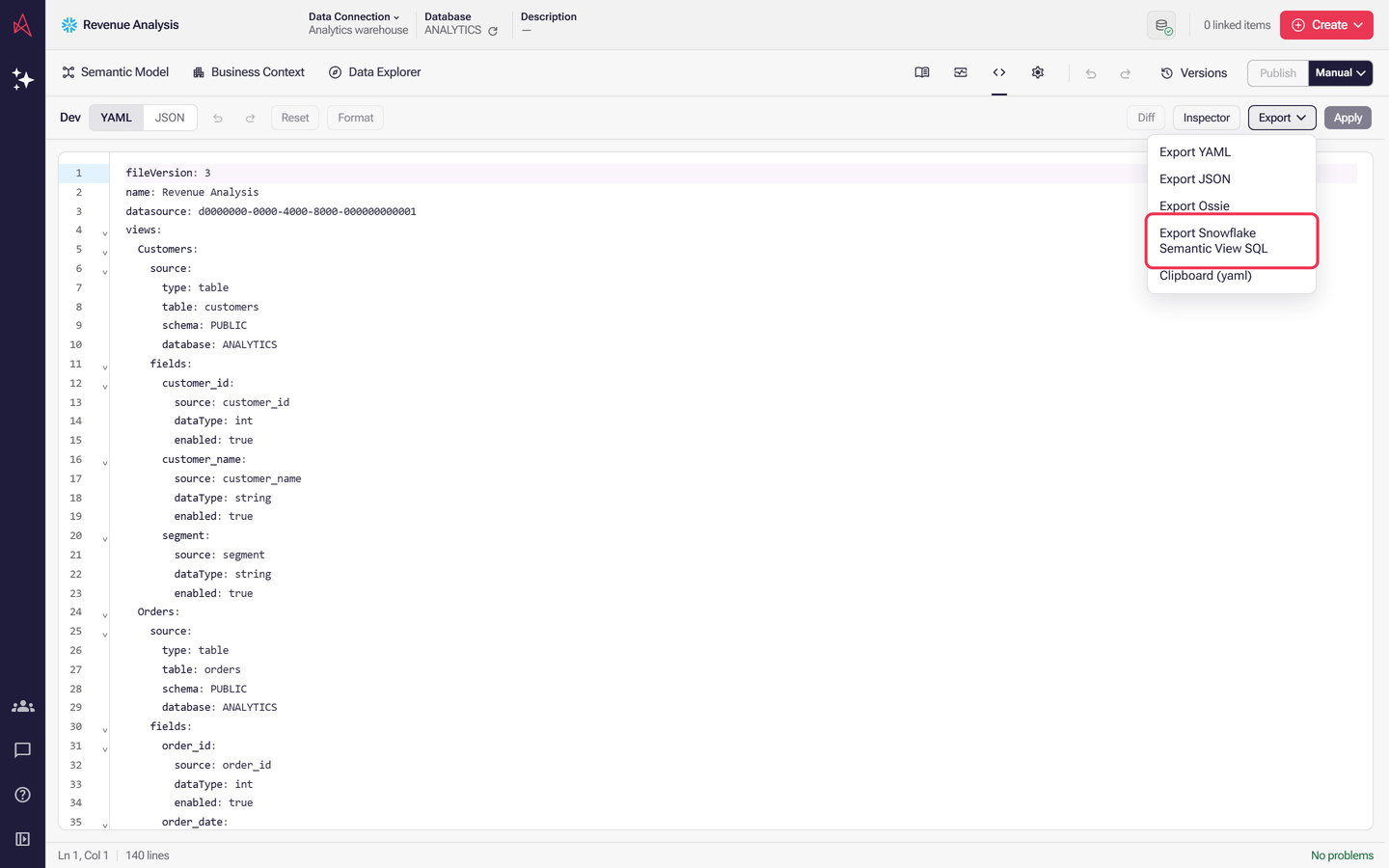
Open Export in the toolbar and select Export Snowflake Semantic View SQL.
-
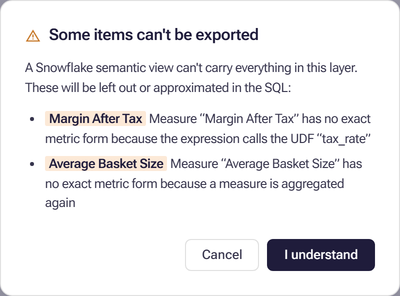
If anything in the layer has no exact Snowflake form, Some items can’t be exported lists it. Select I understand to continue, or Cancel to stop without a file. The dialog lists up to 40 items and then says how many more were not shown; the script’s header comment has the complete list.
-
Your browser downloads a
.sqlfile named after your semantic layer.
By default the semantic view is created in your connection’s default database and schema and named
after your semantic layer. If the connection has no default database or schema, the semantic view
uses the one of the first table in your semantic layer. To use a different database, schema or name,
edit the CREATE SEMANTIC VIEW statement in the script before you run it, and change any other
statement that refers to the same database, schema or name. Some scripts create supporting views
before that statement.
If the connection names no default database or schema and your tables do not supply one — a layer built only from SQL or inline tables, for example — nothing downloads and the export fails with “Name the Snowflake database and schema to create the semantic view in: the connection has no default and the tables do not agree on one”. The Dev tab has no field for a target.
Nash, or an assistant connected over MCP, can generate the same script, already targeted at the database, schema and name you give it. See Author a semantic layer over MCP.
Definitions travel with the view
Section titled “Definitions travel with the view”Descriptions you wrote in Astrato become comments on the matching tables, dimensions, and measures in the semantic view. The script also lists every described dimension and measure under Definitions in the semantic view’s own comment, after the semantic layer’s description. The definitions are then available in Snowflake as part of the view, and nothing extra is created in your schema. If the glossary is very long, the last entries are left out of the comment; the per-item comments are always kept.
Run it in Snowflake
Section titled “Run it in Snowflake”The script’s header comment includes a link to your Snowflake account when the connection records one. Run it with a role that can create semantic views in the target schema and read the tables the script lists.
- Open a worksheet and paste or open the script.
- Run every statement in order, for example with Run All in Snowsight. Some scripts create supporting views first, and the semantic view depends on them.
What is left out
Section titled “What is left out”Snowflake semantic views cannot express everything a semantic layer can, such as period comparisons, bucket dimensions, row filters on tables and some advanced measures. The script includes everything that has an exact Snowflake form. Anything that does not is left out, and the script’s header comment lists each item that was left out.
Business questions are left out too: they would become the view’s verified queries, which need SQL written against the view’s own tables. They appear in the header comment. Add them yourself, or ask Nash to write them from the semantic layer.
To keep the semantic view in step with your semantic layer, download the SQL again after you make changes and run the new script.
What next
Section titled “What next”- Import a Snowflake semantic view — bring a semantic view the other way, from Snowflake into a semantic layer.
- When an imported Snowflake view changes — what happens to a layer when the view it came from moves on.