

Managing Workbooks
Introduction
Section titled “Introduction”This article shows you how to anage Astrato workbooks using the modern Workbook Life-Cycle experience, including drafts, versions, publishing, rollback, collections, and environments.
Astrato workbooks support built-in versioning, allowing teams to safely develop, test, publish, and restore workbook changes without creating duplicate workbooks or losing history.
Workbook Display
Section titled “Workbook Display”Workbooks display their Name, Description, Creation Date, and current workbook status.
When hovering over a workbook tile:
-
Draft workbooks display:
-
Preview
-
Edit
-
-
Published workbooks display:
-
View
-
Edit
-
The Options menu can be opened from the three dots in the top-right corner of the workbook tile. If a workbook contains multiple versions, a version history icon appears beside the workbook name.
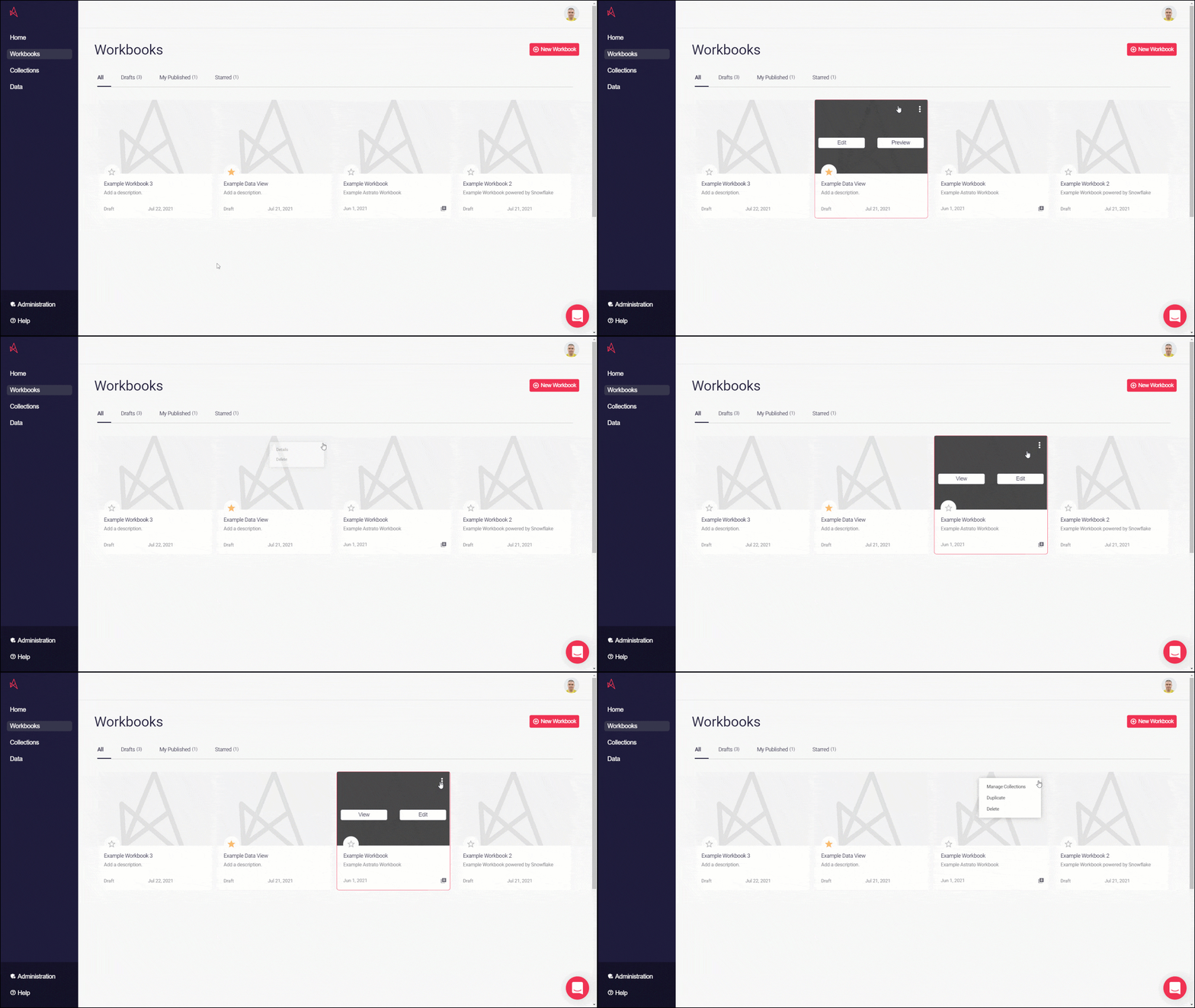
Figure 1: Workbook Display
Back to Top
Starred Workbook, Edit and Preview/View
Section titled “Starred Workbook, Edit and Preview/View”-
Click the star icon to add a workbook to your starred workbooks for faster access.
-
Click Edit to open the workbook draft for editing.
-
Click Preview to preview the current draft experience.
-
Click View to open the published version of the workbook.
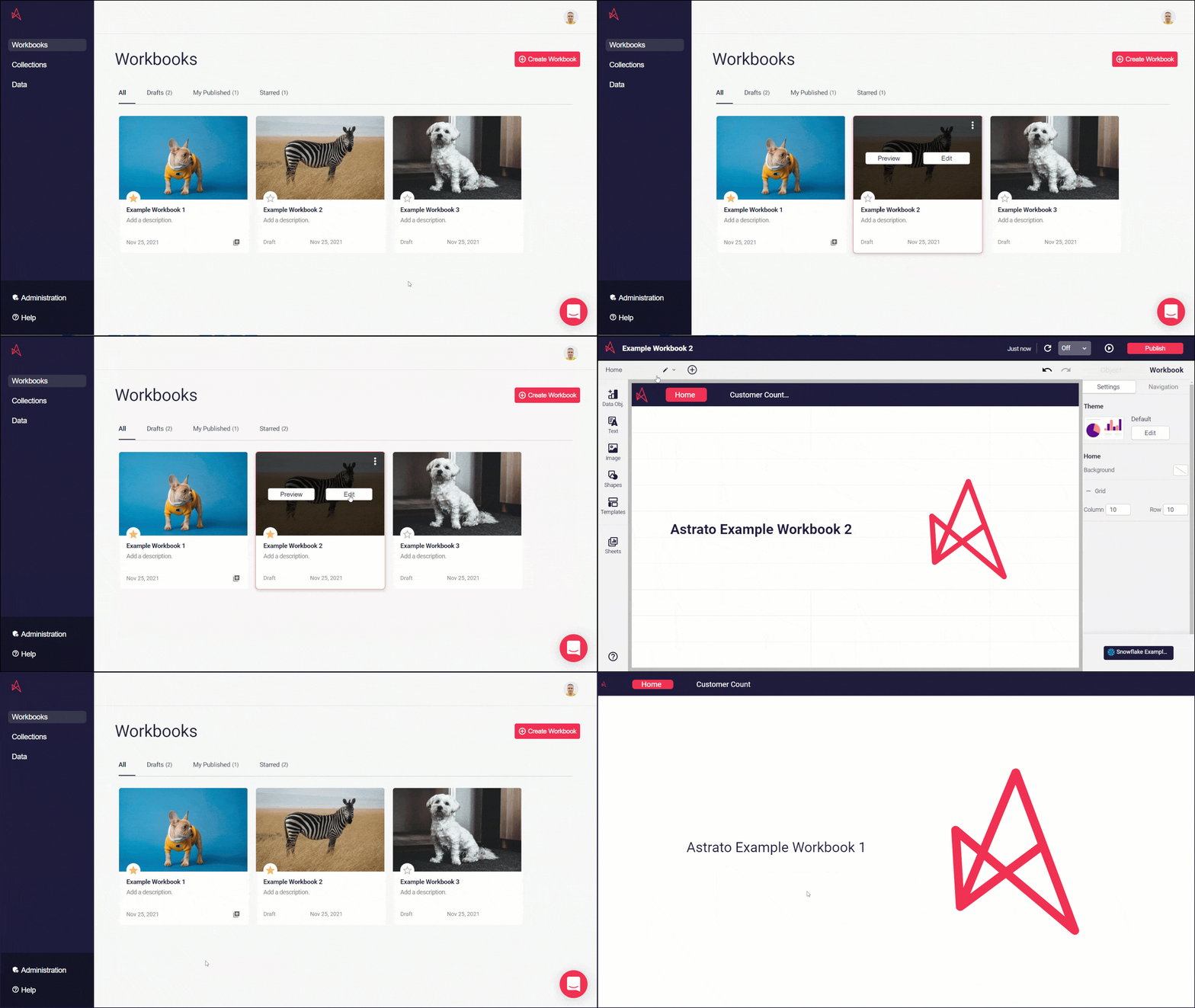
Figure 2: Starred, Edit and Preview/View
Back to Top
Options Menu
Section titled “Options Menu”If you click the 3 dots in the top right, you’ll open the Options menu (Figure 3). You’ll find some options can only be used when the workbook is in a certain state. Draft workbooks have these options available.
-
Details opens the details settings, where you can edit the workbook name, description, and upload an image for the workbook logo.
-
Delete opens a dialog where you’ll be asked to confirm you want to delete. The deleted workbook will no longer be displayed.
If the workbook has been published, you’ll see a different set of options.
-
Manage Collections opens the settings where you can add or remove the workbook from a collection, and also create a new collection.
-
Duplicate creates a copy of the original workbook. Only published workbooks can be duplicated.
-
Delete opens a dialog where you’ll be asked to confirm you want to delete. The deleted workbook will no longer be displayed.
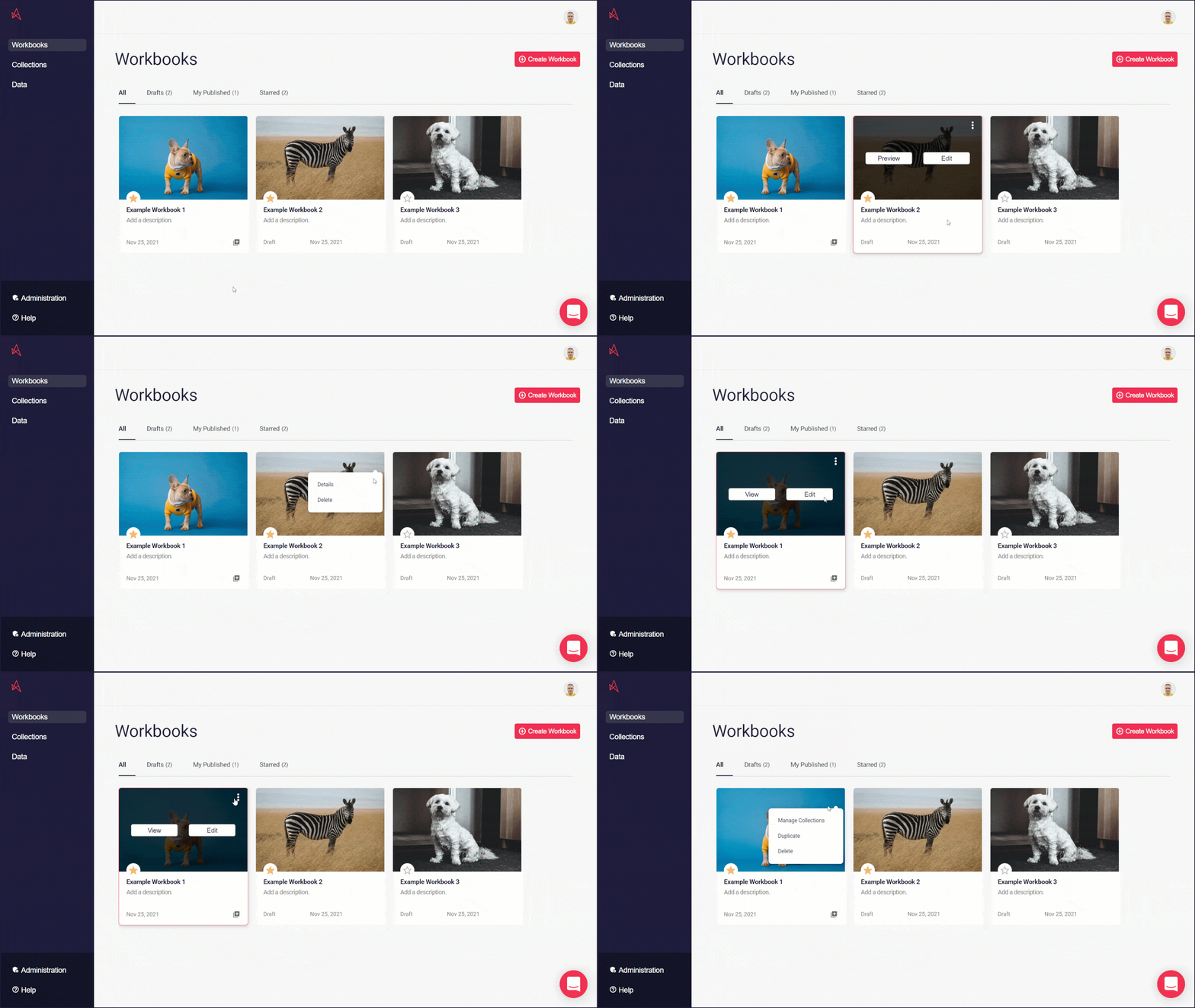
Figure 3: Options Menu
Back to Top
Workbook Versions
Section titled “Workbook Versions”Astrato includes Workbook Life-Cycle Versioning, allowing creators to safely manage workbook changes over time.
To access workbook versions:
-
Open the workbook in Edit mode.
-
Click the clock/version icon in the top toolbar.
-
The version history panel opens on the side.
The version panel includes:
-
Current draft
-
Historical versions
-
Published version
Working with Drafts
Section titled “Working with Drafts”The workbook draft is the active editable version of the workbook.
Available actions include:
-
Save as version
-
Name this version
-
Create a new workbook
Saving versions allows teams to checkpoint changes before publishing or experimenting with updates.
Working with Historical Versions
Section titled “Working with Historical Versions”Historical versions are stored snapshots of previous workbook states.
Available actions include:
-
Restore this version
-
Rename version
-
Move version to another workbook
-
Create a new workbook
-
Remove version
Restoring a version applies it back to the draft so users can continue development from a previous state.
Published Versions
Section titled “Published Versions”Published versions appear directly inside the version history panel.
Available actions include:
-
Restore published version
-
Rename version
-
Move version
-
Unpublish workbook
-
Create a new workbook
This allows teams to safely rollback production content if issues are discovered after publishing.
Publishing a Workbook
Section titled “Publishing a Workbook”When publishing a workbook, users can select which version to publish.
This allows teams to:
-
Develop safely in draft mode
-
Publish approved versions only
-
Maintain a clean production workflow
-
Rollback quickly if needed
Astrato supports unpublishing and republishing workbooks without losing version history.
Rollback & Recovery
Section titled “Rollback & Recovery”Published workbooks support rollback directly from the workbook tile menu.
Rollback allows users to:
-
Restore a previous published version
-
Recover from breaking changes
-
Reduce production risk
-
Safely experiment in drafts
Rollback history is available directly from the workbook management experience.
Workbook Duplication
Section titled “Workbook Duplication”Workbook versions or drafts can be duplicated using:
Version Menu → Create New Workbook
Duplicating creates a completely separate workbook with its own URL and publishing flow.
Versions can also later be moved between workbook trees to re-link development history if required.
Collections & Environments
Section titled “Collections & Environments”Astrato environments can be managed using Collections.
Common examples include:
-
DEV
-
UAT
-
PROD
This allows organizations to:
-
Separate development and production content
-
Manage governed releases
-
Maintain clear workbook ownership
-
Reduce accidental production changes
Recommended setup:
-
One Data View per environment
-
Shared governed semantic layers
-
Separate collections for each lifecycle stage
Example:
-
Sales_DEV
-
Sales_UAT
-
Sales_PROD